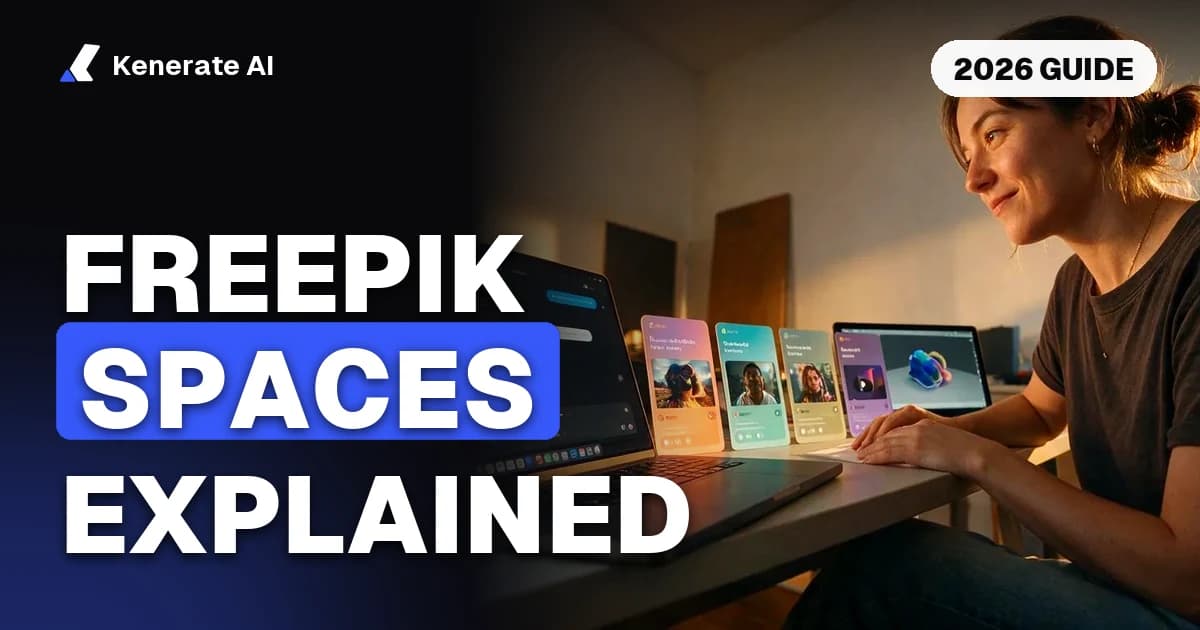
Freepik Spaces is a node-based infinite canvas for building AI image and video workflows: you drop prompt, generator, editing and assistant nodes onto a board, wire them together and run the whole chain, alone or with teammates in real time. It launched in November 2025 inside Freepik's AI suite, and since Freepik renamed itself Magnific on 28 April 2026 it lives on magnific.com, where it is simply called Spaces. This guide explains how it works, what it costs to start, who it suits, and the alternatives worth a look, as of 22 October 2026.
What is Freepik Spaces, in plain words?
Think of Spaces as a whiteboard where every sticky note is an AI step. Instead of typing one prompt into one generator, you build a small production line:
- a Text node holds your prompt,
- an Image Generator node turns it into pictures,
- a Video Generator node animates one of those pictures,
- an upscaler node sharpens the final frame,
- and connectors carry each output into the next step.
Change the prompt at the start, re-run, and every downstream step updates. That is the whole idea of a node workflow: you design the process once and reuse it, instead of copying and pasting between tabs.
Freepik announced Spaces in early November 2025 as part of its AI Creative Suite, available to all users on desktop and mobile (Business Wire, Nov 2025). The headline features were real-time collaboration on one canvas, comments tied to specific nodes or frames, and automation through templates, triggers and an API.
Is Freepik Spaces now called Magnific?
Yes. On 28 April 2026 Freepik consolidated its products under the Magnific name (Magnific was the AI upscaler startup Freepik bought in May 2024). Logins, subscriptions and saved Spaces moved to magnific.com, and old Freepik Spaces links redirect. According to a write-up of the rename by Wireflow, the canvas, the models and saved workflows kept working as before; what changed was the name, the domain and the plan line-up (Wireflow, 2026). People still search "Freepik Spaces", which is why we use both names here.
How does Freepik Spaces work?
Which nodes can you use?
Magnific's own documentation groups the nodes into a few families (Magnific docs: Nodes & connections):
| Node family | What it does | Typical use |
|---|---|---|
| Text | A source node with no inputs; holds a prompt or notes, supports lists and @mentions of other nodes | One prompt feeding several generators |
| Image Generator | Text-to-image or reference-to-image; you choose the model, aspect ratio and how many images per run | Concept frames, product shots, key art |
| Video Generator | Text- or image-to-video with model, duration, aspect ratio, resolution and output count | Animating a chosen frame |
| Editing / upscaling | Edits and Magnific upscaling of an upstream image | Final polish before export |
| Assistant | An AI helper that adapts to whatever you connect to it, for example suggesting prompts | Brainstorming and prompt rewrites |
| Utilities | Lists, sticky notes, stickers and groups | Organising a big board |
A single Text node can feed both an Image Generator and a Video Generator, so one prompt can produce a still and a clip in the same run (Magnific docs: Text nodes).
How do you build your first Space? (step by step)
- Open Spaces from the AI suite menu on magnific.com (it was under "All tools" on Freepik).
- Start from a template. The docs list two getting-started templates: one for creating images and one for your first video. They show the wiring before you build your own.
- Add a Text node and write the prompt: subject, setting, light, camera, style.
- Connect it to an Image Generator, pick a model and an aspect ratio, and run it. Keep 2–4 outputs so you have options.
- Connect the best image to a Video Generator, set duration and resolution, and run.
- Add an upscaler or editor at the end if the frame needs it.
- Share or duplicate the Space. Teammates can comment on specific nodes, and you can reuse the same chain for the next product or scene by swapping the first node.
What is it good at?
- Repeatable pipelines. A campaign that needs the same look across 20 products is a good fit: build the chain once, swap the input.
- Team review. Comments sit on the node or frame they refer to, which beats screenshots in a chat thread.
- One place for many models. You can compare outputs from different image and video models side by side on one board.
- Stock plus AI. Magnific still includes the Freepik stock library, so a designer can mix stock assets with generated ones.
Where does it fall short?
- Learning curve. Nodes are powerful but slower than a prompt box for a single image. If you only need one picture, the canvas is overhead.
- Less raw control than local tools. Krea, a direct competitor, argues that Spaces leans toward stock-asset integration over fine model control, which may frustrate technical users (Krea, Nov 2025). Treat that as a rival's view, but it matches how Spaces compares with something like ComfyUI, where you control samplers, LoRAs and every parameter.
- Plan-based credits. Credits come with a monthly or annual plan, so heavy video use means watching your balance.
Is Freepik Spaces free?
You can start for free. Both Krea's comparison and Wireflow's write-up say the free plan allows up to 3 Spaces, with generations limited by the free plan's daily allowance. Anything beyond that, including most video and premium image models, uses credits from a paid Magnific plan. Prices are localised and the plan line-up changed with the April 2026 rename, so check magnific.com/pricing in your region rather than trusting a number in a blog post (including this one). Our Freepik alternative page compares Magnific's credit rules with Kenerate's.
Who should use Freepik Spaces?
| You are… | Spaces fits? | Why |
|---|---|---|
| A design or marketing team producing many variants | Yes | Reusable chains plus node comments speed up review |
| Already paying for Freepik / Magnific stock | Yes | Stock and AI share one subscription |
| A solo creator who wants one image or one clip | Not really | A prompt box is faster than wiring nodes |
| A technical user who wants LoRAs, samplers and custom checkpoints | Not really | ComfyUI or a hosted ComfyUI gives deeper control |
| Someone who wants a full multi-shot video planned for them | Partly | You can build it, but you plan every shot yourself |
What are the best Freepik Spaces alternatives?
Node canvases became a category in 2025–2026. Here is how the main options differ, as of 22 October 2026:
| Tool | Approach | Best for | Notes |
|---|---|---|---|
| Magnific (Freepik) Spaces | Node canvas in the browser | Teams, stock + AI, reusable chains | Free plan up to 3 Spaces; credits via plan |
| Krea Nodes | Node canvas in the browser | Creators already using Krea's real-time tools | Krea's own comparison positions it against Spaces |
| ComfyUI | Open-source node graph, local or hosted | Maximum control: checkpoints, LoRAs, custom nodes | Free locally; needs a GPU or a hosted plan |
| Kenerate Agent | Chat: describe the job, the agent plans and runs the steps | Getting a finished result without wiring nodes | Shows a plan before multi-step paid jobs |
| Kenerate Director | Chat-driven film planner with shot list and per-shot credits | Multi-shot videos with consistent characters | Paid plans |
When is a chat agent better than a node canvas?
A node canvas makes you the planner. A chat agent plans for you. On Kenerate, the Kenerate Agent at /app/chat takes a plain-language request ("a 3-shot product teaser for a ceramic mug, warm morning light, with music") and creates with the same tools as the studios: images and edits, video clips, music, voiceovers, talking avatars, 3D models and documents. For a job with three or more paid steps, it shows the plan first and waits for your approval, then runs the steps in order and can join the clips, music and voiceover into one video.
There is no node graph to maintain, which is the trade-off: you get speed and less setup, but you don't get a visual diagram to tweak node by node. If you like to see and edit every step, a canvas is still the better mental model.
What about multi-shot video?
Spaces can chain image and video nodes, but you build the shot list by hand. Kenerate's Director (paid plans) works the other way round: you describe a film, trailer, music video or ad, and it writes the script, splits it into scenes and shots with a prompt, length, camera setting and dialogue for each, and shows the credits for every shot before anything renders. You edit, reorder or delete shots, approve, and it renders with consistent characters and locations. Our AI storyboard generator page shows the planning step in detail.
What about deep control without nodes in the cloud?
If what you like about nodes is control over open models, ComfyUI itself stays the most flexible option, and our page lists the hosted and simpler alternatives. If you want the open models without the graph, Kenerate runs Flux 2, Qwen Image, Z-Image, HiDream and Wan in the browser.
How does Kenerate compare with Spaces on pricing and models?
These are Kenerate's figures from our own pricing and model configuration, as of 22 October 2026:
| Magnific Spaces | Kenerate | |
|---|---|---|
| Interface | Node canvas | Studios (image, video, music…) plus chat Agent and Director |
| Image models | Many, incl. in-house Mystic and third-party models | 80+ image models in one prompt box |
| Free start | Free plan, up to 3 Spaces | Starter credits on sign-up; free-plan models such as Flux 2 Dev (3 credits an image) and Qwen Image |
| Paid | Monthly or annual plans | Credit packs from $15 for 1,300 credits; on Creator ($29, 2,700 credits) and up, credits never expire |
| Collaboration | Real-time co-editing, node comments | Shareable results and Director share links; no shared live canvas |
| Stock library | Yes | No |
The honest summary: if your team lives on a shared canvas and uses stock assets, Spaces is the stronger tool. If you work alone, want results from a sentence and dislike monthly credit resets, a prompt box or chat agent is quicker. For a broader comparison of browser tools, see our Krea AI alternative guide, and for animating a single picture without any workflow, use image to video AI.
Tips for getting more out of a node workflow
Whichever tool you pick, these habits carry over:
- Keep the prompt in one source node. One Text node feeding every generator means one place to edit.
- Generate stills before video. Video costs more per run; lock the frame first, then animate it.
- Name and group nodes. Big boards get messy fast; groups and sticky notes are there for a reason.
- Version by duplicating. Duplicate a Space before a big change instead of rewiring the original.
- Upscale last. Upscaling every intermediate image wastes credits; do it on the keeper.
- Write the brief down. A short note on the canvas (audience, format, deadline) keeps teammates aligned.
Sources
- Freepik launches Freepik Spaces (Business Wire, November 2025)
- Magnific docs: Nodes & connections
- Magnific docs: Text nodes
- Krea: Freepik Spaces vs. Krea Nodes (competitor view, November 2025)
- Wireflow: Freepik Spaces is now Magnific (2026)
Updated 22 October 2026. Magnific's plans and limits change often; check magnific.com before you buy.