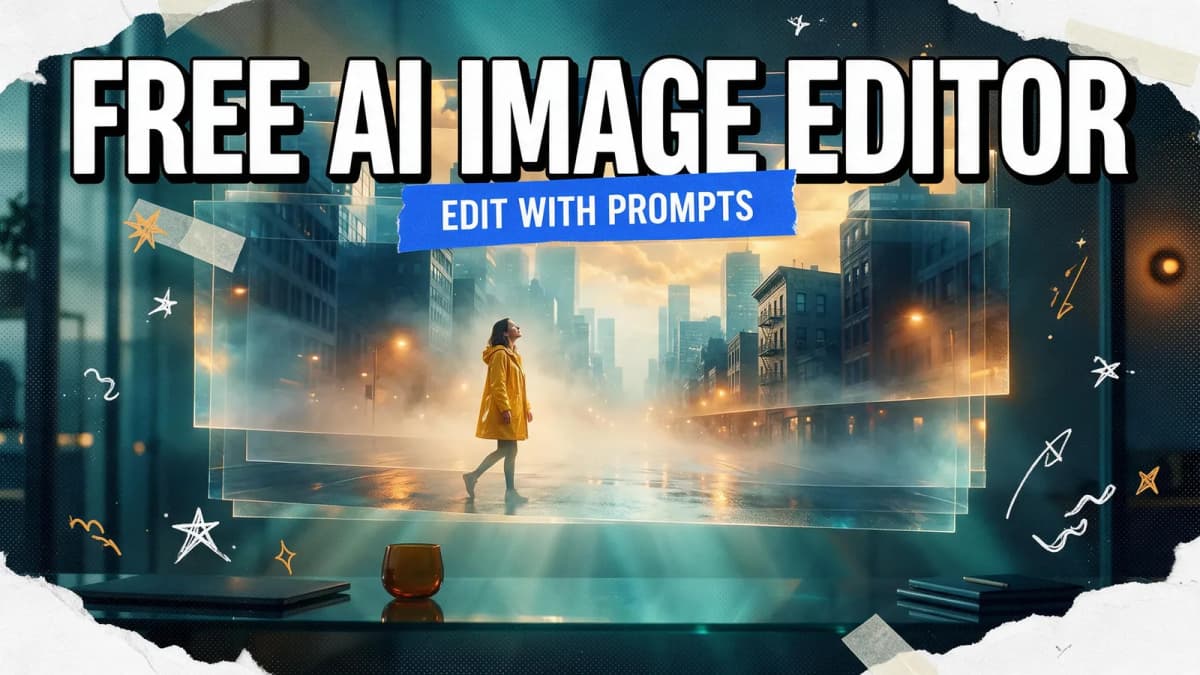
A free AI image editor lets you change a photo by describing the edit or tapping one button: remove a background, erase an object, swap a scene, relight a portrait or upscale a blurry shot. Good free options in 2026 include Kenerate AI (text-prompt edits, background removal, upscaling, layers and filters, with 25 free credits on sign-up), Photopea (free Remove BG and Magic Replace in the browser), Adobe Express (free daily Firefly generations) and Pixlr Editor (generative fill and object removal). Most free tiers limit how many AI edits you get, so pick by the edits you make most.
This guide is task-first. Instead of ranking apps, it walks through the six edits people actually use an AI image editor for, shows which free tool handles each one, and gives you prompts you can copy.
What a free AI image editor can do
Traditional editors make you do the work by hand: select, mask, clone, paint. An AI image editor understands what's in the photo, so you can ask for the result instead. The common jobs are:
- Background removal: cut out a person or product in one click.
- Object removal: erase people, wires, signs or clutter and fill the gap.
- Prompt-based edits: "make it sunset", "change her jacket to navy", "put the bottle on marble".
- Background replacement: move a subject into a new scene with matching light.
- Expanding the frame: turn a vertical photo into a wide banner.
- Upscaling and enhancing: sharpen and enlarge low-resolution images.
Best free AI image editors at a glance
| Tool | Where it runs | Free AI features | Free-tier limits |
|---|---|---|---|
| Kenerate AI | Browser | Text-prompt edits, background removal, upscaling, layers, filters | 25 free credits on sign-up; credits never expire |
| Photopea | Browser | Remove BG, Magic Replace, healing tools | Ad-supported; heavier AI use with Premium |
| Adobe Express | Browser, phone | Firefly features such as Insert & Remove Objects, background removal | Free daily generations |
| Pixlr Editor | Browser, mobile, desktop | Generative fill, object removal, background removal, upscaling, expand | AI uses credits; paid plans remove ads |
| Canva Free | Browser, desktop, mobile | Some AI tools, such as the Image Upscaler | Shared monthly AI allowance; Background Remover is paid |
| Snapseed | iOS, Android | Smart masking, healing, portrait tools (not generative) | Fully free, no ads |
The best free AI image editor for each task
1. Remove a background
Pick: Photopea's one-click Remove BG, Adobe's background remover (free with an Adobe account within daily limits, JPEG, PNG or WEBP up to 50 MB, per Adobe), or Kenerate's free AI background remover.
Note: on Canva, Background Remover is listed as a paid-plan feature.
Tip: test every tool on hair, fur and glass. Those edges separate good cutouts from bad ones.
2. Remove an object or person
Pick: for small blemishes, a healing brush (Photopea, Snapseed) is fast and free. For larger objects, use a generative tool: Adobe Express's Insert & Remove Objects, Pixlr's object remover, or a text prompt in Kenerate's Edit Studio. See our step-by-step guide on how to remove a person from a photo.
AI Prompt RecipeFlux.1 Pro16:9“Remove the two people standing behind the bench on the left. Fill the area with the same park lawn and trees. Keep the main subject, the light and the colors unchanged.”
3. Edit with a text prompt
This is where AI editors differ most from classic ones. You describe the change, and the model repaints only what it needs to. In Kenerate, prompt edits run on image models such as GPT Image 2, Nano Banana 2 and Seedream 5.0 Pro, so you can try the same instruction on more than one model and keep the best result. Photopea's Magic Replace and Pixlr's generative fill also work from text, inside a selection.
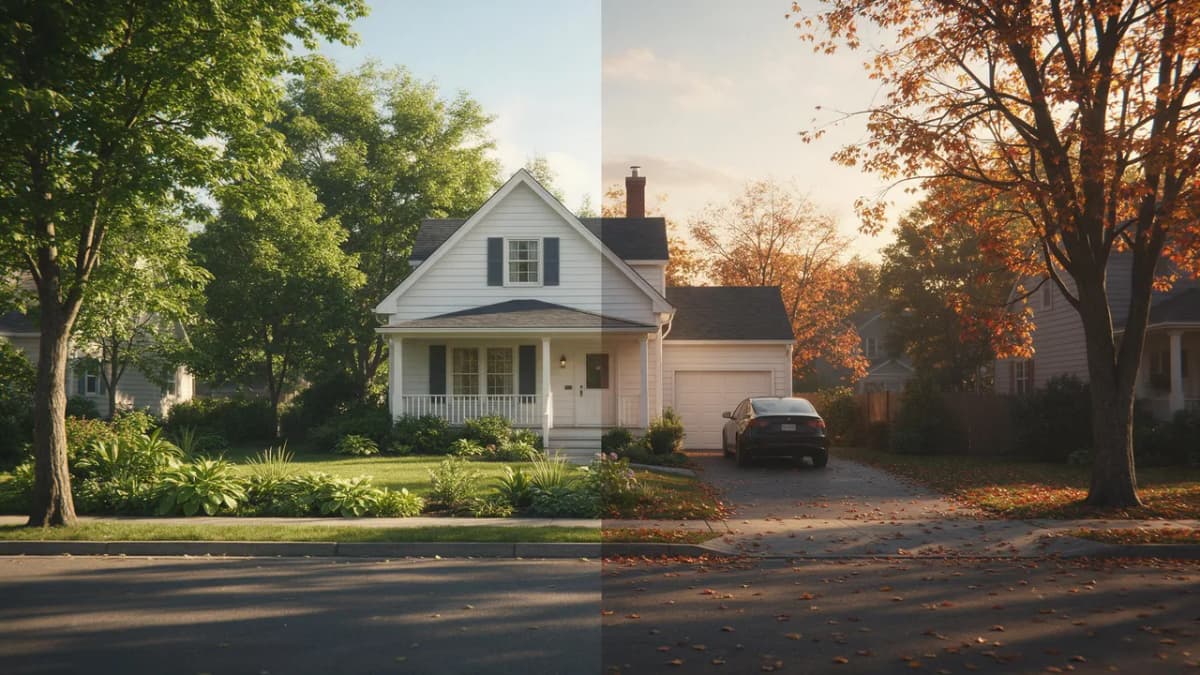
AI Prompt RecipeFlux.1 Pro16:9“Change the season to late autumn: orange and red leaves on the trees, a few leaves on the ground, softer warm light. Keep the house, the car and the people exactly as they are.”
AI Prompt RecipeFlux.1 Pro16:9“Change the color of the jacket to deep navy blue. Keep the fabric texture, folds and lighting identical. Do not change the face or background.”
4. Replace the background with a new scene
Pick: cut the subject out first, then describe the new scene. Product sellers use this for clean studio shots; creators use it for thumbnails.
AI Prompt RecipeFlux.1 Pro16:9“Place this perfume bottle on a slab of wet black marble with soft reflections. Dark charcoal background, a single warm spotlight from above, subtle mist. Keep the bottle's shape, label area and color exactly the same.”
5. Expand a photo to a new aspect ratio
Pick: Pixlr lists generative expand, and prompt-based editors like Kenerate can extend a scene when you describe what continues outside the frame.
AI Prompt RecipeFlux.1 Pro16:9“Extend this vertical photo into a wide 16:9 image. Continue the beach, waves and sky naturally on both sides. Do not add people.”
6. Upscale and enhance
Pick: Kenerate's Enhance Studio offers Kenerate Upscale, Clarity Pro and Real-ESRGAN, so you can choose between faithful sharpening and more detail reconstruction. Canva Free includes an Image Upscaler that draws from its monthly AI allowance (Canva AI usage). For more options, see our AI image upscaler page.
How to edit a photo with Kenerate's AI image editor
- Sign up at kenerateai.com. You get 25 free credits, and credits never expire.
- Open the Edit Studio and upload your photo.
- Pick the tool: background removal, a text-prompt edit, layers or filters.
- Describe the change in one or two sentences (see the prompt formula below).
- Compare results. Try the same prompt on a second model if the first isn't right.
- Finish: stack layers, add a filter or send the result to the Enhance Studio to upscale, then download.
A simple prompt formula for AI photo edits
Most failed AI edits come from vague prompts. Use this structure:
| Part | What to write | Example |
|---|---|---|
| Action | What to change | "Remove the sign on the wall" |
| Target | Where or what exactly | "on the left side, above the door" |
| Fill or result | What should appear instead | "plain brick matching the rest of the wall" |
| Keep | What must not change | "keep the people and the lighting the same" |
A few more tips:
- One change per prompt. Chain edits rather than asking for five things at once.
- Name what to protect. "Keep the face unchanged" prevents unwanted drift.
- Use your original as the base. Re-running edits on an already edited image can soften detail.
- Upscale last, after all other edits are done.
What to check before you rely on a free tier
"Free" means different things in different apps. Before you build a workflow around one, check these five things:
- How AI use is counted. Some tools give daily generations (Adobe Express), some a monthly allowance (Canva Free), and some a credit balance (Kenerate, Pixlr). Credits that never expire suit occasional editors; daily limits suit small, regular jobs.
- Export quality. Download a test file and check its resolution and edges at 100% zoom.
- Ads and save limits. Free browser editors are often ad-supported, and some cap saves on the free tier.
- Where files go. Photopea says files open locally on your device, while generative AI edits in most tools are processed in the cloud.
- Rights and usage. Read each tool's terms if you plan to use edited images commercially.
Free AI image editor or traditional editor?
You don't have to choose one. AI editors are fastest for big, semantic changes (remove a person, change the season, swap the backdrop). Traditional editors are better for pixel-precise control, print layouts and working with layered PSD files. If you need the latter, see our guide to the best free Photoshop alternative. For template-based design, see the best free Canva alternative, and for quick phone edits, the best free Picsart alternatives.
Bottom line
A free AI image editor turns slow manual jobs into a sentence or a click. Photopea and Adobe give you free background removal, Pixlr adds generative fill in the browser, and Snapseed remains the best no-cost phone editor for classic fixes. If you want text-prompt edits, background removal, upscaling, layers and filters in one place, with a choice of image models, Kenerate AI is a strong option to start with. Run the same photo through two tools and keep the one whose results you trust.