

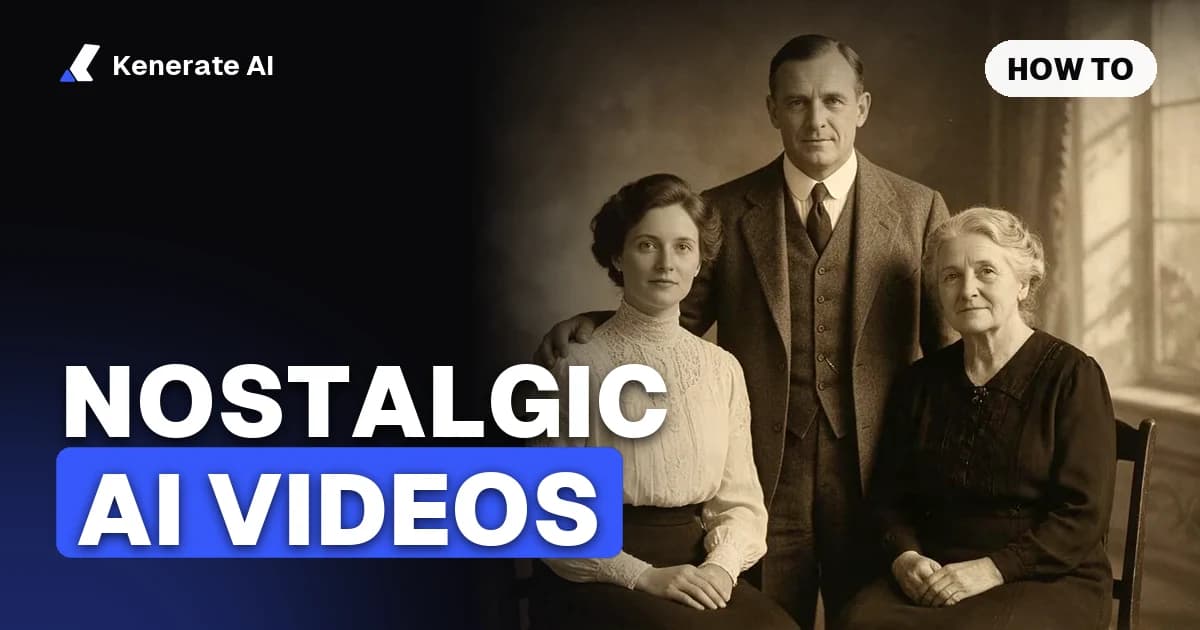
To make a nostalgic AI video, restore a real old photo, animate it with an image-to-video model using one or two small movements, and keep each clip to about 5 seconds. Then join several clips into a 30 to 60 second reel with one soft music track. The nostalgia comes from your own photos and restrained motion, so the prompt should protect the original look, not add effects on top of it.
This guide covers the whole process as of 4 November 2026: what the trend looks like now, how to pick and prepare photos, prompts that work, how long clips should be, and what it costs in Kenerate AI.
What is a nostalgic AI video?
"Nostalgic AI video" covers three different things right now, and it helps to decide which one you want before you start.
| Style | Starts from | What it looks like | Best for |
|---|---|---|---|
| Living photo | One real old photo | A blink, a soft smile, a slow zoom on a family portrait | Tributes, anniversaries, family reunions |
| Memory reel | 4 to 10 real photos | Several gentle clips joined with music | Birthdays, retirement gifts, family history |
| Era recreation | A text prompt, no photo | A 1980s kitchen or a 1990s street, with film or camcorder texture | Mood pieces, channel intros, retro brand content |
The living photo is the oldest of the three. MyHeritage launched Deep Nostalgia in February 2021, which animated faces using pre-recorded driver videos. Today's image-to-video models can move the whole scene from a written prompt, including hair, fabric, light and the camera.
There is also a fourth version on social feeds: well-known cartoon characters reworked into melancholy or horror scenes, as this breakdown of the format describes. This guide doesn't cover it, because those characters belong to the studios that own them. Your own family archive has no such problem, and it means more to the people who watch it.
Which old photos work best?
Clear photos with one obvious subject give the most convincing clips. PC Tech Magazine's tests found that clean, well-lit studio portraits of one person worked best, while faded group shots, creased prints and low-resolution scans were unreliable. In group photos, background faces lost their likeness first.
Use this checklist when you sort through the box:
- Choose photos you own or have permission to use. That means your family's pictures, with relatives on board. Don't use strangers, public figures or anyone who would object.
- Choose adults. Kenerate's video studio blocks prompts that mention children or minors, so this workflow isn't for childhood photos.
- Prefer faces looking toward the camera. Profile shots tend to drift more.
- Crop group shots to one or two people if you care about likeness.
- Include a few photos with no people in them. The old house, the family car or the street you grew up on make good breathing space in a reel.
How do you make a nostalgic AI video, step by step?
Here is the full workflow in Kenerate AI. Any image-to-video tool follows the same logic, though the names will differ.
Step 1: Scan the photo properly
Scan the print itself instead of photographing it with your phone, if you can. A flatbed scanner avoids glare and keeps the frame straight. Keep the original scan as a separate file, because every step after this one changes pixels.
Step 2: Restore it before you animate it
Animation doesn't repair a photo. If there is a crease across someone's cheek, the model may treat it as part of the face and move it. Run the scan through AI photo restoration first. In Kenerate, Phota Enhance is built for old, blurry or damaged photos, returns a 2048 px image and costs 39 credits per photo.
Compare the restored face with the original before moving on. Restoration can rebuild detail that wasn't in the scan, and a relative will notice a changed nose or jawline straight away. If the face looks wrong, go back to a lighter fix.
Leave black and white photos as they are unless you have a reason to colorize them. Monochrome and sepia already read as the past, and colorizing adds guessed colours that nobody can check.
Step 3: Animate with image to video
Open image to video, upload the restored photo and write a short prompt. The rule is one or two small movements per clip. Restrained requests keep the likeness far better than gestures or action, and a warping face usually means the motion was too strong. Our guide to animating old photos goes deeper on memorial photos and keeping faces true.
Start with a cheap draft at 480p, check the face, then rerun the one you like at 720p or 1080p. Results vary between runs, so expect to try a couple of times for an important photo. It's also worth trying the same photo on two models, because they read the same prompt differently.
Step 4: Build the period look
You have three ways to get the film feel, in order of how little they change the photo:
- Keep what's already there. Tell the model to retain the original grain, tones and softness.
- Describe the look in the prompt. Use the era words in the table below.
- Style the still first. A vintage photo filter can age a newer photo, for example a 2000s digital shot you want to look older. It's an AI edit, so small details can change. Check faces afterwards.
If you want heavier grain across a whole reel, add it at the end in your video editor so every clip matches.
Step 5: Join the clips and add sound
In the video studio, the Video Joiner merges 2 to 4 clips for 40, 80 or 120 credits. For a longer reel, ask Kenerate Agent to build a montage of 2 to 20 clips, up to 3 minutes, with trims, fades and music. The video merger page explains both routes.
Decide on sound before you generate. Wan 3 can add native sound, but a reel with a music bed usually works better with silent clips, so switch audio off in that case. A slow instrumental from the AI music generator sits well under family photos. One track across the whole reel holds it together better than a new sound on every clip.
What prompts work for nostalgic AI videos?
Write the prompt in three parts: what stays the same, the one small movement, and the look. These are starting points, so swap in what's in your photo.
Single portrait
Keep the person's face, hair and clothing exactly as in the photo. They blink once and give a slight smile. Very slow zoom in. Keep the original black and white tones, film grain and soft focus. No new people, no text.
Couple or two people
Keep both faces exactly as in the photo. They turn slightly toward each other and smile. A light breeze moves their clothes. The camera stays still. Keep the faded colour and film grain.
Place with no people
Keep the house exactly as in the photo. Leaves move gently in the wind and soft afternoon light shifts across the wall. Slow push in. Faded warm colour, fine film grain.
Era recreation from text only
Empty 1980s family kitchen in late afternoon, sun through lace curtains, a radio on the counter, dust in the light. Slow handheld pan. Shot on Super 8, warm faded colour, visible grain, slight frame flicker. No people, no text.
Avoid words such as "cinematic", "dramatic" or "epic" for family photos, since they push the model toward big camera moves. Also avoid asking anyone to speak unless you want a talking portrait, which is a different tool and a bigger ethical step.
Which words create each era's look?
Period texture is mostly a matter of naming the right format. Super 8, for example, launched in 1965 and ran at 18 frames per second by default, so asking for slight frame flicker suits that look.
| Era or format | Words to add to your prompt | Camera motion that fits |
|---|---|---|
| 1900s to 1930s studio portrait | sepia tones, soft focus, faded edges, paper texture | Very slow zoom, or none |
| 1950s snapshot | black and white, high contrast, fine grain, white print border | Still camera |
| 1960s to 1970s home movie | Super 8, warm faded colour, visible grain, slight frame flicker | Handheld, gentle |
| 1980s print | faded colour, orange cast, lifted blacks, soft flash | Slow push in |
| 1990s camcorder | VHS home video, soft detail, colour bleed, tracking lines | Handheld |
| Early 2000s digital | compact digital camera, harsh flash, slight overexposure | Still or small handheld |
The studio's camera presets include Zoom in, Zoom out, Pan and Handheld, so you can set the move there and keep the prompt for the subject and the look.
How long should a nostalgic AI video be?
Keep each clip at about 5 seconds, and the finished reel at 30 to 60 seconds. Long clips give the model more time to drift away from the real face, and 5 seconds is enough for a blink, a smile and a slow zoom. Wan 3 can run up to 30 seconds, but that length suits the era recreation style better than real faces.
Six to ten photos at 5 seconds each land right in that range. For a family gathering you can go longer, but keep the pacing slow and let a few clips breathe with a fade between them.
Which model should you use, and what does it cost?
Video in Kenerate needs a paid plan. Credits are sold in one-time packs, starting with Starter at $15 for 1,300 credits. These are the three models most worth trying for this job, priced from the app's current settings:
| Model | Clip length | Sound | Cost of a 5-second clip | When to use it |
|---|---|---|---|---|
| Wan 3 | 2 to 30 s | Optional | 75 credits at 480p, 150 at 720p, 300 at 1080p | The default for drafts and most family photos |
| Kling v3 Pro | 3 to 15 s | Optional | 168 credits silent, 252 with sound | A second opinion when a face drifts on Wan 3 |
| Seedance 2.5 | 4 to 30 s | Optional | 540 credits at 720p | Era recreations and scenes that need more camera work |
As a worked example, a six-photo reel on Wan 3 at 720p costs 234 credits for restoration and 900 credits for six 5-second clips. That's 1,134 credits, which fits inside a Starter pack if each clip works first time. Budget extra for reruns, joining and music, and do your drafts at 480p to keep the reruns cheap.
Is it OK to animate photos of people who have died?
It's a personal choice, and families differ. Some people find gentle movement moving, while others find it unsettling. A few habits keep it respectful:
- Ask close relatives first, especially the people who knew the person best, as PC Tech Magazine also advises.
- Keep the motion small. Morphic's guide for families suggests treating these clips as memory pieces, not reenactments, and that's the right frame.
- Be honest about what it is. The clip is an AI interpretation of a photo. It isn't footage, and it doesn't show how the person really moved.
- Never put words in anyone's mouth. Don't make someone appear to say or do something they didn't.
- Review every clip before you share it. Likeness can drift between runs, and a slightly wrong face can upset the person you made it for.
Keep the originals safe as well. Store the untouched scans somewhere separate, as they matter more than any video made from them.