

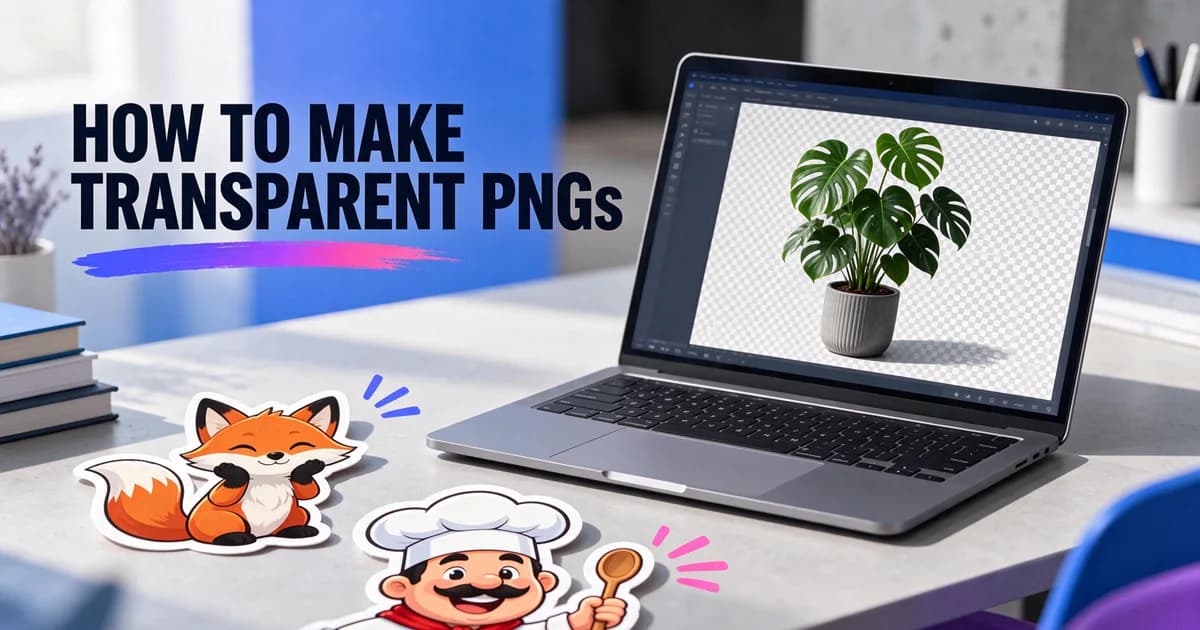
A transparent PNG is an image with no background: the subject sits on nothing, so it drops cleanly onto a slide, a website, a T-shirt mockup or a video. Until recently the only way to get one from an AI image model was to generate a picture and then cut it out with a background remover. Seedream 5.5, which ByteDance released on 9 November 2026, can generate the transparency itself. Here's how to do it on Kenerate, how to prompt for clean cut-outs, and when a background remover is still the better tool.
Updated 15 November 2026.
What "native transparency" means
A normal image is a full rectangle of coloured pixels. A transparent PNG adds a fourth channel — alpha — that says how see-through each pixel is: fully opaque, fully clear, or anything in between.
ByteDance says Seedream 5.5 can output this alpha channel directly, with full and partial transparency, and that it renders edges and transparent areas carefully, so the result can go straight into a layout without separate background removal. Partial transparency is the part a remover can't really fake: a glass bottle, a wisp of steam or loose hair should let the background show through, not be cut out as a solid shape.
How to make a transparent PNG with Seedream 5.5
- Open the Image Studio at kenerateai.com/app/image and pick Seedream 5.5.
- Turn on Transparent background. Open Advanced and flip the switch. The format locks to PNG, because JPEG has no alpha channel.
- Describe one subject. Say what it is, the style, and that nothing else should be in the image.
- Pick the size and ratio. 1K is plenty for stickers and slides; use 2K for print. Choose the ratio of the subject — 3:4 for a standing character, 4:3 for a shoe.
- Generate and download. You get a PNG with no background and no watermark. It costs 6 credits at 1K.
You can also ask Kenerate Chat for "a sticker of…" or "a logo on a transparent background" — it picks Seedream 5.5 with transparency on for you.
Prompts that cut out cleanly
These are the subjects we made for our Seedream 5.5 transparent background page:
- Sticker — "A die-cut sticker of a cheerful cartoon red fox holding a tiny paper coffee cup, thick white sticker border, bold clean outlines, flat colours with soft shading. Nothing else in the image."
- Mascot — "Full-body 3D cartoon mascot of a friendly adult chef with a curled moustache, white chef's hat and apron, holding a wooden spoon and giving a thumbs up, soft toy-like render, studio lighting. Nothing else in the image."
- Logo — "A flat vector-style logo mark for a coffee roastery called "NORTH BEAN": a round badge with a mountain and a coffee bean inside, the name in bold geometric capitals under it, two colours only, deep green and cream. No other text."
- Product — "Product photo of over-ear wireless headphones in matte sage green with cream ear cushions and brushed silver hinges, three-quarter view, realistic materials."
- Plant — "A potted monstera plant in a matte terracotta pot, glossy split leaves with fine veins, realistic product photo."
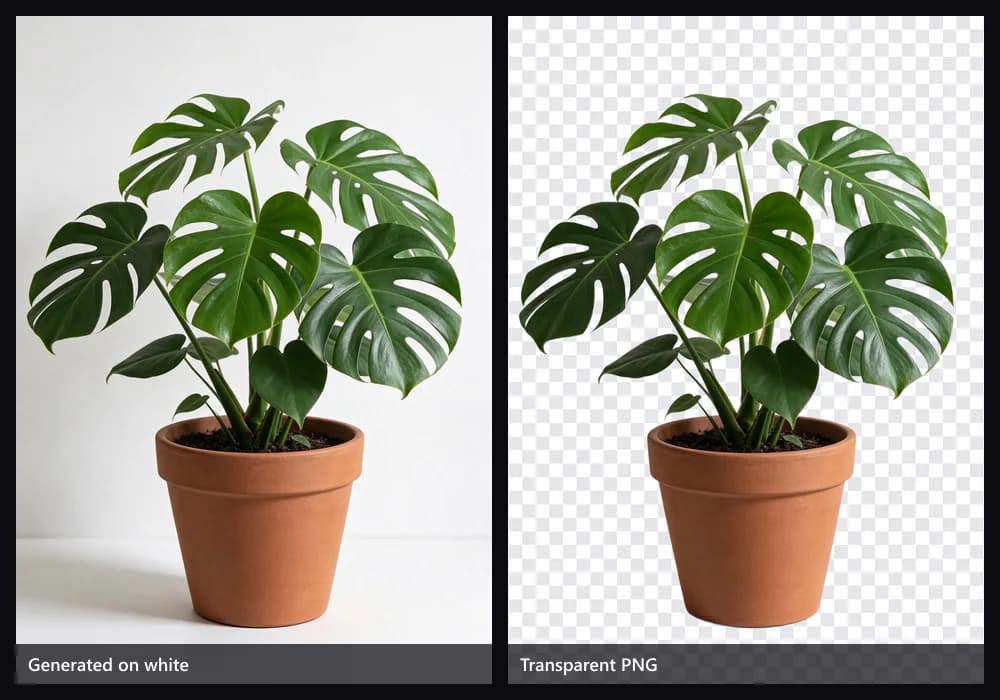
A note on how our examples were made: the agent tool we used for testing can't flip the Transparent background switch yet, so Seedream 5.5 drew each subject on a plain backdrop and Kenerate's background remover cut it out. In the Image Studio the switch does it in one step, straight from the model.
Tips for clean edges
- One subject, whole and in frame. "Full-body", "the entire bottle", "the whole plant and pot". Cropped edges become hard, straight cuts.
- Say "nothing else in the image". Otherwise Seedream 5.5 likes to add a table, a floor or props — it added hills to one of our infographics.
- Add a sticker border when the PNG will sit on busy backgrounds: "thick white die-cut border".
- Name the see-through parts. "Clear glass", "soft wisps of steam" — so the model keeps them partly transparent.
- Flat colours for logos. "Flat vector style, two colours only" gives crisp edges.
- Check thin parts at full size. Whiskers, strings and wire can fade or break.
Transparent PNG or background remover?
| You have… | Use |
|---|---|
| Nothing yet — you're creating the image | Seedream 5.5 with Transparent background: one step, and the model knows which parts are see-through |
| A photo or image you already made | A background remover — Kenerate's transparent background maker |
| A logo that must scale to any size | An SVG — GPT Image 2.6 can export vectors, see the AI SVG generator |
| A product you want to restage | Seedream 5.5 edit with Transparent background on |
Using your PNG
- Canva / Figma: drag it in; it sits on whatever is behind it.
- PowerPoint / Google Slides: Insert → Image. No white box.
- Print-on-demand stickers: use 2K and keep the white border.
- Websites: PNG works everywhere; convert to WebP with alpha for smaller files.
- Video: place it on a layer above your footage for overlays and lower-thirds.
FAQ in short
- Does it cost extra? No — a transparent Seedream 5.5 image costs the same 6 credits at 1K, 10.5 at 2K.
- Can I edit and keep it transparent? Yes; keep the switch on while editing with references.
- Which other models can do it? On Kenerate, GPT Image 1.5 can also output transparent PNGs. Most others, including Nano Banana 2.1, always draw a background.
- Is it free? The 25 free sign-up credits run the free models; Seedream 5.5 needs a one-time credit pack.
Make a transparent PNG with Seedream 5.5
Transparent output is the most practical thing in Seedream 5.5 for anyone making stickers, product images or brand assets: one switch, one PNG, nothing to clean up. For everything else the model can do, read our Seedream 5.5 guide.