Restore · subtle motion · handled with care
Animate old photos — restore first, then add gentle, respectful motion
An old family photo can come back as a few seconds of quiet movement — a blink, a soft smile, a small turn of the head. This guide shows how to restore the scan first, which prompts keep the faces true to the photo, and how to treat memorial photos with care.
- Restore the scan first
- Subtle, respectful motion
- Black and white stays black and white
- No watermark
Updated by the Kenerate AI team
On this page
Quick answer
Updated
How do you animate old photos with AI?
To animate old photos, restore the scan first, then give an image-to-video model 1 or 2 small movements — a blink, a soft smile, a slight head turn — and generate a 5-second clip. In Kenerate's video studio, Wan 3 adds motion and sound; the result is an AI interpretation, not a recording of the real moment.
Key facts
- Step 1
- Restore the scan — Phota Enhance in the upscaler
- Step 2
- Animate it in the video studio (image to video)
- Photos in
- 1 per clip
- Clip length
- 2–30 s on Wan 3 — about 5 s keeps faces truest
- Sound
- Optional — Wan 3, Kling 3.0, Veo 3.1 and Seedance 2.5
- What it is
- An AI interpretation of the photo, not real footage
Real results
Old and family-style photos, brought to life
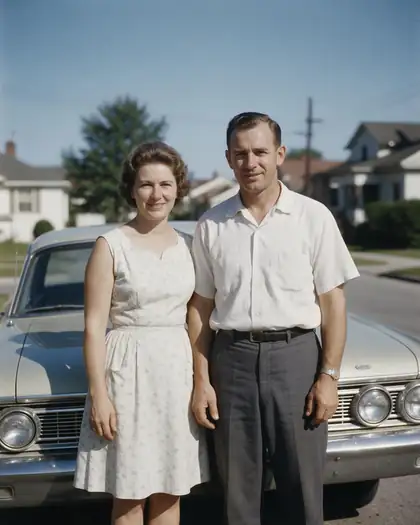
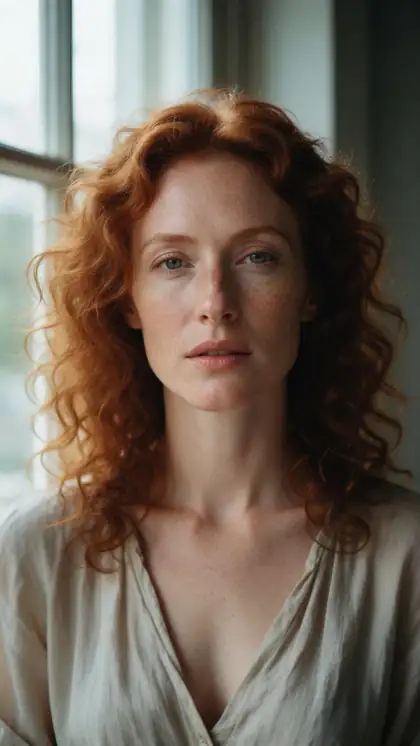
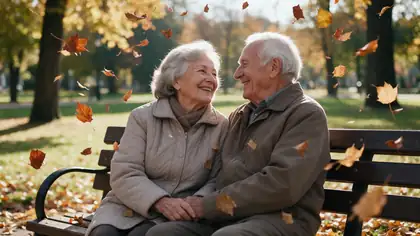
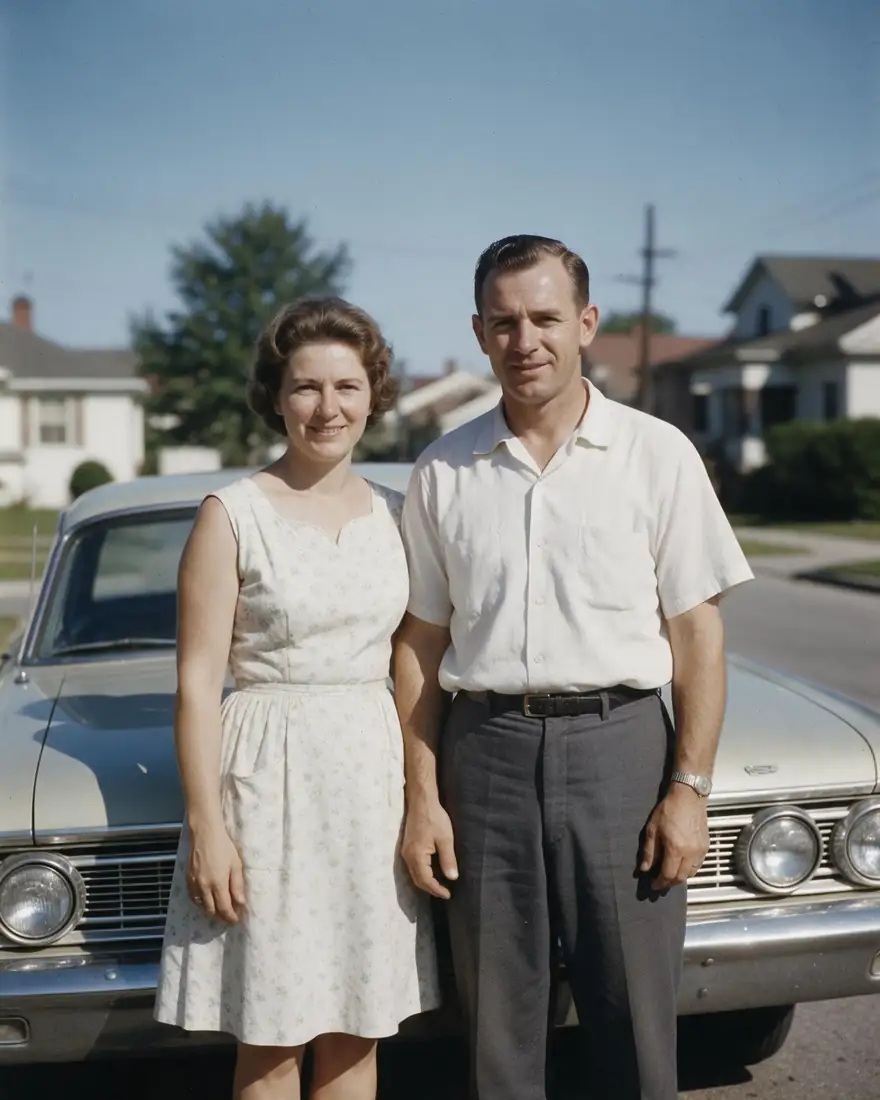
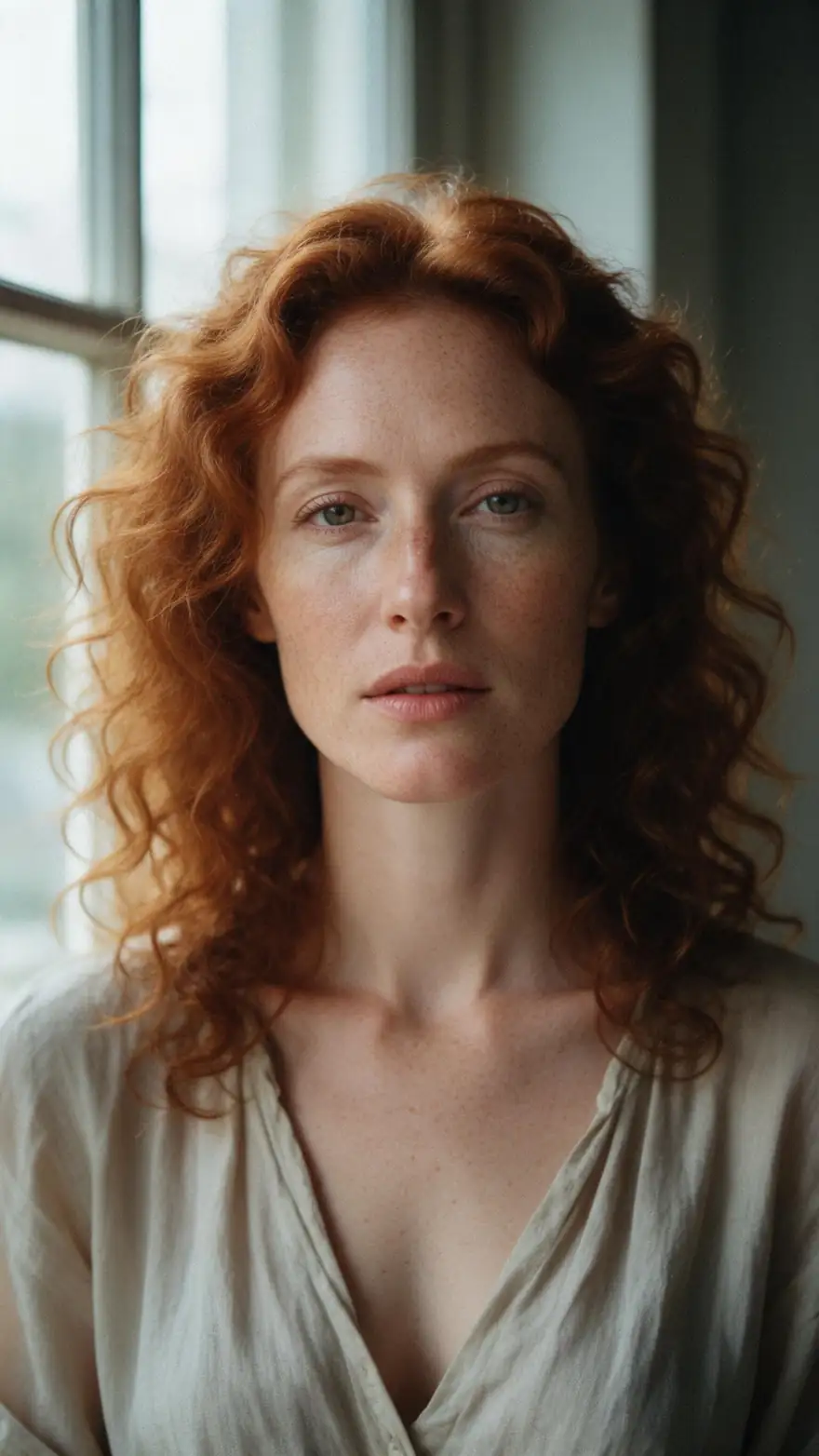
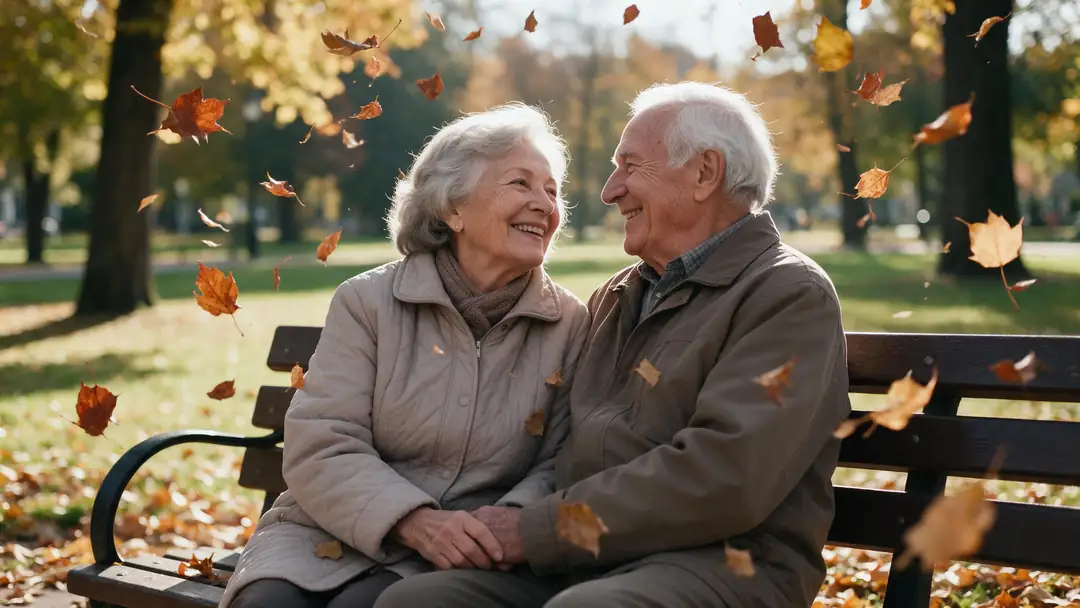
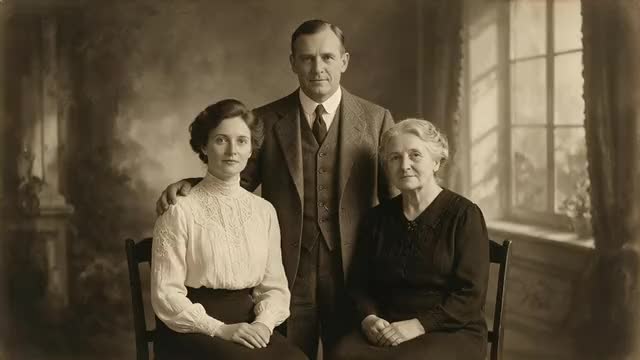
Real 5-second Wan 3 clips at 720p with sound, each from a single photo of fictional adults (made with Seedream 5.0 Pro for these pages). Open one to see its exact prompt.
Every clip is an unedited Wan 3 output. The 1960s clip uses livelier motion (a wave); for a memorial photo, keep it to a blink or a soft smile like the quiet portrait.
How to
How to animate an old photo in 5 steps
- Time needed
- Steps
- 4 steps
Step 1
Scan the print as sharp as you can
Scan or photograph it flat, in even light, without glare. Keep the untouched scan as your original.
Step 2
Restore it first
Run the scan through Phota Enhance to remove scratches, cracks, stains and fading. Black-and-white photos stay black and white unless you colorize them.
Step 3
Open the video studio in image-to-video mode
Upload the restored photo as the start frame and pick the aspect ratio closest to the photo's shape so nothing gets cropped.
Step 4
Describe one or two small movements
A blink, a soft smile, a slight head turn, a static camera. Add a quiet sound such as room tone or birdsong, or none at all.
See it in the app

Open Video Studio in Text to Video mode and write the shot — subject, action, camera move and light.


Watch the tour · 1:19
Text, image & reference to video, models, edit, extend & chat
Chapters
Checked 6 October 2026
Restore, animate or make it talk — which is best for what
Pick by what you want from the old photo: a cleaner picture, a moment of movement, or a voice.
| Restore only | Animate (image to video) | Talking photo | |
|---|---|---|---|
| What changes | Scratches, stains, fading and blur are repaired | Faces, hair and the camera move for a few seconds | Lips and face move in sync with audio |
| You provide | One scan | One restored photo and a short motion prompt | One photo and a voice track |
| Best for | Prints, albums and archives | Family gatherings, slideshows, tribute videos | Messages using a recording you have |
| Keep in mind | Stays a still photo | Motion is invented — an AI interpretation | Only use a voice with permission |
| On Kenerate | Phota Enhance in the upscaler | Video studio (Wan 3, Kling 3.0, Veo 3.1…) | Avatar Talk — free plan |
Most old photos benefit from restoring first; animating a scratched scan animates the scratches too.
Sources: Kenerate video studio · Kenerate AI photo restoration
Engines
Which model to animate an old photo with
From the video studio's own model list — each takes your restored photo as the first frame.
- Used here
Alibaba
Wan 3
- Input
- Photo (+ optional end frame)
- Output
- 2–30 s · 480p–1080p · sound
Gentle motion on family photos, with or without sound
Open Wan 3 
Kuaishou
Kling 3.0 Pro
- Input
- Photo (+ optional end frame)
- Output
- 3–15 s · sound
Subtle facial expressions — a smile, a glance
Open Kling 3.0 Pro
Google
Veo 3.1
- Input
- Photo
- Output
- 4, 6 or 8 s · up to 4K · sound
Short, high-resolution clips for a large screen
Open Veo 3.1
ByteDance
Seedance 2.5
- Input
- Photo or reference images
- Output
- 4–30 s · sound
Longer, slow clips for a tribute video
Open Seedance 2.5
Alibaba
Happy Horse 1.1
- Input
- Photo
- Output
- 3–15 s · 720p or 1080p
Quick silent tests of a motion idea
Open Happy Horse 1.1- Free plan
Kenerate
Avatar Talk
- Input
- Photo + your audio
- Output
- Lip-synced talking video
A photo speaking words from a real recording
Open Avatar Talk
The examples above were made with Wan 3. If the person should speak in a recording you have, use Avatar Talk, which works on the free plan.
Tips
Prompts that stay true to an old photo
Small, slow and few. Copy one of these and adjust it to the photo.
"She blinks slowly and a soft smile forms, static camera, quiet room tone."
"He turns his head slightly toward the camera and smiles, very subtle motion."
"The couple glance at each other and smile, gentle breathing, the camera holds still."
Face drifts away from the photo: remove the head turn and keep only a blink or a smile.
Hands or arms warp: keep them out of the motion — don't ask for a wave in a soft, small photo.
Group photo: animate one or two people with a small motion each; tiny faces change most.
Example uses
How creators use Animate Old photos
Illustrative examples of typical workflows, not customer reviews.
Family historian
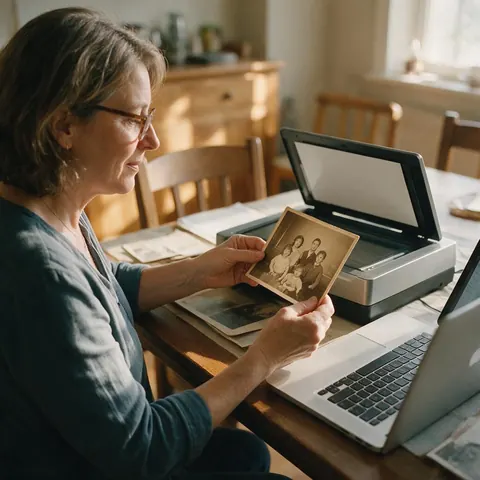
A family historian could scan a sepia portrait, restore it with Phota Enhance, and animate just a blink and a soft smile so the faces stay true to the print.
Grandchild
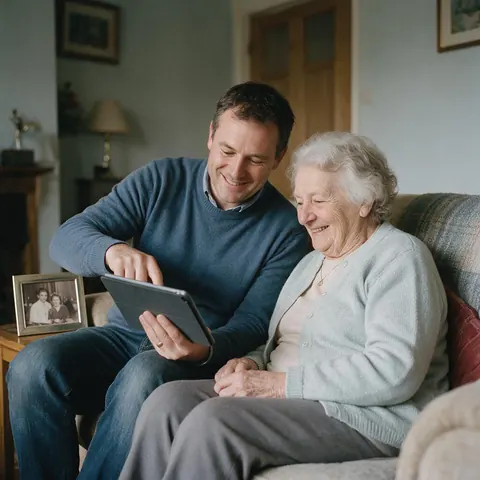
A grandchild could ask their grandmother before animating her wedding photo, then show her the short clip privately first and keep the original print beside it.
Museum volunteer
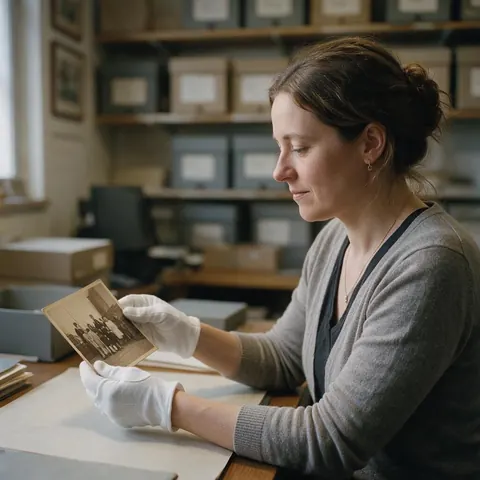
A museum volunteer could animate a restored archive portrait with a slight glance for an exhibit screen, labelled clearly as an AI animation of the photo.
FAQ
Animating old photos — questions
8 questions
How do I animate an old photo?
Scan the print, restore it, then upload it to the video studio's image-to-video mode and describe one or two small movements, such as a blink and a soft smile, with a static camera. Generate about 5 seconds on Wan 3, check that the faces still match the photo, and download the clip.
Link to this answerShould I restore an old photo before animating it?
Yes, in most cases. The video model treats scratches, dust and cracks as part of the picture and can make them shimmer or move. Restoring the scan with Phota Enhance first removes damage and fading and gives the model clearer faces to work from.
Link to this answerCan I bring an old black-and-white photo to life?
Yes. Restoration keeps a black-and-white photo black and white, and image to video animates it as it is. If you want colour, colorize the restored photo before animating it. Mention "black and white" in the prompt if the model starts adding colour.
Link to this answerWhat prompt works best for old photos?
Short, slow and small: "she blinks slowly and smiles softly, static camera, quiet room tone". Avoid waves, walking or fast camera moves — every large movement makes the model invent parts of the face and body the photo doesn't show, and old photos have less detail to start from.
Link to this answerIs the animated photo what the person really looked like moving?
No. The model invents the motion from your photo and prompt, so the clip is an AI interpretation, not a recording. Say so when you share it, especially with family, and keep the original photo alongside it.
Link to this answerIs it appropriate to animate a photo of someone who has died?
It can be a moving way to remember someone, but it affects people differently. Keep the motion gentle, ask close family before sharing it, and show it privately first. Never make the person appear to say or do something they wouldn't have.
Link to this answerCan I animate an old photo of someone who is still alive?
Ask them first. Only animate photos of yourself, of people who have agreed, or of family who would welcome it, and don't post the clip without their permission.
Link to this answerIs animating old photos free?
Talking photos with Avatar Talk work on the free plan. Image to video in the video studio uses one-time credit packs that never expire, with no subscription, and clips download without a watermark.
Link to this answerIn depth
Animating old photos — doing it well and doing it kindly
On this page
Why restore first
An image-to-video model treats everything in the photo as real: a scratch across a cheek or a dust spot on a collar becomes part of the scene and can flicker or slide as the face moves. Restoring the scan first with Phota Enhance removes scratches, cracks, stains and fading, so the model animates the person, not the damage.
Why small motion works best on old photos
The model takes your photo as the first frame and predicts the frames that follow. Old photos are often soft, small and low in detail, so any movement that reveals something new — a turned head, a raised hand — has to be invented. A blink or a soft smile changes very little, which keeps the face closest to the original.
- Good: a blink, a soft smile, gentle breathing, a slight glance
- Use with care: a small head turn, two people looking at each other
- Avoid: waving, walking, laughing hard, fast camera moves
Memorial photos
For a photo of someone who has died, quiet is kinder. Keep the camera still, choose one gentle movement, and leave out sound or use something soft. Share it with close family privately first — some people find animated photos comforting, others find them unsettling — and keep the original photo next to the clip.
An interpretation, not a recording
The way someone smiles or blinks in the clip is the model's guess. It can look convincing, but it is not how that person actually moved. Label shared clips as AI animations, and never use one to make a real person appear to say or do something they didn't.
Consent for photos of living people
Animate photos of yourself, of people who have agreed, or of family who would welcome it. Ask before posting a clip of a living relative or friend, and respect a no.
Bring old photos to life
Restore the photo, then animate it with image to video and a small motion prompt. A few seconds of a smile or a glance is usually enough to make the photo feel alive without changing who is in it.
Animating old photos of grandparents
Scan wedding and portrait prints at a high resolution, restore them, and keep the motion to a blink or a smile. Show the clip to family before sharing it more widely.
Animate an old photo with sound
Wan 3, Kling 3.0, Veo 3.1 and Seedance 2.5 can add sound from the prompt, such as birdsong or room tone. You can also switch sound off and add your own music later.
Animate several old photos for a tribute
Each clip animates one photo. Animate them one by one with the same gentle prompt and join the clips in an editor.
Explore
Every Kenerate video tool
Generators, tools, models and guides — all in one studio.