

The best Nano Banana prompts for photo editing name one change, say exactly what must stay the same, and tell the model how to blend the new part in, for example: "Replace the background with a sunny terrace. Keep her face, hair and pose unchanged and match the light." Below are 34 copy-ready prompts for restoring old photos, swapping backgrounds, relighting, changing outfits, removing objects, cleaning up headshots and retouching product shots, with six real before-and-after edits made with Nano Banana 2.1.
Everything here was checked on 31 October 2026. The prompts work in the Gemini app, in Google AI Studio and on Kenerate AI, where Nano Banana 2.1 runs in Image Studio and Edit Studio. If you want prompts for making new images from scratch rather than editing your own photo, use our Nano Banana prompt library instead; this post is only about edits.
What makes a good Nano Banana photo-editing prompt?
Google's own Gemini API image guide gives two templates that cover almost every edit. For adding or removing something: "Using the provided image of [subject], please [add/remove/modify] [element] to/from the scene. Ensure the change is [description of how the change should integrate]." For changing one part only: "Using the provided image, change only the [specific element] to [new element/description]. Keep everything else in the image exactly the same, preserving the original style, lighting, and composition."
Those two templates boil down to a three-part formula:
- The change. Be concrete: "a tailored navy suit with a white shirt and brown leather shoes", not "something formal".
- What stays. Name the face, hair, pose, background, framing and light you want kept. Nano Banana does keep things consistent, but only reliably when you ask.
- How it blends. "Match the light", "fill in the stones naturally", "same perspective and shadows".
Google's tips post for Nano Banana adds that short, conversational instructions work well, and that you can keep editing the same image over several turns. In practice: one change per prompt, then chain the next edit on the result.
Which Nano Banana model should you use for edits?
Use Nano Banana 2.1, the version Google released on 6 October 2026. Google's announcement highlights better mask-based editing and subject consistency, and its docs list up to 14 reference images per request (up to 4 characters and 10 objects kept consistent). We compared the versions in Nano Banana 2.1 vs Nano Banana 2.
| Edit type | What to say | What to protect |
|---|---|---|
| Restore an old photo | The damage to fix, colour or not | Faces, expressions, clothing, era |
| New background | The new place and the time of day | Subject, pose, edges; "match the light" |
| Relight | Light direction, colour and time | Every object and its position |
| Outfit or colour | Garment, fabric, colour | Face, body, pose, setting |
| Remove objects | What goes, and how to fill the gap | Everything else, untouched |
| Headshot clean-up | Background, light, small fixes | Skin texture, identity, expression |
| Product retouch | Surface, light, shadow, scene | Shape, logo, label text, colour |
Prompts to restore old photos
"Prompt to restore old photos" is one of the most searched edit requests, and it is also where AI goes wrong most quietly: it can sharpen a face into someone slightly different, or add a detail that was never there. Scan first (at least 300 ppi; our guide to restoring old photos covers scanning, handling and backups), keep the untouched scan, and edit a copy.
- Full repair, keep it authentic: "Restore this old photograph. Remove the scratches, dust, creases and stains, and repair the torn corner. Keep every person's face, expression, hairstyle and clothing exactly as they are. Do not add, remove or modernise anything."
- Faded colour print: "Restore this faded colour photo. Correct the red and yellow colour cast, bring back natural skin tones and the original colours of the clothes and background, and restore contrast. Keep all details and the film grain."
- Black and white, no colour: "Repair the damage on this black-and-white photo: remove scratches, spots and the fold line, and improve contrast. Keep it black and white with its original tones. Do not colourise it."
- Restore and colourise: "Restore this black-and-white photo and colourise it with realistic, period-accurate colours. Keep the faces, expressions, clothing, background and composition exactly the same. Do not add or remove any detail."
- Blurry faces, gently: "Sharpen the faces in this old photo slightly so the features are clearer. Do not change the shape of the eyes, nose, mouth or face, and do not invent new details. Keep the original look of the photograph."
- Missing piece: "A piece of this photo is torn away at the bottom left. Fill in the missing area so it continues the wall and floor naturally. Leave the people and everything else untouched."
Check every restored face against the original. One family-history writer who tested Nano Banana Pro on restorations warned that the model sometimes adds an element it thinks "should be there". And on Google's own developer forum, a user reported restoration prompts on ordinary historical photos being blocked by the safety filter; if that happens, reword the prompt or try another model. Kenerate also runs a dedicated one-click AI photo restoration tool if you would rather not write prompts at all.
Prompts to change or replace the background
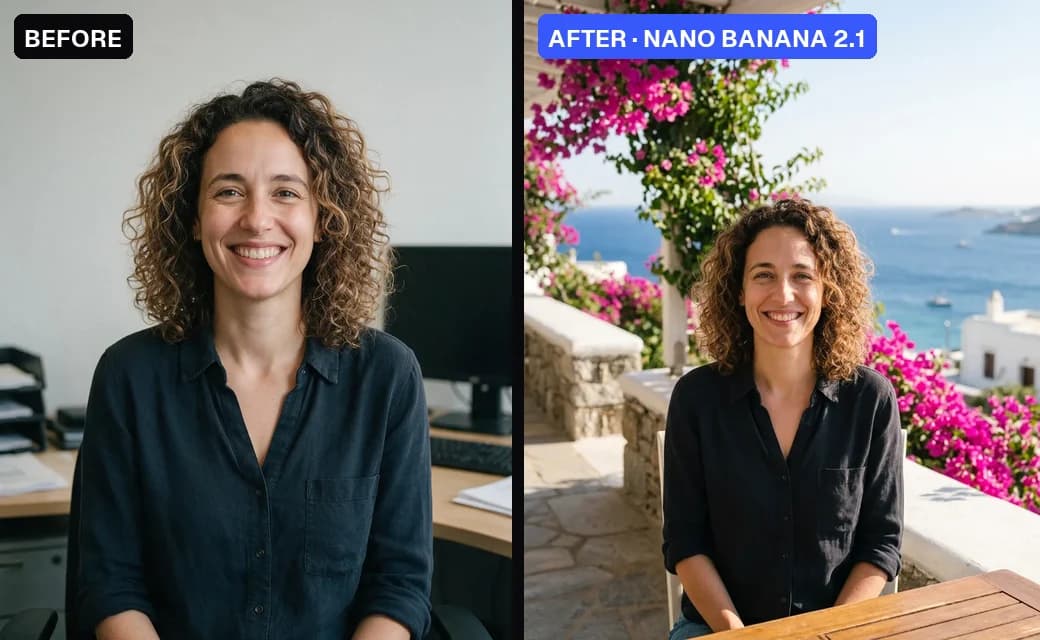
Real edit, Nano Banana 2.1, 1K. The "before" photo was made with Seedream 5.0 Pro so we could publish it. Prompt: number 7 below.
- "Replace the background with a sunny Mediterranean terrace with bougainvillea and the sea behind her. Keep her face, hair and pose unchanged and match the light."
- "Replace the background with a clean light-grey studio backdrop with a soft gradient. Keep the person, their edges and hair exactly the same."
- "Move this photo to a snowy mountain viewpoint at midday. Keep both people, their clothes and their positions the same, and add soft shadows that match the new light."
- "Blur the background like an 85mm lens at f/1.8. Keep the subject sharp and unchanged."
What happened in our test: the face, curls and shirt stayed the same, the light was matched, and the model reframed the shot a little wider so she sits at a table. If the crop matters, add "keep the original framing and crop".
Prompts for lighting and time of day
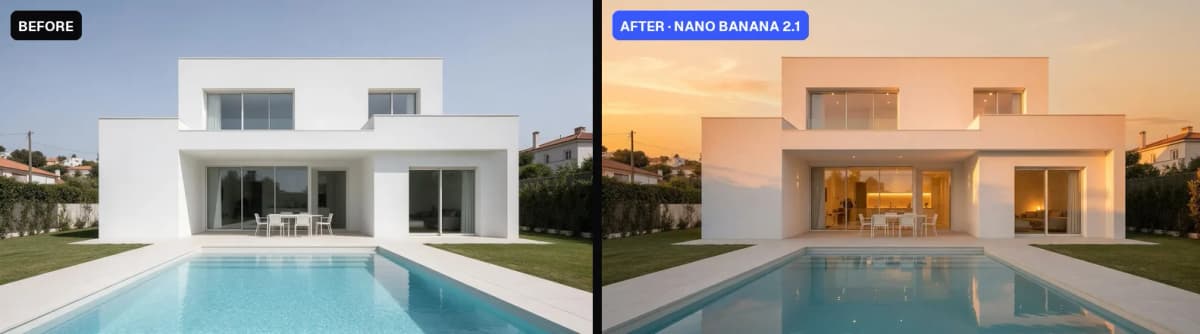
Real edit, Nano Banana 2.1, 1K. Prompt: number 11.
- "Relight the scene to golden hour at sunset: warm low sun, long shadows, glowing windows, orange sky. Keep the house and pool exactly the same."
- "Fix the underexposed photo: brighten the faces and the shadows naturally, keep the highlights, and keep the colours true to life."
- "Change this daytime street photo to blue hour just after sunset, with street lamps and shop windows lit. Keep every building, car and person in place."
- "Add soft window light from the left onto the person's face, as in a portrait studio. Do not change the face or the background."
Our relight kept the architecture, furniture and pool exactly where they were and even lit the interior. It is the safest edit type in our tests because nothing has to be invented.
Prompts to change outfits and colours
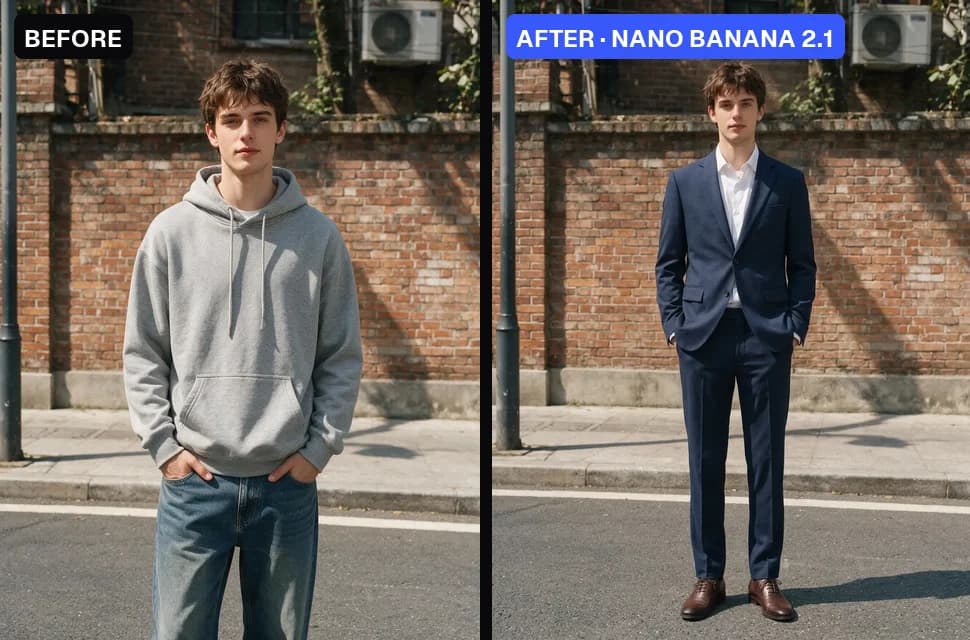
Real edit, Nano Banana 2.1, 1K. Prompt: number 15.
- "Change his outfit to a tailored navy suit with a white shirt and brown leather shoes. Keep his face, pose, the brick wall and the light the same."
- "Change the colour of her dress from red to emerald green. Keep the fabric texture, folds, her face and the background exactly the same."
- "Change only the sofa to a brown leather chesterfield. Keep the cushions, the rug and the lighting unchanged."
- "Paint the living-room walls sage green. Keep the furniture, floor, windows and light the same."
The suit came out exactly as described and the face, wall and light held. The framing zoomed out slightly to show the new shoes, a small thing to watch for.
Prompts to remove people and objects
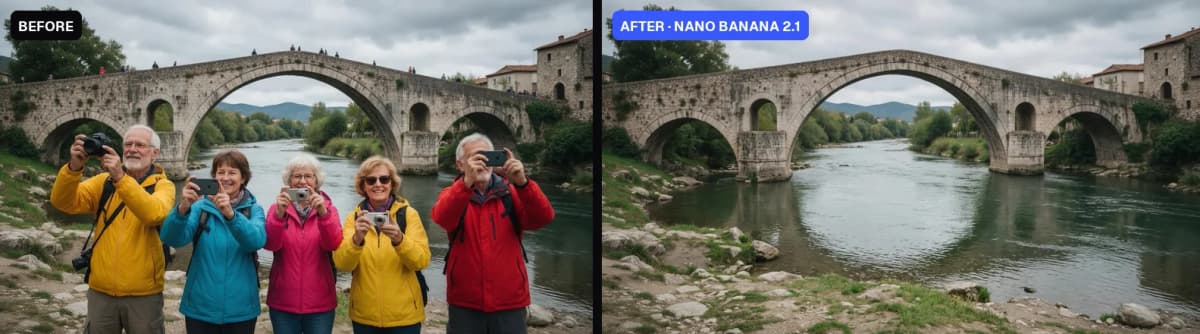
Real edit, Nano Banana 2.1, 1K. Prompt: number 19.
- "Remove all the people from the bridge and fill in the stones naturally. Keep everything else the same."
- "Remove the power lines and the pole from the sky. Fill in the sky so it matches the clouds around it."
- "Remove the bin and the parked scooter on the left. Rebuild the pavement and the wall behind them."
- "Remove the photobomber in the background behind the couple. Do not change the couple."
Our prompt said "from the bridge", but the model also cleared the five tourists standing on the riverbank in front, and rebuilt the bank and water behind them. Useful here, but it shows the model reads intent broadly: say "only" when you want a narrow removal. For pixel-exact removals, paint the area in Edit Studio's Magic Eraser with Nano Banana 2.1 selected.
Prompts to clean up a headshot
Use only your own photos, or photos of adults who agreed to the edit.
- "Turn this photo into a professional headshot: plain mid-grey background, soft even studio light, tidy collar. Keep my face, skin texture, hair and expression exactly the same."
- "Remove the shine on the forehead and the stray hairs across the face. Keep natural skin texture and do not smooth or slim the face."
- "Straighten the tie and remove the wrinkles from the shirt. Change nothing else."
- "Remove the glare from the glasses so the eyes are visible. Keep the frames, the eyes and the face the same."
"Keep skin texture" matters: without it, beauty-style smoothing creeps in and the photo stops looking like you.
Prompts to retouch product photos
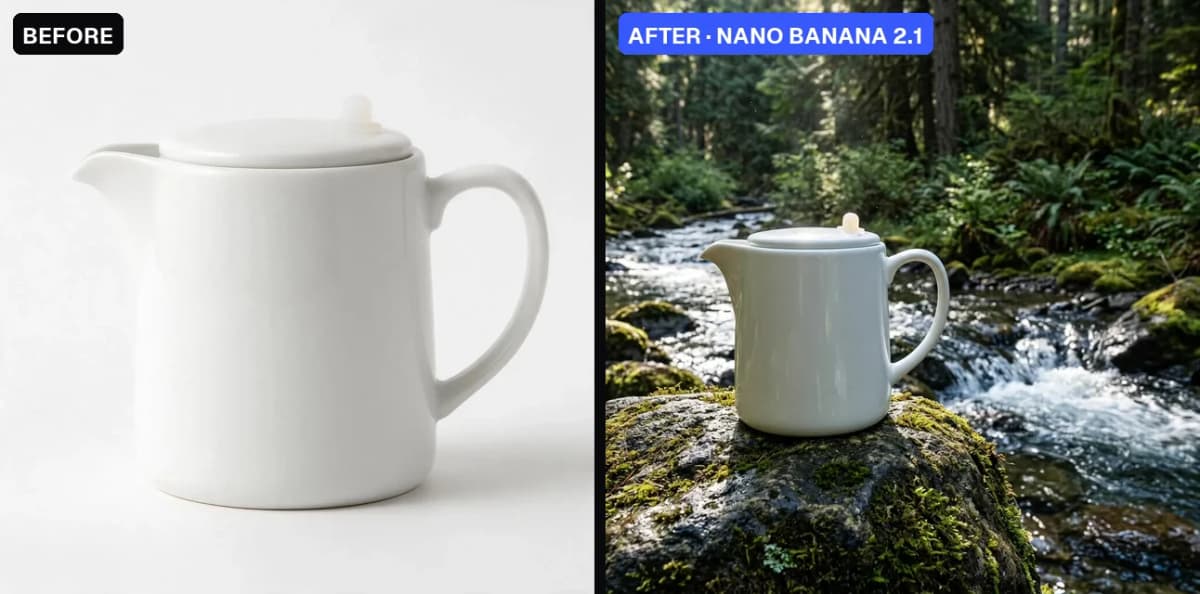
Real edit, Nano Banana 2.1, 1K. Prompt: number 27 (it says "bottle" because the original came out as a jug; the model kept the jug).
- "Place this exact bottle on a mossy rock beside a mountain stream in a forest, morning light, product advertising photo. Keep the bottle's shape and color identical."
- "Put this product on a pure white background with a soft contact shadow for an online shop. Keep the label text, logo and colours identical."
- "Remove the dust and fingerprints from the glass and add a clean rim light. Keep the shape and label unchanged."
- "Place this product on a marble kitchen counter next to fresh lemons, soft daylight from a window. Keep the product exactly as it is."
- "Using image 1 for the product and image 2 for the background, place the product in the scene at the same scale and perspective as the table, with a matching shadow."
With several uploads, refer to them as "image 1", "image 2" and say which one gives what. Always read label text after an edit: models sometimes redraw small lettering.
Prompts to change the style of a photo
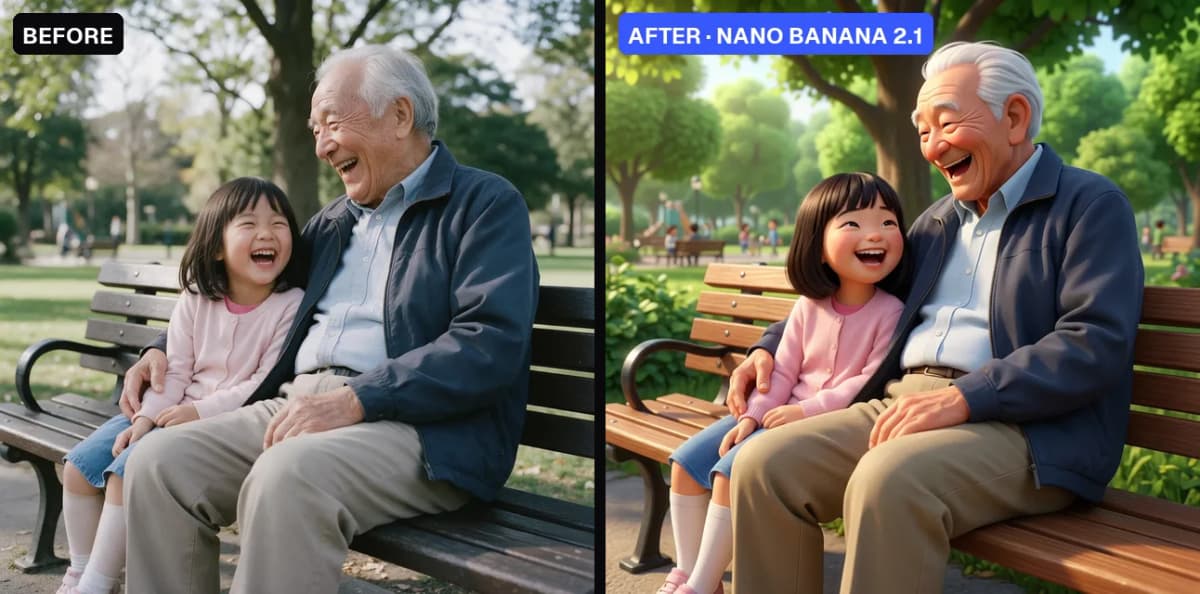
Real edit, Nano Banana 2.1, 1K. Prompt: number 32.
- "Turn this photo into a Pixar-style 3D animated movie still. Keep the composition, poses and expressions."
- "Turn this photo into a loose watercolour painting with soft washes and paper texture. Keep the composition and faces recognisable."
- "Turn this photo into a clean pencil sketch on white paper. Keep every outline and the perspective."
The viral Gemini trend styles (retro saree, Polaroid, figurine) are a different job: they reinvent the photo rather than edit it.
How do you edit a photo with Nano Banana on Kenerate?
- Open Image Studio and pick Nano Banana 2.1, or open Edit Studio and choose a tool (AI Edit, Change Region, Magic Eraser, Change Lighting, Style Transfer, Crop & Expand) with Nano Banana 2.1 as the model.
- Upload the photo, or up to 14 reference images if the edit combines faces, outfits or products.
- Paste a prompt from this post and change the details in it.
- Pick 1K, 2K or 4K and keep the original ratio or choose one of 14.
- Generate, compare with the original, and chain the next edit on the result.
As of 31 October 2026, a Nano Banana 2.1 edit costs 21 credits at 1K, 31.5 at 2K and 42 at 4K on Kenerate. It is not on the free plan: the 25 sign-up credits run the free models only, and Nano Banana needs a one-time credit pack, from $15 for 1,300 credits. Downloads have no visible watermark. Step-by-step screenshots for Gemini and Kenerate are in how to use Nano Banana, and all six edits above, with their looping before-and-after clips, are on our Nano Banana image editor page.
Edit a photo with Nano Banana 2.1
Why does Nano Banana change the face or the crop?
Three habits showed up in our tests and in other people's reports:
- Reframing. Two of our six edits changed the crop (wider on the background swap, zoomed out on the outfit). Add "keep the original framing".
- Broad reading of the prompt. "Remove the people from the bridge" also removed the people in front of it. Use "only" and name the area.
- Invention on old photos. Restorations can add details or subtly reshape faces. Ask it not to "add, remove or modernise anything", and compare with the scan.
If a result drifts, don't pile more instructions onto the same prompt. Go back to the original, simplify to one change, and try again.