

The best Seedream 4.5 prompt is one or two plain sentences: subject first, then scene, style, light and framing, with any words you want in the image written inside "double quotes" and placed ("at the top", "on the label"). For edits, say exactly what should change and what must stay the same, and name each reference by its number ("Image 1", "Image 2"). Below is the full structure, 10 copy-paste prompts, and how 4.5 differs from Seedream 5.0, as of 31 October 2026.
Seedream 4.5 is ByteDance Seed's image generation and editing model, released in December 2025 as the upgrade to Seedream 4.0. ByteDance's own page says the main gains are in prompt adherence, aesthetics and, above all, typography and dense small text, with posters, logos, product pages and invitations as headline use cases (ByteDance Seed). That shapes how you should prompt it: 4.5 rewards short, precise instructions and clearly quoted text far more than long lists of quality keywords.
How do you write a good Seedream 4.5 prompt?
Write a description, not a tag list. Seedream reads natural language, and several guides note that comma-separated keyword dumps ("8k, masterpiece, ultra detailed, trending") tend to give generic results. A sentence that says what is in the frame, what it is doing and how it looks does better.
Runware's prompting guide for the model makes a useful point: Seedream weights the start of the prompt most heavily, so put the subject first and leave style notes for later (Runware). A long stylistic preamble can push the subject into the background.
What is the prompt formula?
Use these slots in this order, and skip the ones you don't need:
| Slot | What to write | Example |
|---|---|---|
| 1. Subject | Who or what, with 1–2 defining details | "An amber glass dropper bottle with a white label" |
| 2. Action / state | What it is doing or how it sits | "standing on a travertine block" |
| 3. Scene | Where, background, props | "beige seamless background, a sprig of eucalyptus" |
| 4. Style / medium | Photo, flat illustration, 3D, ink, poster | "studio product photography" |
| 5. Light | Direction and quality | "soft window light from the left, gentle shadows" |
| 6. Framing | Shot size, angle, lens | "eye level, 85mm, centred composition" |
| 7. Text (optional) | Exact words in quotes + where they go | 'label reading "LUMEN SERUM"' |
| 8. Purpose (optional) | What the image is for | "e-commerce hero image" |
You rarely need all eight. A product shot might use subject, scene, light and text; a quick concept sketch might be one line. APIMart's summary of ByteDance's guidance also recommends stating the purpose of the image (a logo, an e-commerce hero, a poster) because it nudges layout choices (APIMart).
How long should a Seedream 4.5 prompt be?
Shorter than you think. ByteDance's guidance, as reported by APIMart, is to stay under 600 English words (or 300 Chinese characters), because very long prompts make the model drop details. In practice, 30–100 words covers almost every image. Runware's API accepts up to 2,000 characters, so length is rarely the bottleneck — clarity is.
A good habit: start with a one-sentence prompt to see what the model does on its own, then add slots one at a time to steer the parts you don't like.
How do you get readable text in Seedream 4.5 images?
Text is the reason most people pick 4.5, so it is worth getting right. Four rules cover nearly every case:
- Put the exact words in double quotes. Runware notes that copy inside quotes is rendered as written, while unquoted words are treated as scene description.
- Say where each string goes. "The words "BLUE NOTE NIGHTS" in large cream letters at the top" beats "a poster that says Blue Note Nights".
- Keep each string short. Headlines, labels, signs and dates work well. Paragraphs of body copy degrade; for dense copy, generate the layout and add the text in a design tool.
- Describe the type, not a font name. "Bold condensed sans-serif", "elegant serif", "hand-lettered brush script" are understood better than trademarked font names.
If a word still comes out wrong, shorten it, make it larger, render at a 4K size, or run an edit pass that only fixes that word ("Change the misspelled word on the label to "LUMEN". Keep everything else unchanged.").
In our own tests on Kenerate (18 October 2026), a jazz poster with a large headline and a small date line, and a skincare label reading "LUMEN SERUM", both came out spelled correctly on the first try at 2048×2048. You can see those outputs on the Seedream 4.5 model page.
How do you write edit prompts with reference images?
Seedream 4.5 is also an editing model: you give it one or more images and describe the change. ByteDance says 4.5 identifies the main subject across several inputs more accurately and keeps facial features, lighting and colour tone from the references (ByteDance Seed).
Edits fall into four types — add, remove, replace, modify. Whatever the type, the most important part of the prompt is the line that says what must not change.
How do you edit with one image?
Follow this pattern: action + target + new detail + what to keep.
- "Replace the background with a sunlit marble kitchen counter. Keep the bottle, label and shadows exactly the same."
- "Remove the coffee cup from the table. Keep the lighting and the person's pose unchanged."
- "Change her jacket to a mustard-yellow raincoat. Keep her face, hair and the street behind her the same."
How do you combine several reference images?
Refer to each image by its number and say what to take from it:
- "Put the bottle from Image 1 on the table from Image 2, lit like Image 3. Keep the label text from Image 1 exactly."
- "Use the character from Image 1 and the art style of Image 2. Show her reading in a café."
ByteDance's API accepts up to 14 reference images. On Kenerate the Seedream 4.5 editor takes up to 10, which is plenty for a product, a logo, a character and a couple of style references.
Steps: how to make your first Seedream 4.5 image on Kenerate
- Open the image studio and choose Seedream 4.5 in the model picker.
- Paste a prompt using the formula above (subject first, quoted text with placement).
- Pick a size: 8 sizes at 2K (square, 3:4, 4:3, 9:16, 16:9, 2:3 poster, 3:2, 21:9) or 5 at 4K (square, 3:4, 4:3, 9:16, 16:9).
- To edit, upload up to 10 reference images and write an edit prompt that names what stays.
- Generate. Each image costs 12 credits at any size, from 2048×2048 up to 4096×4096.
- If text is wrong, run one targeted edit on the word instead of rewriting the whole prompt.
Seedream 4.5 is a paid model on Kenerate; it is not part of the free plan.
What are 10 copy-paste Seedream 4.5 prompts?
These cover the jobs 4.5 is best at. Swap the quoted words for your own.
1. Concert poster (2K Poster 2:3)
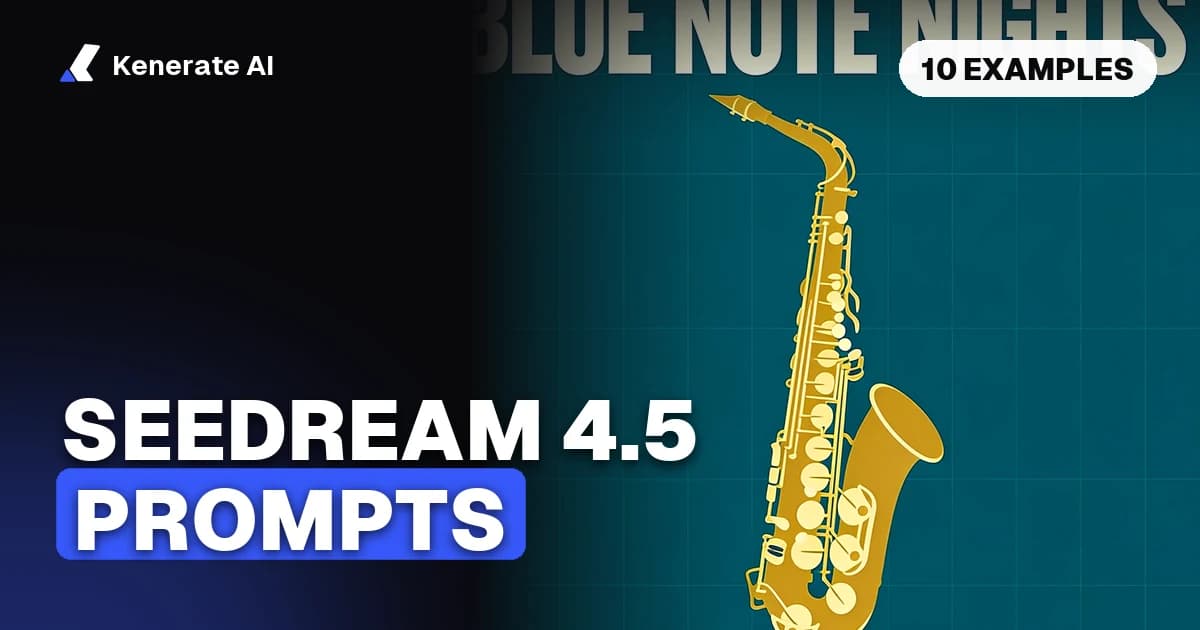
Bold minimalist concert poster for a jazz festival, a gold saxophone silhouette on deep teal, the words "BLUE NOTE NIGHTS" in large cream letters at the top and "AUG 14 · RIVERSIDE PARK" in small text at the bottom, clean grid layout.
2. Skincare product shot (2K Square)
Studio product photo of an amber glass skincare bottle with a white label reading "LUMEN SERUM", on a travertine block, soft shadows, beige background, e-commerce hero image.
3. Coffee shop menu board (2K Portrait 3:4)
A chalkboard café menu hanging on a brick wall, hand-lettered white chalk, the title "TODAY'S BREWS" at the top, then three lines: "Flat White 3.50", "Oat Latte 4.00", "Cold Brew 4.20", warm morning light.
4. Minimal logo concept (2K Square)
Flat vector logo for a bakery called "Rise & Crumb", a simple wheat stalk forming the letter R, warm brown and cream, centred on a plain white background, clean lines, no gradients.
5. Wedding invitation (2K Poster 2:3)
Elegant wedding invitation card with watercolour eucalyptus leaves along the edges, centred serif text "Maya & Daniel" and below it in smaller letters "12 June 2027 · Lisbon", ivory paper texture, top-down flat lay.
6. Four-panel comic (2K Square)
Four-panel comic strip in a clean flat illustration style: a robot gardener plants a seed, waters it, waits in the rain, and smiles at a sunflower, consistent character design across panels.
7. Gym promo banner (2K Widescreen 16:9)
High-energy gym promotion banner, an athlete mid-sprint on a dark track with motion streaks, bold condensed headline "NO DAYS OFF" on the left, small text "Open 24/7" underneath, red and black colour scheme.
8. Book cover (2K Poster 2:3)
Book cover for a mystery novel, a lone lighthouse on a cliff under a stormy violet sky, the title "THE LAST SIGNAL" in large silver serif letters at the top and the author name "E. R. MORROW" at the bottom.
9. Portrait with natural light (2K Portrait 3:4)
Photorealistic portrait of a woman potter in her 40s with a clay-dusted linen apron shaping a bowl on a wheel, warm window light, shallow depth of field, 85mm.
10. Social carousel cover (2K Square)
Instagram carousel cover slide, pastel yellow background, a 3D illustration of a stack of books and a coffee mug, the headline "5 HABITS THAT STICK" in bold black sans-serif in the upper third, generous margins.
Prompts 1, 2, 6 and 9 are the same prompts behind the real Seedream 4.5 outputs on our model page. For more poster ideas, the AI poster generator compares how several models handle the same layout.
What mistakes should you avoid when prompting Seedream 4.5?
- Stacking quality words. "8K, masterpiece, best quality" adds little; ByteDance's guidance says 4.5 needs less description than older versions. Spend the words on concrete details.
- Unquoted text. "A sign saying open late" may render something like it; '"OPEN LATE"' renders the words.
- Negative phrasing. Seedream has no separate negative-prompt field on Kenerate. Say what you want ("a clean, empty background") rather than what you don't ("no clutter").
- Too many text strings. Three or four short strings per image is a safe ceiling. More than that, split the layout.
- Vague edits. "Make it better" gives random changes. Name the target and what stays.
- Wrong size for the job. Tiny text needs pixels: use a 4K size for dense labels or infographics. On Kenerate the price is the same at 2K and 4K.
How is Seedream 4.5 different from Seedream 5.0?
The prompt structure is the same across the family, so a good 4.5 prompt is a good 5.0 prompt. The differences are in sizes, price and where each model is strongest. As of 31 October 2026 on Kenerate:
| Model | Credits per image | Sizes | References | Best for |
|---|---|---|---|---|
| Seedream 4.5 | 12, any size | 2K–4K (13 presets) | Up to 10 | Posters, labels, multi-panel layouts with exact text |
| Seedream 5.0 Pro | 13.5 at 1K/1.5K, 27 at 2K | 1K–2K, 15 aspect ratios | Up to 10 | Most detail, best multi-image edits |
| Seedream 5.0 Lite | 10.5 | 2K–4K | Up to 10 | Cheaper 4K renders |
| Seedream 5.0 Flash | 8.1 | 1K–2K | Up to 10 | Fast drafts |
A practical split: draft ideas with 5.0 Flash, pick 5.0 Pro when you want the richest detail and edits, and pick 4.5 when the job is type-heavy and you need a 4K poster or label at a flat price. If you are starting fresh with 5.0, our Seedream 5.0 prompt guide covers its extra controls, and the Seedream family page lists every version side by side.
Can you use Seedream 4.5 prompts in Chinese?
Yes. ByteDance supports English and Chinese prompts. Keep the text you want rendered in the language you want on the image, inside quotes. If you mix languages, quote each string separately and say where it goes.
Do you need a prompt enhancer?
Not usually — 4.5 works well with short, direct prompts. An enhancer helps when you only have a vague idea ("a poster for my bakery") and want a fuller first draft with scene, light and framing filled in. Kenerate's prompt enhancer does that; then trim what you don't need and add your quoted text.
Sources
- ByteDance Seed — Seedream 4.5 overview: https://seed.bytedance.com/en/seedream4_5
- Runware — Seedream 4.5 prompting guide: https://runware.ai/docs/models/bytedance-seedream-4-5/guides/prompting
- APIMart — Seedream 4.5 prompt guide (summarising BytePlus documentation): https://apimart.ai/blog/seedream-4-5-prompt-guide
- Kenerate model config (credits, sizes, reference limits), checked 31 October 2026.