

Free grey backgrounds · hex codes · AI
Gray background: free grey PNGs, hex codes and AI designs
Five named greys as flat PNGs for phone, desktop and square posts, eight AI grey backgrounds with the prompts that made them (including a studio backdrop), and a quick way to put a headshot on grey.



- Gray #808080 · light gray #D3D3D3
- 15 solid PNGs
- 8 AI backgrounds
- Your photo on grey in about 5 s
Updated by the Kenerate AI team




Made with Kenerate

On this page
Quick answer

How do you make a gray background?
To make a gray background, download a solid PNG from this page (gray #808080, silver #C0C0C0, light gray #D3D3D3) in 1920 × 1080, 1080 × 1920 or 1080 × 1080, or describe one in Kenerate's Image Studio with Qwen Image 3.0 for a gradient, bokeh or overcast sky. To put a headshot on grey, cut it out with Cutout HD and pick the colour.
Key facts
- Gray
- #808080 · RGB 128, 128, 128
- Light gray
- #D3D3D3 · RGB 211, 211, 211
- Free PNG sizes
- 1920×1080 · 1080×1920 · 1080×1080
- AI models
- Qwen Image 3.0 · Seedream 5.0 Pro
AI grey backgrounds
Gray background ideas: 8 AI backgrounds
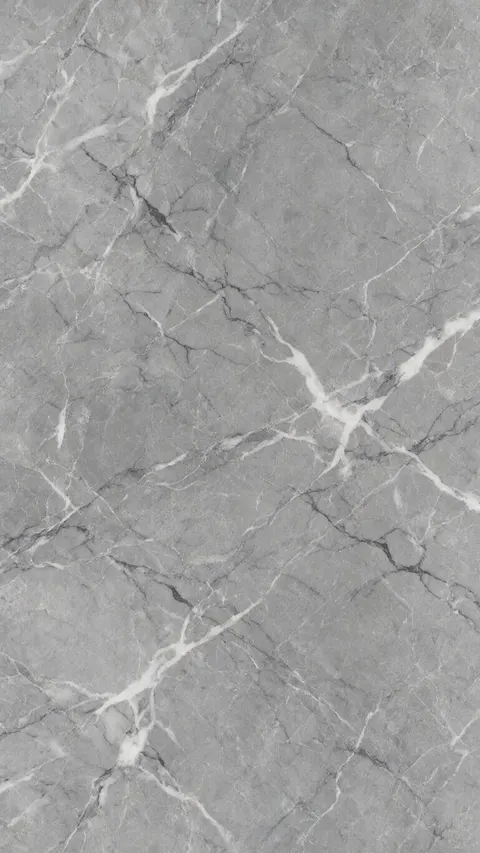
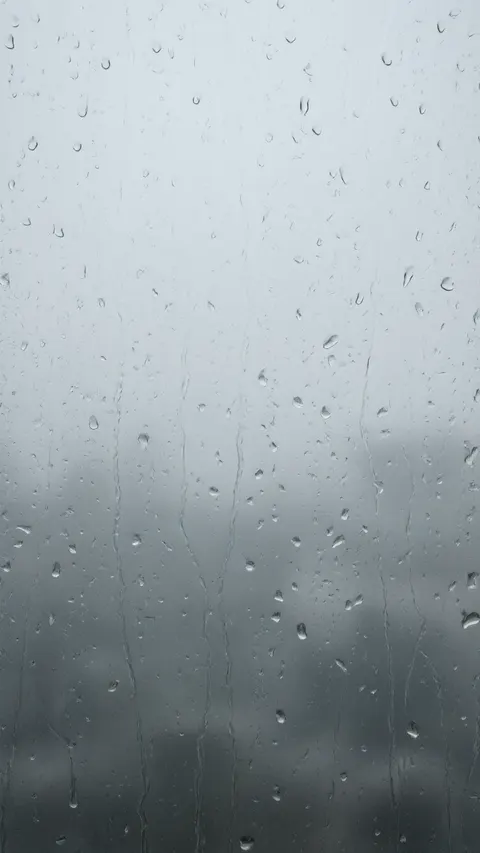
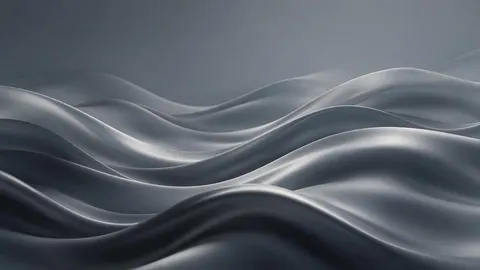
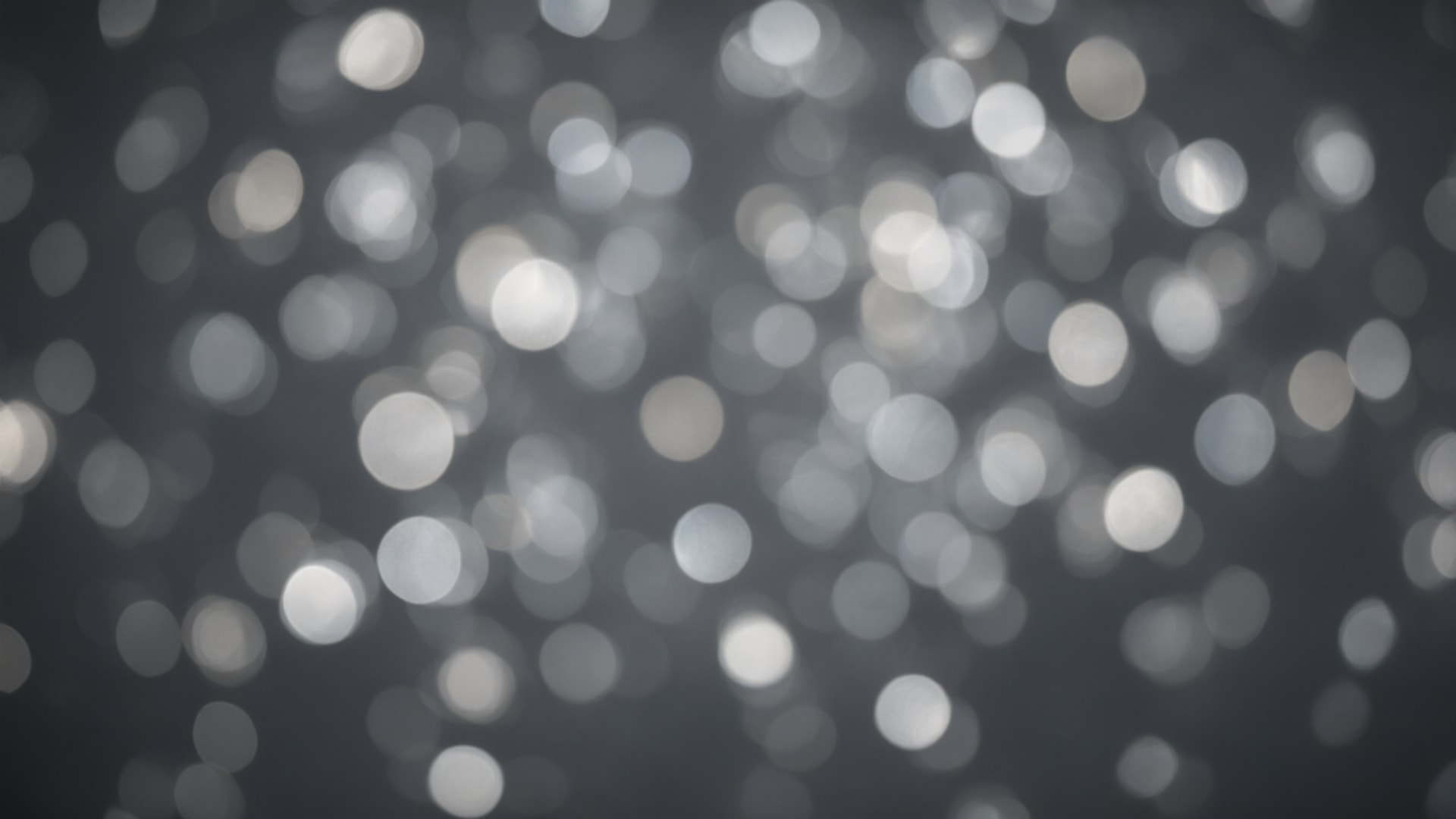
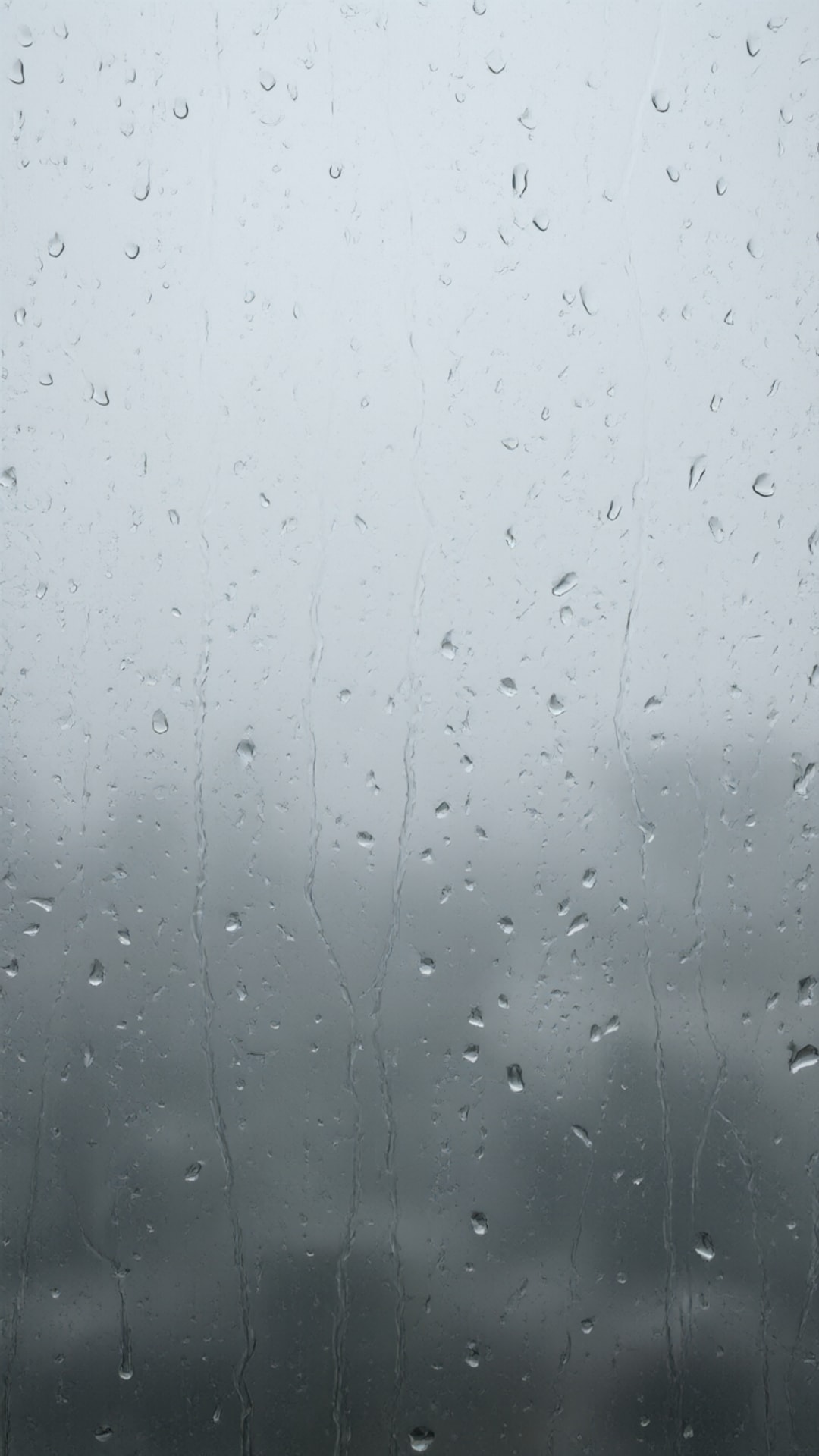
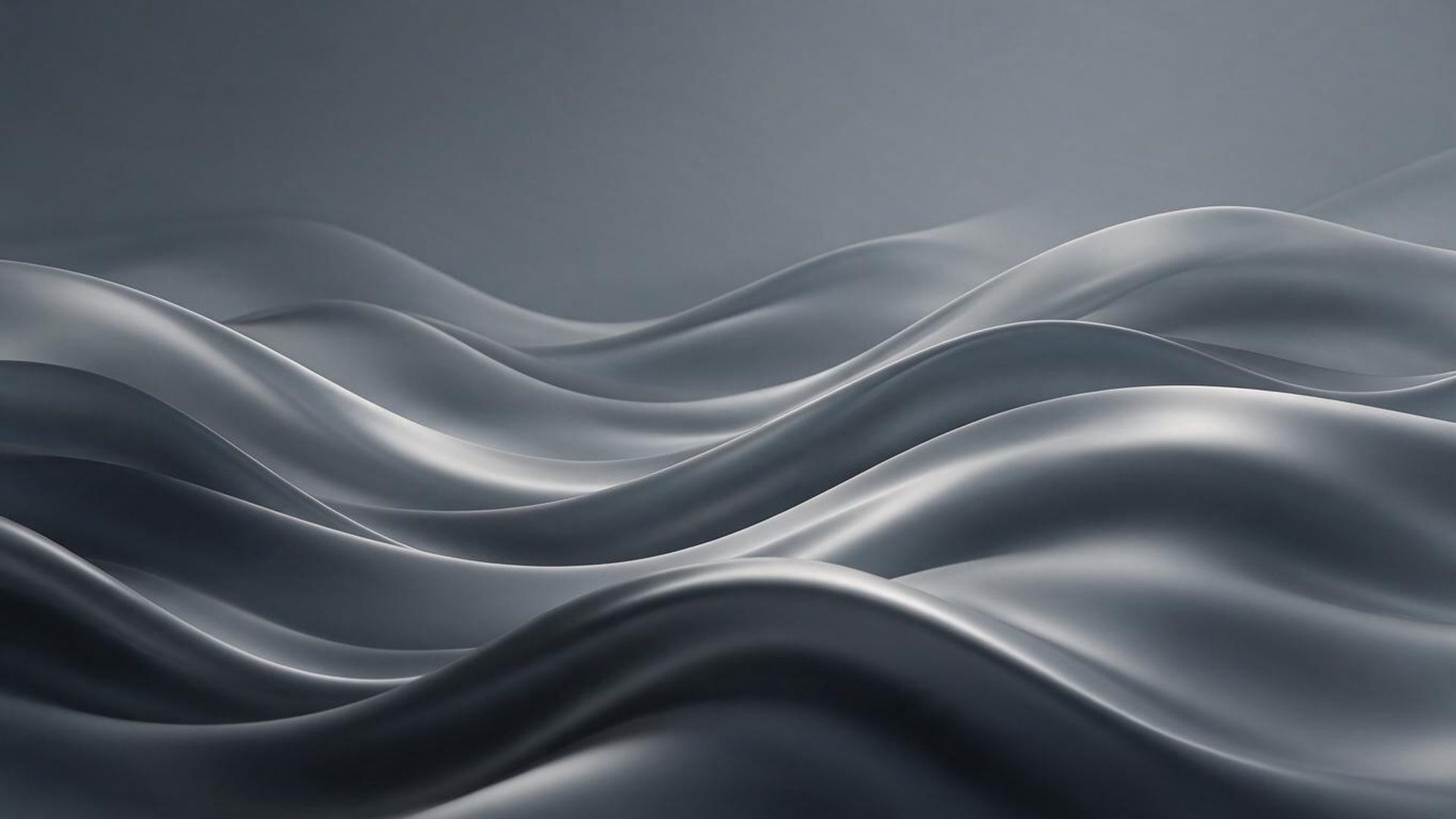
Every gray background here was made in Kenerate with Qwen Image 3.0 or Seedream 5.0 Pro: aesthetic overcast sky, gradient, studio backdrop, concrete, marble, bokeh, rain on glass and silk waves, in phone (9:16), desktop (16:9) and square (1:1). Open one to copy its prompt.
Download
Download the AI grey backgrounds
Each one resized to a standard size as a JPG. Free to download and use.
- Grey overcast sky — phone 9:16, 1080 × 1920 JPG (Qwen Image 3.0)
- Grey gradient — desktop 16:9, 1920 × 1080 JPG (Qwen Image 3.0)
- Grey studio backdrop — square 1:1, 1080 × 1080 JPG (Seedream 5.0 Pro)
- Grey concrete — square 1:1, 1080 × 1080 JPG (Seedream 5.0 Pro)
- Grey marble — phone 9:16, 1080 × 1920 JPG (Seedream 5.0 Pro)
- Grey bokeh — desktop 16:9, 1920 × 1080 JPG (Qwen Image 3.0)
- Rain on a window — phone 9:16, 1080 × 1920 JPG (Qwen Image 3.0)
- Abstract grey waves — desktop 16:9, 1920 × 1080 JPG (Seedream 5.0 Pro)
Want another shade or size? Open the image in the gallery above and choose “Use this prompt” to make your own version.
Free downloads
What is the hex code for gray? Solid grey PNGs
Five named greys as flat PNGs, each in three sizes: 1920 × 1080 (desktop, slides, Zoom), 1080 × 1920 (phone, Stories) and 1080 × 1080 (square post). Free for any use.
| Shade | Hex | RGB | Download PNG |
|---|---|---|---|
| Gray | #808080 | 128, 128, 128 | 1920 × 1080 · 1080 × 1920 · 1080 × 1080 |
| Dim gray | #696969 | 105, 105, 105 | 1920 × 1080 · 1080 × 1920 · 1080 × 1080 |
| Dark gray | #A9A9A9 | 169, 169, 169 | 1920 × 1080 · 1080 × 1920 · 1080 × 1080 |
| Silver | #C0C0C0 | 192, 192, 192 | 1920 × 1080 · 1080 × 1920 · 1080 × 1080 |
| Light gray | #D3D3D3 | 211, 211, 211 | 1920 × 1080 · 1080 × 1920 · 1080 × 1080 |
The names and values are the CSS named colours, so #808080 means the same grey in Canva, Figma, PowerPoint or a web page. For the two ends of the scale see the black background and white background pages.
Photo → grey
Can I change a photo's background to gray?
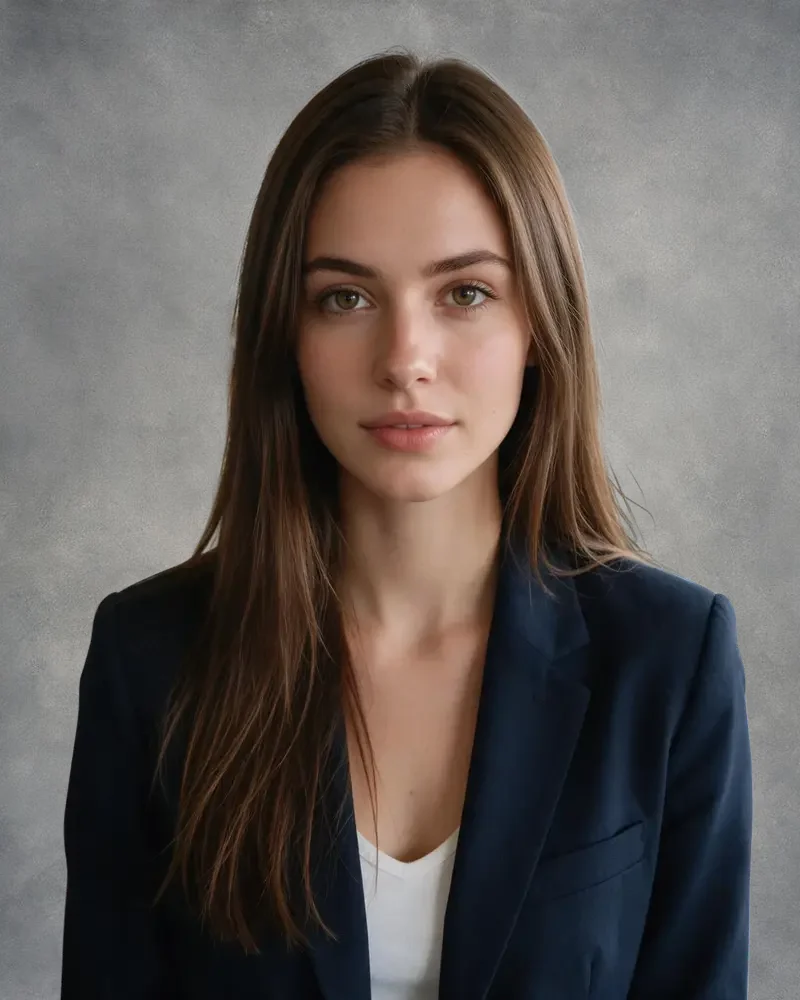
Yes. Four real photos cut out with Cutout HD and put on grey: one AI studio backdrop and three solid greys. Tap “Original” to see the scene.
- OriginalCut out
Office headshot → AI studio backdrop
Cutout HD, then the grey studio backdrop from this page uploaded under Photos.
Kenerate Cutout HD
Try this photo  OriginalCut out
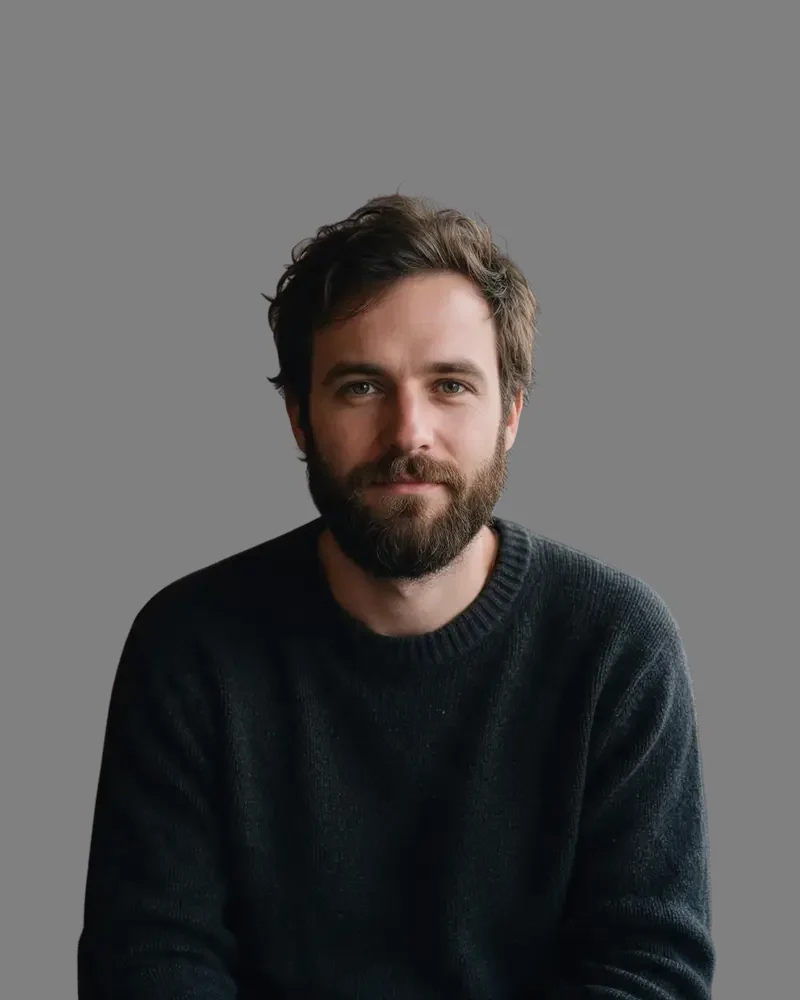
Cafe portrait → gray
Cutout HD on #808080: plain mid grey, the safest neutral for a profile photo.
Kenerate Cutout HD
Try this photo OriginalCut out
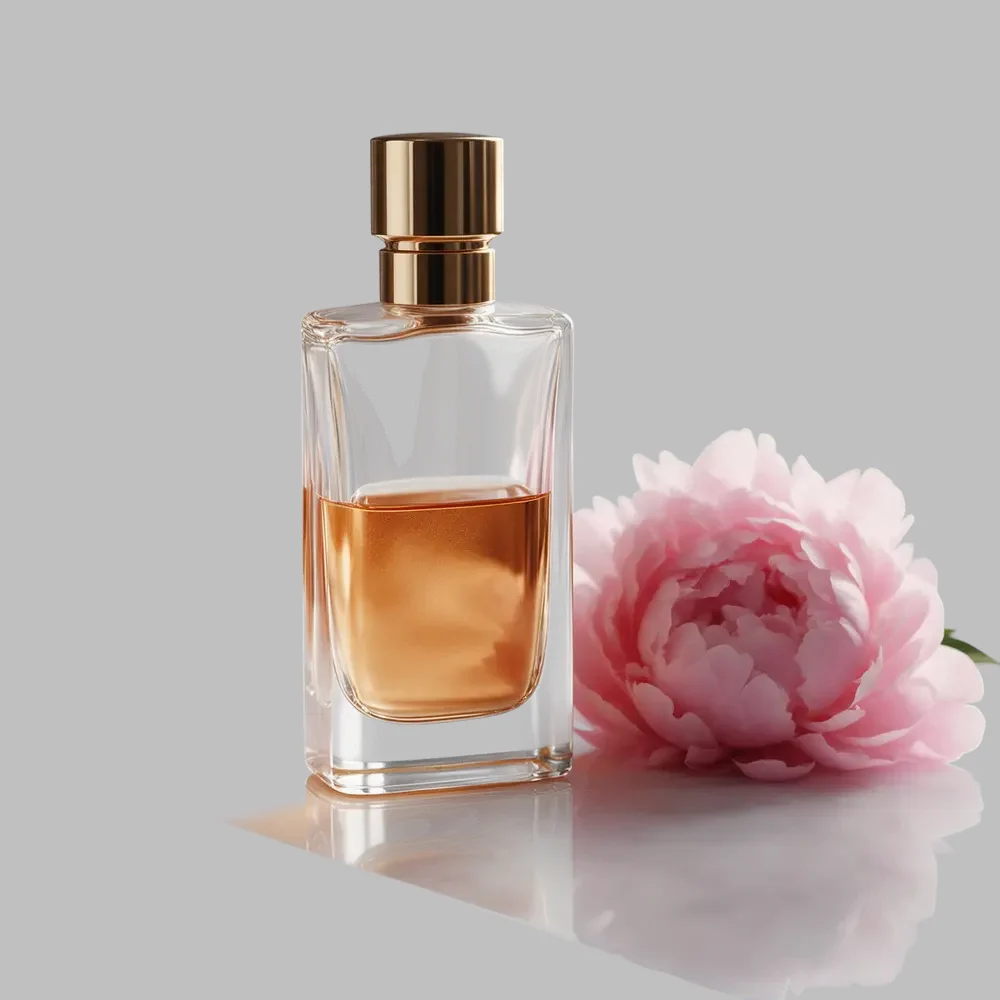
Marble table → silver
A glass bottle cut out with Cutout HD and placed on #C0C0C0.
Kenerate Cutout HD
Try this photo OriginalCut out
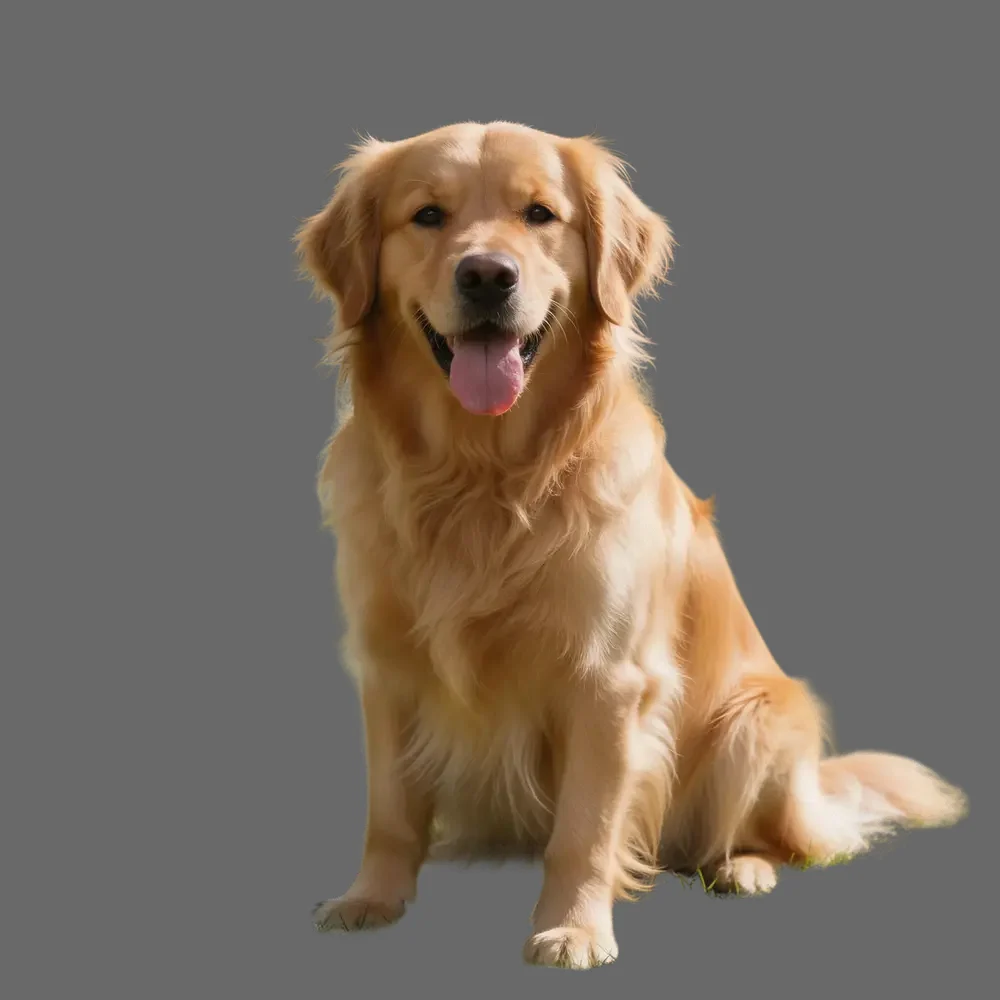
Photo → grey
How to change a photo's background to gray
Step 1: Upload the photo
Add a JPG, PNG or WEBP: a headshot, a pet or a product, on any background.
Step 2: Cut it out
Use Cutout HD for hair and fur, or Cutout for simple products. The result is a transparent cut-out.
Step 3: Pick a grey
Under “Add new background”, type a hex such as #808080 or #D3D3D3 into the custom colour. Photos lets you upload an AI grey studio backdrop instead.
Tip: Grey suits any skin tone and outfit; go lighter (#D3D3D3) for dark clothes and darker (#696969) for light clothes so the outline stays clear.
Step 4: Download
The photo is saved as a PNG at the cut-out's size, with the grey behind it.
With AI
How to make your own gray background with AI
Step 1: Open Image Studio and pick a model
Qwen Image 3.0 is on the free plan; Seedream 5.0 Pro is good for marble, concrete and studio backdrops.
Step 2: Choose the shape
9:16 for a phone or Stories, 16:9 for a desktop or slides, 1:1 for a square post.
Step 3: Describe the grey
Name the shade and the texture, for example “mottled grey studio backdrop” or “charcoal to silver gradient”, and add “no text”.
Tip: Add “empty space in the middle” for a lock screen, or “calm plain top third” for a desktop with icons.
Step 4: Generate and download
Most images arrive in under a minute. Download it, or run it through the image upscaler for 4K.
Checked 16 November 2026
Solid PNG, AI background or your photo on grey?
Three kinds of grey background, for three different jobs.
| Solid grey PNG | AI grey background | Your photo on grey | |
|---|---|---|---|
| Best for | Slides, Zoom, a base for your own design | Phone and desktop backgrounds, studio looks | Headshots, products, pets |
| Exact hex colour | Yes | No | Yes |
| Sizes | 1920×1080, 1080×1920, 1080×1080 | 9:16, 16:9, 1:1 and more | The photo's own size |
| Time | Instant download | Under a minute | About 5 s |
Look closer
Hair on a grey studio backdrop, up close
A studio backdrop hides fringe better than a flat colour. Zoom in on the hair over the AI grey backdrop.
- Loose strands kept with Cutout HD
- No office colours left in the hair
- The grey studio backdrop, cover-fitted behind the cut-out
How it works
How it works in the app
Step 1
Add your image
Open Remove & Erase and drop in a photo — products, people and pets all work.
Step 2
Choose what should happen
Pick Cutout for a fast transparent PNG, HD for hair and fur, Pick for one object or Erase to remove something.
Step 3
Click Remove background
Press the button and the cut-out lands in your results in seconds.
Step 4
Compare and download the PNG
Drag the slider to compare, add a new background if you like, then download the transparent PNG.
See it in the app

Open Remove & Erase and drop in a photo — products, people and pets all work.


FAQ
Gray background questions
8 questions

















How do I make a gray background?
Download one of the solid grey PNGs on this page, or open Kenerate's Image Studio, pick Qwen Image 3.0, choose 9:16, 16:9 or 1:1 and describe it, for example “charcoal to silver gradient, no text”. Qwen Image 3.0 is on the free plan and uses 9 credits per image.
Link to this answerWhat is the hex code for gray?
Gray is #808080 (RGB 128, 128, 128) in CSS. The other named greys are dim gray #696969, dark gray #A9A9A9, silver #C0C0C0 and light gray #D3D3D3.
Link to this answerIs it gray or grey?
Both are correct: “gray” is the usual US spelling and “grey” the UK one. CSS accepts both, so gray and grey, darkgray and darkgrey, and lightgray and lightgrey give identical hex values.
Link to this answerWhy is dark gray lighter than gray?
Because the names come from two different lists. Gray #808080 came from the HTML 4 colour set, while dark gray #A9A9A9 came from the X11 colour names, where plain gray was #BEBEBE. CSS kept both, so “dark gray” ended up lighter than “gray”.
Link to this answerHow do I change a photo's background to gray?
Upload it to Kenerate's background remover, cut it out with Cutout HD, then under “Add new background” type a grey hex such as #808080 into the custom colour and download the PNG. Cutout HD uses 3 credits per photo; new accounts get 25 free credits.
Link to this answerAre these gray backgrounds free to download?
Yes. The 15 solid grey PNGs and the 8 AI grey backgrounds on this page are free to download and use. Making new AI backgrounds uses credits.
Link to this answerIs a grey background good for headshots and passport photos?
For headshots, yes: mid grey is the standard studio backdrop because it is neutral with any skin tone or outfit. For passports it depends: the UK asks for plain cream or light grey, while the US asks for white or off-white, so check the issuing office's rules.
Link to this answerWhat colour text goes on a gray background?
It depends on the grey. On gray #808080 black text reaches 5.32:1 and white only 3.95:1, so use black; on dim gray #696969 white wins (5.49:1). WCAG asks for at least 4.5:1 for body text.
Link to this answerIn depth
Grey shades, contrast and compositing
What the named greys are, which text colour works on each, and what happens when a headshot goes on grey — with sources.
On this page
Which grey is “gray”?
CSS defines gray as #808080 (each channel at 128), in sRGB [1]. The other named greys are dim gray #696969 (darker), and dark gray #A9A9A9, silver #C0C0C0 and light gray #D3D3D3 (all lighter). Dark gray being lighter than gray is a known quirk: the CSS specification notes that the X11 names and the older HTML names clash [1]. Every grey name can also be spelt “grey” in CSS with the same value.
Text on grey
WCAG 2.2 asks for a contrast ratio of at least 4.5:1 for normal text and 3:1 for large text [2]. Mid greys are the hardest backgrounds for text: neither black nor white is comfortable on #808080, so check the number before you choose.
- Gray #808080: black 5.32:1, white 3.95:1
- Dim gray #696969: black 3.83:1, white 5.49:1
- Dark gray #A9A9A9: black 8.94:1, white 2.35:1
- Silver #C0C0C0: black 11.54:1, white 1.82:1
- Light gray #D3D3D3: black 14.03:1, white 1.50:1
Putting a headshot on grey
Changing a background is a cut-out followed by the “over” operation that Porter and Duff defined for the alpha channel [3]: the cut-out is drawn over the new colour, and partly transparent hair pixels blend with it. Grey is the safest choice for that blend because it has no hue, so colour from the old background shows less in fine hair. The UK passport service asks for a plain cream or light grey background [4]; for other documents, check the issuing office's rules. Keep the transparent PNG [5] too, so you can try other greys later without cutting out again.
By the Kenerate AI teamLast updated and reviewed
Written by the Kenerate team. The AI backgrounds are real Qwen Image 3.0 and Seedream 5.0 Pro outputs; the photo examples are real Cutout HD cut-outs placed on grey.
Sources: W3C — CSS Color Module Level 4, named colours · W3C — WCAG 2.2, Contrast (Minimum) · GOV.UK — Get a passport photo

Put your photo on grey
Upload a photo, cut it out, pick a grey, download. Free credits on sign-up.
Tried it? Tell us how it went