

Free green backgrounds · hex codes · AI
Green background: free PNGs, hex codes and AI designs
Green, lime, forest green, dark green and light green as flat PNGs for phone, desktop and square posts, eight AI green backgrounds with their prompts, and a quick way to put your own photo on green.




- Green #008000 · lime #00FF00
- 15 solid PNGs
- 8 AI backgrounds
- Your photo on green in about 5 s
Updated by the Kenerate AI team




Made with Kenerate

On this page
Quick answer

How do you make a green background?
To make a green background, download a solid green PNG from this page (green #008000, lime #00FF00, forest green #228B22) in 1920 × 1080, 1080 × 1920 or 1080 × 1080, or describe one in Kenerate's Image Studio with Qwen Image 3.0. To make a photo's background green, cut it out with Cutout HD and pick a green backdrop.
Key facts
- Green
- #008000 · RGB 0, 128, 0
- Lime (screen green)
- #00FF00 · RGB 0, 255, 0
- Free PNG sizes
- 1920×1080 · 1080×1920 · 1080×1080
- AI models
- Qwen Image 3.0 · Seedream 5.0 Pro
AI green backgrounds
Green background ideas: 8 AI backgrounds
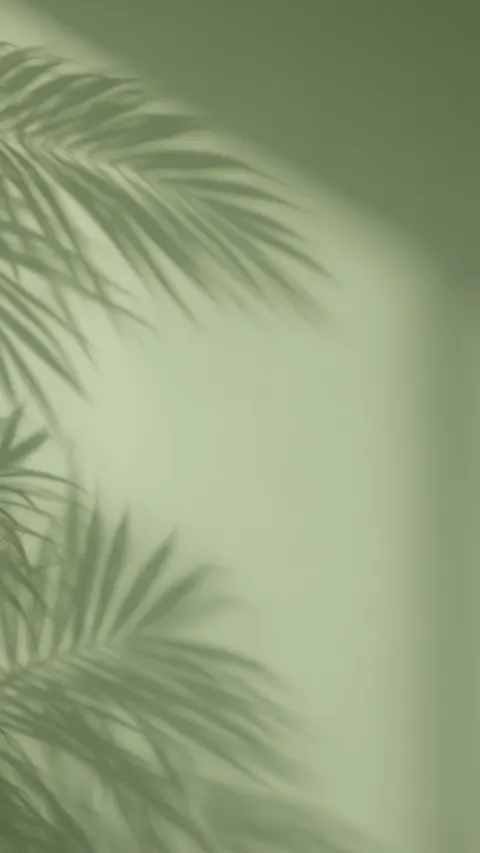
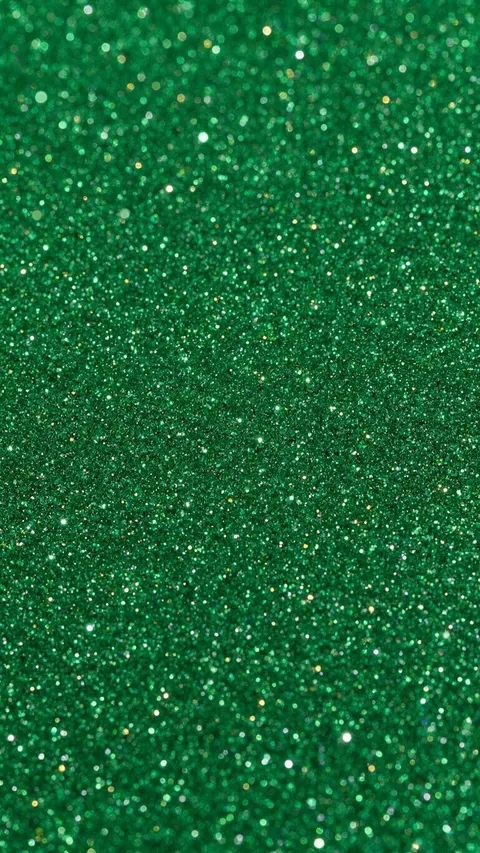
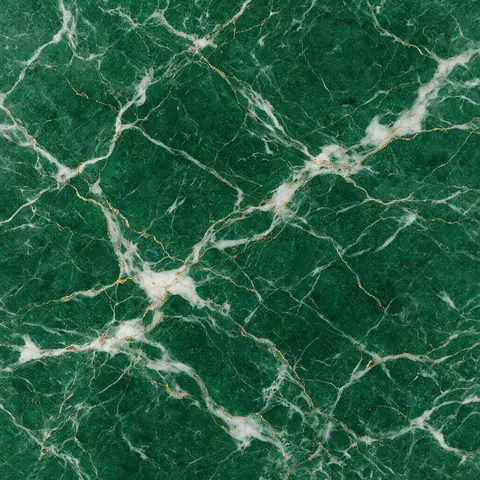
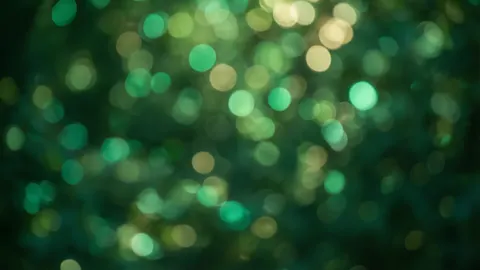
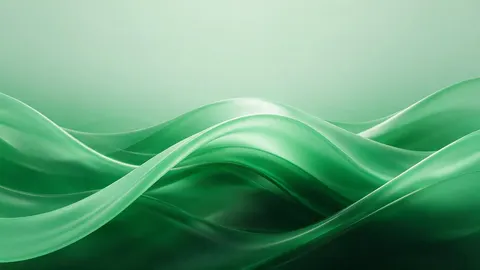
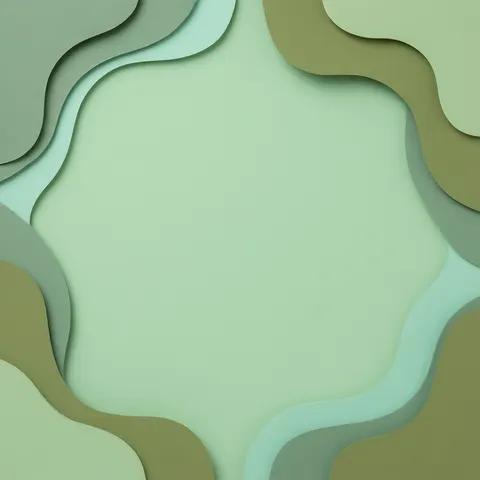
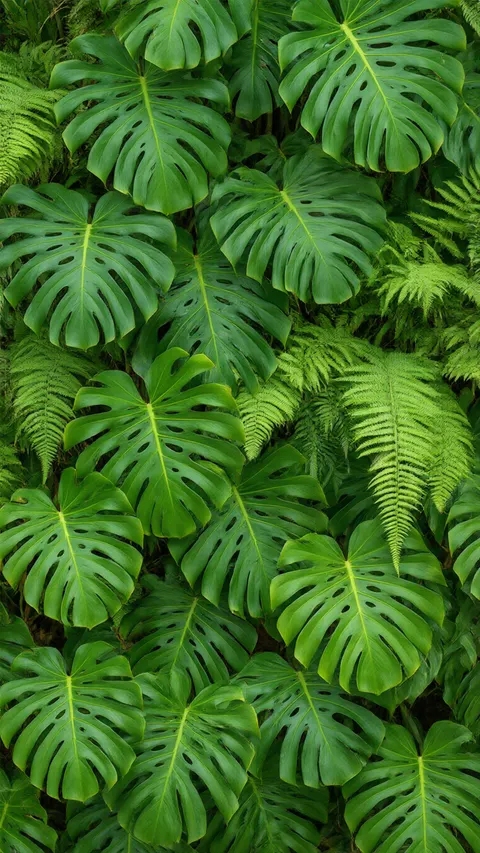
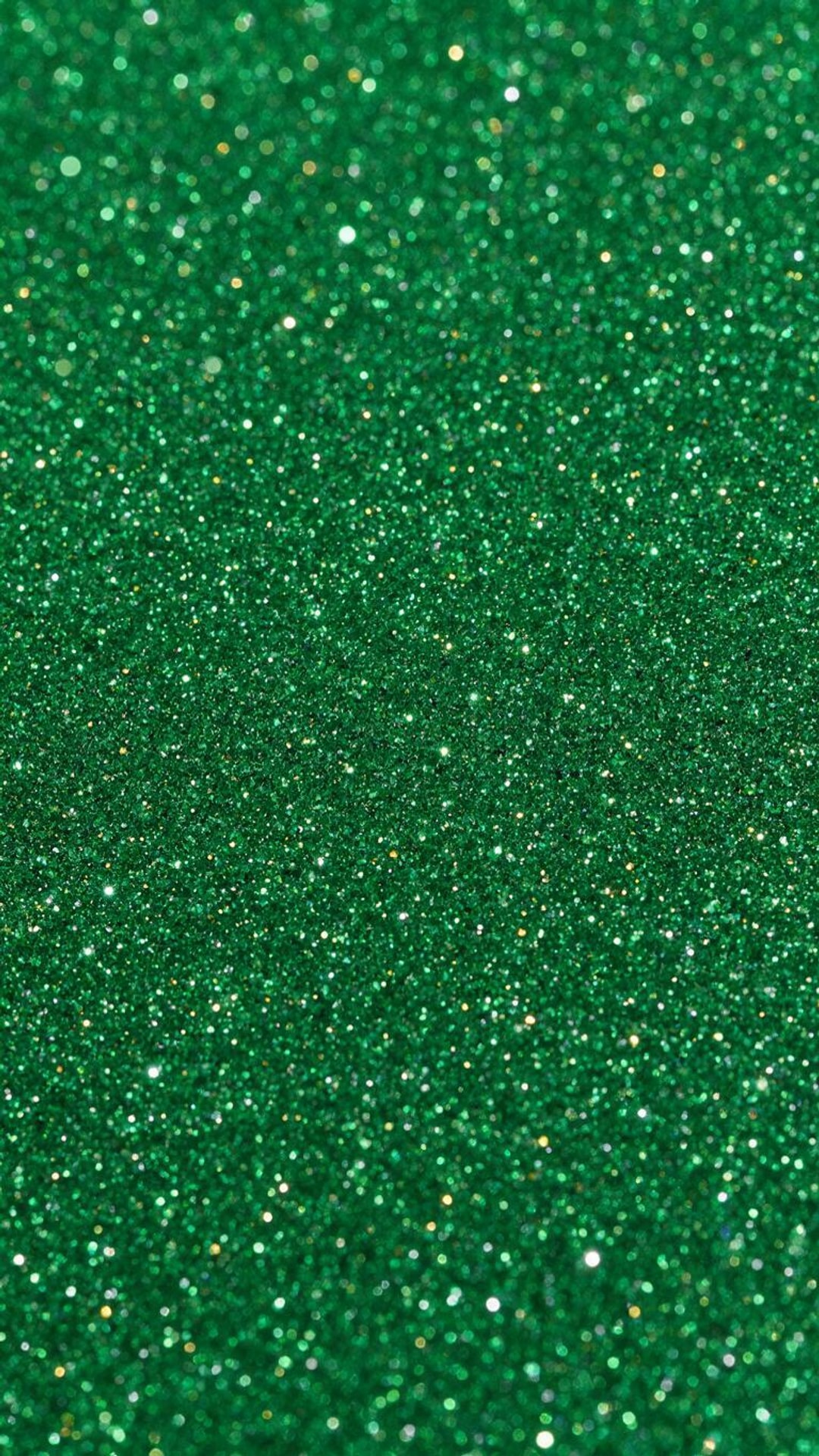
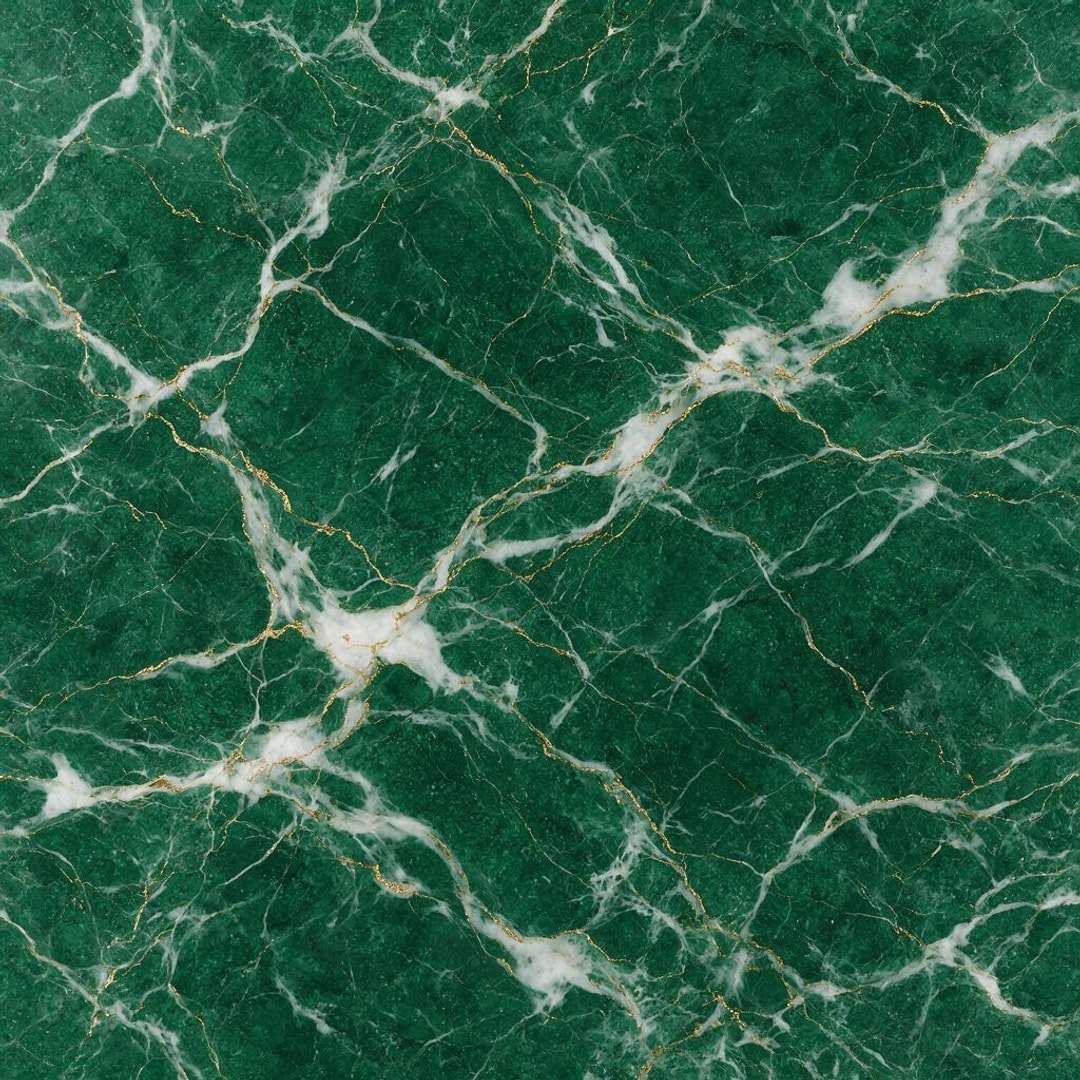
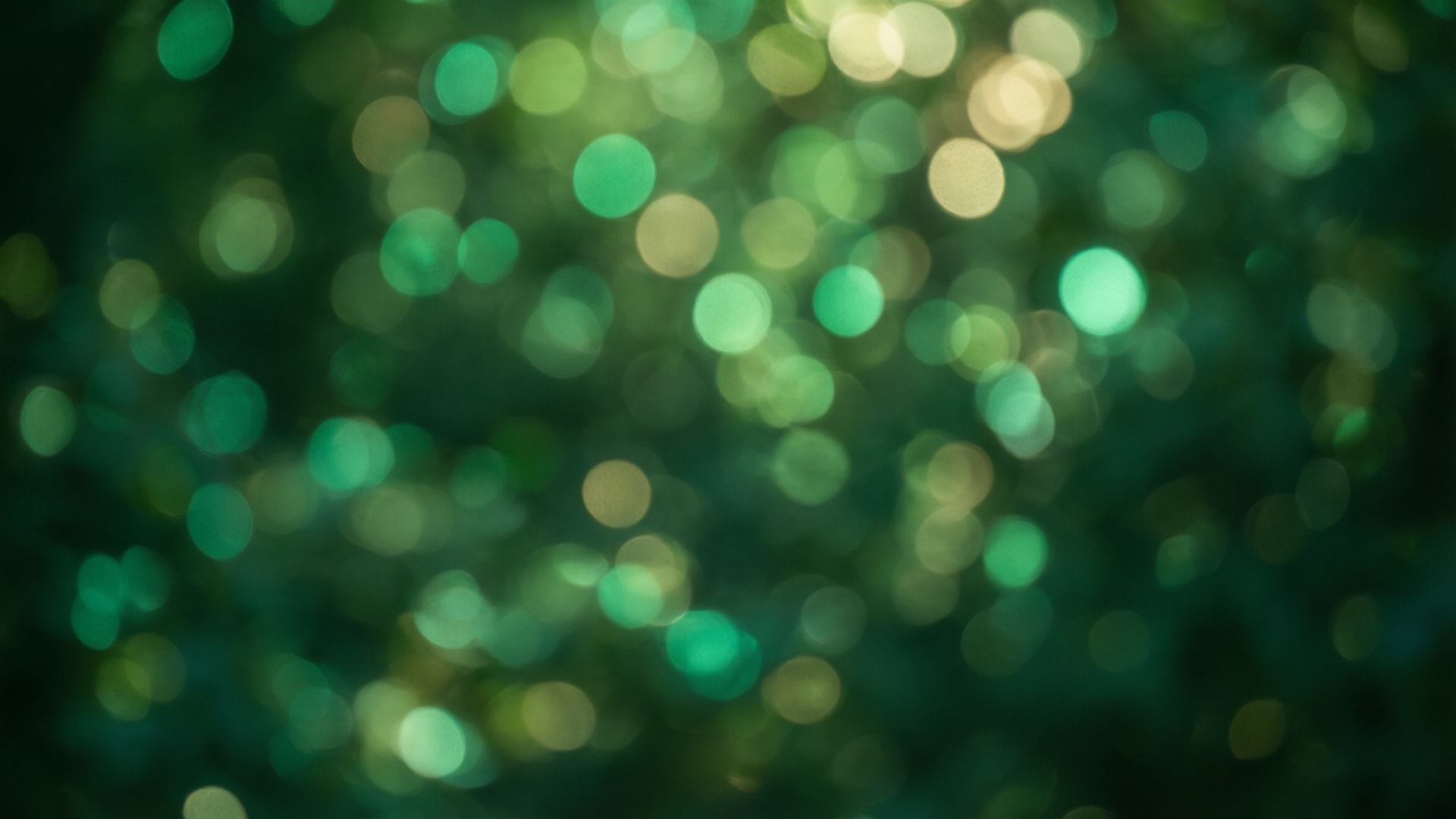
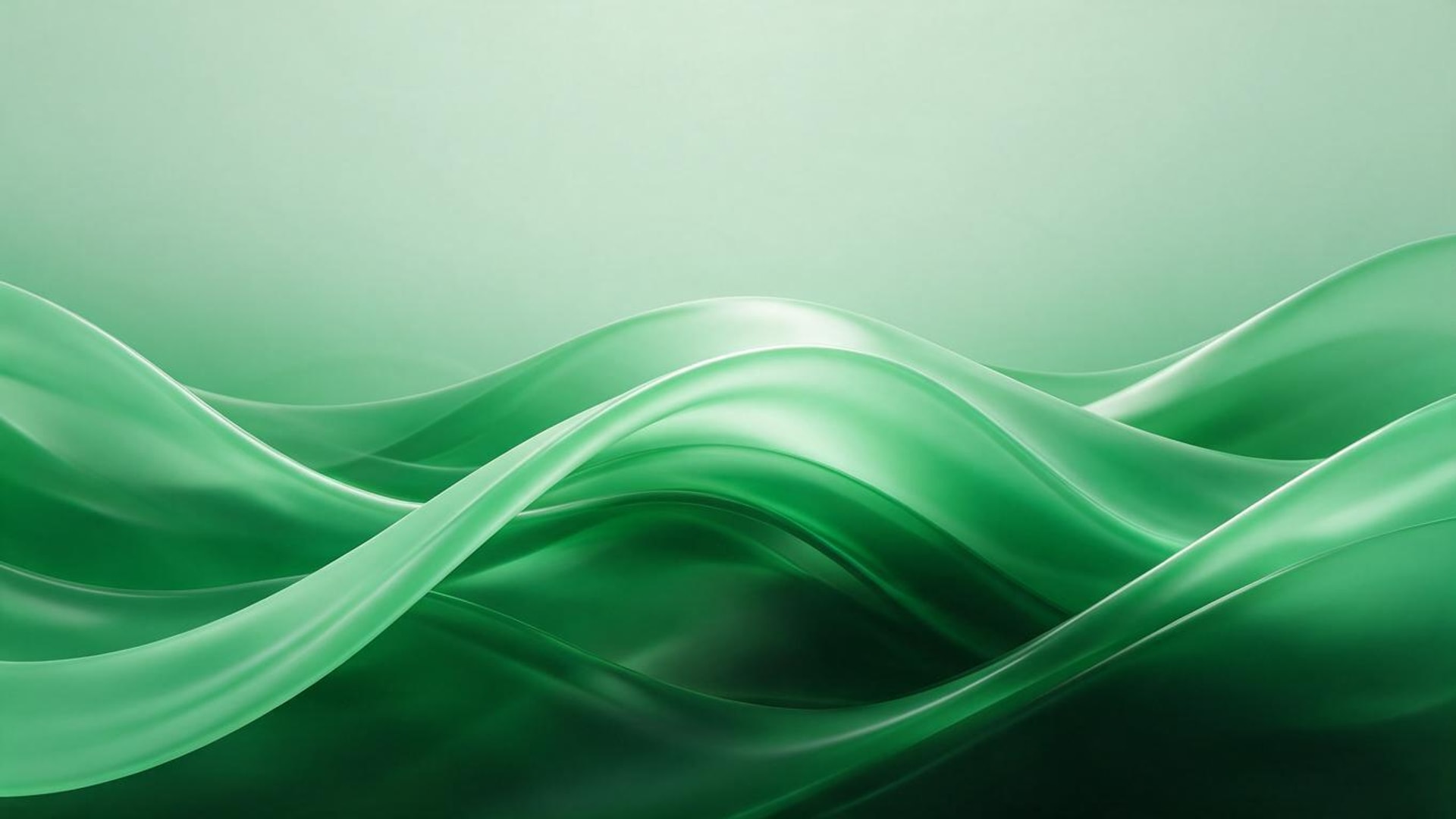
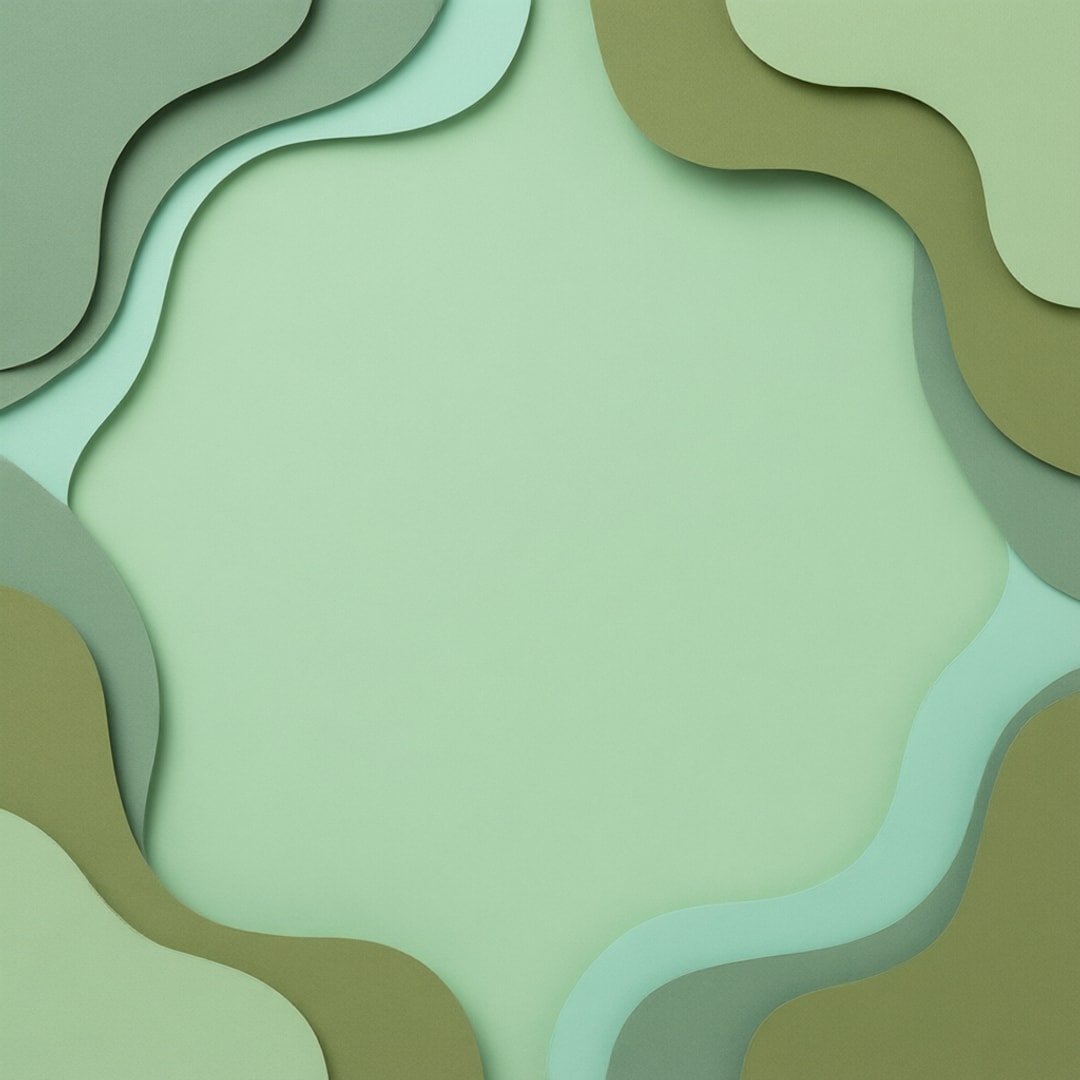
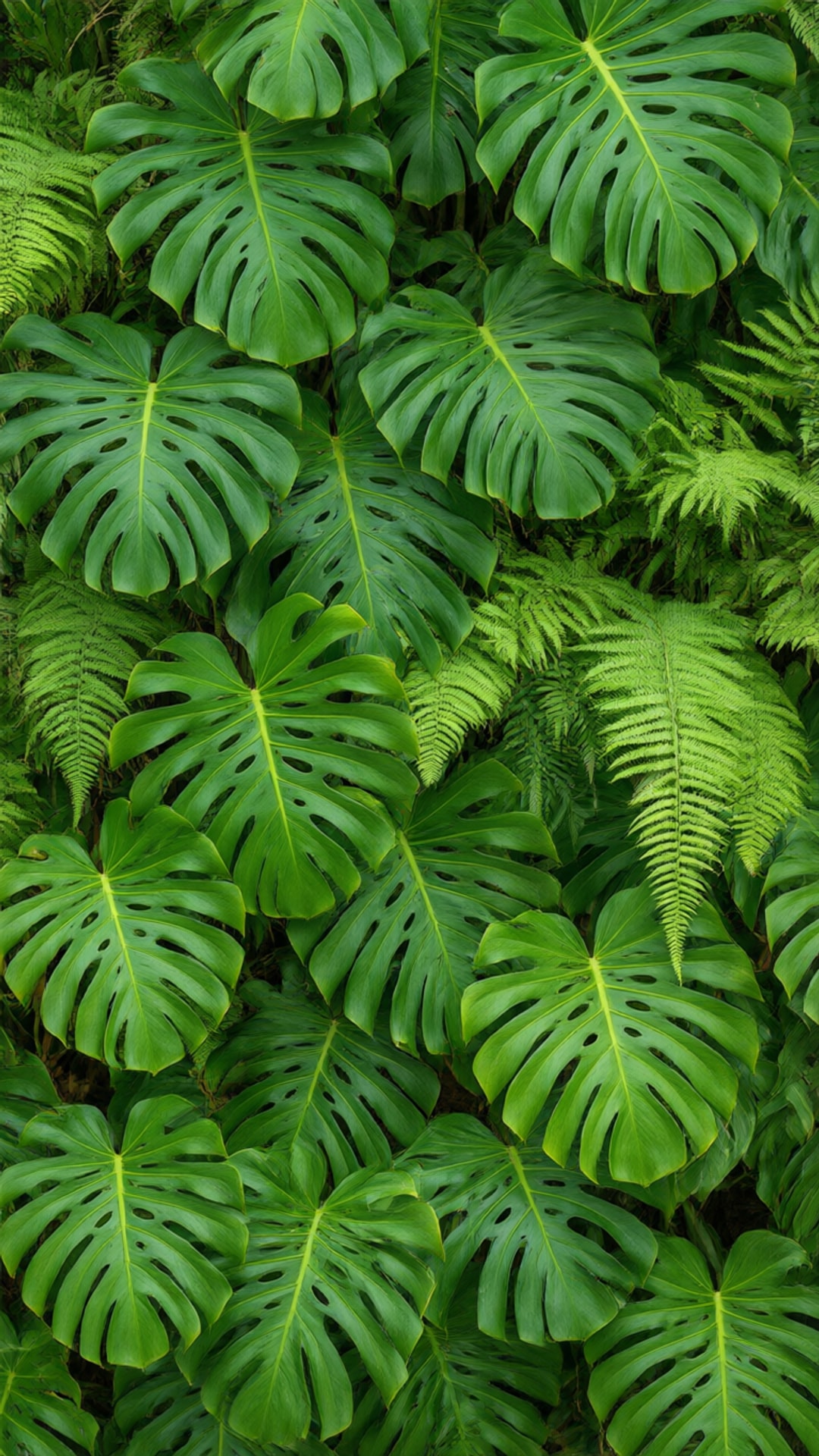
Every green background here was made in Kenerate with Qwen Image 3.0 or Seedream 5.0 Pro: sage green with leaf shadows, a mint-to-emerald gradient, glitter, emerald marble, bokeh, glossy waves, paper and leaves, in phone (9:16), desktop (16:9) and square (1:1). Open one to copy its prompt.
Download
Download the AI green backgrounds
Each one resized to a standard size as a JPG. Free to download and use.
- Sage green with leaf shadows — phone 9:16, 1080 × 1920 JPG (Qwen Image 3.0)
- Mint to emerald gradient — desktop 16:9, 1920 × 1080 JPG (Qwen Image 3.0)
- Emerald glitter — phone 9:16, 1080 × 1920 JPG (Seedream 5.0 Pro)
- Emerald marble — square 1:1, 1080 × 1080 JPG (Seedream 5.0 Pro)
- Green bokeh — desktop 16:9, 1920 × 1080 JPG (Qwen Image 3.0)
- Abstract green waves — desktop 16:9, 1920 × 1080 JPG (Seedream 5.0 Pro)
- Minimal green paper — square 1:1, 1080 × 1080 JPG (Qwen Image 3.0)
- Green leaves — phone 9:16, 1080 × 1920 JPG (Qwen Image 3.0)
Want another shade or size? Open the image in the gallery above and choose “Use this prompt” to make your own version.
Free downloads
What is the hex code for green? Solid green PNGs
Five named greens as flat PNGs, each in three sizes: 1920 × 1080 (desktop, slides, Zoom), 1080 × 1920 (phone, Stories) and 1080 × 1080 (square post). Free for any use.
| Shade | Hex | RGB | Download PNG |
|---|---|---|---|
| Green | #008000 | 0, 128, 0 | 1920 × 1080 · 1080 × 1920 · 1080 × 1080 |
| Lime | #00FF00 | 0, 255, 0 | 1920 × 1080 · 1080 × 1920 · 1080 × 1080 |
| Forest green | #228B22 | 34, 139, 34 | 1920 × 1080 · 1080 × 1920 · 1080 × 1080 |
| Dark green | #006400 | 0, 100, 0 | 1920 × 1080 · 1080 × 1920 · 1080 × 1080 |
| Light green | #90EE90 | 144, 238, 144 | 1920 × 1080 · 1080 × 1920 · 1080 × 1080 |
The names and values are the CSS named colours, so #228B22 is the same forest green in Canva, Figma, PowerPoint or a web page.
Photo → green
Can I change a photo's background to green?
Yes. Four real photos cut out with Cutout HD or Cutout and put on green: three solid shades and one AI green gradient. Tap “Original” to see the scene.
- OriginalCut out
Office headshot → forest green
Cutout HD on #228B22, a natural, calm look.
Kenerate Cutout HD
Try this photo  OriginalCut out

City street → AI green gradient
The mint-to-emerald gradient from this page, uploaded under Photos.
Kenerate Cutout HD
Try this photo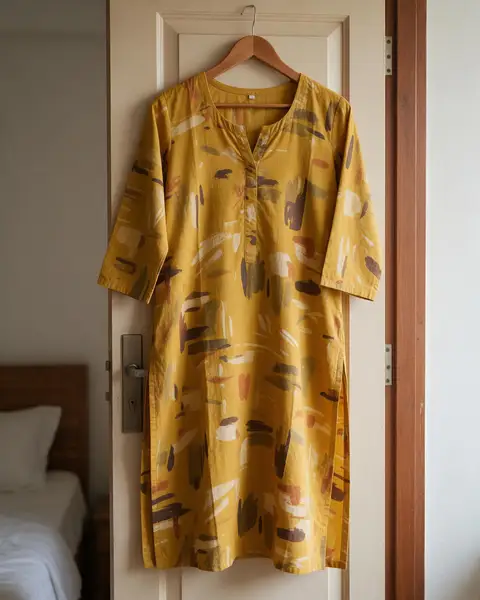 OriginalCut out
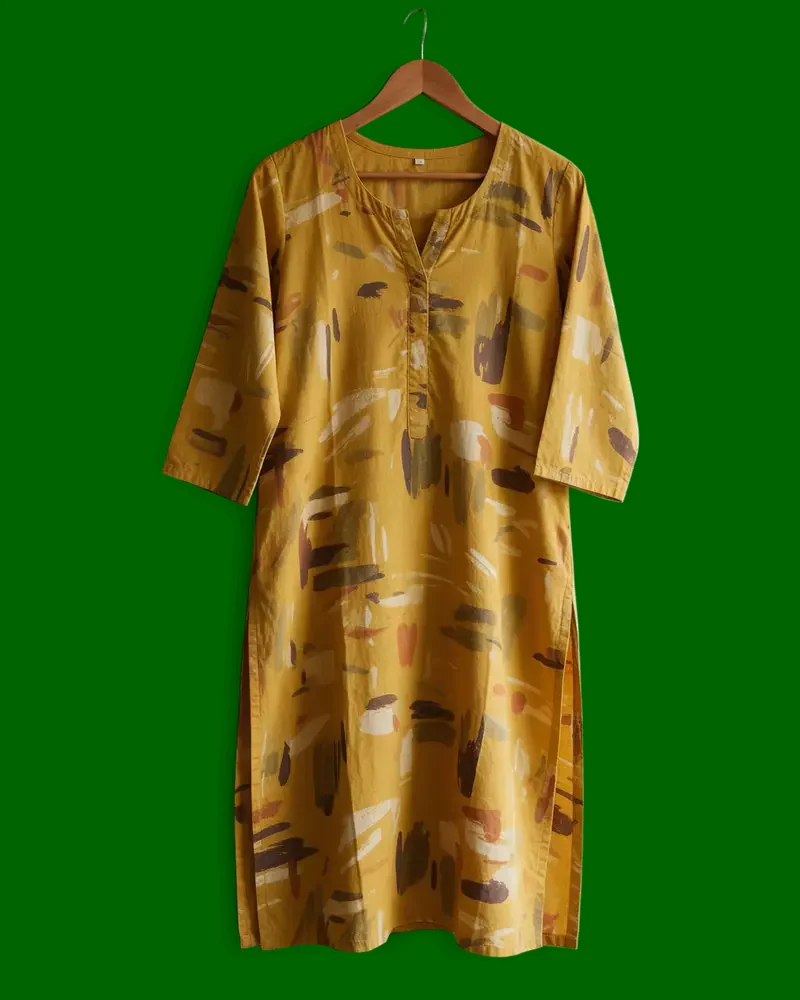
Bedroom door → dark green
Cutout HD on #006400: mustard print on deep green.
Kenerate Cutout HD
Try this photo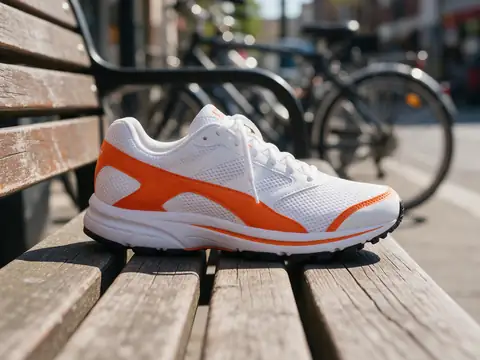 OriginalCut out
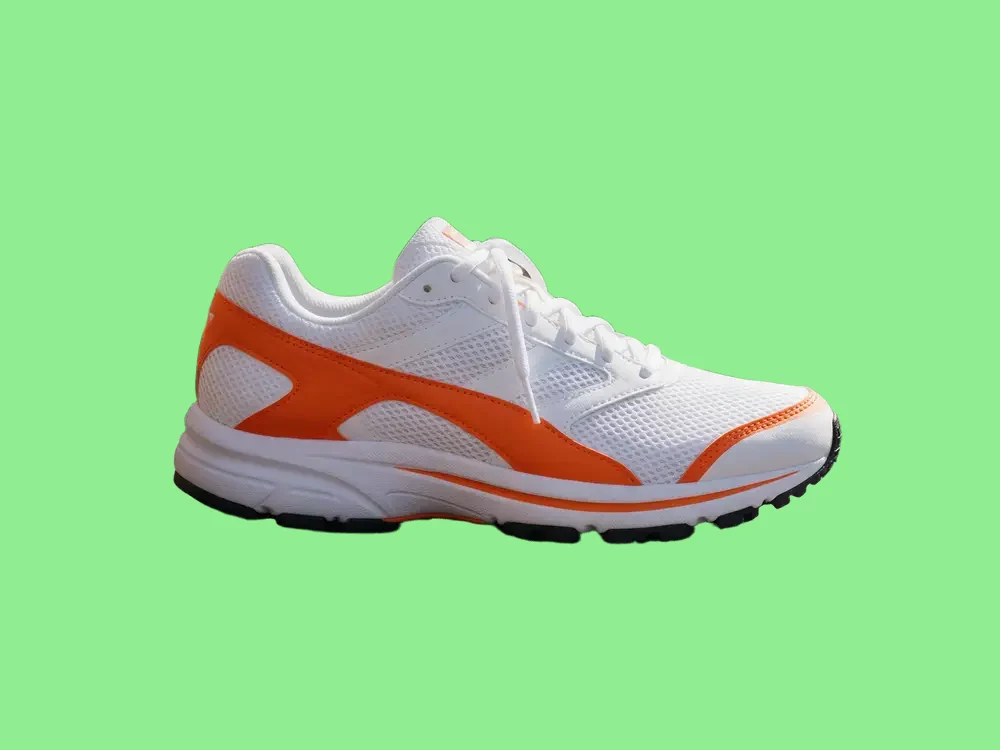
Wooden bench → light green
Cutout on #90EE90: the orange trim pops on a pale green.
Kenerate Cutout
Try this photo
Photo → green
How to change a photo's background to green
Step 1: Upload the photo
Add a JPG, PNG or WEBP: a portrait, a product or a pet, on any background.
Step 2: Cut it out
Use Cutout HD for hair and fine edges, or Cutout for simple products. The result is a transparent cut-out.
Step 3: Pick a green
Under “Add new background”, choose the Emerald or Sage swatch or the Mint gradient, or type any hex such as #228B22 into the custom colour. Photos lets you upload an AI green background instead.
Tip: Red, orange and mustard stand out most on green; avoid green clothes on a green backdrop.
Step 4: Download
The photo is saved as a PNG at the cut-out's size, with the green behind it.
With AI
How to make your own green background with AI
Step 1: Open Image Studio and pick a model
Qwen Image 3.0 is on the free plan; Seedream 5.0 Pro is good for glitter, marble and glossy 3D waves.
Step 2: Choose the shape
9:16 for a phone or Stories, 16:9 for a desktop or slides, 1:1 for a square post.
Step 3: Name the green
Say which green and which texture, for example “sage green with leaf shadows” or “emerald marble”, and add “no text”.
Tip: Leaf shadows, moss or marble give a natural texture; add “empty space” where text goes.
Step 4: Generate and download
Most images arrive in under a minute. Download it, or run it through the image upscaler for 4K.
Checked 15 November 2026
Solid PNG, AI background or your photo on green?
Three kinds of green background, for three different jobs.
| Solid green PNG | AI green background | Your photo on green | |
|---|---|---|---|
| Best for | Slides, chroma key overlays, a base for your own design | Phone and desktop backgrounds, posts | Headshots, fashion, product photos |
| Exact hex colour | Yes | No | Yes |
| Sizes | 1920×1080, 1080×1920, 1080×1080 | 9:16, 16:9, 1:1 and more | The photo's own size |
| Time | Instant download | Under a minute | About 5 s |
Look closer
Curly hair on a green background, up close
Backlit curls are a hard edge to move onto a new colour. Zoom in on the strands over the AI green gradient.
- Curls kept strand by strand
- No grey street left between the strands
- The backlit glow from the original photo stays in the hair
How it works
How it works in the app
Step 1
Add your image
Open Remove & Erase and drop in a photo — products, people and pets all work.
Step 2
Choose what should happen
Pick Cutout for a fast transparent PNG, HD for hair and fur, Pick for one object or Erase to remove something.
Step 3
Click Remove background
Press the button and the cut-out lands in your results in seconds.
Step 4
Compare and download the PNG
Drag the slider to compare, add a new background if you like, then download the transparent PNG.
See it in the app

Open Remove & Erase and drop in a photo — products, people and pets all work.


FAQ
Green background questions
9 questions


















How do I make a green background?
Download one of the solid green PNGs on this page, or open Kenerate's Image Studio, pick Qwen Image 3.0, choose 9:16, 16:9 or 1:1 and describe it, for example “sage green wall with leaf shadows, no text”. Qwen Image 3.0 is on the free plan and uses 9 credits per image.
Link to this answerWhat is the hex code for green?
CSS green is #008000 (RGB 0, 128, 0), a mid green. The full-brightness green is called lime, #00FF00. Other named greens: forest green #228B22, dark green #006400 and light green #90EE90.
Link to this answerCan I use the green PNG as a green screen?
Yes, for digital overlays: a flat #00FF00 image has one exact colour, so a video editor's chroma key removes it cleanly. To remove the background from a photo or video you already shot, use a background remover instead; Kenerate's green screen remover cuts the subject out of green-screen photos.
Link to this answerHow do I change a photo's background to green?
Upload it to Kenerate's background remover, cut it out with Cutout HD, then under “Add new background” pick Emerald, Sage, the Mint gradient or a custom hex, and download the PNG. Cutout HD uses 3 credits per photo; new accounts get 25 free credits.
Link to this answerAre these green backgrounds free to download?
Yes. The 15 solid green PNGs and the 8 AI green backgrounds on this page are free to download and use. Making new AI backgrounds uses credits.
Link to this answerWhat size should a green background be?
1080 × 1920 pixels (9:16) fits most phones, Instagram Stories and Reels; 1920 × 1080 (16:9) fits desktops, YouTube and slides; 1080 × 1080 fits a square post.
Link to this answerShould text on green be black or white?
It depends on the shade. CSS green #008000 gives 5.14:1 with white and 4.09:1 with black, so white passes WCAG's 4.5:1 for body text. On lime and light green, use black (over 14:1); on dark green, white (7.44:1).
Link to this answerWhat is sage green?
Sage is a soft grey-green with no fixed hex code. Kenerate's backdrop picker calls #DCE4DC “Sage”, but other apps use other values, so copy the exact hex you want.
Link to this answerWhy does my green look different in print?
Bright screen greens such as #00FF00 sit outside what most printers can make with CMYK ink, so they print duller. Dark and forest greens print closer to what you see.
Link to this answerIn depth
Green shades, contrast and compositing
What the named greens are (CSS green is not the bright one), which text colour works on each, and green as a chroma key — with sources.
On this page
Which green is “green”?
In CSS, “green” is #008000, a mid green at half brightness; the full sRGB green primary is named lime, #00FF00 [1]. That catches people out: if you want the bright screen green, use lime. Forest green #228B22 and dark green #006400 are the deep, natural greens, and light green #90EE90 is a pale mint. Names like “sage”, “olive drab” or “emerald” vary by app, so copy the hex code.
Text on green
WCAG 2.2 asks for at least 4.5:1 contrast for normal text and 3:1 for large text [2]. Mid greens are close calls: on forest green #228B22, black text is 4.78:1 and white 4.39:1, so only black passes for body text.
- Green #008000: black 4.09:1, white 5.14:1
- Lime #00FF00: black 15.30:1, white 1.37:1
- Forest green #228B22: black 4.78:1, white 4.39:1
- Dark green #006400: black 2.82:1, white 7.44:1
- Light green #90EE90: black 14.82:1, white 1.42:1
Putting a photo on green
A new background is the cut-out drawn “over” the colour, the alpha operation Porter and Duff described [3]. Red, orange and mustard sit opposite green on the colour wheel, so they stand out most. If you plan to key the green out again later, keep the transparent PNG [4] instead: a cut-out is cleaner than any chroma key.
By the Kenerate AI teamLast updated and reviewed
Written by the Kenerate team. The AI backgrounds are real Qwen Image 3.0 and Seedream 5.0 Pro outputs; the photo examples are real Kenerate cut-outs placed on green.
Sources: W3C — CSS Color Module Level 4, named colours · W3C — WCAG 2.2, Contrast (Minimum) · Zoom Support — Changing your virtual background image

Put your photo on green
Upload a photo, cut it out, pick a green, download. Free credits on sign-up.
Tried it? Tell us how it went