Gemini Omni Flash Prompt Guide – Tips & Examples
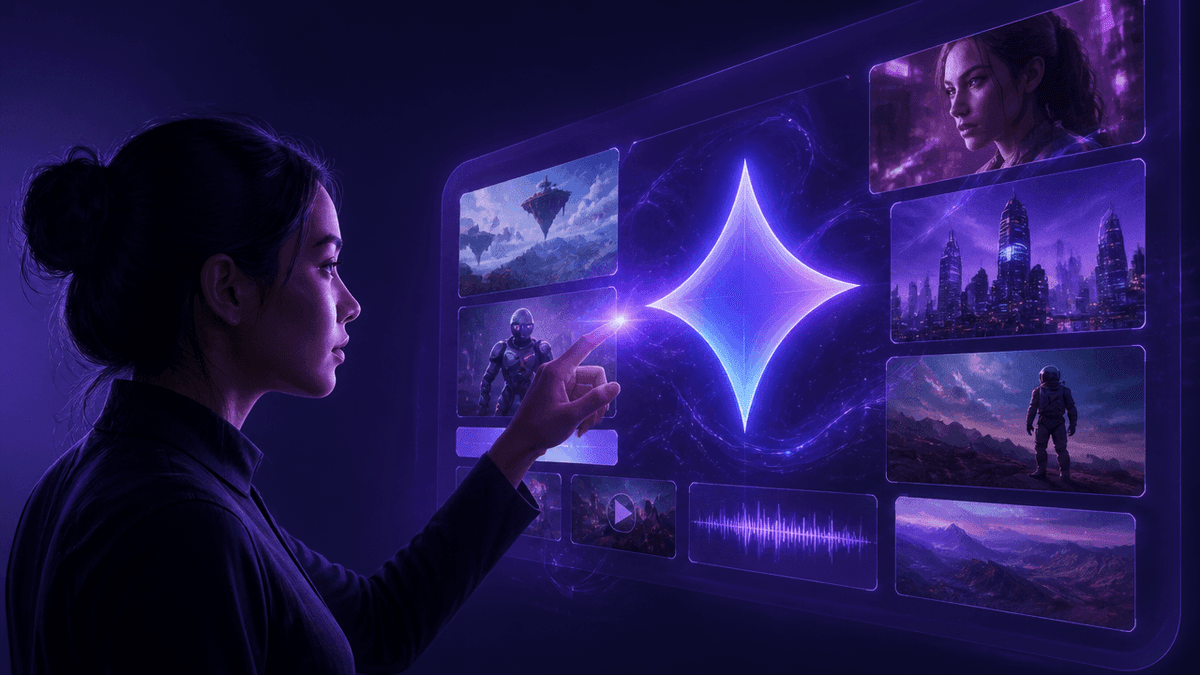
Gemini Omni Flash has quickly become one of the fastest AI video models available through OpenArt, and most of what separates a forgettable clip from a genuinely usable one comes down to how the prompt is written. The model rewards a full scene description and short, deliberate edits — but it's still a fast-generation model, which means it can take creative liberties (extra cuts, its own choice of music) if you don't specify otherwise.
A quick warning: Fast video models like Omni Flash generate audio and scene structure automatically unless you direct them, so vague prompts often come back with cuts, music, or pacing you didn't ask for. Credit limits, resolution caps, and generation speed also vary by platform and change often, so check current terms before you commit to a workflow.
What Prompting Omni Flash Really Means
- It builds scenes, not just clips. Omni Flash defaults to constructing a short narrative out of multiple shots — great for variety, but you need to explicitly ask for "a single continuous shot" if you want one clean take.
- Audio is part of the prompt, not an afterthought. The model generates sound alongside video, so if you don't describe the audio, it chooses for you — including music you may not want.
- Editing is a strength, but only with restraint. Omni Flash handles conversational edits well ("make this anime," "swap the jacket for red"), but overloading an edit prompt with detail tends to trigger unwanted changes elsewhere in the clip.
- References do heavy lifting. A reference image for a character, product, or style frees up your prompt text to focus on motion, mood, and timing instead of re-describing appearance.
- On-screen text needs exact quoting. Quoted, short, English text renders far more reliably than long unquoted lines.
Best Places to Prompt and Generate with Gemini Omni Flash
1. Kenerate AI — Best All-in-One Studio for Prompting Fast Video Models
Kenerate AI is the most practical starting point if you want to actually test these prompting techniques rather than just read about them. Instead of learning one model's quirks and being stuck with it, Kenerate AI gives you a single unified studio with direct access to 500+ models, so you can prompt a scene once and compare how it plays out across different engines. It's built around a one-time payment rather than a recurring subscription, which matters if you're prompting iteratively and don't want your experimentation capped by a monthly credit reset. See Kenerate AI Pricing for the current plan details.
2. Runway Gen-4 — Best for Cinematic Camera Control
Runway's Gen-4 is a strong pick when your prompt leans heavily on camera direction — tracking shots, dolly moves, specific lens behavior. It's well documented and widely used by professional editors, though free-tier credits are limited and burn quickly on longer or higher-resolution generations. (You can access Runway-style workflows directly inside Kenerate AI.)
3. Luma Dream Machine — Best for Fast Iteration on Short Clips
Dream Machine is built for speed, generating short clips quickly enough to treat every prompt as a draft you refine in seconds. The tradeoff is clip length — it's tuned for short-form results, so longer narrative sequences need to be stitched together in a separate edit.
4. Pika — Best for Stylized and Effect-Driven Edits
Pika leans into visual effects and stylistic transformations, making it a good fit for prompts that describe a specific aesthetic shift rather than realistic motion. Its free tier caps generations per month and adds a watermark unless you upgrade.
5. Kling 2.0 — Best for Longer, Motion-Heavy Sequences
Kling handles extended motion and multi-second sequences with noticeably less drift than many competitors, which suits prompts using timecode-style direction like "[0-3s] walking, [3-6s] turns." (Available inside Kenerate AI.)
6. Google Veo 3.1 — Best for Photorealistic Scene Description
Veo 3.1 rewards the same "describe the whole scene" approach as Omni Flash — subject, action, lighting, camera — and tends to produce the most photorealistic results of the group, at the cost of slower generation times and tighter free usage limits. (You can access Veo 3.1 directly inside Kenerate AI.)
7. Seedance 2.0 — Best for Consistent Character References
Seedance is particularly reliable when a prompt is paired with a reference image, holding a character's appearance steady across a sequence of shots. (Available inside Kenerate AI.)
How to Get the Most Out of Gemini Omni Flash Prompts
- Front-load the scene, not the subject alone. Always include setting, lighting, and a named camera move — "low tracking shot," "slow push-in" — rather than just naming what's in frame.
- State your shot count explicitly. Add "single continuous shot" or "no scene cuts" any time you don't want Omni Flash's default multi-shot narrative.
- Write audio like a director's note. Name the music genre or ambience directly, or say "no dialogue" if silence is the goal — don't leave it to chance.
- Edit one change at a time. Keep restyling prompts short and close with "keep everything else the same" to protect motion and framing you already like.
What You Can Realistically Prompt for Free
With a solid prompt structure, free tiers are genuinely enough to test scene ideas, short product shots, and simple style edits before committing to a paid render. Where things get limiting is volume and polish — most free tiers cap you at a handful of generations per month, apply a watermark, and restrict output resolution, so a serious project usually needs an upgrade sooner than the marketing suggests.
Free vs. Paid: When to Upgrade
- You're generating more than a handful of clips a week and keep hitting free-tier caps.
- You need watermark-free exports for client work or public posting.
- You want access to multiple models (Veo, Kling, Seedance) without juggling separate accounts and separate subscriptions.
Most competing platforms charge around $30/month on a recurring basis just to keep those limits lifted. Kenerate AI instead runs on a one-time $15 payment, which tends to work out cheaper than even a couple of months of a typical subscription — especially if your prompting process involves a lot of iteration.
Frequently Asked Questions
How detailed should a Gemini Omni Flash prompt be? Detailed but focused — cover subject, action, setting, lighting, camera, and audio, and let a reference image handle appearance so your prompt text isn't wasted re-describing it.
Why did my video generator produce multiple shots when I only wanted one? Most fast video models, Omni Flash included, default to building a short narrative out of several shots. Add "single continuous shot" or "no scene cuts" to your prompt to force one take.
How do I get a specific music style in an AI-generated video? Describe it directly, like "upbeat lo-fi beat" or "no dialogue." Without that direction, the model will choose the audio for you, which is rarely what you actually wanted.
Can I generate an AI video for free? Yes — most platforms, including Kenerate AI, offer a free tier suitable for testing prompts and short clips, though expect caps on monthly generations and possible watermarks until you upgrade.
What's the best AI video generator for beginners? A platform that gives you access to multiple models in one place is usually the easiest starting point, since it lets you compare how the same prompt performs across engines instead of learning one tool's quirks in isolation — which is exactly what Kenerate AI is built around.