

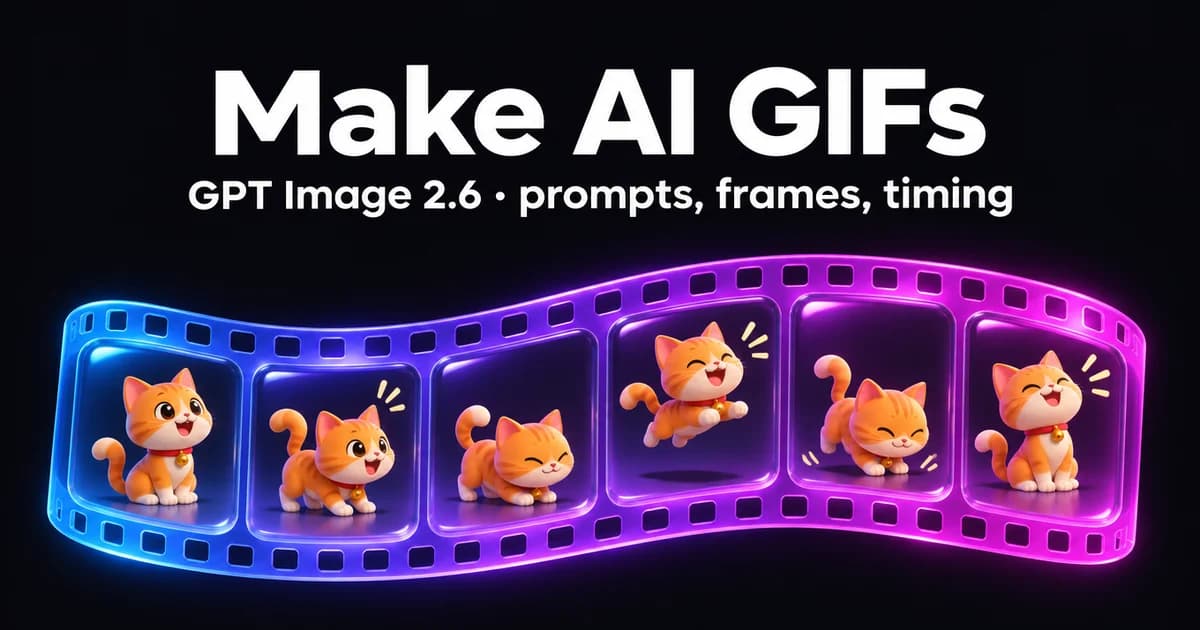
You can make an AI GIF from a single text prompt with GPT Image 2.6, OpenAI's November 2026 image model. Describe one short action as a sequence of poses, say what must stay the same in every frame, pick GIF as the output format, and set the frame count (2–16) and how long each frame shows (20–2,000 ms). The model draws every frame in one consistent style, so a character or logo doesn't change shape mid-loop. Below are the prompts, settings and mistakes from eight GIFs we made this week.
Updated 12 November 2026.
What you need to make a GIF with AI
- A model that outputs GIF. GPT Image 2.6 (Sunburst or Flare) is the first GPT Image with animated output. On Kenerate it's in the Image Studio; a medium-quality GIF at 1K costs 15 credits.
- One idea that loops. A wave, a wink, a spin, steam rising, a tag swinging. GIFs are seconds long, so one action is plenty.
- A plain background. Flat colour or a simple scene. Busy backgrounds change slightly between frames and flicker.
Step 1: Describe the motion as a sequence
The single biggest improvement is writing the action as numbered poses instead of a verb. "A robot waving" leaves the model to guess. This works better:
AI Prompt RecipeFlux.1 Pro16:9“A friendly round teal robot mascot with one big glowing visor eye, a small antenna with a yellow bulb and stubby arms waves hello: frame 1 arm down, frame 2 arm rising, frame 3 arm up with a happy eye, frame 4 hand tilted left, frame 5 hand tilted right, frame 6 arm lowering. The robot is the same size and in the same position in every frame. Fixed front camera, plain soft lilac background, soft 3D toy render. No words, no numbers.”
Make the last pose lead back into the first — arm lowering toward arm down — and the loop has no visible jump.
Step 2: Lock what must stay the same
Every GIF prompt we wrote ended with the same three locks:
- Same subject, same size, same position in every frame.
- Fixed camera — "fixed front camera" or "fixed three-quarter angle".
- Same background — name the colour.
In the coffee loop we added "only the steam moves; the cup, saucer, table and light stay identical", and only the steam moved.

Coffee steam, SALE tag and pixel heart — six frames each, first try.
Step 3: Pick frames and timing
On Kenerate you choose GIF as the format, then the frame count and the time per frame. Third-party guides to OpenAI's API give the limits as 2–16 frames at 20–2,000 ms, with 9 frames at 200 ms as the default. What worked for us:
| GIF type | Frames | Time per frame | Why |
|---|---|---|---|
| Reaction sticker (wink, thumbs up) | 6 | 160–200 ms | Snappy but readable |
| Mascot wave | 6 | 180 ms | Smooth arm motion |
| Product loop (steam, shine) | 6 | 200–250 ms | Calm, premium feel |
| Pixel art pulse | 6 | 120–140 ms | Retro games run fast |
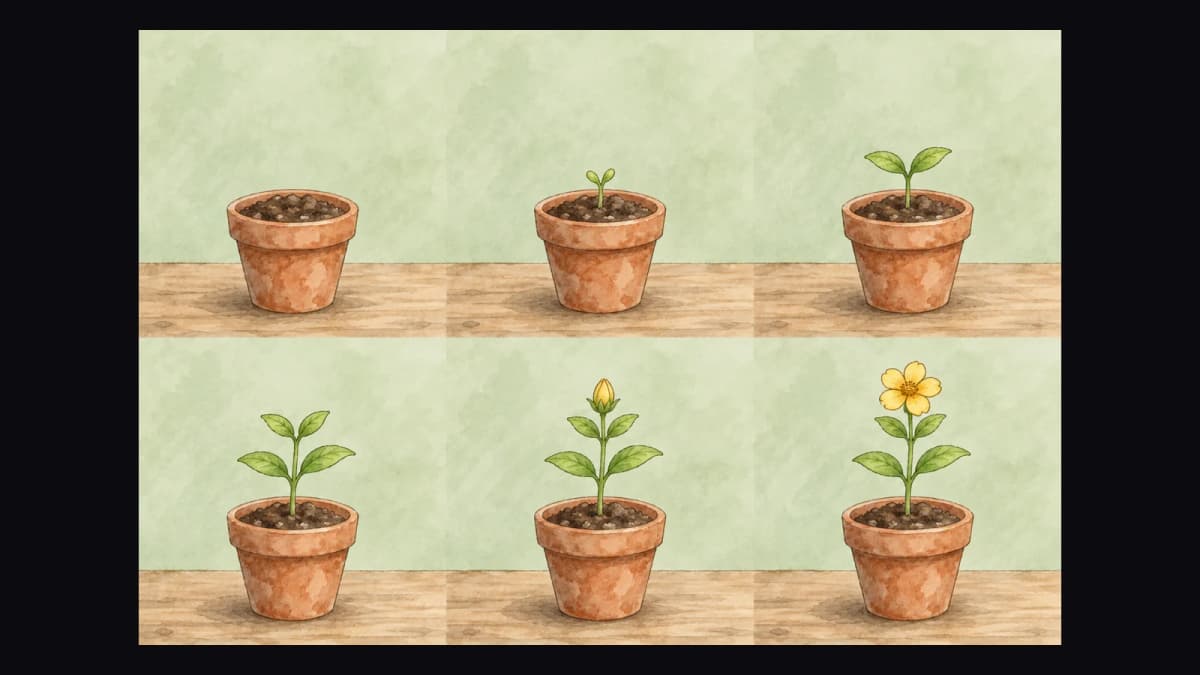
| Storyboard (growth, steps) | 6 | 400–450 ms, last frame ~1 s | Each stage needs time to read |
More frames make smoother motion but bigger files. For chat stickers and email banners, 6 frames is usually enough.
Step 4: Check every frame before you share it
GIFs fail in small ways. Before you post one, look for:
- Frames that barely change. Two of our rocket's six frames were almost identical, so the lift-off felt short. Re-run, or ask for "a clear change between every frame".
- Text that shifts. Quote it and ask for it "spelled exactly the same in every frame". Our SALE tag stayed correct in all six.
- Drifting design. Extra details can appear mid-loop — keep the description of the character short and specific.
A fallback: the sprite-sheet method
OpenAI's own launch examples use a second route: ask for "a single animation sprite sheet for a seamless looping GIF" — exactly six frames in a 3 × 2 grid, read left to right, with identical panels and no borders — then play the panels in order. It's handy when you want to see every frame side by side before animating, and it is how the GIFs in this post were made.
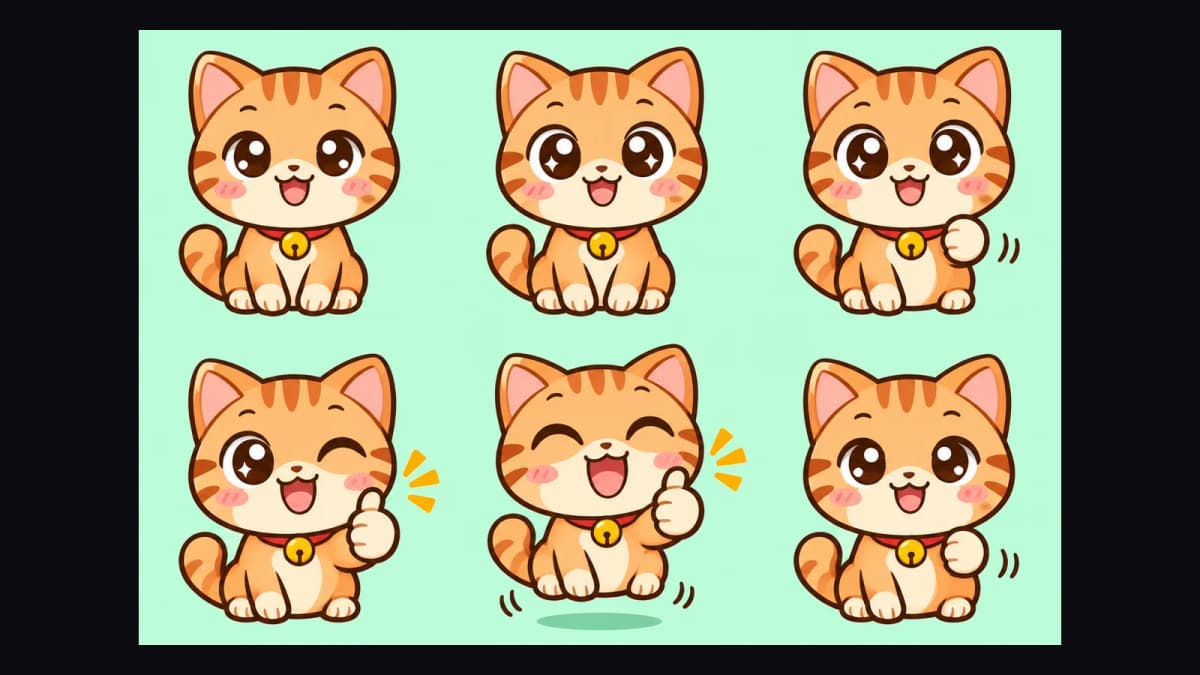
The prompt pattern:
AI Prompt RecipeFlux.1 Pro16:9“Create a single animation sprite sheet for a seamless looping GIF reaction sticker. A super-cute chibi orange cat with big sparkly eyes gives an enthusiastic thumbs up. The sequence: neutral smile, eyes widen, paw lifts, big thumbs up with a wink, small happy bounce, paw lowering toward the start pose. Exactly 6 sequential frames arranged in a precise 3-column by 2-row grid, read left-to-right then top-to-bottom. Every panel has identical dimensions and the cat stays centered at the same size. Flat pastel mint background, bold clean outlines, kawaii cartoon style. No captions, no words, no numbers, no panel labels, no borders, no gutters.”
One sheet of our eight came back as a single frame instead of a grid. Re-wording it to start with "One image containing an animation sprite sheet" fixed it on the next try.
8 AI GIF prompt ideas that worked
- Thumbs-up reaction — chibi animal, wink on frame 4, small bounce on frame 5.
- Mascot wave — your brand character, arm cycle, fixed camera.
- Office-chair spin meme — front, three-quarter, back, three-quarter, front, sunglasses on.
- Product steam or shine — only one thing moves.
- Sale tag swing — one quoted word, spelled the same in every frame.
- Pixel heart beat — grow, sparkle, shrink, 130 ms.
- Rocket launch — ask for a clear height change every frame.
- Growth storyboard — six stages, long hold on the last.
AI GIF or AI video?
Make a GIF for short, silent loops that must play anywhere — chats, email, docs, slides — with a small file. Make a video for anything longer than a few seconds, with sound or with realistic camera movement; animate a still with an image-to-video model in the Video Studio instead. GIF also caps each frame at 256 colours, which suits flat art and can band on photos.
All eight loops, with their exact prompts and timings, are on the AI GIF generator page. For the rest of what GPT Image 2.6 can do — Sunburst vs Flare, text, edits and SVG — see our GPT Image 2.6 guide.