
Native RGBA · PNG with alpha · stickers, logos, products
Seedream 5.5 Transparent Background
Seedream 5.5 can draw an image with no background at all — a sticker, a logo, a product cut-out or a character — as a PNG with a real alpha channel, so it drops straight onto a slide, a site or a print layout. One switch in the generator, no separate background-removal step.


- PNG with alpha channel
- Glass and smoke stay see-through
- Stickers, logos, products
- No watermark
Updated by the Kenerate AI team




Made with Kenerate

On this page
Quick answer
Can Seedream 5.5 make a transparent background?
Yes. Seedream 5.5, released by ByteDance on 9 November 2026, can generate images with an alpha channel — native RGBA, including partial transparency for glass, smoke or hair — so the subject comes out on no background at all. On Kenerate AI, pick Seedream 5.5 in /app/image, open Advanced and turn on Transparent background: the output is a PNG you can use as a sticker, logo, product cut-out or design asset. It costs 6 credits at 1K.
Key facts
- Model
- Seedream 5.5 (ByteDance)
- Output
- PNG with alpha channel
- Transparency
- Full and partial
- Where
- /app/image → Advanced → Transparent background
- Sizes
- 1K · 1.5K · 2K, 15 ratios
- Watermark
- None
Gallery
Transparent PNGs made with Seedream 5.5
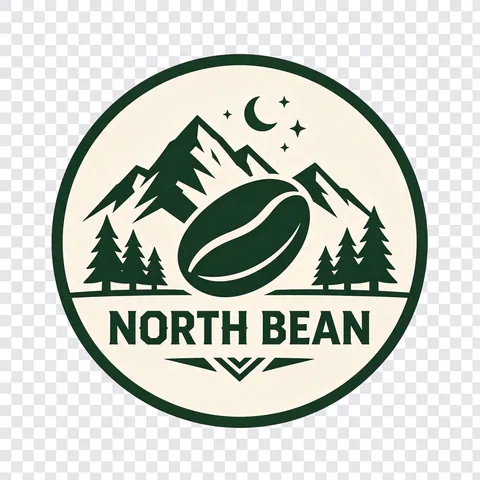
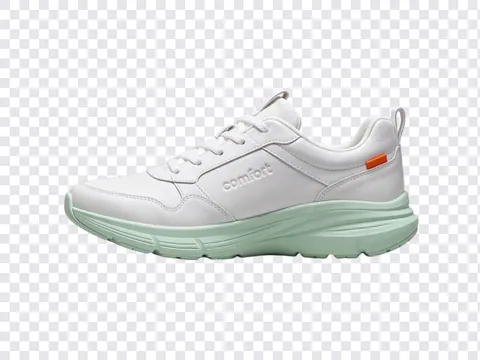
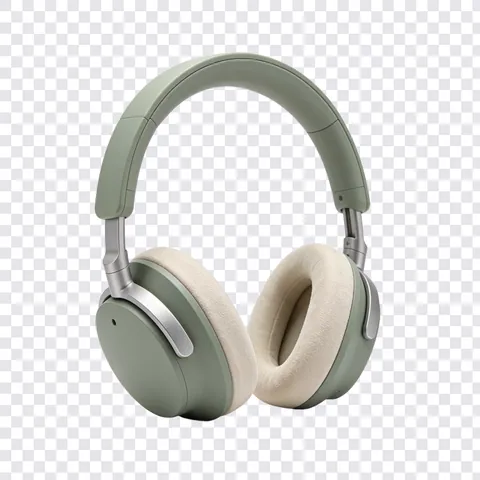
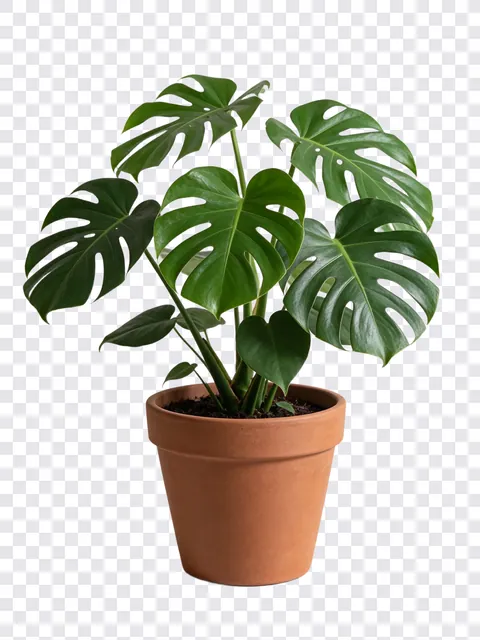
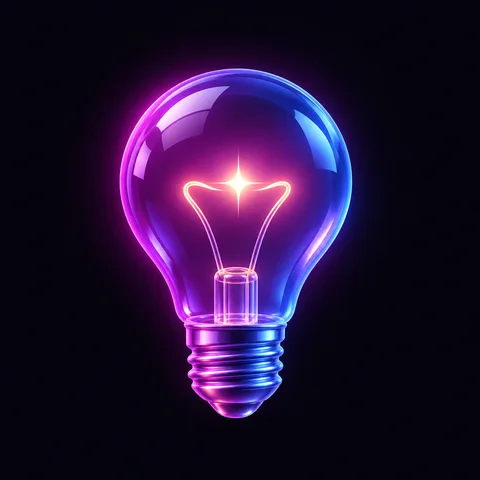
Real Seedream 5.5 outputs, one try each, shown on a checkerboard so you can see the transparency. How we made these: our test client can't flip the Transparent background switch, so Seedream 5.5 drew each subject on a plain backdrop and Kenerate's background remover cut it out. In /app/image the switch gives you the PNG straight from Seedream 5.5 in one step.
How to
How to use the seedream 5.5 transparent background
- Time needed
- Steps
- 4 steps
Step 1
Open Seedream 5.5
Go to /app/image and pick Seedream 5.5. It needs a one-time credit pack.
Step 2
Turn on Transparent background
Open Advanced and switch on Transparent background. The format locks to PNG, which is needed for transparency.
Step 3
Describe one subject
Say what it is, its style and that nothing else should be in the image. Pick the size and ratio.
Step 4
Generate and download
Download the PNG and drop it into Canva, Figma, PowerPoint or your site. No watermark.
See it in the app

Open Remove & Erase and drop in a photo — products, people and pets all work.


Watch the tour · 1:34
Cutout, HD for hair & fur, Object Pick, Magic Eraser, new backgrounds, hand-offs & chat
Chapters
Tips
How to prompt for a transparent PNG
The model removes the background for you. Your job is to describe one clean subject that reads well on its own.
Describe one subject, whole and in frame: "full-body", "the entire bottle", "the whole plant and pot".
Add "isolated, nothing else in the image" so no table, floor or props get drawn in.
Ask for a sticker border ("thick white die-cut border") when it will sit on busy backgrounds.
For glass, smoke, steam or hair, say so — Seedream 5.5 can keep those areas partly see-through.
Logos: name the colours and say "flat vector style" so edges come out crisp.
Pick the ratio of the subject, not the layout it will go in: 3:4 for a standing character, 4:3 for a shoe.
Use 2K when the cut-out will be printed or placed large; 1K is enough for stickers and slides.
Models
Ways to get a transparent background on Kenerate
What each model is good at. Open any one straight in the generator.
ByteDance
Seedream 5.5
- Reference images
- Up to 10
- Output
- PNG with alpha
Open Seedream 5.5Best for
Generate it transparent from the start
OpenAI
GPT Image 1.5
- Reference images
- Up to 10
- Output
- PNG with alpha
Open GPT Image 1.5Best for
OpenAI's transparent option
Edit Studio
Background remover
- Reference images
- 1 image
- Output
- Transparent PNG
Open Background removerBest for
For an image you already have
OpenAI
GPT Image 2.6
FAQ
Seedream 5.5 Transparent Background questions
9 questions

Does Seedream 5.5 support transparent backgrounds?
Yes. ByteDance's 9 November 2026 announcement says Seedream 5.5 directly generates images with an alpha channel, with full and partial transparency. On Kenerate, turn on Transparent background under Advanced in /app/image when Seedream 5.5 is selected.
Link to this answerWhat file format do I get?
A PNG. JPEG has no alpha channel, so when Transparent background is on, the format locks to PNG. You can open it in Canva, Figma, Photoshop, PowerPoint or Google Slides and it will sit on any background.
Link to this answerCan it keep glass, smoke or hair partly see-through?
Yes — ByteDance says the model supports partial transparency and renders edges and transparent regions carefully. Say in the prompt which parts are glass, steam or smoke so the model treats them that way.
Link to this answerHow much does a transparent PNG cost?
The same as any Seedream 5.5 image on Kenerate: 6 credits at 1K or 1.5K, 10.5 at 2K. There is no extra charge for transparency. Kenerate's background remover, for images you already have, costs a few credits per image.
Link to this answerIs it better than removing the background afterwards?
For images you are creating anyway, yes: one step instead of two, and the model knows which parts of the subject are see-through, which a remover has to guess. For a photo you already have, use Kenerate's background remover instead.
Link to this answerCan I edit an image and keep it transparent?
Yes. Upload a reference, describe the change and keep Transparent background switched on; Seedream 5.5 edits take up to 10 references and add 2.4 credits per input image.
Link to this answerCan Kenerate Chat make transparent PNGs?
Yes. Ask Kenerate Chat for a sticker, a logo on nothing or a product cut-out and it uses Seedream 5.5 with a transparent background, unless you pick another model that supports it.
Link to this answerWhich other models make transparent images?
On Kenerate, GPT Image 1.5 can also output a transparent PNG, and GPT Image 2.6 can export SVG vectors, which have no background. Most other models, including Nano Banana 2.1, always draw a background.
Link to this answerIs it free?
New accounts get 25 free credits for the free models. Seedream 5.5 needs a one-time credit pack, with no subscription; credits never expire and downloads have no watermark.
Link to this answerIn depth
Seedream 5.5 Transparent Background, explained
What works, what to avoid, and how to pick a model.
On this page
What native RGBA means
Most image models draw a full rectangle of pixels, so a "transparent" result needs a second tool to guess where the subject ends. Seedream 5.5 can generate the alpha channel itself: ByteDance says it produces images with full and partial transparency and renders edges and transparent regions carefully, so the output can be used as a standalone asset in layouts and compositing without separate background removal [1].
Through APIs the setting is a background parameter with auto, transparent or opaque; transparent always returns a PNG [3]. On Kenerate it is the Transparent background switch.
What to use it for
Good jobs for a transparent Seedream 5.5 image:
- Stickers and emoji for chat apps, print-on-demand and packaging.
- Product cut-outs for marketplaces, ads and comparison graphics.
- Logos, badges and mascots to place on any brand colour.
- Characters and props for slides, thumbnails, games and video overlays.
- Lettering with a texture or style taken from a reference image, on no background [1].
Limits
Transparency works best with one clear subject. Busy scenes, shadows on a floor and soft edges like fur can come out uneven, so check the edges at full size. Very thin parts — whiskers, strings, wire — may fade. For an existing photo, a background remover is still the right tool.
By the Kenerate AI teamLast updated and reviewed
We build and run the Kenerate generator. Every example is a real output of the model named under it; models and presets were checked against the app's code.
Sources: Introducing Seedream 5.5 — ByteDance Seed · Seedream 5.5 model page — ByteDance Seed · Seedream 5.5 API reference (background parameter) — WaveSpeed AI

Try the seedream 5.5 transparent background
Free to start. No watermark.
Tried it? Tell us how it went