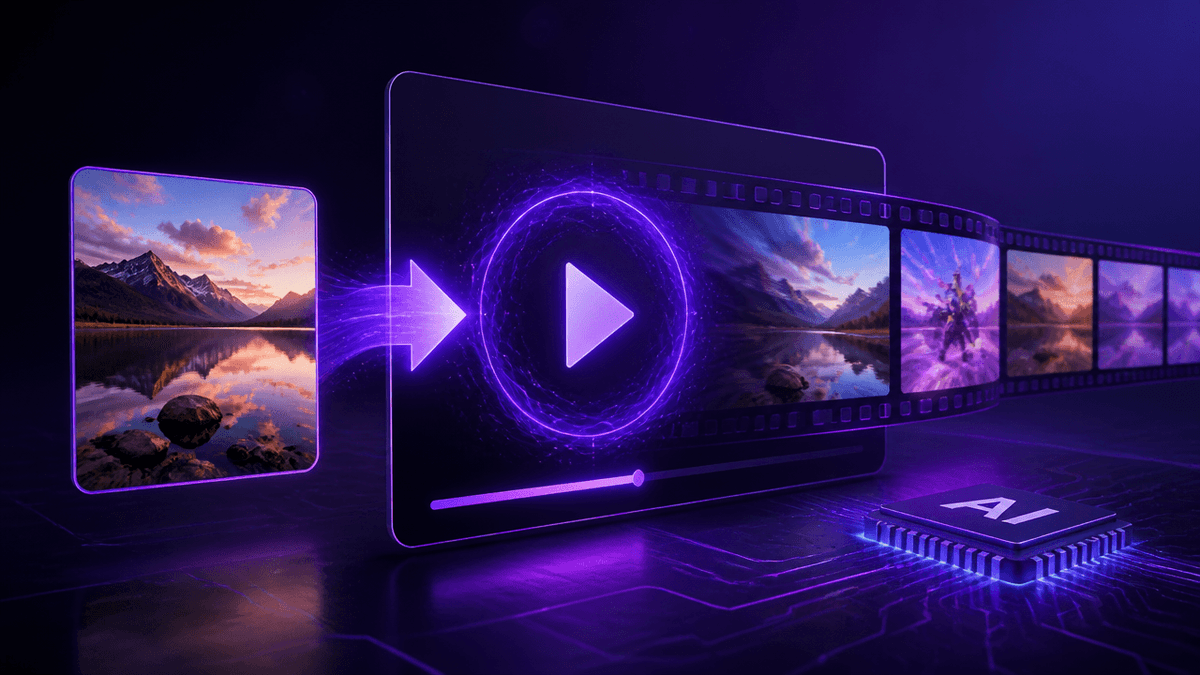
Best Free Image to Video AI Tools 2026 (Ranked)
Turning a single photo into a moving video used to need a full animation team — now it's a prompt and a click. Image to video AI is one of the fastest-growing categories in generative AI right now, but "free" almost always comes with a catch: watermarks, credit limits, or a resolution cap that kicks in right when your clip starts looking good.
A quick warning: Free tiers on image-to-video tools change constantly — a generator offering 20 free credits today may drop to 5 next month, and watermark policies vary between "always on" and "only on export." Check the current limits before you build a workflow around any single free tool.
🎬 Turn a Photo Into Video Free
What Image to Video AI Really Means
- It animates a still, it doesn't invent a new scene. The AI reads your photo's subject, lighting, and depth, then generates motion (camera pans, subject movement, environmental effects) that stays consistent with the original image.
- Prompt control varies a lot. Some tools let you describe the motion in text ("slow zoom, hair blowing in wind"); others only offer fixed motion presets.
- Clip length is usually short on free tiers — 2 to 5 seconds is standard before a paywall appears.
- Resolution and watermarks are the real "free tier tax." Most free plans cap output at 480p–720p and stamp a logo somewhere in frame.
- Consistency drops with complex images. Multiple subjects, busy backgrounds, or unusual angles increase the odds of warping or flickering in the output.
The Best Image to Video AI Tools (Free Tier Compared)
1. Kenerate AI — Best All-in-One Starting Point
Kenerate AI gives you direct access to top image-to-video models (plus image and text generation) inside one unified studio, so you're not juggling five different app logins to find the model that handles your photo well. Instead of a recurring subscription, Kenerate AI Pricing is a one-time payment that unlocks 500+ models — which matters a lot in a category where the "best" model changes every few months. It's the most practical starting point if you want to actually compare image-to-video outputs without re-subscribing to a new tool every time a better model launches.
2. Runway
Runway's Gen model line is one of the more polished image-to-video options, with decent prompt-based motion control on its free credits. The free tier is credit-metered rather than time-metered, so heavy use burns through it fast, and exports carry a watermark until you upgrade. (You can access Runway-class video generation directly inside Kenerate AI.)
3. Pika
Pika focuses on stylized, expressive motion — good for creative or meme-style clips rather than photorealistic results. The free plan caps generations per day and limits resolution, and the community/Discord-based workflow is a bit more manual than an app dashboard.
4. Luma Dream Machine
Luma's image-to-video handles camera movement and depth well, producing some of the smoother free-tier motion in this list. Free credits are limited and refresh slowly, so it's better for occasional use than a daily workflow. (Luma-class output is available inside Kenerate AI.)
⚡ Compare Image-to-Video Models Free
5. HeyGen
HeyGen is best known for avatar/talking-head video, but its image animation features work for simple photo-to-motion clips too. The free tier is minutes-limited and geared more toward presenter-style video than general creative motion.
6. Haiper
Haiper offers a straightforward free image-to-video flow with a handful of daily credits, no complex settings. Output quality is solid for short 2–4 second clips but tends to warp on busier images, and the free credit count has shrunk over past updates.
How to Get the Most Out of Free Image-to-Video Tools
- Start with a clean, well-lit photo. Cluttered backgrounds and multiple subjects are the #1 cause of warping on free-tier models.
- Keep motion prompts simple. "Gentle zoom" or "wind in hair" performs more reliably than multi-action prompts on lighter models.
- Batch your free credits. Generate several variations from one photo in a single session rather than spacing them out — some tools reset limits daily, so plan around the reset window.
- Export at the highest free resolution available, even if it's watermarked — you can always re-generate a clean version once you decide a clip is worth keeping.
What You Can Realistically Make for Free
On a free plan, you can reliably produce short (2–5 second) social-ready clips — product photos with subtle motion, portrait animations, simple scene pans — good enough for Instagram Reels, TikTok, or testing an idea before committing budget.
The honest limits: longer narrative clips, complex multi-subject motion, and clean watermark-free exports are almost always gated behind a paid tier. If your project needs consistency across dozens of clips, free tiers will slow you down with daily limits.
Free vs. Paid: When to Upgrade
- You're hitting daily/monthly credit limits before finishing a project
- Watermarks are a dealbreaker for client or commercial work
- You need longer clips (10+ seconds) or higher resolution exports
Most competitors charge $30/month recurring just to remove watermarks and raise your credit cap — and that's per tool, so comparing models means paying for multiple subscriptions. Kenerate AI instead uses a one-time $15 payment for full access across 500+ models, including top image-to-video generators, which works out far cheaper than stacking subscriptions if you're testing more than one tool.
Frequently Asked Questions
Is there a free image to video AI generator? Yes — most major tools (Runway, Pika, Luma, Haiper) offer a free tier, though it's usually limited to a handful of short, watermarked clips per day or month. Kenerate AI gives you access to several of these models from one dashboard.
What is the best AI image to video generator? There isn't one universal winner — Runway and Luma tend to handle realistic camera motion best, while Pika suits stylized clips. Testing your specific photo across a few models (which Kenerate AI makes easier without multiple sign-ups) is the fastest way to find the right fit.
How do image to video AI generators work? They analyze the depth, subject, and lighting of a still image, then generate a short sequence of frames that plausibly extends the scene into motion, guided by a text prompt or motion preset.
How do I turn a photo into a video using AI? Upload the image to an image-to-video tool, add a short motion prompt (or pick a preset), and generate — most free tiers return a clip in under a minute. You can do this directly at kenerateai.com/app/video.
What's the difference between text-to-video and image-to-video AI? Text-to-video generates an entire scene from a written description with no starting visual, while image-to-video animates an existing photo — which generally produces more consistent, controllable results since the subject and composition are already fixed.