

Portraits · pets · cards · product shots
AI Christmas Photo Generator — your photo, in a Christmas scene
Upload a photo of yourself, your family or your pet and put it in front of a lit tree, in falling snow or at a Christmas market — or describe a holiday scene from scratch for a card or a product shot.
- Keeps faces and pets
- Card text in the image
- Free credits to start
- No watermark
Updated by the Kenerate AI team
Made with Kenerate
On this page
Quick answer
How do you make a Christmas photo with AI?
An AI Christmas photo generator puts your own photo into a holiday scene — a tree, a fireplace, snow, a Christmas market — or creates one from a text prompt. On Kenerate AI you upload the photo, describe the new outfit and setting, and say what must stay the same; GPT Image 2.5 Sunburst kept the face or the dog recognisable in all four of our edits, at 11.7 credits per one-photo edit. It can also write “Merry Christmas” into the picture for a card.
Key facts
- Edits tested
- 4 photos (2 people, 1 dog, 1 card) + 1 product shot
- Face kept
- 4 of 4, first try
- Model
- GPT Image 2.5 Sunburst (OpenAI)
- Card text
- Yes — written into the image
- Free-plan option
- Qwen Image 3.0
- Watermark
- None
Gallery
Christmas photos made with Kenerate AI
Four edits of existing photos of fictional people and a dog, plus one product shot from text. GPT Image 2.5 Sunburst, one try each. Open any one to copy the prompt.
Same prompt
Before and after: same face, Christmas scene
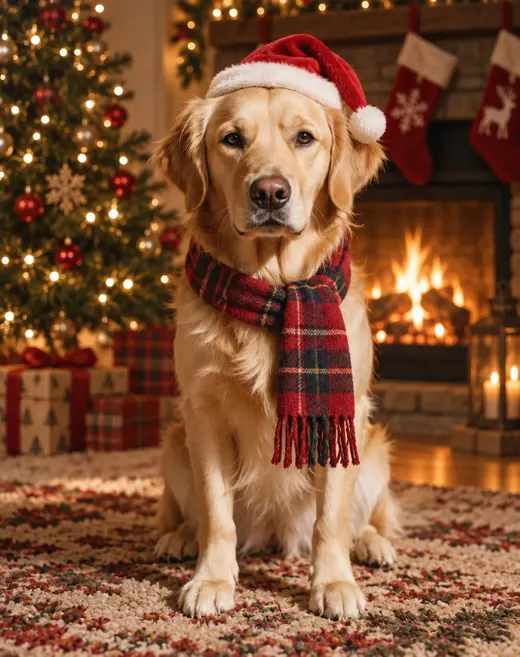
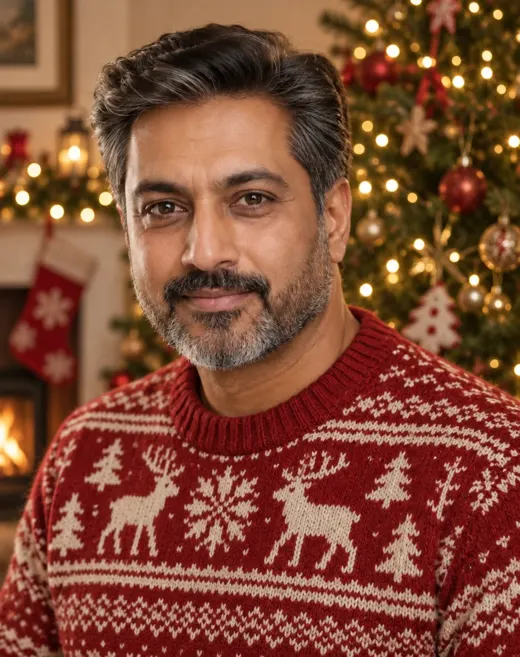
The originals are fictional portraits from our other pages. One sentence changed the outfit and the room; the face, beard and the dog's markings stayed. The model picked the reindeer pattern and the stockings on its own.
PromptTurn this into a cosy Christmas portrait: he now wears a red and cream knit Christmas sweater, in front of a decorated Christmas tree with warm fairy lights. Keep his face, hair, beard, expression and the camera angle exactly the same.
 OriginalStudio headshot
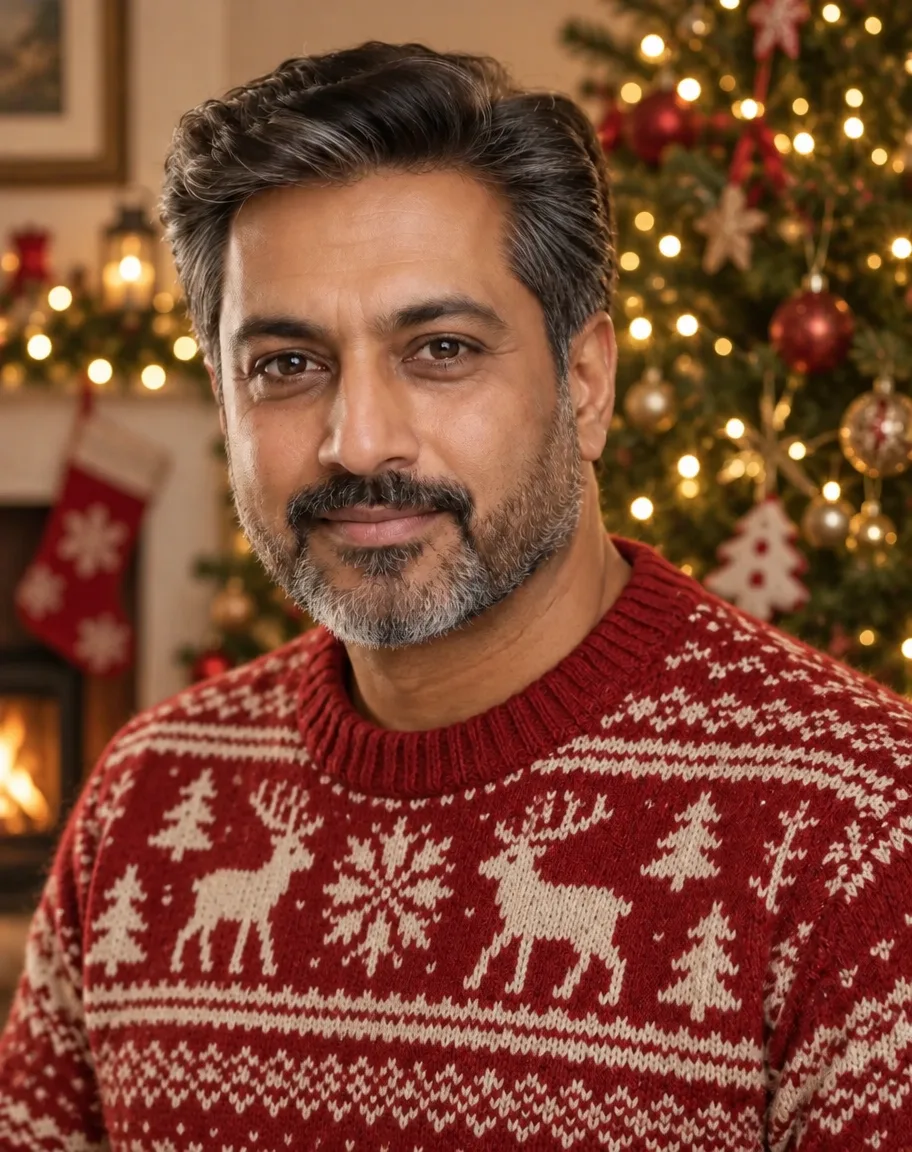 Christmas portraitSunburst edit · 11.7 credits
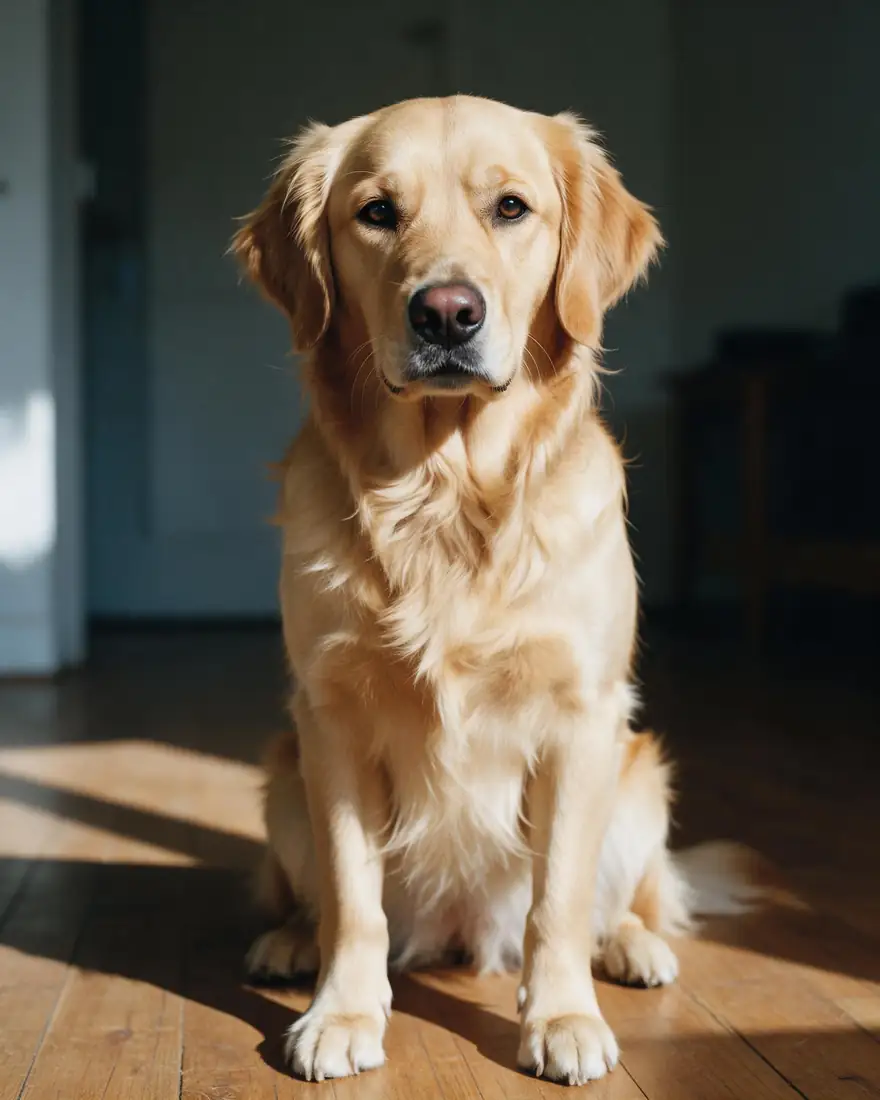 OriginalPet photo
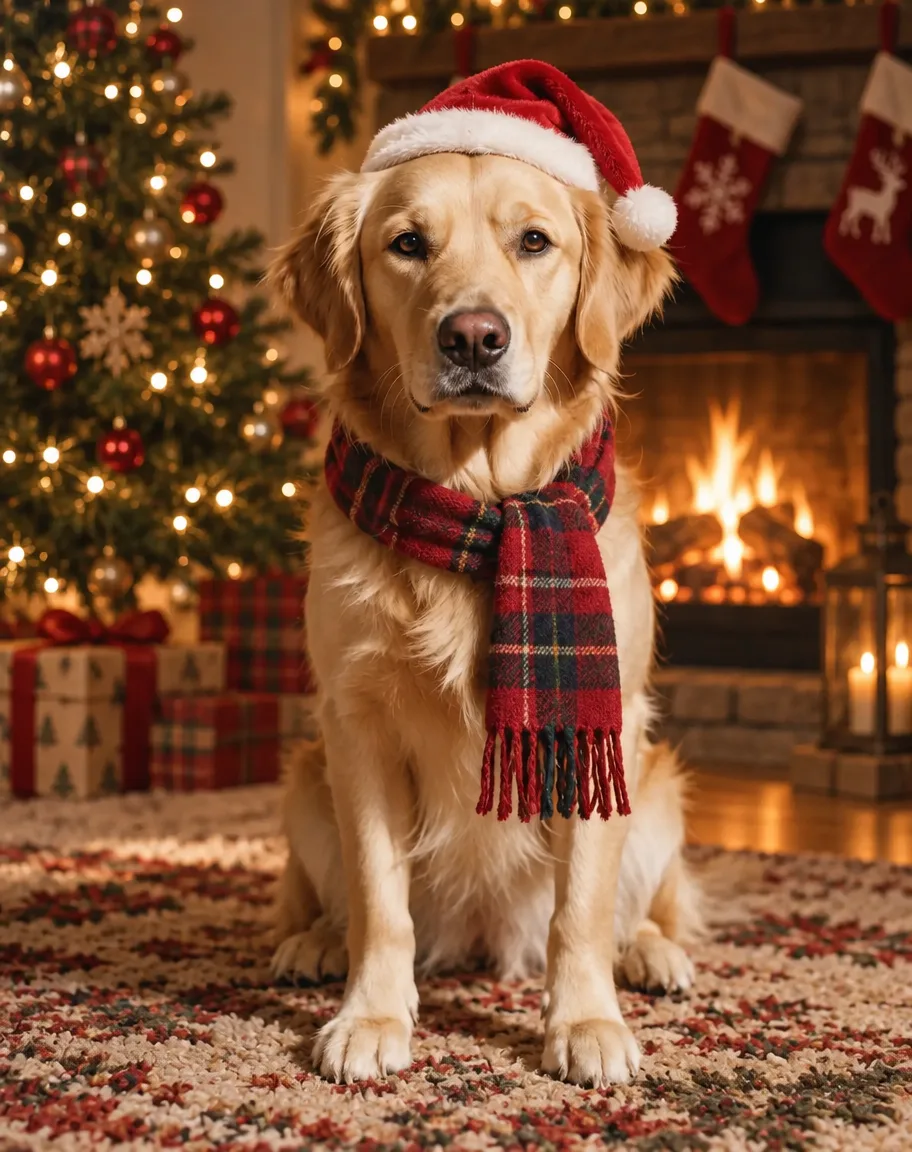 Santa hat + fireplaceSunburst edit · 11.7 credits
How to
How to use the AI christmas photo generator
- Time needed
- Steps
- 4 steps
Step 1
Open the Image Studio
Go to /app/image. Sign in free for 25 starter credits.
Step 2
Upload your photo
Add the photo of you, your family, your pet or your product. Several photos can go in as references.
Step 3
Describe the Christmas scene
Outfit, setting, light and any card text in quotes — plus what must stay the same. Pick GPT Image 2.5 Sunburst.
Step 4
Download
Regenerate if a detail is off, then download without a watermark — or upscale up to 4K for printing.
See it in the app

Open Image Studio and type what you want to see — subject, style, lighting and mood.


Watch the tour · 1:23
Prompts, styles, references, edit, Arena & chat
Chapters
Tips
Get a Christmas photo that still looks like you
What worked in our five tests.
Use a clear, well-lit photo where the face (or the pet) fills a good part of the frame.
Say what stays: “keep his face, hair, beard, expression and the camera angle exactly the same”.
Name one outfit and one setting — “red knit sweater, living room with a lit tree” — rather than a list of decorations.
Put card wording in quotes: “Merry Christmas” in cream script across the top.
Add “no shop names, no extra text” for outdoor scenes; models like to fill markets with signs.
For a family card from separate photos, add each photo as a reference and say who stands where.
Models
Models for Christmas photos
What each model is good at. Open any one straight in the generator.
OpenAI
GPT Image 2.5 Sunburst
- Reference images
- Up to 16
- Output
- 1K–4K
Open GPT Image 2.5 SunburstBest for
Made every photo on this page; writes card text
Google
Nano Banana 2.1
- Reference images
- Up to 14
- Output
- Up to 4K
Open Nano Banana 2.1Best for
Same person or product across a set of shots
ByteDance
Seedream 5.0 Pro
- Reference images
- Up to 10
- Output
- 1K · 2K
Open Seedream 5.0 ProBest for
Illustrated and painted Christmas cards
- Free plan
FAQ
AI Christmas Photo Generator questions
9 questions
What is an AI Christmas photo generator?
It is an image model that puts a photo into a Christmas scene — new outfit, tree, snow, fireplace — or makes a holiday picture from a text prompt. On Kenerate AI you upload your photo in the Image Studio, describe the scene and say what must stay the same. GPT Image 2.5 Sunburst kept the face or the dog recognisable in all four of our edits.
Link to this answerIs the AI Christmas photo generator free?
Free to start. A new Kenerate account gets 25 credits on sign-up — enough for two one-photo edits with GPT Image 2.5 Sunburst at 11.7 credits each. Qwen Image 3.0 is a free-plan model. After that, credits come in one-time packs that don't expire, with no subscription. Downloads carry no watermark.
Link to this answerWill it keep my face the same?
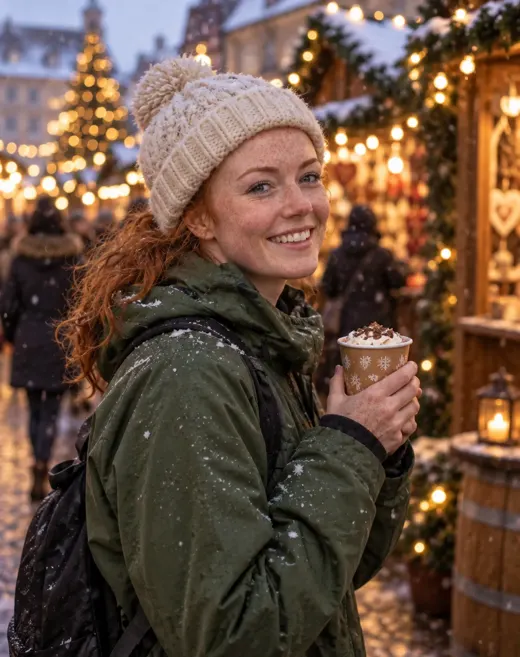
Usually, if you ask. Write “keep my face, hair and expression exactly the same” in the prompt and use a clear, front-lit photo. In our tests the faces and the dog's markings stayed; smaller things moved — one woman's ponytail became loose curls under a new hat. If a detail matters, name it and regenerate.
Link to this answerCan I make a Christmas card with text on it?
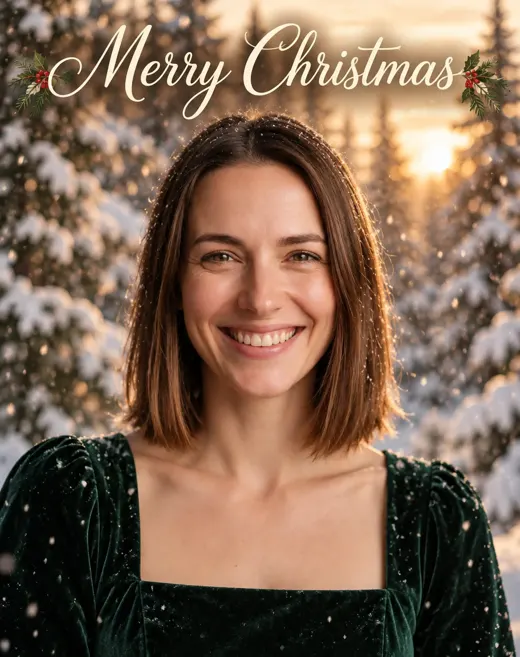
Yes. Put the words in quotes — “Merry Christmas” in elegant cream script across the top — and GPT Image 2.5 Sunburst writes them into the picture. Ours came out spelled correctly on the first try, with holly sprigs added that we didn't ask for. Keep card text short; long greetings are better added in a card editor.
Link to this answerCan I put my pet in a Christmas photo?
Yes. Upload the pet photo and ask for a Santa hat, a scarf, a fireplace or a tree, adding “keep the same dog, fur colour, markings and face”. Our golden retriever came back with the same face and coat. For royal, astronaut or painted pet portraits, see the AI pet portrait generator.
Link to this answerCan I combine separate photos into one family Christmas photo?
You can add several photos as references — GPT Image 2.5 Sunburst takes up to 16 and Nano Banana 2.1 up to 14 — and describe who stands where. Each reference adds 4.5 credits to a Sunburst edit. Group shots are harder than single portraits, so expect to regenerate once or twice and check every face.
Link to this answerWhat size should I use for a printed Christmas card?
Generate at 4:5 or 2:3 portrait. A 4×6 inch print is exactly 2:3; a 5×7 card sits between 2:3 and 4:5, so leave some space around faces for cropping. GPT Image 2.5 Sunburst renders 1K to 4K, and the Image Upscaler takes any result up to 4K for print.
Link to this answerCan I make holiday product photos for my shop?
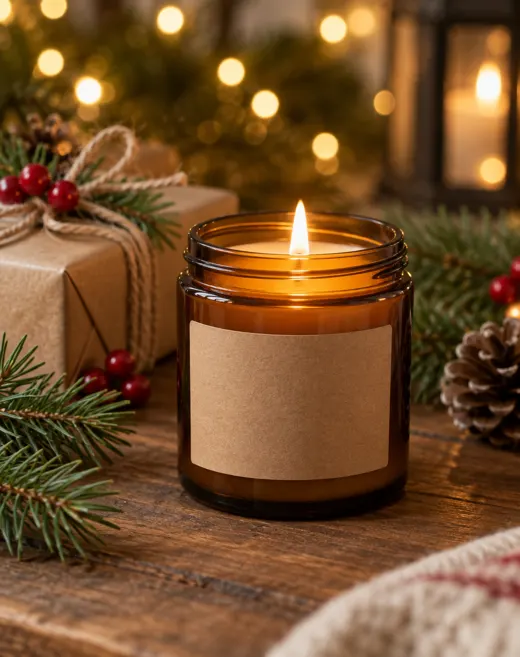
Yes. Upload the product photo and describe a holiday table — pine, berries, wrapped gifts, warm lights — and say the product must stay unchanged; or describe the product from scratch as we did with the candle. Add “no text, no brand names” for a clean background.
Link to this answerCan I make Christmas photos of celebrities or other real people?
No. Only upload photos of yourself or of people who have agreed, and don't use celebrities' or strangers' photos or names. Kenerate's terms of service apply to everything you generate.
Link to this answerIn depth
AI Christmas Photo Generator, explained
What works, what to avoid, and how to pick a model.
On this page
Five kinds of AI Christmas photo
People searching for an AI Christmas photo generator usually want one of these — all of them run in the same Image Studio:
- Christmas portraits: your own photo with a holiday sweater, a lit tree and warm light.
- Pet photos: a Santa hat and a scarf by the fireplace, same pet.
- Christmas cards: snow, a forest or a living room, with the greeting written into the picture.
- Outdoor scenes: a Christmas market, falling snow, a winter street at dusk.
- Product shots: your product on a festive table for a shop listing or a holiday ad.
20 Christmas photo prompt ideas
Add “keep my face (or my pet, or my product) exactly the same” to any of these when you upload a photo:
- Red knit Christmas sweater in front of a lit tree, warm fairy-light bokeh.
- Matching plaid pyjamas on the sofa with mugs of cocoa, morning light.
- Green velvet dress in falling snow, snowy pines, “Merry Christmas” in cream script.
- Evening Christmas market with wooden stalls, string lights and hot chocolate.
- Fireplace with stockings, a dog in a Santa hat on the rug.
- Cat asleep in a gift box under the tree, tissue paper and ribbons.
- Couple on a snowy street at dusk, scarves, shop windows glowing.
- Family by the front door with a wreath, porch lights and snow.
- Kitchen scene decorating gingerbread cookies, flour on the counter.
- Ice-skating rink at night with a tall lit tree behind.
- Cabin window with frost and candles, cosy blanket and a book.
- Vintage 1950s Christmas photo look, film grain, tinsel tree.
- Wrapping presents at a table covered in kraft paper and twine.
- Snowball fight in a park, mid-laugh, soft overcast light.
- Dinner table with candles and a roast, toast with raised glasses.
- Candle or mug on a wooden table with pine, berries and a wrapped gift.
- Watercolour Christmas card illustration of your photo.
- Snow-globe effect around you, glitter snow falling.
- New Year's Eve outfit with gold confetti and city lights.
- Polaroid-style holiday snapshot with “Happy Holidays” handwritten on the border.
What we got
Four edits of existing fictional portraits and a dog photo, plus one product shot, all GPT Image 2.5 Sunburst at 4:5, one try each:
- All four edits kept the face or the dog recognisable — beard, freckles, bob and the retriever's coat stayed.
- The model added its own details: a reindeer pattern on the sweater, stockings by the fireplace and holly sprigs on the card lettering.
- “Merry Christmas” came out spelled correctly, in the script and colour we asked for.
- The Christmas-market edit changed the hiker's ponytail into loose curls under the new hat — name the hair if it matters.
- The candle came out with a blank label and no text, as asked, ready for a real label to be added.