

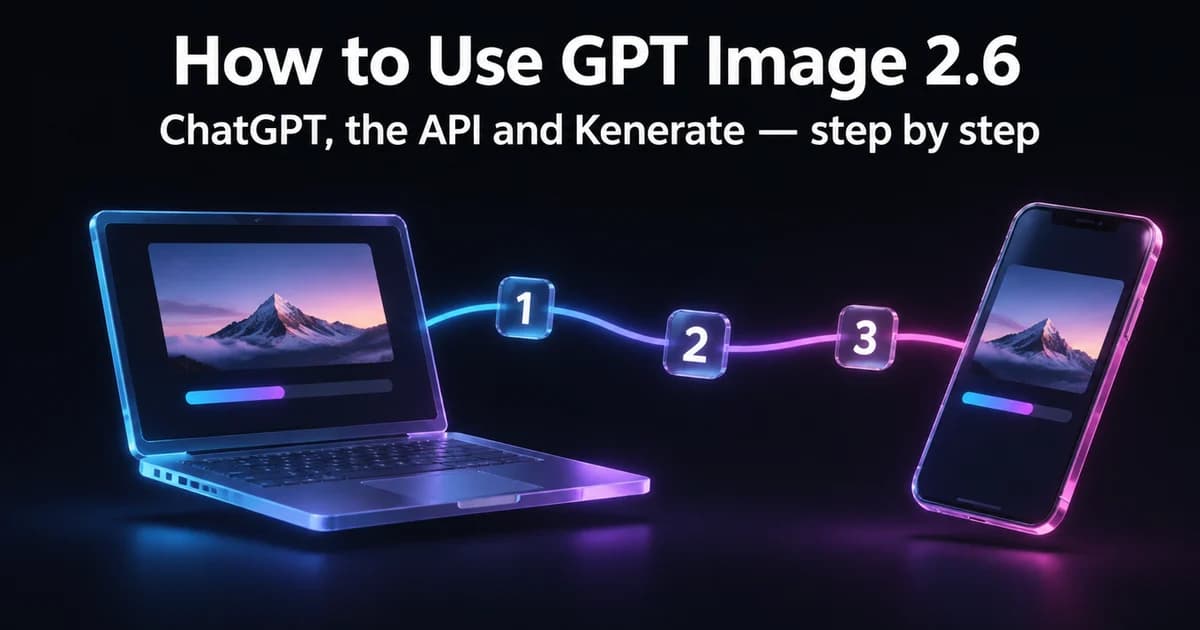
There are three ways to use GPT Image 2.6, OpenAI's image model from 4 November 2026: in ChatGPT (as Images 2.6, on every subscription tier), through OpenAI's API (as GPT-Image-2.6 Sunburst and Flare), or in a browser studio such as Kenerate AI, where you pick the model and settings yourself and pay per image. This guide walks through each one, then shows how to write prompts, edit a photo and pick the right settings — with real outputs from our own tests.
Updated 12 November 2026.
What you need before you start
- For ChatGPT: a ChatGPT account. Images 2.6 is available on all subscription tiers, within each plan's usage limits.
- For the API: an OpenAI developer account, an API key and a little code. You pay per token.
- For Kenerate: a Kenerate account and a one-time credit pack. A medium-quality 1K image costs 15 credits; no API key or ChatGPT plan is involved.
All three run the same model. What changes is how much control you get over quality, size and format — and how you pay.
How to use GPT Image 2.6 in ChatGPT
- Open a chat in ChatGPT on the web, desktop or mobile.
- Describe the image in plain sentences: the format ("a recipe card", "a YouTube thumbnail"), the subject, the style and any words in quotes.
- Refine in the chat. Ask for changes in follow-up messages, or use image markup to point at the exact spot you want changed — OpenAI says markup is already in ChatGPT.
- Download the result. To edit your own photo, upload it to the chat first and describe the change.
ChatGPT picks most settings for you. OpenAI's launch post says GIF creation came with Images 2.6; third-party summaries noted it was still rolling out to some accounts in the first days.
How to use GPT Image 2.6 through the API
Developers call one of two models: gpt-image-2.6-sunburst (higher quality, more consistent edits) or gpt-image-2.6-flare (fastest — OpenAI says as little as six seconds at low quality). The settings that matter, as described in OpenAI's announcement and third-party guides to the API:
| Setting | What it does |
|---|---|
| Quality | Visual detail and price: low, medium, high, xhigh, max |
| Complexity | How much the model plans the scene: low for quick edits, medium or high for busy scenes |
| Output format | PNG, JPEG, WEBP, GIF (2–16 frames) or SVG (generation only) |
| Input images | Reference or source images for edits, billed as image-input tokens |
| Markup | An annotation layer marking where an edit should go |
The API bills tokens — third-party guides list $5 per million text-input tokens, $8 for image input and $30 for image output — so check OpenAI's own API reference for exact parameter names and prices before you build.
How to use GPT Image 2.6 on Kenerate
- Open the Image Studio. GPT Image 2.6 Sunburst is preselected from that link; Flare is next to it in the model menu.
- Write the prompt. Put every word that must appear in quotes.
- Pick the aspect ratio (15 options, 1:3 to 3:1), resolution (1K, 2K or 4K), quality tier and output format — PNG, JPG, WEBP, GIF or SVG. For a GIF, set the frame count and timing.
- To edit, upload up to 16 reference images and describe only what changes.
- Generate, check the image and download. There's no watermark.
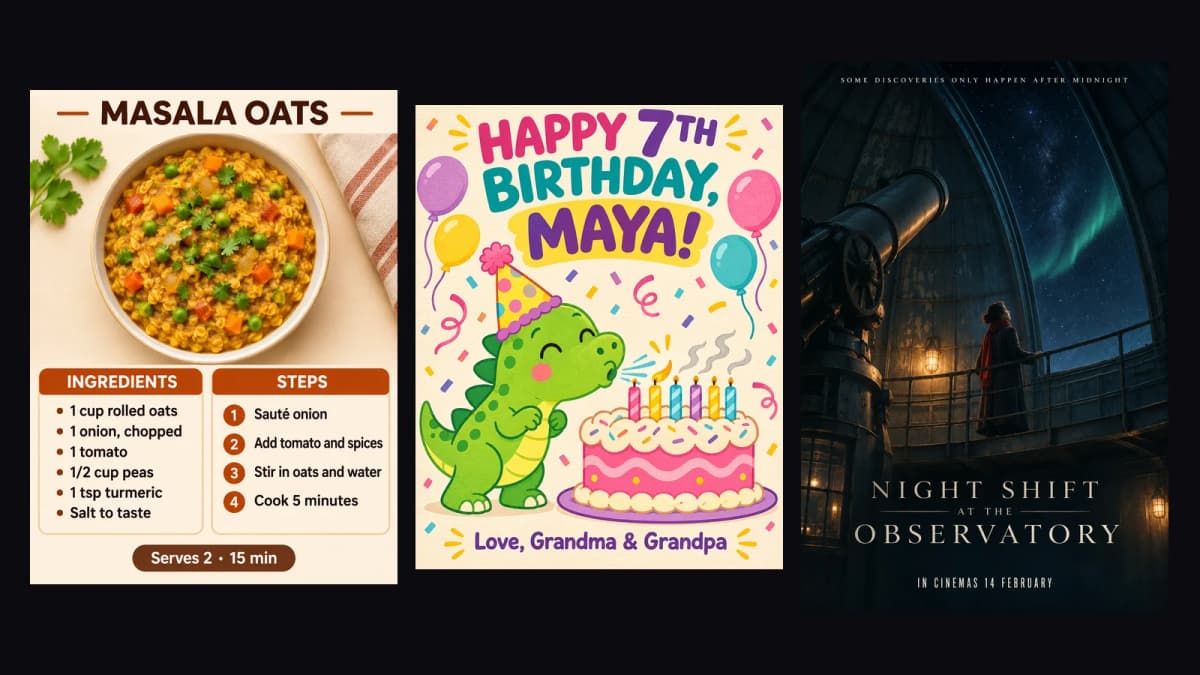
Recipe card, birthday card and poster — every word spelled right on the first try.
How to write a prompt for GPT Image 2.6
The model follows plain, specific sentences. Four habits made the biggest difference in our tests:
- Name the format first. "YouTube thumbnail", "recipe card", "app screen" tells the model the layout before anything else.
- Quote the words.
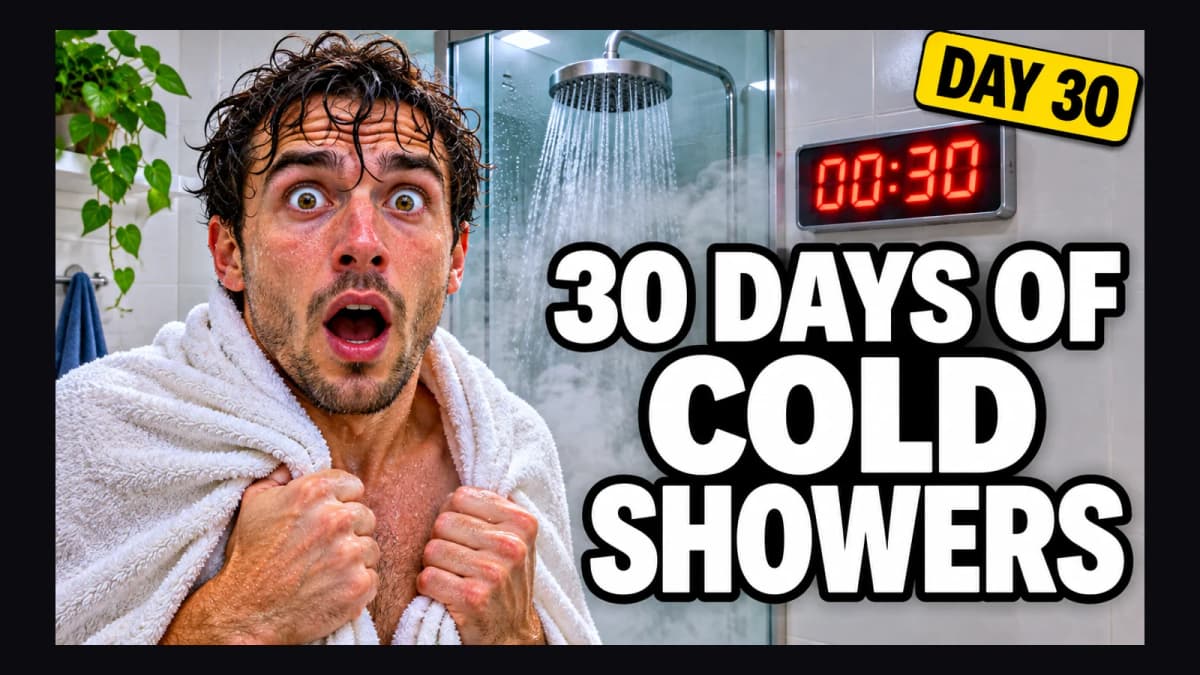
"30 DAYS OF COLD SHOWERS","Serves 2 · 15 min"— and add "spell every word exactly, no other text". - Say where things go. "Headline on the right", "small text at the bottom", "two columns: INGREDIENTS and STEPS".
- Check the details. Text was right in every test, but logic can slip: our 7th-birthday card came back with six candles, and the cold-shower thumbnail had steam.
How to edit a photo with GPT Image 2.6
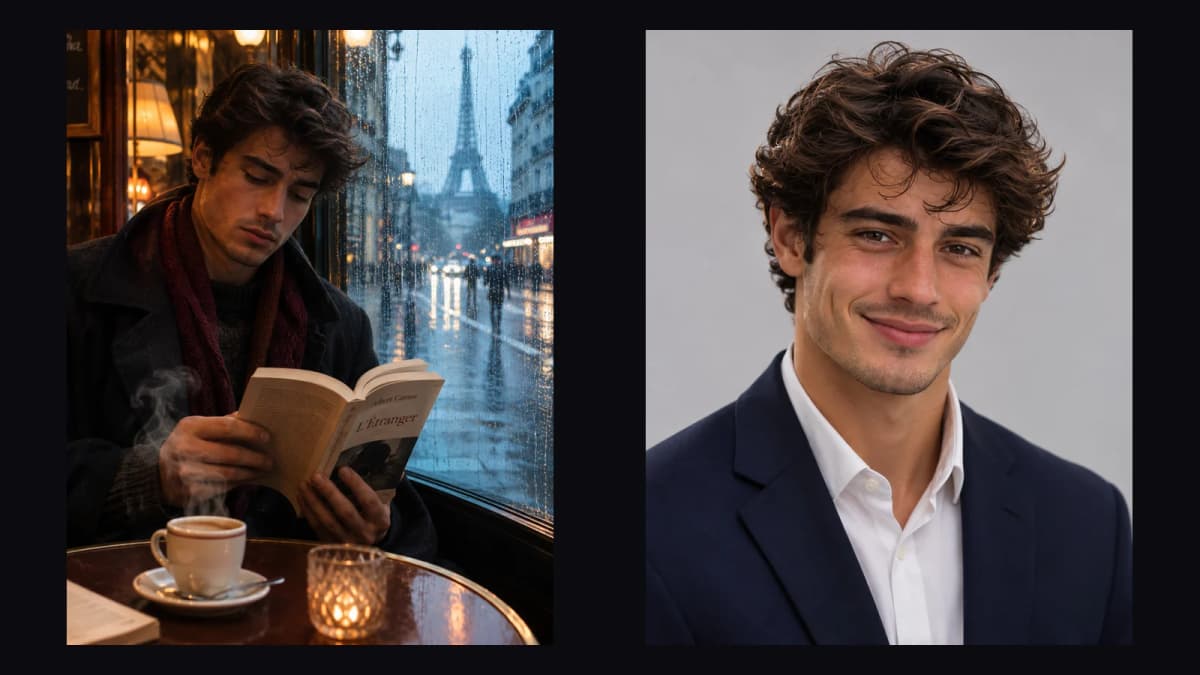
Upload the photo as a reference and describe two things: what changes and what must stay. We gave Sunburst a café photo and asked for a LinkedIn headshot:
AI Prompt RecipeFlux.1 Pro16:9“Turn this into a professional LinkedIn headshot of the same man: keep his face, curly hair and features exactly the same. Put him in a navy blazer over a white shirt, facing the camera with a friendly confident smile, head and shoulders, soft studio lighting, plain light grey background. Real photograph.”
His face and curls carried over; the clothes, pose, light and background were all new. On Kenerate the edit cost 19.5 credits — 15 for the image plus 4.5 for the reference.
Which GPT Image 2.6 settings should you use?
| Job | Version | Quality | Format |
|---|---|---|---|
| Quick drafts and variations | Flare | Low | PNG |
| Social posts, thumbnails | Sunburst or Flare | Medium | JPG or WEBP |
| Posters, packaging, print | Sunburst | High, 2K–4K | PNG |
| Edits that must keep a face or product | Sunburst | Medium or high | PNG |
| Stickers, reactions, loops | Sunburst | Medium | GIF |
| Logos and icons | Sunburst | Medium | SVG |
Draft at low quality, then re-run only the keeper higher. Complexity is separate from quality: keep it low for small edits and raise it for crowded scenes.
Open GPT Image 2.6 on Kenerate
Using GPT Image 2.6 comes down to one choice: let ChatGPT handle the settings inside your plan, write code against the API, or pick every setting yourself in a studio and pay per image. For what the model is good and bad at, read our GPT Image 2.6 guide; for every way to pay for it, see GPT Image 2.6 pricing.