

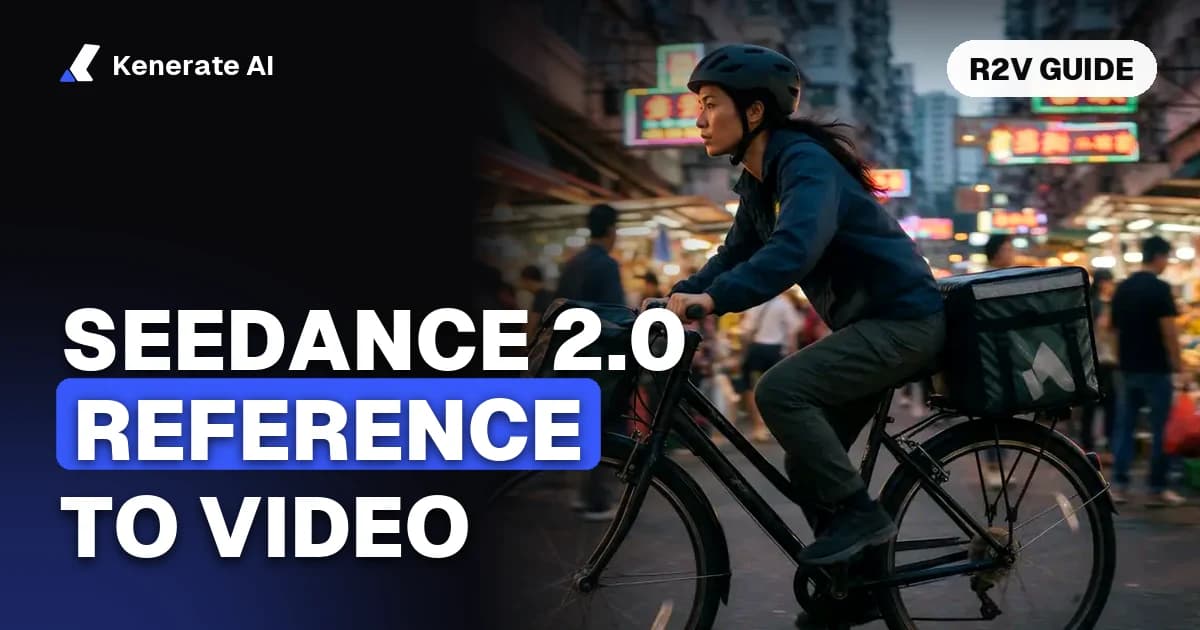
Seedance 2.0 reference to video (R2V) makes a new clip from your own files: up to 9 images, 3 video clips and 3 audio clips, plus a text prompt that tells the model what each file is for. Use it to keep the same character or product across shots, borrow a camera move or set the sound. Clips run 4 to 15 seconds, and on Kenerate AI a 5-second 720p clip with image references costs 360 credits, as of 4 November 2026.
This guide covers R2V only: the limits, the prompt wording ByteDance's own docs recommend, two worked examples and what reference clips really cost. For the wider picture, start with how to use Seedance 2.0.
What does R2V mean in Seedance 2.0?
R2V is short for reference to video. Instead of describing everything in words, you attach files and point at them in the prompt. ByteDance's launch post says the model can take composition, motion, camera movement, visual effects and audio from input assets. The BytePlus ModelArk docs call this mode "omni reference".
Three modes get mixed up, so here is the difference:
| Mode | What your file does | Pick it when |
|---|---|---|
| Image to video | Your image is the first frame of the clip | The opening shot must match the picture exactly |
| Reference to video | Your files guide a brand-new scene | A character, product, move or voice must carry into a new shot |
| Edit or extend | Your video is the clip being changed | You already have footage and want it changed or continued |
If you only need one photo to start moving, image to video is simpler. R2V earns its place when one subject has to appear in several different shots. Our reference to video AI page compares every model in the studio that supports it.
What are the Seedance 2.0 R2V limits?
The input counts come from ByteDance. The per-type time caps, output options and prices come from Kenerate's model config, checked on 4 November 2026.
| Limit | Seedance 2.0 on Kenerate |
|---|---|
| Reference images | Up to 9 |
| Reference videos | Up to 3, 15 seconds in total |
| Reference audio | Up to 3, 15 seconds in total |
| Output length | 4 to 15 seconds, whole seconds |
| Resolution | 480p, 720p, 1080p, 4K |
| Aspect ratios | 16:9, 9:16, 4:3, 3:4, 1:1, 21:9 |
| Sound | On by default, can be switched off at the same price |
| Variants with the same limits | Seedance 2 Fast, Seedance 2.0 Mini, Seedance 2 Turbo (720p and 1080p only) |
Other hosts can set their own limits, so check the studio you are using. If 9 images or 15 seconds is not enough, Seedance 2.5 takes up to 30 images, 3 clips and 10 audio files and runs to 30 seconds, at a higher rate. Our Seedance 2.0 vs 2.5 post covers that choice.
What should each type of reference do?
The BytePlus prompt guide for Seedance 2.0 gives each file type a separate job:
- Images carry a subject: a person, a prop or a place. The pattern is "Reference [subject] in Image 1 to generate...".
- Videos carry an action, a camera move, a style or a sound effect. The pattern is "Reference [camera movement] in Video 1 to generate...".
- Audio carries the voice or sound. The pattern is "Reference the timbre in Audio 1 to generate...".
The key habit is to name the job. An attached clip with no instruction can leak its lighting and setting into your shot, so say which part you want and leave the rest out.
How do you write a Seedance 2.0 R2V prompt?
The same guide suggests locking in who is doing what, then where and in what mood, then how it is shot, and finally the style and constraints. For R2V, these rules matter most.
Define the subject once, then reuse the label
Use two or three stable features to identify the subject, then stick to one name. The guide's pattern is "Define [features] in Image N as Subject N". For example:
Define the woman with a red jacket and a short silver bob in Image 1 as Mara.
After that, write "Mara" every time. Do not swap between "the woman", "she" and "the rider". If you skip the definition, the guide suggests tying the name to the file each time, as in Mara@Image 1.
Number your files in order
Refer to files as Image 1, Image 2, Video 1 and Audio 1. The number is the file's place among files of that type. Kenerate's reference to video page uses the same Image 1, Image 2 naming.
Put the most important file first
BytePlus advises that the more precisely an asset must be followed, the earlier it should appear in the prompt.
Keep character references simple
For a character, BytePlus says a headshot plus a full-body photo is enough. It advises against three-view or multi-view sheets, because the model can read the angles as different people. That is the opposite of what many character-sheet tutorials suggest, and it can produce duplicate characters in one frame.
Stay at four people or fewer
The guide warns that output gets less stable once references go above four people, with wrong head counts or duplicates. For a bigger cast, build the scene in smaller groups first.
Clean up your reference images
Remove any text that does not need to appear, and use high-definition files. If you want anime but your reference looks realistic, state the style in the prompt or convert the reference first.
Don't say "reference" when editing
For edit and extend jobs, BytePlus says to write "Video 1" and not "reference Video 1", so the request isn't mistaken for a reference task.
How do you run R2V on Kenerate, step by step?
- Open the video studio and choose Seedance 2.0, or Mini for cheap drafts.
- Switch to reference to video. Video needs a paid plan, so you will need a credit pack.
- Upload your files in the order you plan to name them.
- Write the prompt with one subject definition, one action and one camera instruction.
- Set length, resolution and ratio. Start with 5 seconds at 480p or 720p.
- Check the credit quote, then generate.
- Change one thing at a time. Once a draft works, render the final version at a higher resolution or on the full model.
How do you keep one character across several shots?
Generating the same prompt twice does not give you continuity, so plan separate shots that share the same references.
- Make the reference stills first. Create a headshot and a full-body image of a fictional character in the AI image editor or image studio.
- Use the same two files, in the same order, for every shot.
- Paste the same definition line at the top of every prompt, and change only the scene.
Shot 1
Define the woman with a red jacket and a short silver bob in Image 1 as Mara. Use Image 2 for her full outfit. Mara cycles through a busy night market, weaving between stalls. Tracking shot from the side, neon signs reflecting on wet ground. Mara's face and jacket stay the same throughout. Sound: bicycle chain, market chatter.
Shot 2
Define the woman with a red jacket and a short silver bob in Image 1 as Mara. Use Image 2 for her full outfit. Mara parks the bicycle outside a small noodle shop, lifts a delivery box and walks in. Slow push-in from across the street, warm light from the doorway. Mara's face and jacket stay the same throughout. Sound: light rain, a door bell.
Keep the lighting direction and film style similar between shots, and they will cut together more easily. ByteDance's own post lists multi-subject consistency as a weak spot, so expect a few retries.
Can you use a photo of a real person?
Plan around this before you start. The BytePlus docs say the Seedance 2.0 series does not support direct uploads of reference images or videos containing real human faces. They point to preset digital characters, faces generated by models on the same account, and authorised real-person assets. ByteDance's launch post also requires identity verification or prior legal authorisation for real portraits. The simple route is a generated or illustrated character. Never use someone's likeness without their consent.
How do you keep a product the same across shots?
Product shots follow the same logic, with one extra rule: show the logo clearly in your reference and say that it must not change.
- Image 1: a clean front view of the product on a plain background.
- Image 2: the back or side, if the label matters.
- Video 1 (optional): a short clip with the camera move you want.
Define the amber glass bottle with the white label in Image 1 as the product. It stands on wet black stone as mist rolls past. Use the slow orbit camera move from Video 1, not its subject or lighting. The label text and bottle shape stay exactly as in Image 1. Soft rim light, premium studio look. Sound: quiet water drips, no music.
Text is a known weak spot too, since ByteDance names text rendering as an open problem. Check small print in the final clip. If the label has to be exact, image to video from a perfect still is the safer choice.
How much does Seedance 2.0 R2V cost on Kenerate?
Reference images and audio add nothing to the bill. Only reference video seconds change the formula, as of 4 November 2026:
- No reference clips: output seconds × output rate.
- With reference clips: (clip seconds + output seconds) × the lower reference rate.
| Credits per second | 480p | 720p | 1080p | 4K |
|---|---|---|---|---|
| Seedance 2.0 output rate | 36 | 72 | 180 | 360 |
| Seedance 2.0 reference rate | 22.5 | 45 | 112.5 | 225 |
| Seedance 2 Fast output rate | 30 | 60 | 150 | 300 |
| Seedance 2 Fast reference rate | 19.5 | 39 | 97.5 | 195 |
| Seedance 2.0 Mini output rate | 18 | 36 | 90 | 180 |
| Seedance 2.0 Mini reference rate | 11.25 | 22.5 | 56.25 | 112.5 |
Here is what that means at 720p on Seedance 2.0:
| Job | Sum | Credits |
|---|---|---|
| 5 s clip, images only | 5 × 72 | 360 |
| 10 s clip, images only | 10 × 72 | 720 |
| 10 s clip + 5 s reference video | (5 + 10) × 45 | 675 |
| 10 s clip + 6 s reference video | (6 + 10) × 45 | 720 |
| 15 s clip + 15 s reference video | (15 + 15) × 45 | 1,350 |
So a reference clip is not always a surcharge, and not always a saving. A clip shorter than 60% of your output length costs less than no clip at all. At exactly 60% it costs the same, and beyond that it costs more. The same holds on Mini, and on Fast the break-even is about 54%. At 720p, a 15-second clip with a full 15 seconds of reference video costs 270 credits more than the same clip with images only. Trim reference videos to the few seconds of motion you need.
Packs start at $15 for 1,300 credits, and the 25 sign-up credits work on images only, so you can use them for your reference stills but not for video. To draft cheaply, Mini at 480p costs 90 credits for 5 seconds with image references. There is more on Seedance 2.0 free options if you want to compare routes.
What goes wrong with Seedance 2.0 R2V?
| Problem | Likely cause | Fix |
|---|---|---|
| Face drifts mid-clip | The reference mixes face, pose and outfit in one image, or the face is small | Use a separate headshot and put it first |
| Two copies of a character | A three-view or multi-view sheet | Use single-person images, and map each name to one image |
| Background from the clip leaks in | The clip has no stated job | Say "camera movement from Video 1 only" |
| Wrong number of people | More than four people referenced | Build the scene in smaller groups |
| Anime turns realistic | The reference is realistic and no style is stated | Add a clear style line, or convert the reference first |
| Voice sounds off | The line doesn't suit the reference audio | Keep dialogue close to the tone of the audio clip |
| Upload blocked | A real face in the reference | Use a generated or illustrated character |
Most of these fixes come from the troubleshooting section of the BytePlus prompt guide, which is worth reading if you plan to use R2V often.
Is R2V worth using over a plain text prompt?
Use R2V when something has to stay recognisable: a recurring character, a branded product, a precise camera move or a set voice. Stay with text to video for one-off ideas, because a written description is quicker and needs no prep. A sensible routine is to draft on Mini, confirm the references behave, then move to the full Seedance 2.0 model for the final render.