


Free edit prompt · no masking · honest limits
Remove an object from a video with AI — describe it, keep the shot
A bin in the corner, a cable across the desk, a stray cup on the table? In Kenerate Genjutsu you name the object in one sentence and ask for it to go. There's no dedicated eraser — it's a Free edit — so small, still objects on simple backgrounds work best. Try a short clip first.
- One sentence, no mask
- Rest of the shot kept
- Clips 2–30 s
- Swap or new background as fallbacks
Updated by the Kenerate AI team
Made with Kenerate




On this page
Quick answer
Updated
How do you remove an object from a video with AI?
To remove an object from a video, upload a clip of 2–15 seconds to Kenerate Genjutsu, choose Free edit and write one sentence, such as "Remove the trash bin from the table; keep everything else the same." Genjutsu has no dedicated eraser, so results depend on the clip: small, still objects on simple backgrounds work best.
Key facts
- Mode
- Free edit (no dedicated remove mode)
- You give
- The clip + one sentence naming the object
- Clip length
- 2–15 s (Kenerate tiers) · 4–30 s (Seedance 2.5)
- Masking
- None — you describe the object
- Works best on
- Small, still objects, simple backgrounds
- Harder
- Large or fast objects, occlusions, reflections
Real demo
What Free edit keeps: one sentence, same camera
There's no removal example in the gallery yet, so here is a real Free edit instead: one sentence turns a greenhouse into a snowy night while the camera move and framing stay the original's. A removal prompt runs through the same mode.
- Free edit. Prompt: “Make it a snowy winter night like @image1: snow falling, snow on the glass roof and the plants, northern lights over the city behind.”
Kenerate Genjutsu at 720p — an unedited Free edit from the app's example gallery, shown next to its source clip. It changes the scene; it is not an object removal.
Write a removal promptReal results
Clips with something you might want gone
A cafe counter, a bakery tray, a waterfall, a suburban street and a busy market — from the easy case (one still prop) to the hard one (a crowd of moving boats).
Image-to-video example clips with the model on each card, also used on our Genjutsu pages — not removal outputs. You'd start from your own clip.
How to
Remove an object from a video in five steps
- Time needed
- Steps
- 4 steps
Step 1
Trim a short test clip
Start with 2–5 seconds where the object is clearly visible. Short clips are quicker to check and cheaper to redo.
Step 2
Upload it to Genjutsu
MP4 or MOV (WebM and M4V also work) up to 500 MB. Kenerate tiers read 2–15 s; Seedance 2.5 reads 4–30 s.
Step 3
Choose Free edit
There's no remove mode — Free edit is the one that takes your own instruction, and it needs a prompt.
Step 4
Name the object and what stays
"Remove the black trash bin next to the table; keep the table, the people and the camera exactly the same."
See it in the app

Open Kenerate Genjutsu and choose Replace character, Swap object, Change outfit, Change background or Free edit.


Watch the tour · 1:10
Pick what changes, choose the video, references & @image mentions, engines, cast & compare, examples & chat
Chapters
Checked 6 October 2026
Which approach is best for removing something from a video?
Three Genjutsu modes and the classic manual route, compared neutrally. None of them is a guaranteed eraser.
| Free edit (remove prompt) | Swap object | Change background | Mask-based inpainting in an editor | |
|---|---|---|---|---|
| What happens | The engine is asked to take the object out | The object becomes something else | The whole setting is replaced | You paint a mask; software fills it frame by frame |
| You give | One sentence | Old and new object, words or a photo | A description or a location photo | A mask per shot, often keyframed |
| Works best on | Small, still objects on simple backgrounds | Props of similar size and shape | Clutter that sits behind the subject | Any shot, if you have the time and skill |
| Watch out for | Leftover traces, smudges, things that return mid-clip | It replaces; nothing disappears | Everything behind the subject changes | Hours of manual work on long or moving shots |
| Best for | Quick clean-ups of one distracting prop | Turning a wrong prop into a right one | Hiding a messy room or street | Frame-accurate professional work |
Mask-based inpainting describes desktop compositing tools in general; check each tool's own site for current features.
Sources: Kenerate Genjutsu (video editor)
Engines
Which engine for a removal edit
All three read the same Free edit prompt. Start on Kenerate Genjutsu with a short clip; move up only if the result needs it.
- Default
Kenerate
Kenerate Genjutsu
- Input
- Clip 2–15 s + up to 10 references
- Output
- 480p, 720p or 1080p · ~2–4 min
Quick test runs on short clips with one small, still object
Open Kenerate Genjutsu 
Kenerate
Kenerate Genjutsu Pro
- Input
- Clip 2–15 s + up to 10 references
- Output
- 480p, 720p or 1080p · ~3–6 min
A second try when edges or textures around the gap need more detail
Open Kenerate Genjutsu Pro- Up to 30 s
ByteDance
Seedance 2.5
- Input
- Clip 4–30 s + up to 30 references
- Output
- 480p to 4K · ~4–8 min
Longer clips up to 30 s and 4K masters
Open Seedance 2.5
Free edit needs a prompt. Results depend on the clip — no engine can promise a clean removal on every shot.
Tips
Removal prompts that have a chance
Generative removal is a request, not a guarantee. These habits raise the odds.
Name the object by colour and position: "the red cone on the left".
Say what should be there instead: "plain pavement", "empty table".
Pick clips where the object is small and doesn't move much.
Avoid objects that cross people, cast big shadows or appear in mirrors.
Remove one thing per run; run again on the result for a second.
Only edit footage you shot or have the right to change.
Example uses
How creators use Remove Object from video
Illustrative examples of typical workflows, not customer reviews.

Video editor
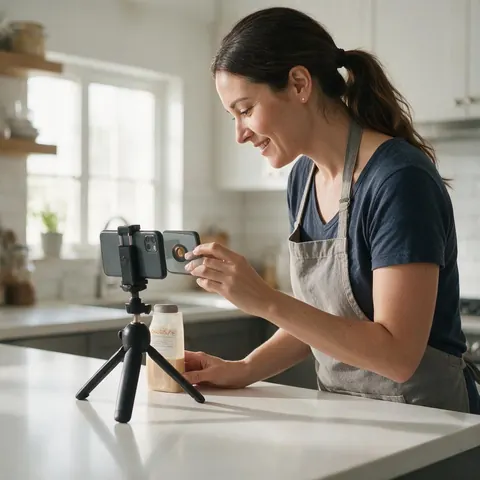
A video editor could ask Genjutsu to remove a stray bin from a short cafe shot, then check every frame in the compare view before using it.
Small-business owner
A small-business owner could remove a stray cup from a 4-second product clip, and fall back to Swap object if it does not come out clean.
Property photographer
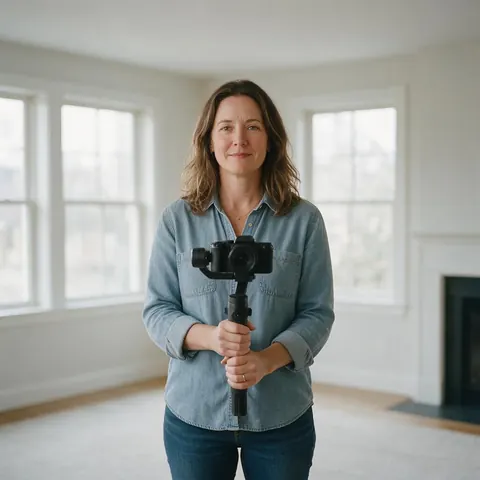
A property photographer could try removing a small item from a slow walkthrough clip, or use Change background when the clutter is too large.
FAQ
Removing objects from video — questions
7 questions
Can AI remove an object from a video?
Sometimes, and it depends on the shot. In Genjutsu you ask for it in Free edit: "Remove the bin from the corner; keep everything else the same." The engine re-renders the clip and fills the gap. Small, still objects on plain backgrounds have the best chance; leftovers or a smudge where the object was are possible, so check every frame.
Link to this answerDoes Genjutsu have an object eraser?
No. Genjutsu's modes are Replace character, Swap object, Change outfit, Change background and Free edit. Removal is something you request in Free edit, which takes any instruction in your own words. Swap object replaces things rather than erasing them, so pick Free edit for removals.
Link to this answerWhich objects are hardest to remove?
Large objects that cover a lot of the frame, objects that move fast, objects that pass in front of or behind people, and anything with a strong shadow or a reflection in glass, water or mirrors. In those cases the engine has to invent a lot of hidden background, and results are less reliable.
Link to this answerCan I remove a person from a video?
You can ask Free edit to remove a background passer-by, and a small, distant figure on a simple background has the best chance. Removing a main subject who moves through the shot is much harder. Only edit footage you have the right to change, and don't use edits to misrepresent what happened.
Link to this answerWhat should I try if the removal doesn't work?
Shorten the clip, make the prompt more specific about the object and what should replace it, or try Kenerate Genjutsu Pro. If the object still won't go cleanly, Swap object can turn it into something that fits the scene, and Change background can replace a cluttered setting behind your subject.
Link to this answerIs there a free way to remove objects from a video online?
Genjutsu runs use credits, priced by clip length and resolution — the studio shows the price before you start. That's why a 2–5 second test clip is the sensible first step: you see whether the removal works on your footage before running a longer clip.
Link to this answerIs the original sound kept?
Yes, by default. Genjutsu keeps the clip's own audio unless you switch it off, in which case the engine makes new sound to match the edit. Keeping it means voices and effects stay in sync with the action.
Link to this answerIn depth
Object removal in video, explained
Why removal is harder than replacement, what makes a clip removal-friendly, and the fallbacks when it isn't.
On this page
Why removing is harder than swapping
When you swap an object, the new one covers the old one's spot. When you remove it, the engine has to invent whatever was hidden behind it — in every frame, consistently, while the camera and people move. That's why removal works best when the hidden area is simple: a plain wall, a tabletop, open sky, pavement.
What makes a clip removal-friendly
If your clip ticks most of these, a Free edit removal is worth a try. If it ticks few, plan on Swap object or Change background instead.
- The object is small compared with the frame.
- It stays still, or moves very little.
- Nothing passes in front of or behind it.
- The background behind it is plain or repetitive.
- There's no strong shadow or reflection of it.
- The clip is short — 2 to 5 seconds for a first test.
Fallbacks that often work better
Swap object turns the unwanted thing into something harmless that fits — a branded cup into a plain one, a parked scooter into a planter. Change background replaces the whole setting behind your subject, which hides clutter without asking the engine to invent a hole. For still photos, an image editor with a mask-based eraser is the more reliable tool.
Video object remover
Most object removers are mask-based: you paint the object and the tool fills it. Genjutsu works from words instead — you describe the object and ask for it to go. That saves masking, but it isn't a dedicated remover, so treat the first run as a test.
Remove something from a video
Write the sentence the way you'd brief an editor: what to remove, where it is, and what should be there instead. "Remove the white cable running across the desk; the desk surface continues underneath" works better than "remove the cable".
Remove unwanted objects from video online
Genjutsu runs in the browser, so nothing needs installing. Upload the clip, choose Free edit, describe the removal and compare the result with the original in the side-by-side view before you download the MP4.
Explore
Every Kenerate video tool
Generators, tools, models and guides — all in one studio.


Ask for it to go — check every frame
Free edit with one sentence, on a short clip first. Only on footage you have the right to edit.
Tried it? Tell us how it went