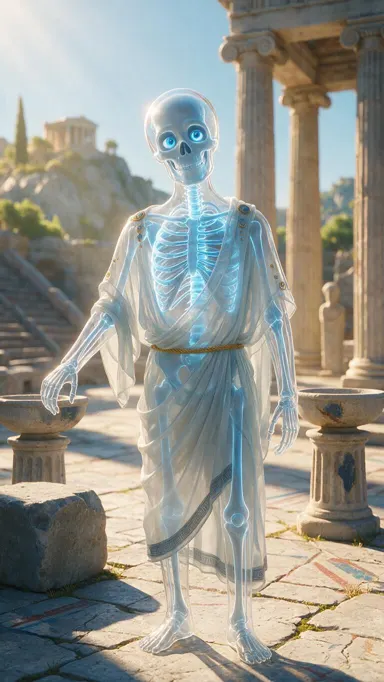
Skeleton character · image to video · 9:16
AI Skeleton Video Generator — X-ray skeleton shorts from a prompt
Make the skeleton shorts that fill TikTok and YouTube Shorts: a glassy X-ray body walking through a “what if”, or a cartoon skeleton that talks straight to camera. Create the character in Image Studio, animate it vertically with Wan 3.0 or Seedance 2.0, then add a voice and captions.
- Same skeleton in every scene
- Image or text to video
- 9:16 for Shorts and Reels
- Voice and captions
Updated by the Kenerate AI team
On this page
Quick answer
How do you make a viral AI skeleton video?
An AI skeleton video is a short vertical clip where a stylised skeleton — often a translucent, X-ray-style body — acts out a scene or a “what if” while a narrator explains it. On Kenerate AI you make one in four steps: create the skeleton as a 9:16 image in Image Studio, animate it in Video Studio with Wan 3.0 (2–30 s) or Seedance 2.0 (4–15 s, better for spoken lines), add narration in Voice Studio, and burn in captions with the Subtitles tool. Join the clips in your own editor.
Key facts
- Format
- Vertical 9:16 shorts
- Start frame
- Seedream 5.0 Pro or any image model
- Cheap drafts
- Wan 3.0 · 2–30 s · 480p–1080p
- Talking skeleton
- Seedance 2.0 · 4–15 s · native sound
- Captions
- Subtitles tool · 10 burned-in styles
- Video needs
- A paid credit pack
Gallery
Skeleton start frames, made on Kenerate
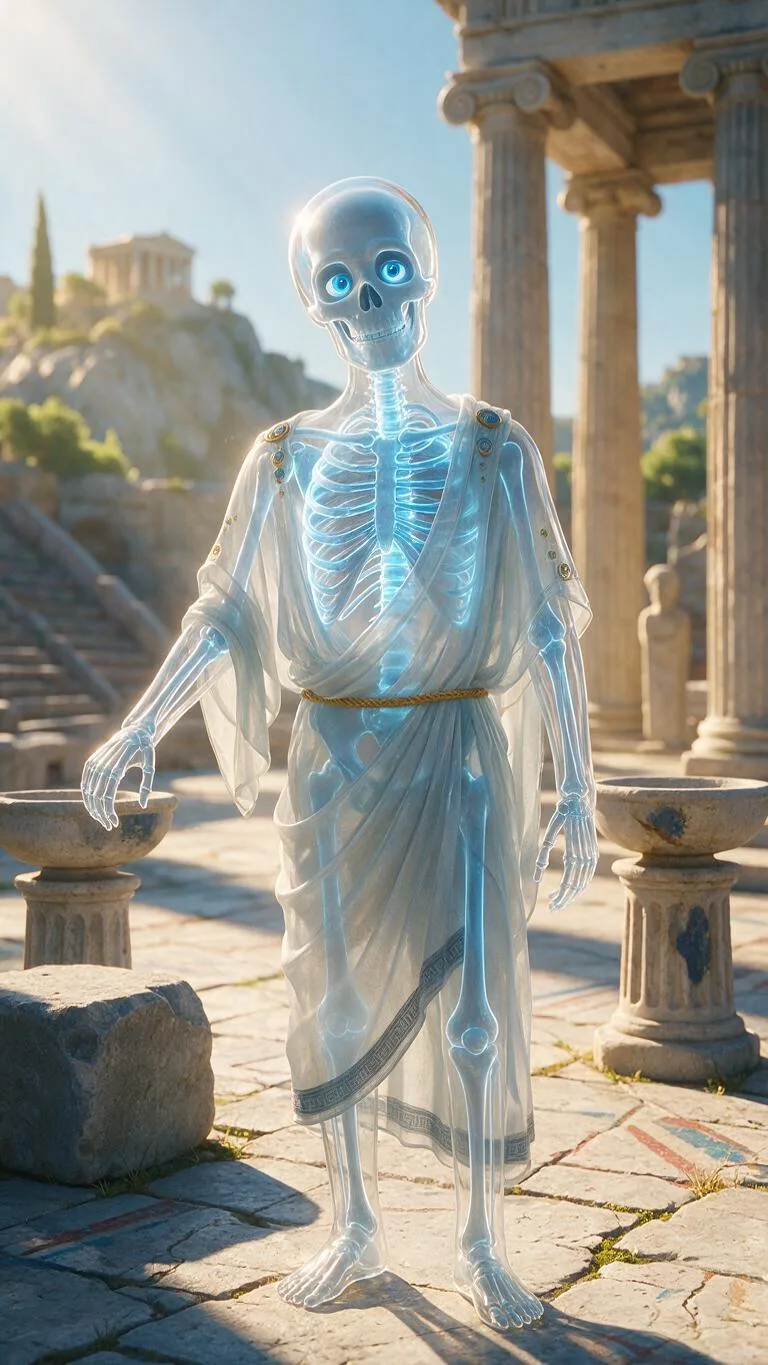
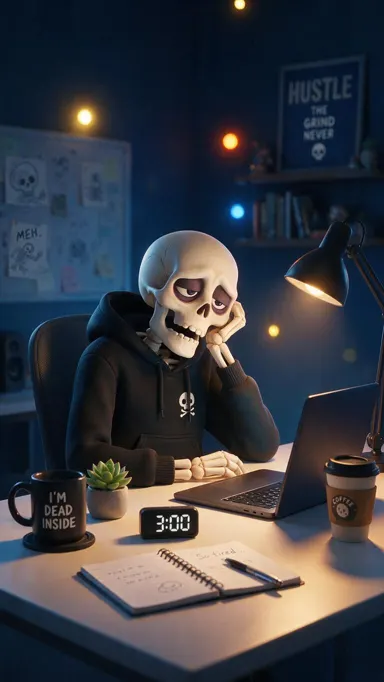
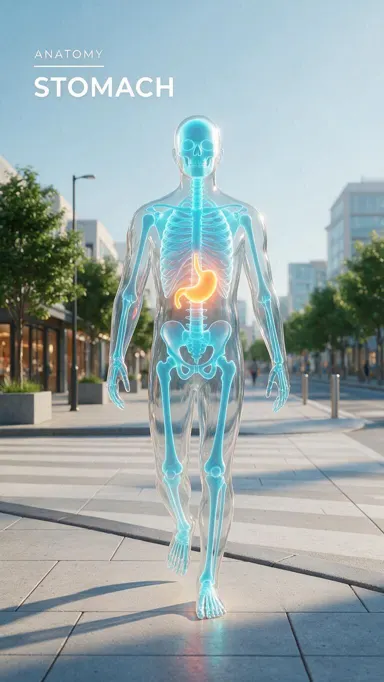
Three real Seedream 5.0 Pro outputs, first try, 9:16 — the three looks the trend runs on: a glassy X-ray character in a history scene, a cartoon skeleton for relatable jokes, and a body explainer. Open one, keep the prompt, change the scene, then send it to Video Studio.
How to
How to use the AI skeleton video generator
- Time needed
- Steps
- 4 steps
Step 1
Create your skeleton
In /app/image, pick Seedream 5.0 Pro, set 9:16 and describe the skeleton, its outfit and the place. Sign in free for starter credits.
Step 2
Animate it in Video Studio
Send the image to /app/video. Wan 3.0 for cheap 480p drafts from 2 to 30 seconds; Seedance 2.0 when the skeleton speaks a line. Keep 9:16.
Step 3
Describe one action and the sound
“The skeleton turns to camera and says ‘What if you lived in ancient Athens?’” — quoted lines are spoken when sound is on.
Step 4
Add voice and captions, then cut
Narrate longer scripts in Voice Studio, burn in captions with the Subtitles tool, and join the clips in your editor.
See it in the app

Open Video Studio in Text to Video mode and write the shot — subject, action, camera move and light.


Watch the tour · 1:23
Prompts, styles, references, edit, Arena & chat
Chapters
Tips
Skeleton prompts that hold up
What makes the format readable on a phone, turned into prompt habits.
Say the material: “translucent glass-like body, glowing blue X-ray skeleton inside” or “cartoon white skeleton” — the two looks need different words.
Dress it. A hoodie, a toga or a lab coat tells the viewer the scene before a word is spoken.
Add “not scary, no blood” — the trend is curious and funny, not horror, and the prompt keeps it that way.
Make the first frame once and reuse it as the reference image, so the same skeleton appears in every scene.
Keep one action per clip: walks toward camera, turns its head, drops the coffee cup. Several actions in 5 seconds turn to mush.
Add captions and on-screen text afterwards — AI video often garbles small letters.
Models
Tools for skeleton videos
What each model is good at. Open any one straight in the generator.
ByteDance
Seedream 5.0 Pro
- Reference images
- Up to 10
- Output
- 9:16 · up to 2K
Open Seedream 5.0 ProBest for
The skeleton character and each scene's start frame
Alibaba
Wan 3.0
- Reference images
- Up to 10
- Output
- 2–30 s · 480p–1080p · 9:16
Open Wan 3.0Best for
Cheap vertical drafts with native sound
ByteDance
Seedance 2.0
- Reference images
- Up to 9
- Output
- 4–15 s · 480p–4K · 9:16
Open Seedance 2.0Best for
Expressive motion and spoken lines
FAQ
AI Skeleton Video Generator questions
8 questions
What is an AI skeleton video?
It's a short vertical video — usually for TikTok, YouTube Shorts or Reels — where a stylised skeleton is the main character. Common formats are “what if” stories (“What if you were raised by Spartans?”), body explainers that show what happens inside you, and relatable jokes with a cartoon skeleton. The skeleton is faceless, so one character can carry a whole channel.
Link to this answerHow do I make an AI skeleton video?
Create the skeleton as a 9:16 image in Kenerate's Image Studio, then animate it in Video Studio with Wan 3.0 or Seedance 2.0. Describe one action per clip and keep sound on for a spoken line. Add longer narration in Voice Studio, burn in captions with the Subtitles tool, and join the clips in your editor.
Link to this answerHow do I get the translucent X-ray skeleton look?
Name it in the prompt: “translucent glass-like body, glowing blue X-ray skeleton visible inside a clear body outline, clean stylized 3D render”. Add a coloured glow on one organ for body explainers (“the stomach glowing orange”). The first image on this page used exactly that kind of prompt.
Link to this answerHow do I keep the same skeleton in every scene?
Make one character image you like, then use it as the start frame or a reference image for every clip. Wan 3.0 takes up to 10 reference images and Seedance 2.0 up to 9. Keep the outfit and style words identical in each prompt.
Link to this answerCan the skeleton talk or narrate?
Yes. Wan 3.0 and Seedance 2.0 make native sound when audio is on, so a short line in quotes is spoken in the clip; Seedance 2.0 is the better pick for dialogue. For a full script, generate the narration in Voice Studio (ElevenLabs Eleven v3, MiniMax Speech or Qwen3 voices) and lay it under the clips.
Link to this answerHow long can a skeleton video be?
One Wan 3.0 clip runs 2 to 30 seconds and one Seedance 2.0 clip 4 to 15 seconds. Most skeleton shorts are 15–60 seconds made of several clips, which you join in your own editor — Kenerate doesn't stitch clips together for you.
Link to this answerIs the AI skeleton video generator free?
Free to start: a new account gets starter credits for skeleton images in Image Studio. Video needs a paid credit pack; credits never expire and downloads have no watermark. Drafting at 480p keeps each try cheap.
Link to this answerCan I put a real person or a famous figure in the video?
Keep it generic. Write “an ancient Greek philosopher” or “a Roman soldier” rather than a real person's name or face — a skeleton in period clothes tells the story without using anyone's likeness. Kenerate's content rules apply to every generation.
Link to this answerIn depth
AI Skeleton Video Generator, explained
What works, what to avoid, and how to pick a model.
On this page
Why skeleton videos work
A skeleton is the most neutral character there is: no face to cast, no age, no accent. That makes it a stand-in for “you” — the viewer — which is why the format leans on second-person hooks like “What if you…” and “Here's what happens to your body when…”.
The X-ray look also explains things visually. A glowing organ or a lit-up bone shows the point of the script without a diagram, and the clean 3D style keeps it curious rather than scary.
Prompts to try
Untested motion prompts for the start frames above — 9:16, 5–10 seconds, sound on:
- Glass toga skeleton: the skeleton walks slowly through the marketplace, stops, turns to camera and says “What if you woke up in ancient Athens?” Market chatter, birds.
- Tired desk skeleton: the skeleton yawns, its jaw drops open too far, it pushes it back into place and stares at the laptop. Quiet room tone, a keyboard click.
- X-ray walker: the figure walks toward camera, the stomach glow pulses brighter, the camera slowly pushes in on the torso. City ambience.
- Raised by wolves: a cartoon skeleton in a fur cloak sits by a campfire in a snowy forest with a wolf pack, looks up at the moon. Wind, crackling fire.
- No sleep: a translucent skeleton lies in bed at night, eyes wide open, the brain glows red and flickers. Ticking clock.
Plan a full short
Most skeleton shorts are 5–10 small scenes with one narrator. Plan the pieces before you spend credits:
- One hook line in the first two seconds — the “what if” itself.
- One character image reused as the start frame or reference for every scene.
- Five to ten 3–6 second clips, each with one action.
- A single narration track from Voice Studio for the whole script.
- Burned-in captions from the Subtitles tool, then the clips joined in your editor.