Replace · translate · remove · 20 languages
Change Text in Image — new words, same font and layout
Fix a typo on a poster, update a price on a menu, swap the name on a sign or translate a banner — without redrawing anything. Type the old words and the new ones; the AI rewrites only those, in the same font, colour and position.
- Same font, size and colour
- Up to 5 word swaps per run
- Translate into 20 languages
- No watermark
Updated by the Kenerate AI team
On this page
Quick answer
How do you change the text in an image?
To change text in an image, open it in Kenerate's Edit Studio, choose Edit Text in Image → Replace, type the old words exactly as they appear and the new words beside them (up to five pairs), and run it. The default model, GPT Image 2, rewrites only those words and keeps the font, size, colour and position. Translate mode switches every word into one of 20 languages; Remove clears the text instead.
Key facts
- Tool
- Edit Studio → Edit Text in Image
- Modes
- Replace · Translate · Remove
- Replace
- Up to 5 old → new pairs, 120 characters each
- Translate
- 20 languages, layout kept
- Default model
- GPT Image 2 (+4 to choose from)
- Takes per run
- 1, 2 or 4
Compare
Three ways to change text in a picture
Kenerate from its code; Canva and Photoshop from their help pages, checked 20 October 2026.
| Kenerate Edit Text in Image | Canva Grab Text | Photoshop by hand | |
|---|---|---|---|
| How it works | Type old → new words; the AI redraws them in place | Turns text in the image into editable text boxes | Remove the old text, retype it with the Type tool |
| Font | Kept by the model — same style, weight, colour | Re-set in an available font; bold, italic, underline not yet supported | Type > Match Font suggests installed or Adobe Fonts matches |
| Translate | Yes — 20 languages, layout kept | Edit the words yourself | Retype yourself |
| Curved or angled text | Handled by the model; check the result | Works best on straight text | Warp and perspective by hand |
| Effort | One run, 1–4 takes | A few clicks per text block | Minutes to hours |
| Cost | Free to start; credits per run | On eligible Canva plans | Photoshop subscription |
Gallery
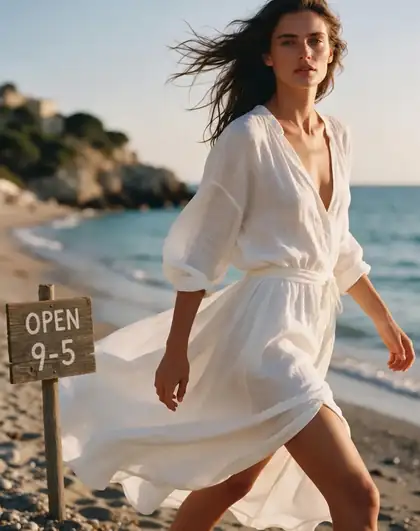
GPT Image 2 writing words into a photo
A real GPT Image 2 edit, one try: it added a sign with the exact words asked for and left the rest of the photo alone. Replace mode uses the same model to swap words that are already there.
Same prompt
Before and after
The original beach photo and the edit. The letters came out spelled exactly as typed, and the woman, dress, sea and light didn't change. This is an add-text edit, shown because it uses the tool's default model.
PromptAdd a small wooden sign on the beach in the sand that reads 'OPEN 9–5' in hand-painted letters. Keep everything else the same.
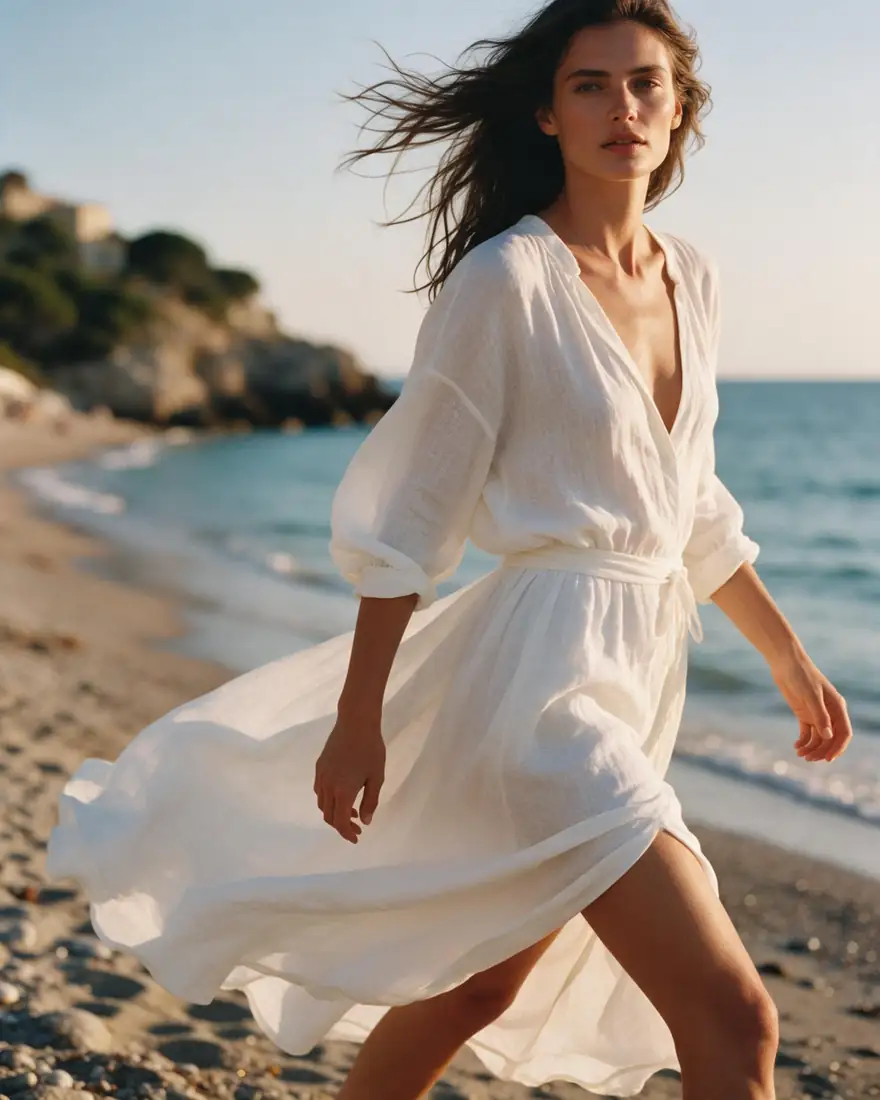 OriginalPhoto
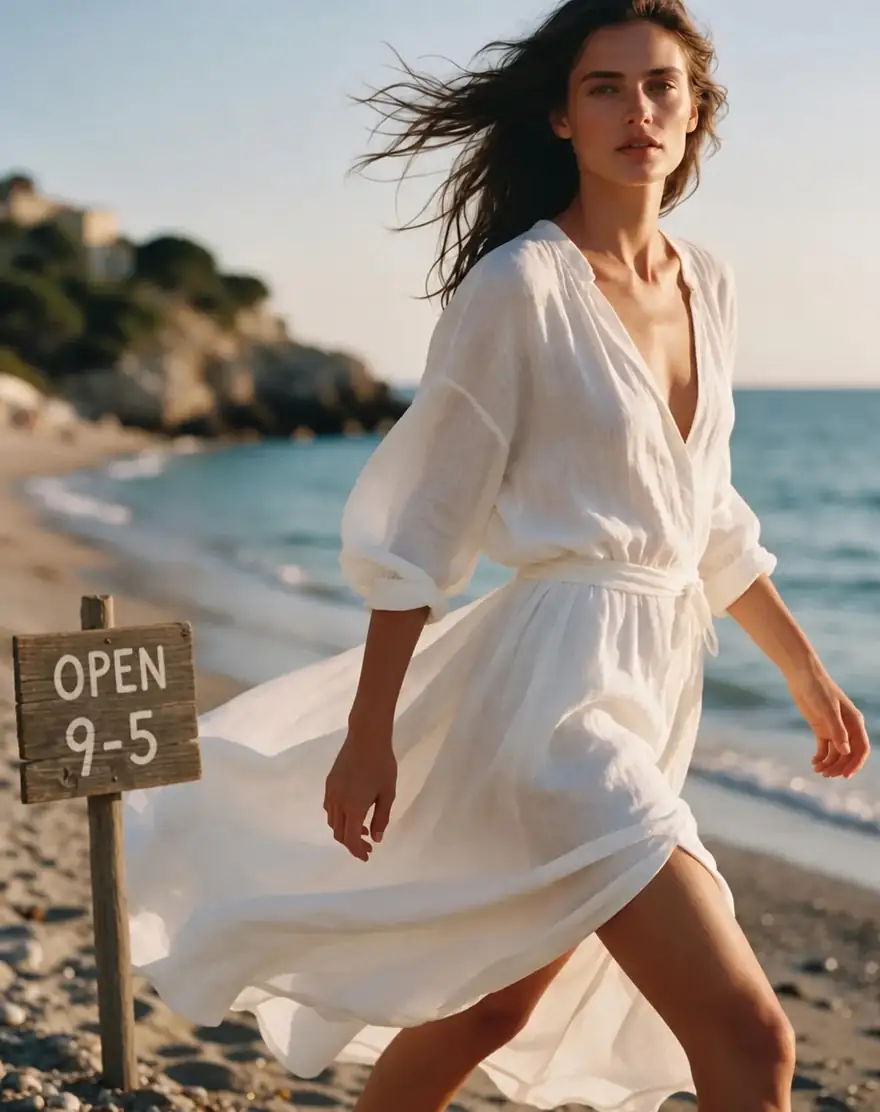 With new wordsGPT Image 2 edit
How to
How to use the change text in image
- Time needed
- Steps
- 4 steps
Step 1
Open the image in Edit Studio
Upload your photo, poster or screenshot at /app/edit (up to 50 MB). Sign in free for starter credits.
Step 2
Choose Edit Text in Image → Replace
Type the old text exactly as it appears and the new text beside it. Add up to five pairs.
Step 3
Pick the model and the takes
GPT Image 2 is the default; Nano Banana 2, Qwen Image 3.0, Qwen Image 2.0 Pro and Seedream 5.0 Lite are in the picker.
Step 4
Check and download
Compare with the original, read every letter, then download without a watermark.
See it in the app

Open Image Studio and type what you want to see — subject, style, lighting and mood.


Watch the tour · 1:23
Prompts, styles, references, edit, Arena & chat
Chapters
Tips
Get clean, matching text
What the tool needs from you, and what to check.
Type the old text exactly as it appears — same spelling, capitals and punctuation.
Keep the new words close in length; much longer text has to shrink or wrap.
Zoom in on the result and read every letter before you use it.
Run 2 or 4 takes on tricky fonts and keep the best match.
One small word on a busy background? Paint over it with Change Region and type the new word.
Models
Models for changing text
What each model is good at. Open any one straight in the generator.
OpenAI
GPT Image 2
- Reference images
- Up to 16
- Output
- Up to 4K
Open GPT Image 2Best for
Default for Edit Text in Image
Google
Nano Banana 2
- Reference images
- Up to 14
- Output
- 1K
Open Nano Banana 2Best for
Also in the Edit Text picker
- Free plan
FAQ
Change Text in Image questions
8 questions
How do I change text in an image?
Open the image in Kenerate's Edit Studio, choose Edit Text in Image and stay in Replace mode. Type the old words exactly as they appear and the new words beside them — up to five pairs — and run it. The AI rewrites only those words in the same font, size, colour and position.
Link to this answerCan I change text in an image for free?
Free to start: new accounts get starter credits, and Qwen Image 3.0 — one of the tool's models — is on the free plan. GPT Image 2, the default, uses credits from one-time packs that never expire. Downloads have no watermark. For adding new text yourself, the Text tool in Edit Studio is free.
Link to this answerWill it keep the same font?
It is told to keep exactly the same font, size, weight, colour, effects, alignment and position, and to change nothing else. Clear, printed lettering gives the model the most to copy; handwriting, very small text and unusual display fonts are harder, so zoom in and run another take if a letter looks off.
Link to this answerCan I translate the text in an image?
Yes. Switch Edit Text in Image to Translate and pick one of 20 languages, including Spanish, French, German, Hindi, Arabic, Japanese, Korean and Chinese (Simplified). Every visible word is re-lettered in that language with the same style and layout — useful for menus, posters and banners.
Link to this answerHow is this different from removing text?
Replace and Translate keep text in the picture with new words; Remove clears it and rebuilds the background. If you only want the words gone, use the remove text from image guide — it is the same tool in Remove mode.
Link to this answerHow do I change text in an image in Canva or Photoshop?
In Canva, Grab Text (Magic Studio, on eligible plans) turns the text in a photo into editable text boxes; it works best on straight text. In Photoshop you remove the old letters and retype them with the Type tool, using Type › Match Font to find a similar font. Kenerate does it in one step and keeps the original lettering style.
Link to this answerWhat text can't it change well?
Very small print, long paragraphs, text that wraps around objects, and words partly hidden behind something. Much longer replacement text also has to squeeze into the same space. For one tricky word, paint over it with Change Region and describe the new word instead.
Link to this answerCan I edit text on documents, receipts or screenshots?
Only on images you own or have the right to change, and never to mislead. Don't alter IDs, certificates, receipts, invoices, official documents or other people's messages to pass them off as real — that can be fraud. Editing your own posters, menus, signs, slides and mock-ups is what the tool is for.
Link to this answerIn depth
Change Text in Image, explained
What works, what to avoid, and how to pick a model.
On this page
Why changing text in a photo used to be hard
Words in a photo are just pixels: there is no text layer to click. Changing them by hand meant three jobs — erase the old letters without leaving a smudge, find a font that matches, then fit the new word to the same perspective, lighting and texture.
Image-editing models do all three at once. You say which words to change and what to keep, and the model repaints that patch with lettering that follows the original's style. That's also why you should read the result: the letters are drawn, not typed.
Good jobs for it
Where Replace and Translate save the most time:
- Posters and flyers: a new date, venue or price on a finished design.
- Menus and price boards: today's prices without a reshoot.
- Shop signs and product mock-ups: try a new name before you print.
- Slides and social graphics: fix a typo in an image you only have as a JPG.
- Translations: the same banner or menu in Spanish, Hindi or Japanese.
Which mode to use
Edit Text in Image has three modes, and two other tools help with edge cases:
- Replace — swap specific words; up to five pairs per run.
- Translate — every word into one of 20 languages, same layout.
- Remove — clear captions and lettering and rebuild the background.
- Change Region — paint over one word and describe what should be there.
- Text — add brand-new text layers yourself, with your own fonts and colours (free).