

Start frame + end frame · 30 models · loops and transitions
Frames to Video AI — two images in, the motion between them out
Upload a start frame and an end frame, describe what happens between them, and the AI generates the clip that connects the two — a camera move, a transformation, a scene change or a seamless loop.
- First and last frame control
- 30 models with an end-frame slot
- 1–30 s clips, up to 4K
- Loops: same image twice
Updated by the Kenerate AI team
On this page
Quick answer
How do you turn two images into a video with AI?
Frames to video AI (also called first and last frame generation) takes two images — a start frame and an end frame — and generates the video between them: the clip opens exactly on your first image and lands exactly on your second, with the motion in between invented from your prompt. In Kenerate AI's Video Studio the image-to-video mode has two frame slots — "start frame required, end frame optional" — and 30 models take the end frame, including Kling, Wan, Seedance, Veo 3.1 and Vidu. A 5-second first-to-last-frame clip costs 105 credits on Kling v2.6 Pro, or 15 credits on Wan 2.2 Ultra Fast at 480p for a cheap draft.
Key facts
- Input
- A start frame + an optional end frame
- Models with an end-frame slot
- 30 (Kling, Wan, Seedance, Veo, Vidu…)
- Clip length
- 1–30 s, by model
- Top resolution
- 4K (Seedance 2.5, Veo 3.1, LTX 2.5)
- Loop trick
- Use the same image as start and end frame
- Start frame only?
- Works too — that's plain image-to-video
- End frame only?
- No — a single image is always the start frame
How to
How to use the frames to video AI
- Time needed
- Steps
- 4 steps
Step 1
Open Video Studio
Pick image-to-video and a model that takes an end frame — Kling v2.6 Pro is a reliable default, Wan 2.2 Ultra Fast the cheapest draft.
Step 2
Upload your two frames
The Frames panel has two slots: the start frame (required) and the end frame (optional). The clip will open on the first and land on the second.
Step 3
Describe the motion between
Write what happens from frame one to frame two — the action, the camera move and the pace. The images anchor the ends; the prompt drives the middle.
Step 4
Set length and size
5 seconds suits one clean move; longer gaps get 8–15 s. Pick the resolution and generate — credits are shown before you run.
See it in the app

Open Video Studio in Text to Video mode and write the shot — subject, action, camera move and light.


Tips
Pick two frames the model can connect
The clip is only as believable as the gap between your images.
Keep both frames the same aspect ratio and a similar framing — a wide start and a close-up end forces an invented camera move.
Keep the subject, light and style consistent between the frames; the model preserves what matches and invents what doesn't.
Describe the journey in the prompt — "the camera pushes in while the flower opens" — not the two images themselves.
Say how the motion should feel: slow and smooth, a whip pan, a morph, a hard day-to-night shift.
For a seamless loop, upload the same image as start and end frame and describe a motion that returns home.
Draft at 480p or 720p on a cheap model first, then remake the keeper at 1080p or 4K.
Models
Models that take a start and an end frame
Every model below shows the two Frames slots in image-to-video. Credits are for one clip at the length and resolution named.
Kuaishou
Kling v2.6 Pro
- Reference images
- Start + end frame
- Output
- 5 or 10 s
Open Kling v2.6 ProBest for
The classic first-to-last-frame model; end-frame runs are silent
Kuaishou
Kling v3 Pro
Alibaba
Wan 2.2 Ultra Fast
- Reference images
- Start + end frame
- Output
- 5 or 8 s · 720p
Open Wan 2.2 Ultra FastBest for
Cheapest way to test a frame pair
Alibaba
Wan 3.0
- Reference images
- Start + end frame
- Output
- 2–30 s · 1080p
Open Wan 3.0Best for
Long clips between two frames
ByteDance
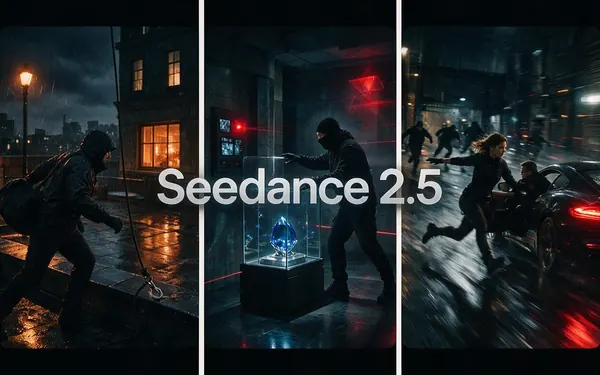
Seedance 2.5
- Reference images
- Start + end frame
- Output
- 4–30 s · up to 4K
Open Seedance 2.5Best for
Cinematic transitions, up to 4K
Vidu
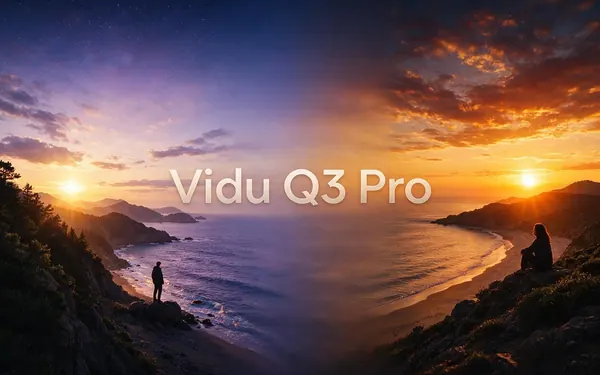
Vidu Q3 Pro
- Reference images
- Start + end frame
- Output
- 1–16 s
Open Vidu Q3 ProBest for
Short, cheap in-betweens
All models (7)
Google
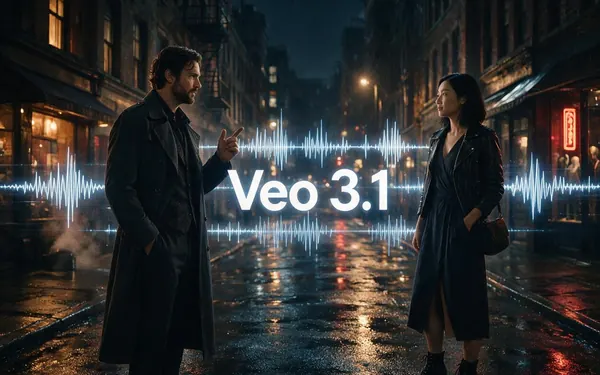
Veo 3.1
- Reference images
- Start + end frame
- Output
- 4, 6 or 8 s · up to 4K
Open Veo 3.1Best for
Polished hero transitions
FAQ
Frames to Video AI questions
10 questions
What is frames to video AI?
It is video generation anchored by images at both ends: you supply the first frame and the last frame, and the model generates the motion that connects them. Unlike plain image-to-video, which only starts from your picture and improvises the rest, a frames-to-video clip also has to land exactly on your second image.
Link to this answerHow do I turn two images into a video?
In Kenerate's Video Studio, pick image-to-video and a model with an end-frame slot, upload the first image as the start frame and the second as the end frame, then describe the motion between them — "the camera glides from the empty street to the lit shop window at dusk". Set the length, check the credits shown, and generate.
Link to this answerWhich AI models support first and last frame?
In Kenerate, 30 video models take an end frame, including Kling v2.6 Pro and v3, Wan 2.2, 2.7 and 3.0, Seedance 1.x, 2.0 and 2.5, Veo 3.1, Vidu Q3 Pro, Hailuo 02 and LTX 2.5. Models that only take a start frame say "no end frame on this model" under the upload slot, so you can't pick wrong by accident.
Link to this answerHow long can the clip between two frames be?
It depends on the model: Kling v2.6 Pro makes 5 or 10 s, Veo 3.1 makes 4, 6 or 8 s, Vidu Q3 Pro goes 1–16 s, and Wan 3.0 and Seedance 2.5 reach 30 s. Short clips stay closest to your two frames; the longer the clip, the more the model has to invent in the middle.
Link to this answerDo the two images need to match?
They should be related: same aspect ratio, similar framing and consistent style give the smoothest motion. The model can bridge bigger jumps — day to night, sketch to render, wide to close — but the further apart the frames are, the more the in-between is invented, and the more it helps to spell the transition out in the prompt.
Link to this answerCan I use only an end frame?
No — the start frame is required and the end frame is optional. If you add a single image it becomes the start frame, and the studio asks for the end frame next. To steer a clip toward an image you only have as an ending, put that image first and describe the motion in reverse, or generate a matching start frame in the Image Studio.
Link to this answerHow do I make a seamless video loop?
Upload the same image as both the start frame and the end frame, and describe a motion that comes back to rest — "steam curls up from the coffee cup and settles" — so the clip ends where it began and repeats without a visible cut.
Link to this answerDoes the end frame cost extra?
No. A first-and-last-frame clip is billed like any image-to-video run of the same model, length and resolution — 105 credits for 5 s on Kling v2.6 Pro, 15 credits for 5 s on Wan 2.2 Ultra Fast at 480p. One quirk: Kling v2.6 Pro can't generate audio with an end frame, so those runs are billed and delivered silent.
Link to this answerIs frames to video free?
You can open Video Studio, upload both frames and see the exact credit price without paying. Generating video uses credits from a credit pack (from $15 for 1,300 credits); a free account's 25 sign-up credits are meant for images.
Link to this answerCan I chain clips into one longer video?
Yes — use clip A's last frame as clip B's start frame and each cut lands exactly where the last one ended. Generate the stills for your key moments first, then bridge them pair by pair and join the clips with the Video Joiner.
Link to this answerIn depth
Frames to Video AI, explained
What works, what to avoid, and how to pick a model.
On this page
How first-and-last-frame generation works
Animators call it inbetweening: a lead artist draws the key poses and someone fills the frames between them. Frames-to-video AI is the same job done by a video model — your two images are the key frames, and the model generates every frame of the journey from one to the other, guided by your prompt.
That makes it the most controllable way to generate video. Plain text-to-video invents everything; image-to-video pins down only the opening shot. With both ends pinned, the model can't wander off: it has to open on your first image and arrive at your second.
What two frames can do
The pattern covers more than one effect:
- Transitions: a product in the box → the product in use; a room empty → furnished; summer → winter.
- Camera moves that land somewhere exact: wide establishing shot → the detail you want the viewer to end on.
- Transformations: a sketch → the finished render; a cocoon → the butterfly; young → old.
- Seamless loops: the same image at both ends with a motion that returns home.
- Scene-to-scene cuts for longer edits: each clip ends on the still the next clip starts from.
Where do the two images come from?
Any two stills work: photos, renders, anime art or paintings. The cleanest pairs come from the Image Studio — generate the start frame, then edit it ("same scene at night", "the vase now full of tulips") so the second frame matches the first in style, framing and aspect ratio, and the video model only has to animate the difference.
What can go wrong
The middle of the clip is generated, not captured, so the usual AI video caveats apply between your anchors: faces and logos can drift mid-motion, and if the two frames are too far apart the model may cut, morph or teleport instead of moving smoothly. A shared aspect ratio, a related framing and a prompt that names the one motion you want fix most of it — and a 15-credit draft on Wan 2.2 Ultra Fast tells you whether a frame pair works before you spend on 1080p or 4K.
Try the frames to video AI
Upload two frames, see the exact credits before you generate.
Tried it? Tell us how it went