

No credits · Mono and Noir · 0–100% slider · no watermark
Black and white converter — turn any photo to Mono or Noir for free
Pick Mono for a clean black and white photo, Noir for deep shadows, or set your own amount with a slider. It uses no credits and adds no watermark. Below, we measured what each one does to the same picture.
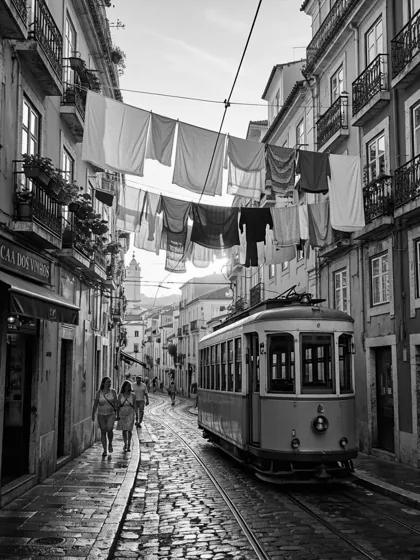
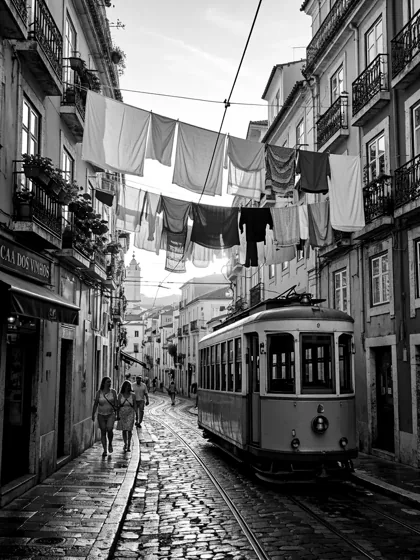
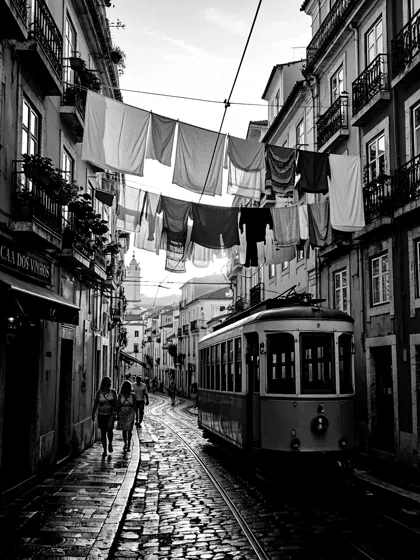
- Mono and Noir looks
- 0–100% slider
- Up to 20 photos at once
- No watermark
Updated by the Kenerate AI team
Made with Kenerate
On this page
Quick answer
How do you convert an image to black and white?
To convert an image to black and white, open it in Kenerate's Edit Studio, choose Filters, tap Mono or Noir, press Apply filter, then download. Mono gives a clean black and white with a little extra contrast, and Noir is darker with much stronger contrast. It uses no credits and adds no watermark. You need a free account to load your own photo, up to 50 MB.
Key facts
- Looks
- Mono · Noir · Sepia
- Custom amount
- Black & white slider, 0–100%
- Cost
- No credits
- Largest photo
- 50 MB
- Batch
- Up to 20 photos at once
- Download
- PNG, JPG or WebP
- Account
- Free sign-in to load your own photo
- Watermark
- None
Gallery
One picture, every black and white option
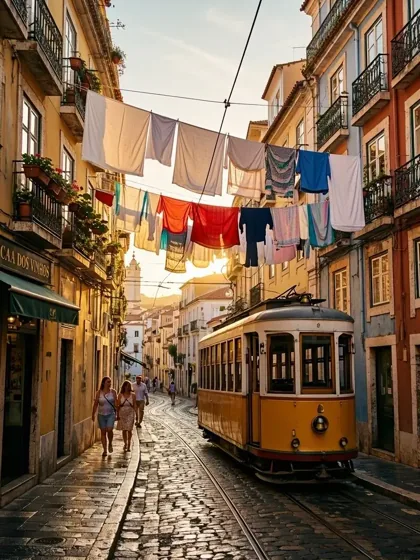
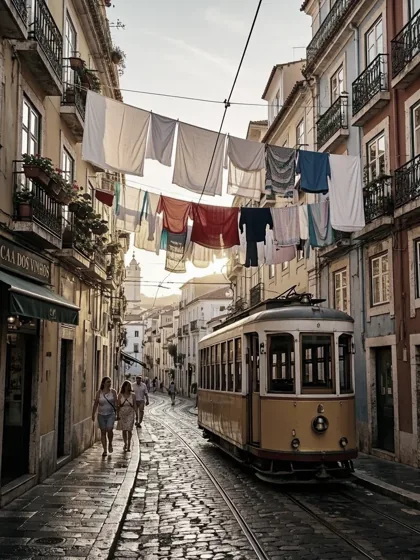
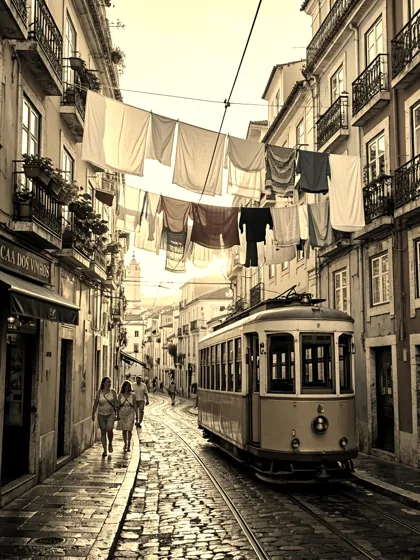
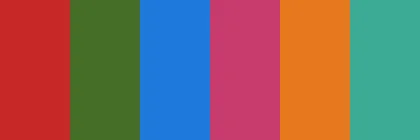
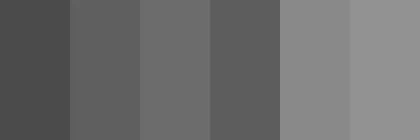
An AI-generated 768 × 1024 street scene, run through each option. The last two tiles are a test card that shows how different colours can turn into nearly the same grey.
Same prompt
Mono or Noir: what's the difference?
Both take all the colour out. Mono keeps detail in the doorways and shadows. Noir crushes them to black and makes the picture darker overall, so it suits moody shots more than busy ones.
PromptOne picture: the original, Mono and Noir.
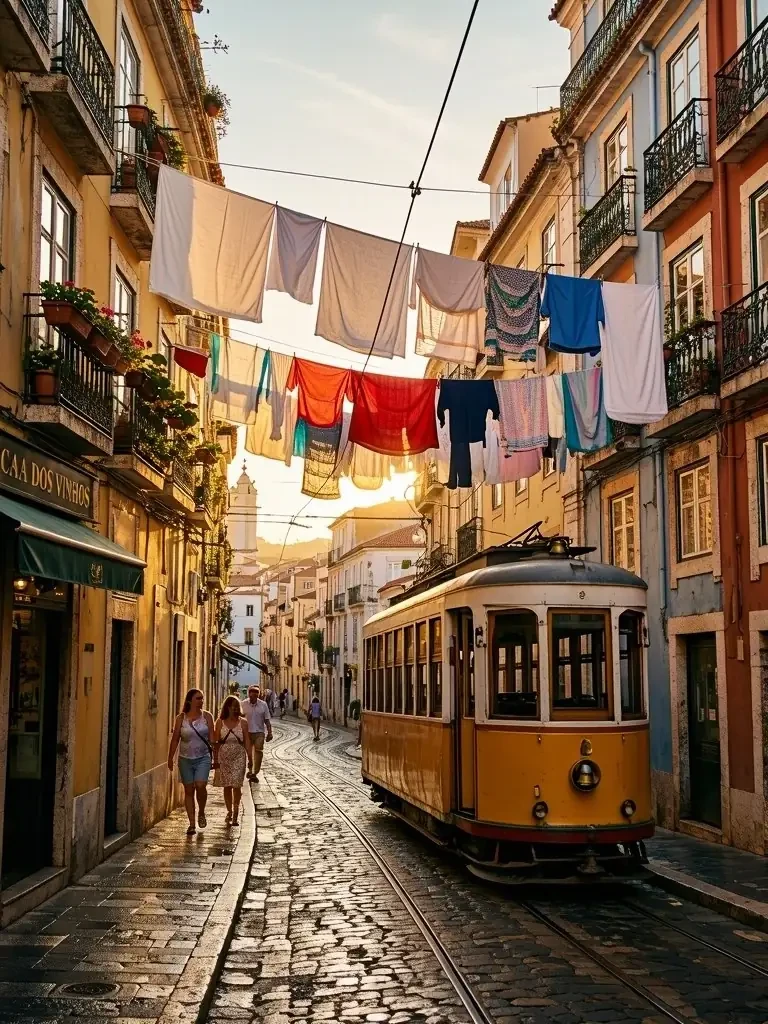 OriginalFull colour
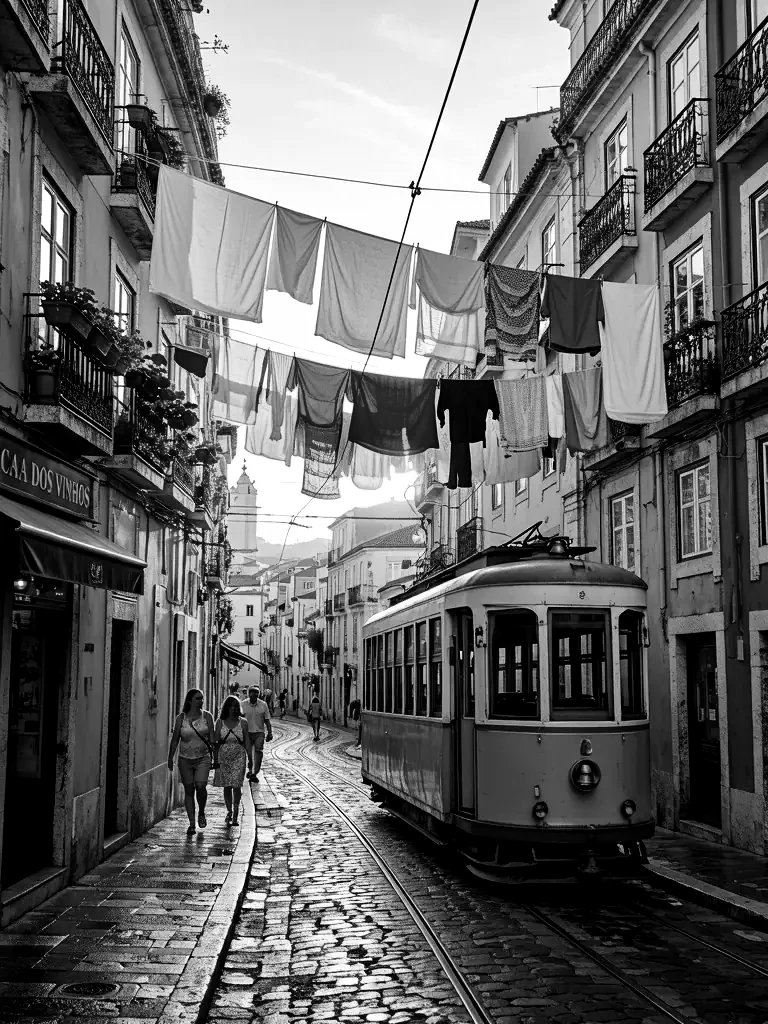 Mono11% of pixels near black
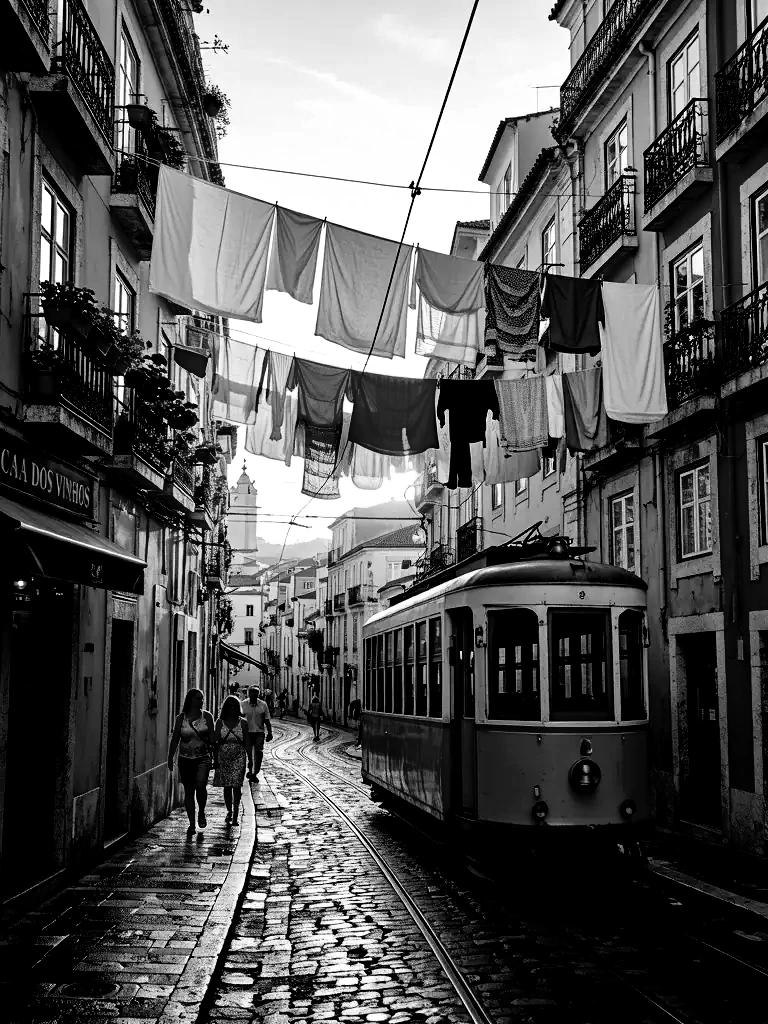 Noir29% of pixels near black
How to
How to use the black and white converter
- Time needed
- Steps
- 4 steps
Step 1
Open Edit Studio
Go to /app/edit and add your photo, up to 50 MB. A free account is needed to load your own image.
Step 2
Choose Filters
It's in the Photo tools, marked free. Press Ctrl+K and type filters to jump straight to it.
Step 3
Tap Mono or Noir
The preview changes at once. For your own amount, open Image Adjustments and drag the Black & white slider.
Step 4
Apply and download
Press Apply filter to save a new version, then download it as PNG, JPG or WebP with no watermark.
See it in the app

Open Edit Studio and upload an image, or pick one from your history.


Watch the tour · 2:01
AI Edit, Magic Eraser, Change Region, light, style, expand, camera angle & chat edits
Chapters
Tips
Get a better black and white photo
Small choices that decide whether a conversion looks rich or flat.
Start with Mono. Go to Noir only if the picture has strong light and shade.
Avoid Noir on a dark photo. It lowers brightness too, so shadow detail goes first.
Watch colours of similar brightness. Orange and teal can turn into almost the same grey, so check that your subject still stands out.
Fix brightness before you convert if the photo is too dark. It's easier to judge in colour.
Choose PNG if you plan to edit the picture again. JPG and WebP change it slightly each time you save.
Use the slider at 50–70% if you want muted colour rather than none.
FAQ
Black and White Converter questions
10 questions
How do I turn a picture black and white online?
Open Kenerate's Edit Studio, add the picture and choose Filters. Tap Mono or Noir, press Apply filter, then download it. It takes about a minute and uses no credits.
Link to this answerIs this black and white converter free?
Yes. Filters, the Image Adjustments sliders and the filter option in Batch edit use no credits and add no watermark. You need a free account to load your own photo. AI tools in the same studio use credits, and new accounts get starter credits.
Link to this answerWhat's the difference between Mono and Noir?
Both remove all colour. Mono sets contrast to 115% and leaves brightness alone. Noir sets contrast to 160% and brightness to 90%, so shadows go much darker. On our test picture, 11% of pixels were near black with Mono and 29% with Noir.
Link to this answerCan I make a photo only partly black and white?
Yes, across the whole picture. In Image Adjustments, drag the Black & white slider anywhere from 0 to 100% for muted colour. It can't keep one object in colour while the rest turns grey.
Link to this answerCan I convert a JPG to black and white?
Yes. JPG, PNG and WebP pictures all work, and you can download the result in any of those three formats. The size stays the same as your photo.
Link to this answerCan I turn a picture into pure black and white with no grey?
No. Mono, Noir and the slider all give shades of grey, which is what most people mean by a black and white photo. There's no two-colour or threshold option, so stencil-style pictures need another tool.
Link to this answerCan I convert many images at once?
Yes. Batch edit in the same studio can apply Mono or Noir to up to 20 photos in one go, and the filter option is free.
Link to this answerCan I get the colour back afterwards?
In the studio, yes: applying a filter saves a new version, so your earlier version stays there. A black and white file you've already downloaded has no colour left in it. AI colorizing can only guess the colours.
Link to this answerDoes converting to black and white make the file smaller?
Usually, if you save as PNG. Our street picture went from 1,388 KB in colour to 893 KB in greyscale, and a portrait went from 1,461 KB to 1,067 KB. The file still has red, green and blue channels, but they hold equal values, which compress better.
Link to this answerAre my photos uploaded?
Yes. The filter runs in your browser, but when you're signed in, your photo and its versions are saved to your Kenerate workspace so you can come back to them. If a picture must never leave your device, use your phone's or computer's own photo app.
Link to this answerIn depth
Black and White Converter, explained
What works, what to avoid, and how to pick a model.
On this page
What we measured
We ran the same canvas code the studio uses in Edge, on the street picture above. These are local tests of that code, not screenshots from the studio. Near black means 5 or less out of 255, and near white means 250 or more:
- Black & white slider at 100%: average brightness 105 out of 255, the same as the original. 3.3% of pixels near black and 0.5% near white.
- Mono: average 102. 11.0% near black and 4.2% near white.
- Noir: average 87. 29.3% near black and 6.7% near white.
- A softer portrait gave the same order: 0.3%, 4.1% and 15.7% near black.
- Saturation at 0% matched the Black & white slider at 100% to within 1 level out of 255.
What that means for your photo
The slider at 100% only removes colour. Mono also stretches the tones, so it looks punchier but loses a little detail at both ends. Noir pushes that much further: nearly a third of the street went to almost pure black.
None of this is a fault. Deep blacks are the point of a noir look. Just pick it on purpose, because detail that has gone black can't be brought back from the saved file.
Why two colours can turn into the same grey
A black and white conversion keeps how bright each colour looks and throws away which colour it was. Green counts for the most and blue for the least, following the weights in the W3C filter spec.
So colours that are clearly different can end up close together. On our test card, orange became 137 and teal became 145, only 8 levels apart. Red and green were easier to tell apart, at 74 and 96. Stronger contrast barely helps: Noir left orange and teal 9 levels apart. If your subject blends into its background, change one of the colours first with Recolor Image, or choose another photo.
How do you make a photo black and white on a phone?
You don't always need a website. Your device's own photo app can do it too, and the file stays on your device:
- iPhone: open the photo in Photos, tap Edit, tap Filters, then choose a black and white look such as Mono or Silvertone. On iPhone 16 and later, filters may be replaced by Photographic Styles.
- Any browser: use Edit Studio as shown above when you also want a slider, a batch of photos or other edits on the same picture. We tested the filter code in Edge, so check the result before you download if you use another browser.
Filter, AI look or colorizing: which one do you need?
These sound alike, and each one does something different:
- Filters and Image Adjustments keep every detail in place and only change the tones. Use them for a true black and white version of your photo, at no cost.
- AI Filter redraws the picture in a style such as Film Noir or Charcoal Sketch. It uses credits, and details can change.
- Colorize goes the other way, adding likely colours to an old black and white photo.