

No credits · 8 ratio presets · rotate and flip · no watermark
Image cropper — crop a photo online to any ratio
Drag the frame or pick a ratio such as 1:1, 4:5 or 9:16, then rotate or flip if you need to. Cropping uses no credits and adds no watermark. Below, one photo cropped six ways shows exactly how many pixels each crop leaves you.
- 8 ratio presets
- Rotate and flip
- PNG, JPG or WebP
- No watermark
Updated by the Kenerate AI team
Made with Kenerate
On this page
Quick answer
How do you crop an image online?
To crop an image online, open it in Kenerate's Edit Studio, choose Crop & Rotate, drag the frame or pick a ratio, then press Apply crop and download. Cropping uses no credits and adds no watermark. You need a free account to load your own photo, and it can be up to 50 MB.
Key facts
- Ratio presets
- Free · Original · 1:1 · 4:5 · 9:16 · 16:9 · 3:2 · 2:3
- Rotate and flip
- 90° left or right · horizontal · vertical
- Cost
- No credits
- Largest photo
- 50 MB
- Download
- PNG, JPG or WebP
- Account
- Free sign-in to load your own photo
- Watermark
- None
- Circle crop
- Not available
Gallery
One photo, cropped six ways
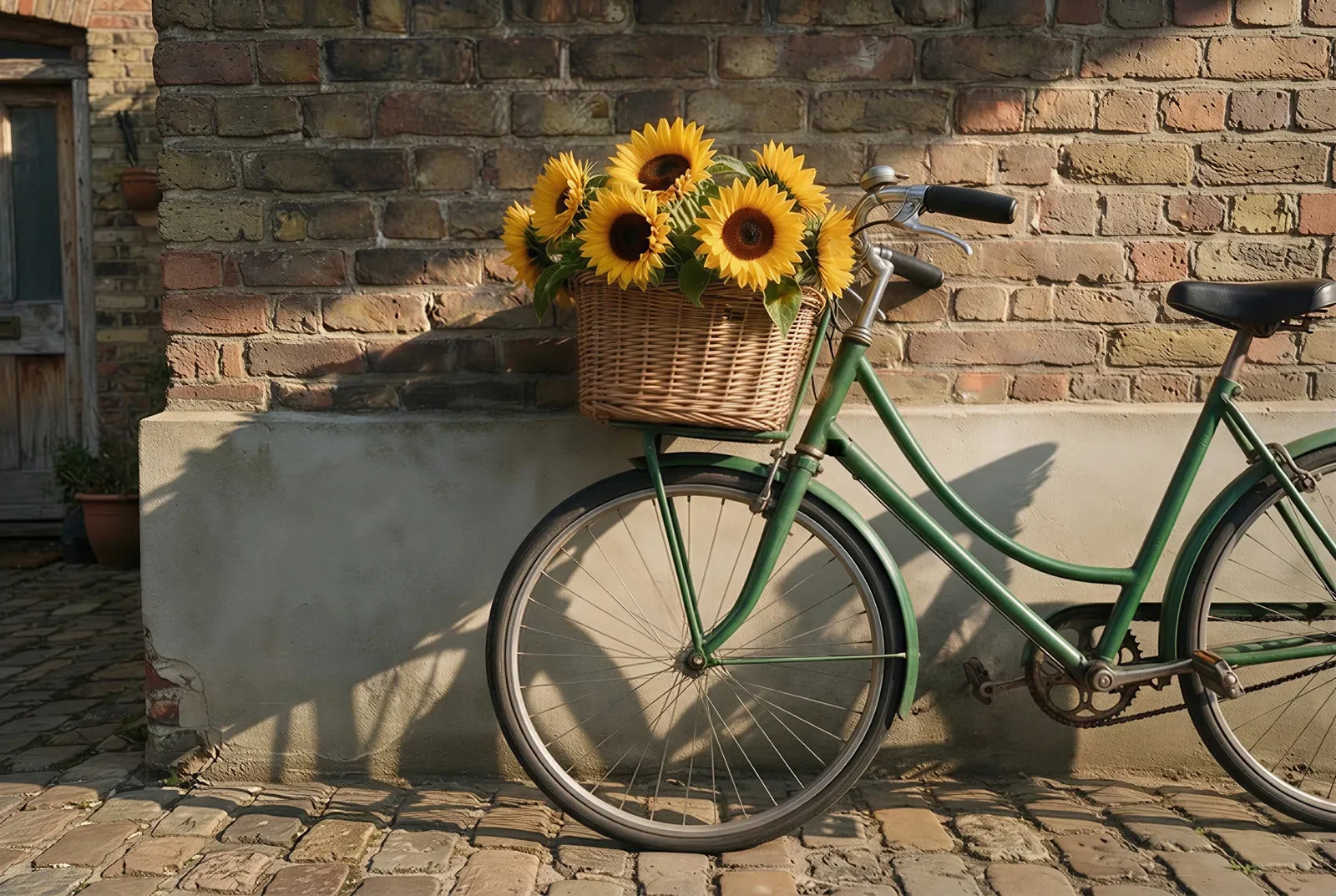
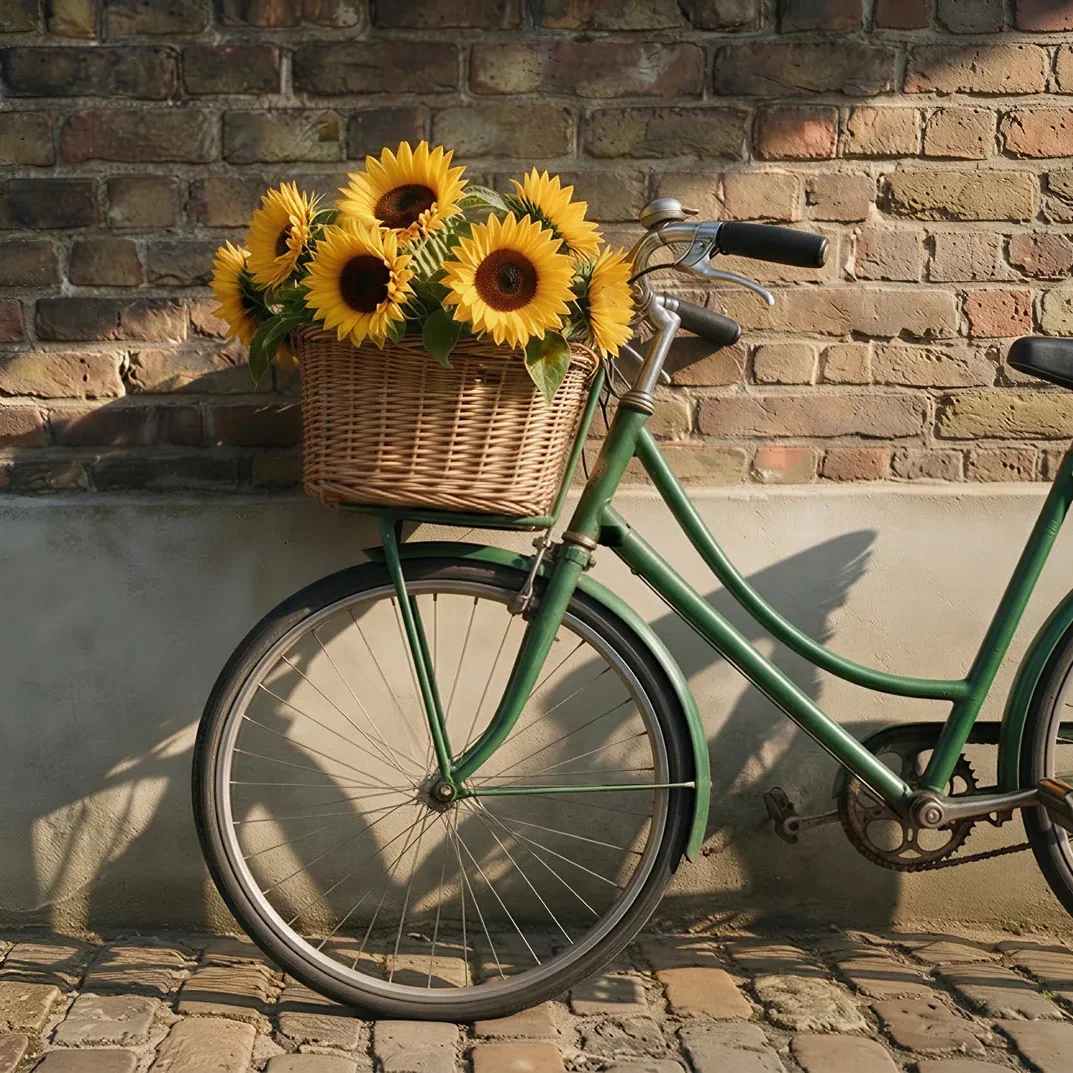
An AI-generated 1600 × 1073 photo and five crops of it. Each label gives the pixel size that's left; nothing else was changed.
Same prompt
Three squares from the same photo
All three are 1:1, but the tighter the crop, the fewer pixels you keep. A crop never adds detail, so the smallest square is the first to look soft on a big screen.
PromptThree 1:1 crops of one 1600 × 1073 photo.
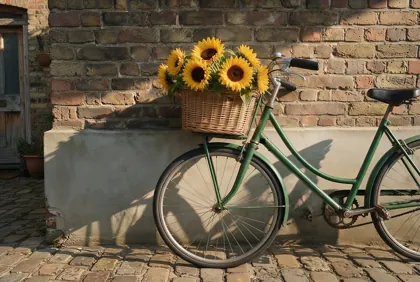
 1073 × 107367% of the pixels
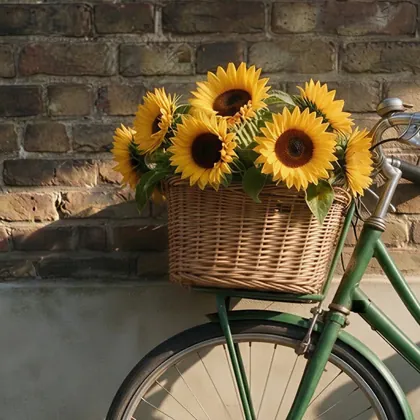
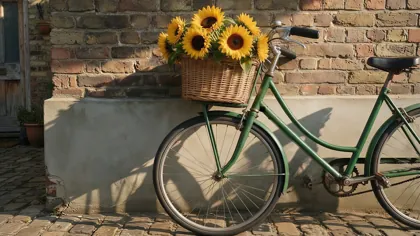
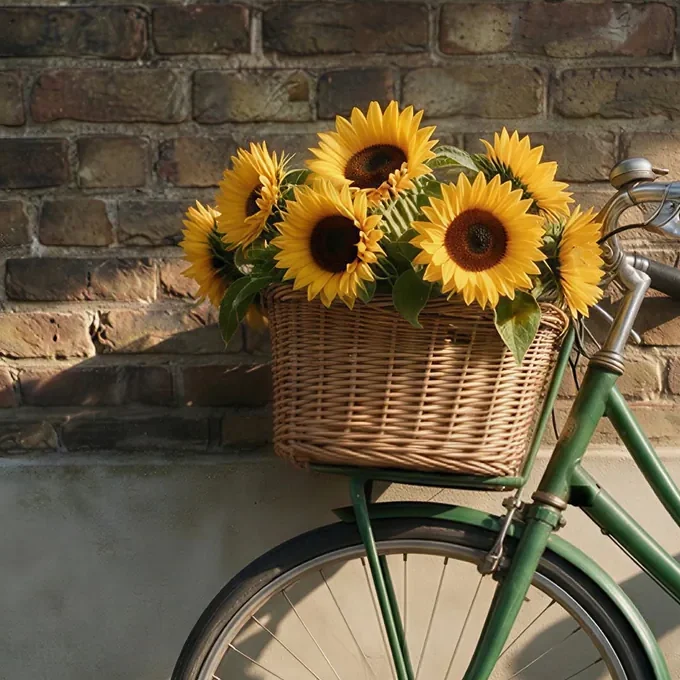 680 × 68027% of the pixels
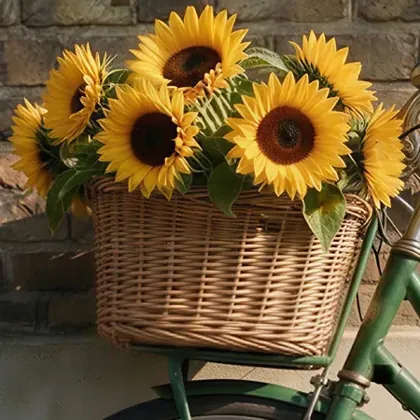
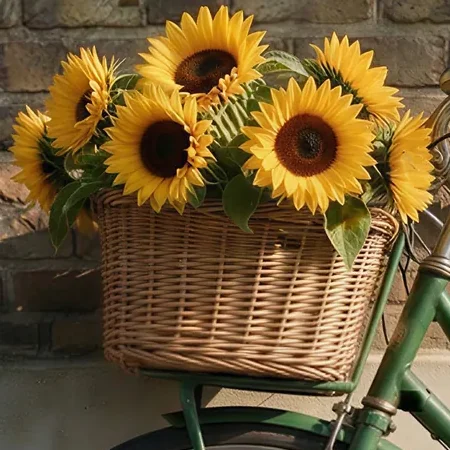 450 × 45012% of the pixels
How to
How to use the image cropper
- Time needed
- Steps
- 4 steps
Step 1
Open Edit Studio
Go to /app/edit and add your photo, up to 50 MB. A free account is needed to load your own image.
Step 2
Choose Crop & Rotate
It's in the Photo tools, marked free. Press Ctrl+K and type crop to jump straight to it.
Step 3
Set the frame
Pick Free, Original, 1:1, 4:5, 9:16, 16:9, 3:2 or 2:3, then drag the frame over the part you want to keep. Rotate or flip here too.
Step 4
Apply and download
Press Apply crop to save a new version, then download it as PNG, JPG or WebP with no watermark.
See it in the app

Open Edit Studio and upload an image, or pick one from your history.


Watch the tour · 2:01
AI Edit, Magic Eraser, Change Region, light, style, expand, camera angle & chat edits
Chapters
Tips
Crop a photo without regretting it
Small habits that keep a crop sharp and usable.
Pick the ratio first, then drag the frame. The shape is set by where the photo is going, and the framing is your choice inside it.
Rotate before you crop. A sideways phone photo is much easier to frame the right way up.
Leave a little space around the subject. Apps often trim or cover the edges of a post.
Check the size that's left. A tight crop of a small photo may look soft when it's shown large.
Keep your original file. Crop saves a new version, and pixels you throw away from a downloaded file are gone.
Choose PNG for the best quality, JPG for a smaller file and WebP for websites.
Models
When a crop isn't enough
What each model is good at. Open any one straight in the generator.

Google
Nano Banana 2 Fast
- Output
- About 4 MP (2K)
Open Nano Banana 2 FastBest for
Cropped too tight? Expand Image paints the edges back
Kenerate AI
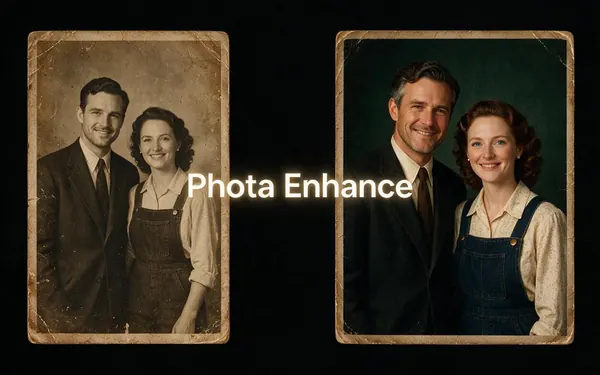
Phota Enhance
- Output
- 2048 px
Open Phota EnhanceBest for
A crop looks soft or grainy? This cleans it up
FAQ
Image Cropper questions
9 questions
How do I crop an image online?
Open Kenerate's Edit Studio, add the photo and choose Crop & Rotate. Drag the frame or pick a ratio, press Apply crop, then download. It takes about a minute and uses no credits.
Link to this answerIs this image cropper free?
Yes. Crop, rotate and flip use no credits and add no watermark. You need a free account to load your own photo. AI tools in the same studio, such as Expand Image, use credits, and new accounts get starter credits.
Link to this answerDo I need to sign up to crop a photo?
Yes, for your own photos. Edit Studio opens without an account, but loading an image of yours needs a free sign-in. If you want a cropper with no account at all, several other sites offer one.
Link to this answerAre my photos uploaded?
Yes. The frame is cut in your browser, but when you're signed in, your photo and its versions are saved to your Kenerate workspace so you can come back to them. If a picture must never leave your device, use an offline editor.
Link to this answerCan I crop an image into a circle?
Not at the moment. Crop & Rotate only makes rectangles. For a profile photo, crop to 1:1: most apps show a square picture inside their own circle, so you get the same look.
Link to this answerCan I crop to an exact size in pixels?
No, you can't type a pixel size. You pick a ratio and drag the frame, so the final size depends on your photo. Magic Resize in the same studio can then turn a design into a post, story, thumbnail or banner.
Link to this answerDoes cropping reduce image quality?
It doesn't blur the pixels you keep, because they're copied across at the same scale. It does lower the resolution: in our example, a 450 × 450 crop keeps only 12% of the original pixels, so it looks softer when shown large.
Link to this answerCan I undo a crop?
Yes, while you're editing. Each crop is saved as a new version, so you can step back to the original. Once you've downloaded a cropped file, that file can't get its missing pixels back. Expand Image can paint new edges, but they're invented.
Link to this answerCan I straighten a crooked photo?
Only in 90° turns. Crop & Rotate has left, right and flip buttons, but no free-angle slider, so it can't level a slightly tilted horizon.
Link to this answerIn depth
Image Cropper, explained
What works, what to avoid, and how to pick a model.
On this page
Which crop ratio should you use?
Start from where the picture is going. These are the common uses for each preset, so check the current specs of the platform you post to:
- 1:1 is a square, for profile photos, product tiles and square posts.
- 4:5 is a tall portrait that fills more of a phone screen in a feed.
- 9:16 is a full-screen vertical, for stories and short videos.
- 16:9 is a wide frame, for YouTube thumbnails, slides and most screens.
- 3:2 and 2:3 match the shape of many camera photos and prints.
- Original keeps your photo's own shape while you tighten the framing.
- Free has no fixed shape, so you can drag any rectangle.
What a crop does to your photo
A crop copies a rectangle of the photo into a new image at the same scale. The pixels you keep aren't resampled, so they don't get blurrier. Everything outside the frame is left out of the new version.
That means a crop can't add detail. The picture only looks softer because there are fewer pixels to fill the same space.
What we measured
We cropped one 1600 × 1073 photo (about 1.7 megapixels) and counted what was left. These are local crops using the same rectangle copy, not screenshots from the studio:
- 16:9 at full width: 1600 × 900, 84% of the pixels.
- 1:1 at full height: 1073 × 1073, 67% of the pixels.
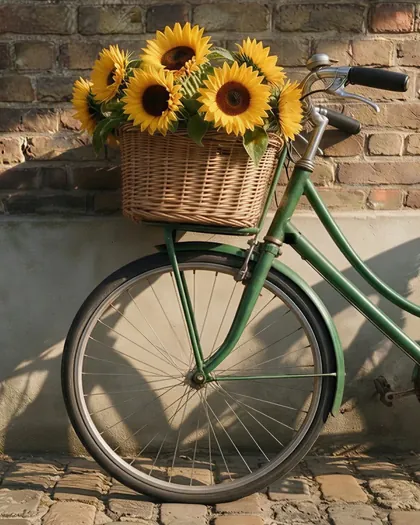
- 4:5 on the front of the bicycle: 768 × 960, 43% of the pixels.
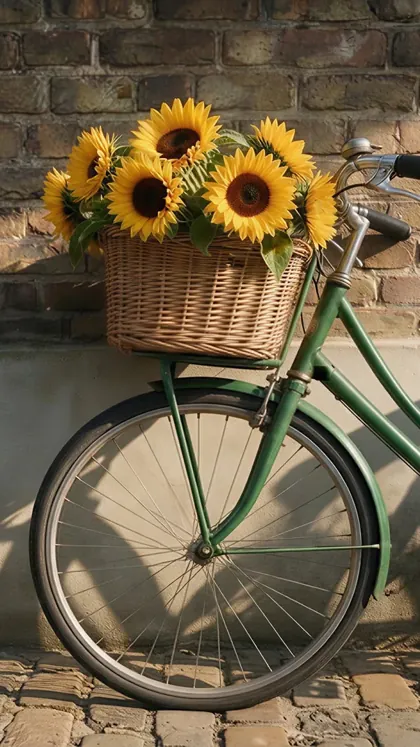
- 9:16 at full height: 603 × 1073, 38% of the pixels.
- 1:1 around the basket: 680 × 680, 27% of the pixels.
- 1:1 on the flowers alone: 450 × 450, 12% of the pixels.
Crop, resize or expand: which one do you need?
These three get mixed up, and each one changes something different:
- Crop removes the outside of the picture. Use it to change the framing or shape.
- Resize changes the size of the whole picture, so nothing is cut away.
- Expand adds new area around the picture with AI. Use it when a crop went too far or the shape needs more room. The new edges are invented, not recovered.