

No credits · horizontal and vertical · no watermark
Flip image online: mirror a photo either way for free
Press Flip H to mirror a photo left to right, or Flip V to turn it top to bottom. Flipping uses no credits and adds no watermark. Below, we tested what a flip keeps and what it removes.
- Flip horizontally
- Flip vertically
- Fix a mirrored selfie
- No watermark
Updated by the Kenerate AI team
Made with Kenerate


On this page
Quick answer
How do you flip an image online?
To flip an image online, open it in Kenerate's Edit Studio, choose Crop & Rotate, press Flip H to mirror it left to right or Flip V to mirror it top to bottom, then download. Flipping uses no credits and adds no watermark. You need a free account to load your own photo, up to 50 MB.
Key facts
- Flip
- Horizontal (Flip H) · vertical (Flip V)
- Cost
- No credits
- Largest photo
- 50 MB
- Download
- PNG, JPG or WebP
- Account
- Free sign-in to load your own photo
- Watermark
- None
- Transparency
- Kept in PNG and WebP
- Batch flip
- Not available
Gallery
Two pictures, both flips
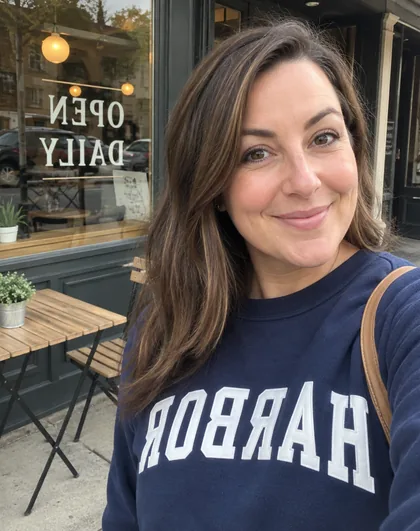
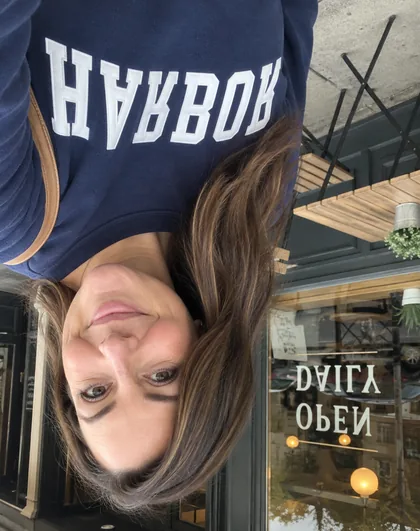
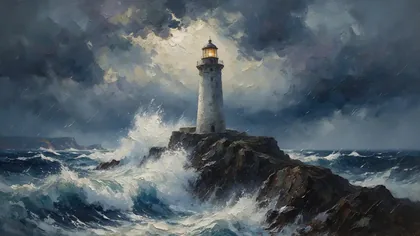
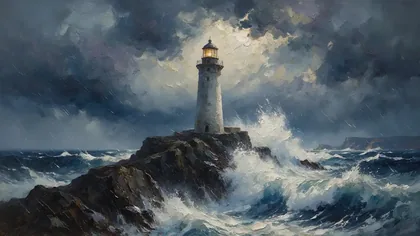
An AI-generated selfie of a fictional person and an AI-generated painting. Nothing was changed except the flip, and the size stays the same.
Same prompt
Words give a mirrored photo away
Look at the sweatshirt and the window. Flip H swaps left and right, so every word turns backwards. Flip V turns the whole scene over.
PromptOne 912 × 1152 selfie and both flips.
 OriginalWords read normally
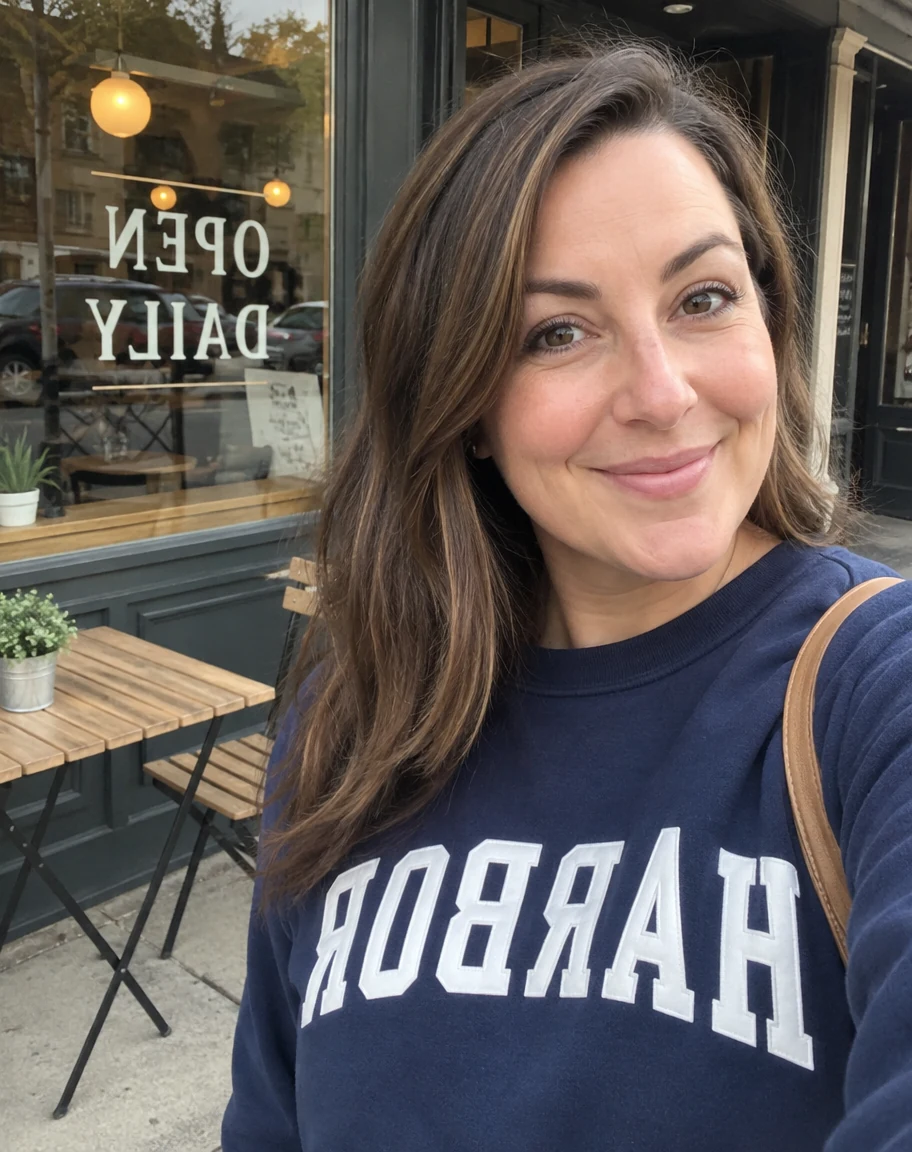 Flip HWords read backwards
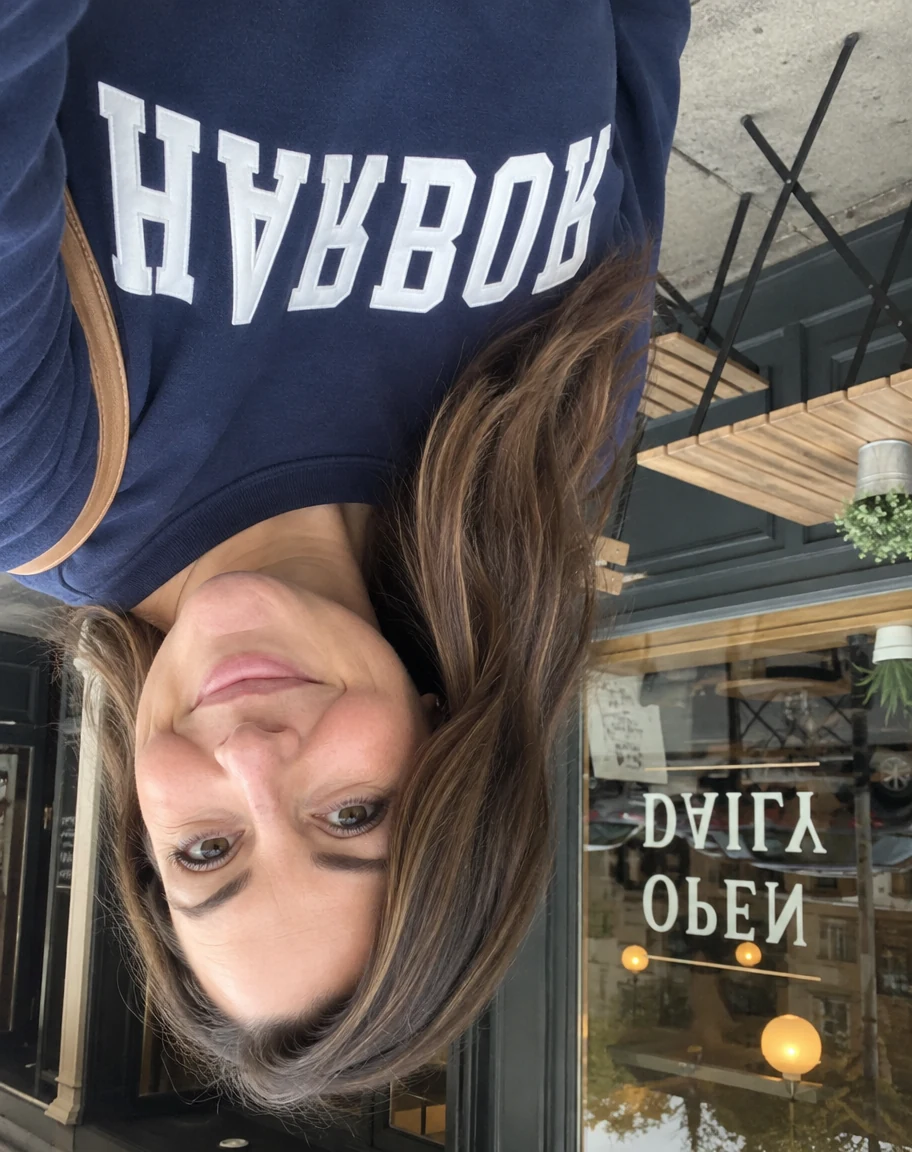 Flip VScene is upside down
How to
How to use the image flipper
- Time needed
- Steps
- 4 steps
Step 1
Open Edit Studio
Go to /app/edit and add your photo, up to 50 MB. A free account is needed to load your own image.
Step 2
Choose Crop & Rotate
It's in the Photo tools, marked free. Press Ctrl+K and type crop to jump straight to it.
Step 3
Press Flip H or Flip V
Flip H mirrors the photo left to right. Flip V mirrors it top to bottom. Each press works at once.
Step 4
Download
Each flip is saved as a new version. Download it as PNG, JPG or WebP with no watermark.
See it in the app

Open Edit Studio and upload an image, or pick one from your history.


Watch the tour · 2:01
AI Edit, Magic Eraser, Change Region, light, style, expand, camera angle & chat edits
Chapters
Tips
Flip a photo without surprises
Small checks that save a second try.
Scan the picture for words first: signs, shirts, number plates and book covers all turn backwards with Flip H.
Choose PNG if the picture has a transparent background. JPG fills it with white.
Add your text after you flip, or before. Text added in the studio stays readable either way.
Keep your first file if you need its camera details. A flipped download doesn't carry them.
Press the same flip again to undo it. Two presses put back every pixel.
Need it upside down without mirroring? That's a 180° turn, on the rotate page.
Models
When a flip isn't enough
What each model is good at. Open any one straight in the generator.

Google
Nano Banana 2 Fast
- Output
- About 4 MP (2K)
Open Nano Banana 2 FastBest for
Flipped photo needs more room on one side? Expand Image paints new edges
Multiple Angles
Camera Angle
- Reference images
- 1 image
- Output
- Same as input
Open Camera AngleBest for
Want the subject seen from the other side, not mirrored? This re-shoots the view
FAQ
Image Flipper questions
10 questions
How do I flip an image online?
Open Kenerate's Edit Studio, add the image and choose Crop & Rotate. Press Flip H or Flip V, then download it. It takes about a minute and uses no credits.
Link to this answerWhat's the difference between flipping horizontally and vertically?
A horizontal flip swaps left and right, like looking in a mirror. A vertical flip swaps top and bottom, like a reflection in still water. In the studio these are Flip H and Flip V.
Link to this answerIs flipping an image the same as mirroring it?
Yes. A flip is a mirror image: every pixel moves to the matching spot on the other side. People usually mean a horizontal flip when they say mirror.
Link to this answerWhat's the difference between flipping and rotating?
Rotating turns the whole picture around its centre, so words stay readable, just at an angle. Flipping reflects the picture, so words read backwards. Flip H followed by Flip V gives exactly the same result as a 180° turn.
Link to this answerIs this image flipper free?
Yes. Flip, rotate and crop use no credits and add no watermark. You need a free account to load your own photo. AI tools in the same studio, such as Expand Image, use credits, and new accounts get starter credits.
Link to this answerDoes flipping an image reduce quality?
The flip doesn't. In our test, flipping twice brought back every pixel exactly. Quality only changes when you save as JPG or WebP, which make the file smaller by dropping a little detail. PNG keeps every pixel.
Link to this answerDoes a flipped image keep its transparent background?
Yes, if you download PNG or WebP. In our test, a clear area stayed clear and moved to the other side. JPG can't store transparency, so the studio fills it with white.
Link to this answerWill text I add get mirrored too?
No. Text, shapes and stickers you've added in the studio move to their mirrored position, but the letters stay readable. If you want a layer itself mirrored, select it and press its own Flip button.
Link to this answerCan I flip many images at once?
No. Flip works on one photo at a time, and Batch edit in the same studio doesn't include it.
Link to this answerDo I need to sign up, and are my photos uploaded?
Yes to both, for your own photos. Loading one needs a free sign-in, and your photo and its versions are saved to your Kenerate workspace. If you want no account, or a picture must never leave your device, use your phone's or computer's own photo app.
Link to this answerIn depth
Image Flipper, explained
What works, what to avoid, and how to pick a model.
On this page
What a flip keeps and what it removes
We ran the same canvas code the studio uses in a real browser, on the 912 × 1152 selfie above and on test files. These are local tests of that code, not screenshots from the studio:
- Flip H twice: 0 pixels changed.
- Flip V twice: 0 pixels changed.
- Flip H then Flip V, against a 180° turn: 0 pixels different, in either order.
- A picture with a transparent half: the clear area stayed clear and moved to the other side.
- A JPG with camera data in it: the data was gone from both the PNG and the JPG that came out.
Why camera data disappears
The studio redraws your picture on a canvas, and a canvas only holds pixels. Details stored beside them, such as the camera model, don't come along.
That helps if you're sharing a photo and would rather not pass those details on, but don't rely on it as a privacy tool. If you need the original details, keep your first file.
Why does my selfie look flipped?
On an iPhone, the front camera preview works like a mirror, because that's the version of your face you're used to. By default the saved photo isn't mirrored, so it can look the wrong way round next to what you saw on screen.
To change a selfie you've already taken, press Flip H. To change future ones on an iPhone, open Settings, then Camera, and turn on Mirror Front Camera. Older phones may name it differently, and some don't have it.
How do you fix backwards text in a photo?
If everything in the picture is backwards, press Flip H once and all the words read normally again. That's the usual fix for a mirrored selfie or a scan that came out reversed.
If only part of the picture is backwards, a flip won't help, because it moves everything at once. Flipping a photo that has correct words in it will always turn those words around.
How do you flip a picture on a phone or computer?
You don't always need a website. Your device's own photo app can flip a picture, and the file stays on your device:
- iPhone: open the photo in Photos, tap Edit, tap Crop, then tap the Flip button.
- Windows: open the photo in Photos, choose Edit image (Ctrl+E), then pick Crop to find the flip option. Menu names can vary by version.
- Any browser: use Edit Studio as shown above when you also want to crop, add text or use AI tools on the same picture.
When should you flip an image?
Most flips come down to a few everyday jobs:
- Fixing a selfie or scan that came out reversed.
- Making a subject face into a page, so a person in a banner looks towards the headline.
- Matching two photos so they face each other in a layout.
- Making a reflection: place a Flip V copy under the original.
- Checking a drawing: artists flip their work to spot mistakes they've stopped seeing.