
Your own photo · flames · fire background · burning edges
Add fire to a photo — flames, embers and burnt edges with AI
Upload a picture and describe the fire: flames behind a product, a wall of fire behind you, embers in the air, or a print burning at the edges. The AI matches the firelight to your scene and leaves your subject alone.
- Your own photo
- Seven fire effects
- Firelight matched to the scene
- No watermark
Updated by the Kenerate AI team
On this page
Quick answer
How do I add fire to a photo?
To add fire to a photo, upload the picture to an AI image editor and describe the flames, for example "add realistic orange flames rising behind the main subject, with warm firelight on the scene". Kenerate opens the editor with that instruction filled in, so you only add your photo and press Create. Change the words for a fire background, drifting embers, or the photo burning effect with charred paper edges.
Key facts
- Works on
- Your own photo, or one you have permission to edit
- Effects
- Flames · fire background · embers · burning edges
- Keeps
- Subject · framing · camera angle
- Default model
- Qwen Image 3.0 (free plan)
- Moving flames
- Yes, with image to video (paid plan)
- Watermark
- None
Fire effects
Fire effects to try, and the words that get them
Copy the words into the editor and keep a line about what stays the same. The first four are the effects behind the examples below.
| Effect | Good for | What stays | Prompt words |
|---|---|---|---|
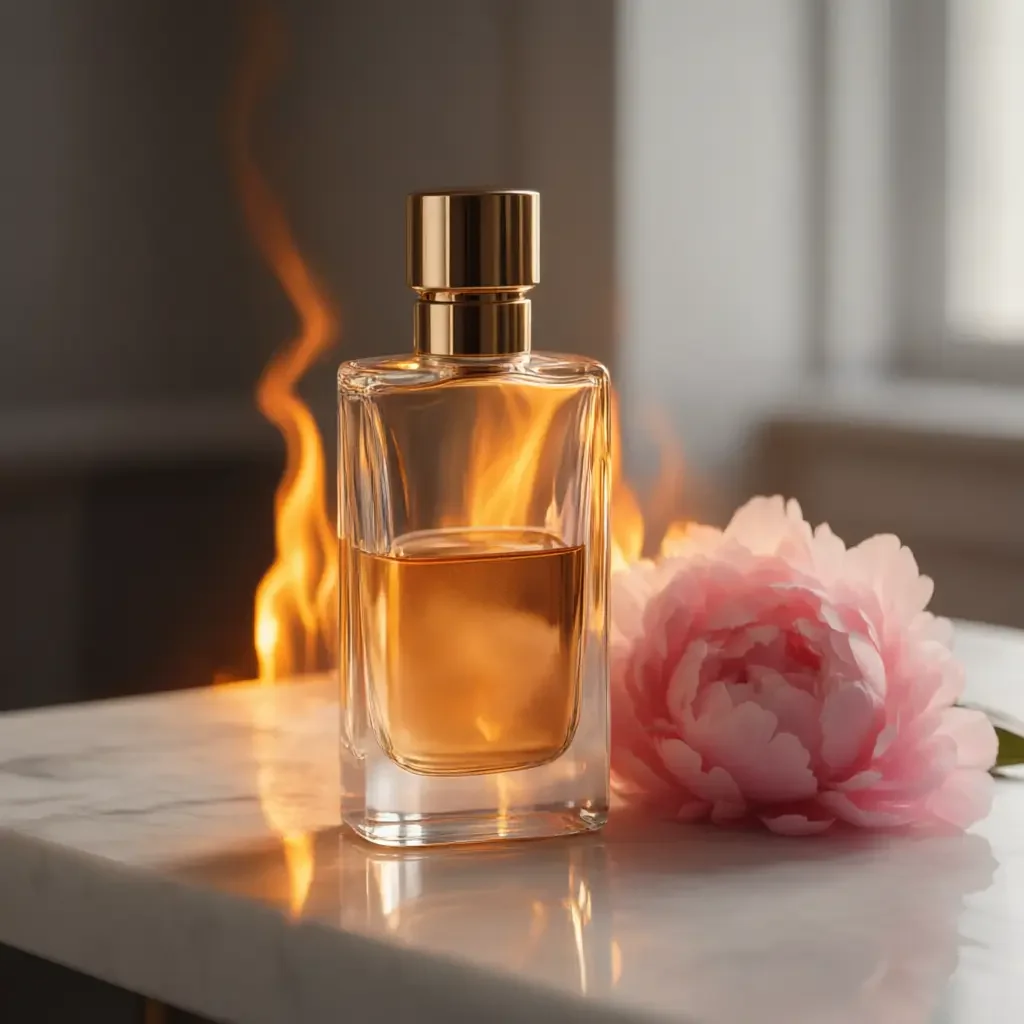
| Flames behind a subject | Products, objects, posters | The subject | realistic orange flames rising behind the bottle, warm firelight on the table and the glass |
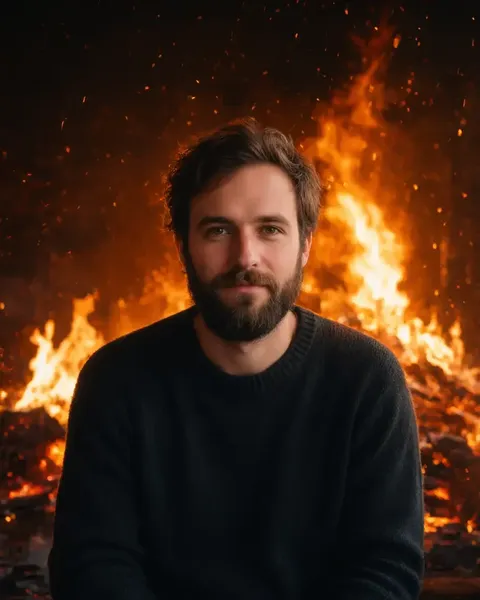
| Fire background | Portraits, album art, thumbnails | Person and clothing | replace the background with a wall of realistic flames far behind me, firelight on one side of my face |
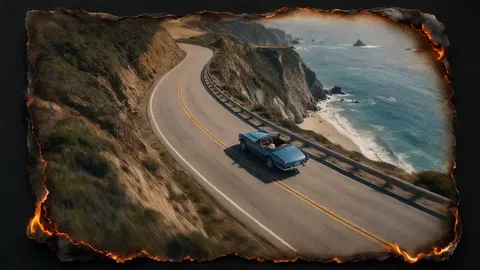
| Photo burning effect | Memory edits, posters, covers | The picture in the middle | a printed paper photograph burning at the edges, charred curling paper, a thin line of glowing embers |
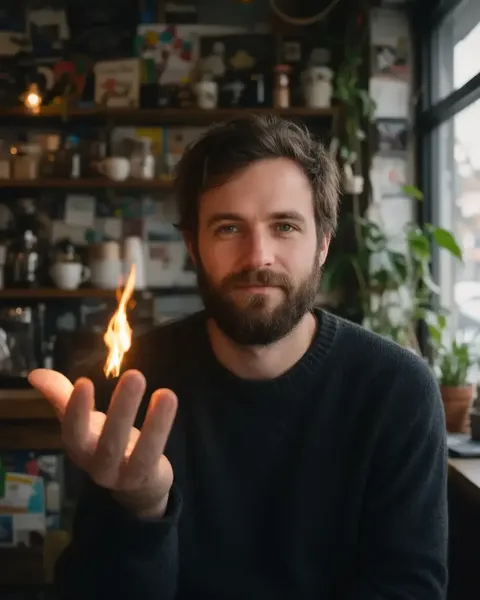
| Flame in the hand | Fantasy and magic-trick shots | Face and room | raising one open hand with a small realistic flame floating just above my palm |
| Embers and sparks | Moody portraits, gaming art | The whole scene | glowing orange embers and sparks drifting through the air, no large flames |
| Campfire | Outdoor and landscape photos | The landscape | a small realistic campfire on the ground in the foreground, warm light on the nearby ground |
| Blue flames | Sci-fi and game art | The subject | realistic blue and white flames rising behind the main subject, cool blue light on the scene |
Sources: Kenerate Image Studio
Gallery
Add fire to photo examples
Four real Qwen Image 3.0 edits of sample photos, each from a single try. Look closely at the hand in the last one: it came back a finger short.
How to
How to use the add fire to photo
- Time needed
- Steps
- 4 steps
Step 1
Open the editor
Press “Add your photo”. Image Studio opens with the flames instruction in the prompt box. Sign in free for starter credits.
Step 2
Upload your photo
Add the picture you want to edit. A clear subject and some space around it gives the fire room.
Step 3
Pick the effect
Keep the flames, or swap in the words for a fire background, embers or burning edges from the table above.
Step 4
Create and download
Press Create and run it again if the fire looks wrong. Download your favourite without a watermark.
See it in the app

Open Image Studio and type what you want to see — subject, style, lighting and mood.


Watch the tour · 1:23
Prompts, styles, references, edit, Arena & chat
Chapters
Tips
Get more believable fire
What made the difference in our test edits.
Ask for the light as well as the flames: “warm firelight on the table”. The glow is what makes fire look real.
Say where it goes: “behind the bottle”, “far behind me”, “at one corner”.
Name what must stay: “keep the bottle, the flower and the camera angle exactly the same”.
Darker photos work better. Bright daylight scenes leave the flames looking pale, as in our perfume test.
Check hands. A new hand is the hardest part, and our palm edit drew one with a finger missing, so run it again.
For the burning effect, expect a little of the picture to go. The burnt edge eats into the outer part of the frame.
Models
Models for fire edits
What each model is good at. Open any one straight in the generator.
- Free plan
Alibaba
Qwen Image 3.0
- Reference images
- Up to 3
- Output
- 1K or 2K
Open Qwen Image 3.0Best for
Default here · free plan · made the examples above
ByteDance
Seedream 5.0 Pro
- Reference images
- Up to 10
- Output
- Up to 2K
Open Seedream 5.0 ProBest for
A second option for illustrated fire
Google
Nano Banana 2.1
- Reference images
- Up to 14
- Output
- 1K to 4K
Open Nano Banana 2.1Best for
Stronger product and subject consistency
OpenAI
GPT Image 2.5 Sunburst
- Reference images
- Up to 16
- Output
- 1K to 4K
Open GPT Image 2.5 SunburstBest for
Precision edits with fine detail
FAQ
Add Fire to Photo questions
8 questions
How do I add fire to a photo?
Upload your picture and press Create. The editor opens with an instruction for orange flames behind the main subject and warm firelight on the scene. For another effect, replace the words with one from the table on this page, and keep a line saying what must stay the same.
Link to this answerHow do I make the photo burning effect?
Ask for the picture as a burning print: “turn this picture into a printed paper photograph that is burning at the edges, with charred curling paper edges and a thin line of glowing embers, on a dark background”. Expect the burn to crop the outer part of the frame, as it did in our test.
Link to this answerIs it free to add fire to a photo?
Yes, to start. A new Kenerate account gets free starter credits, and Qwen Image 3.0, the default model here, is on the free plan. Seedream 5.0 Pro, Nano Banana 2.1 and GPT Image 2.5 Sunburst use credits from a one-time pack; there's no subscription and bought credits don't expire. Results download without a watermark.
Link to this answerDo I need to select the area first?
No. Unlike brush-based inpainting tools, you say where the fire goes in the prompt, such as “behind the bottle” or “far behind me”. The model works out the area and adds the matching light.
Link to this answerCan I make the flames move?
Yes. Edit the still first, then open it in image to video and ask for “flames flickering, embers drifting, the subject stays still”. Video needs a paid plan.
Link to this answerWhy does my fire look fake?
Usually the scene has no firelight on it, or the photo is very bright. Add “warm firelight on the table and the subject” to the prompt, use a darker photo, or ask for a darker scene. Run it again, since each try is different.
Link to this answerCan I put fire in someone's hand?
Yes, as in the palm example, but hands are the weak spot. If your photo doesn't show a hand, the model has to draw one, and ours came back with a finger missing. Use a photo where the hand is already open, or run the edit a few times.
Link to this answerCan I use someone else's photo?
Only your own photo, or one an adult has agreed to. Fire effects are for creative edits, so don't make a real person look hurt, fake a real fire or accident, or use photos of public figures. Never upload photos of anyone under 18. Kenerate's content rules apply to every edit.
Link to this answerIn depth
Add Fire to Photo, explained
What works, what to avoid, and how to pick a model.
On this page
How does AI add fire to a photo?
It's an instruction edit. Your photo and one sentence go to an image model's edit endpoint, and the model paints the fire into the picture along with the light it would throw. That's the difference from a flame overlay, where a stock fire layer sits on top and you have to blend it and paint the glow yourself.
How do I write a fire prompt?
Four parts are enough:
- The fire: “realistic orange flames”, “a wall of flames”, “drifting embers”.
- Where it goes: “behind the bottle”, “far behind me”, “at one corner”.
- The light it throws: “warm firelight on the marble table and on the glass”.
- What must not change: “keep the bottle, the flower and the camera angle exactly the same”.
What to expect from each effect
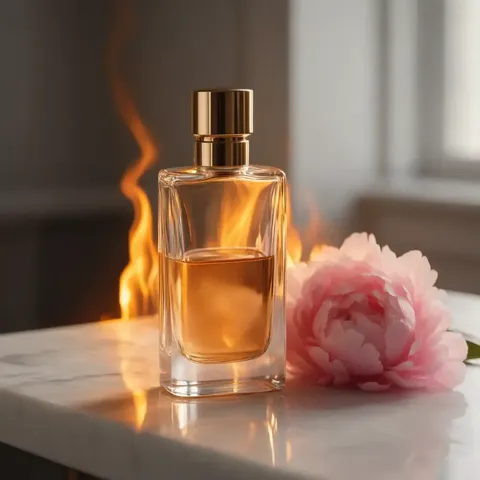
In our four test edits, the portrait background was the strongest: the face and sweater held and the firelight sat naturally. The flames behind the perfume bottle looked good but pale, since the photo is bright. The burnt print kept the car and the coast, with the outer edge lost to the burn. The flame above the palm added a hand that wasn't in the photo, and that hand had a finger missing, so it's the effect most likely to need a second try.
By the Kenerate AI teamLast updated and reviewed
We build and run the Kenerate generator. Every example is a real output of the model named under it; models and presets were checked against the app's code.
Sources: Kenerate Image Studio