

Free · no upload · no sign-up
Invert image colors — make a negative of any picture, free
Add a picture and see it inverted next to the original. Choose a full colour negative, a grey negative, or flip only the light and dark. Transparent areas stay transparent, and your picture never leaves your device.
- Before and after
- 3 ways to invert
- Keeps transparency
- Picture stays on your device
Updated by the Kenerate AI team




Made with Kenerate
On this page
Quick answer
How do you invert the colors of an image?
To invert image colors, add the picture to the tool on this page. It turns every colour into its opposite straight away, black to white and blue to orange, and shows the before and after. Pick Invert colours, Grey invert or Invert lightness only, then download a PNG or JPG at full size. It's free and runs in your browser, so nothing is uploaded.
Key facts
- Cost
- Free · no credits
- Account
- Not needed
- Pictures in
- JPG, PNG, WebP up to 50 MB
- Ways to invert
- Colours · grey · lightness only
- Transparency
- Kept in PNG
- Download
- PNG or JPG at full size, up to 40 MP
- Uploads
- None, inverted in your browser
- Undo
- Invert again to get the original back
Gallery
Pictures inverted with this tool
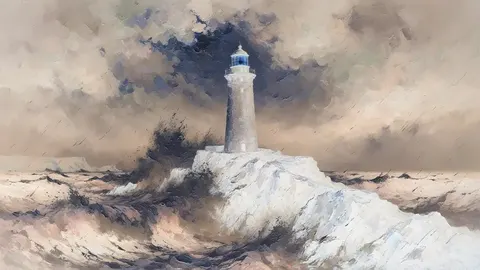
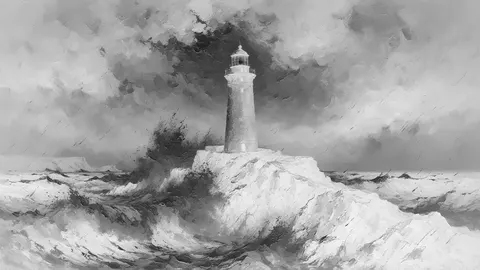
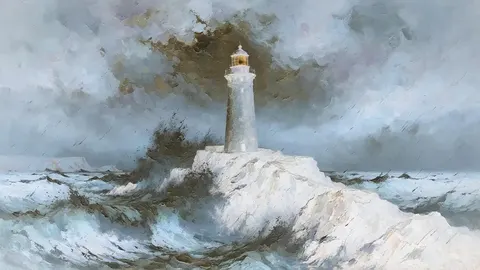
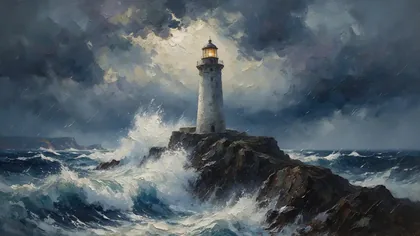
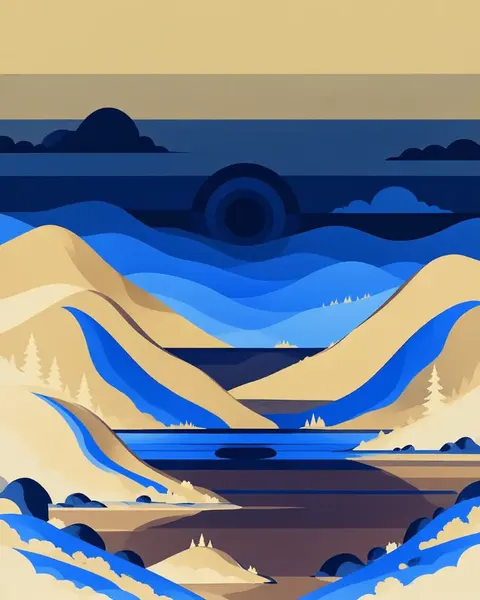
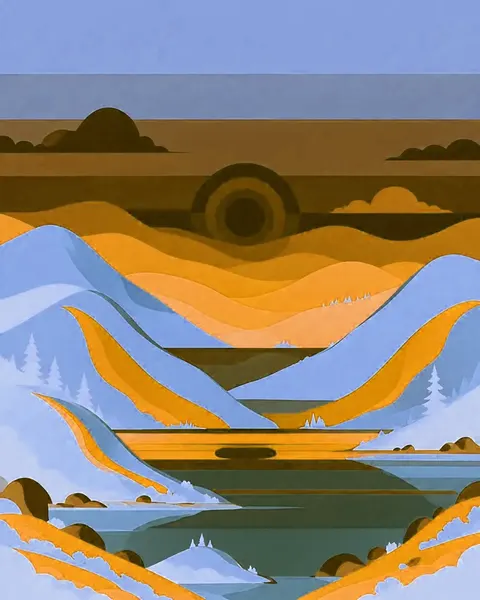
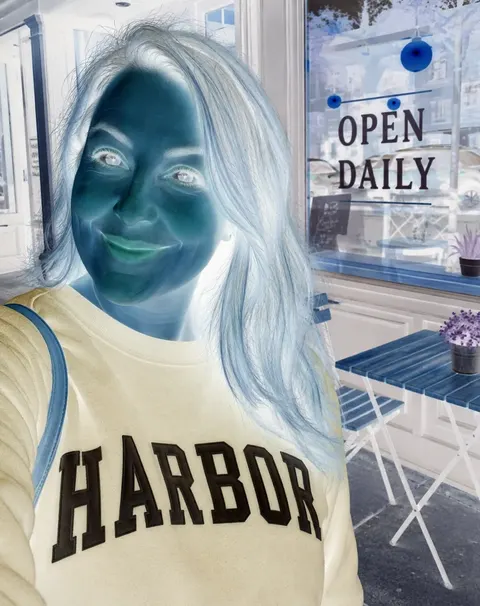
Every inverted picture below is the file the tool's own code made in a browser from an AI picture on this site, at the same size.
Same prompt
One painting, three ways to invert
Invert colours gives the classic negative. Grey invert drops the colour. Lightness only swaps light and dark but keeps each hue, so blue stays blue.
PromptA 1080 × 608 oil painting and its three inverted versions.
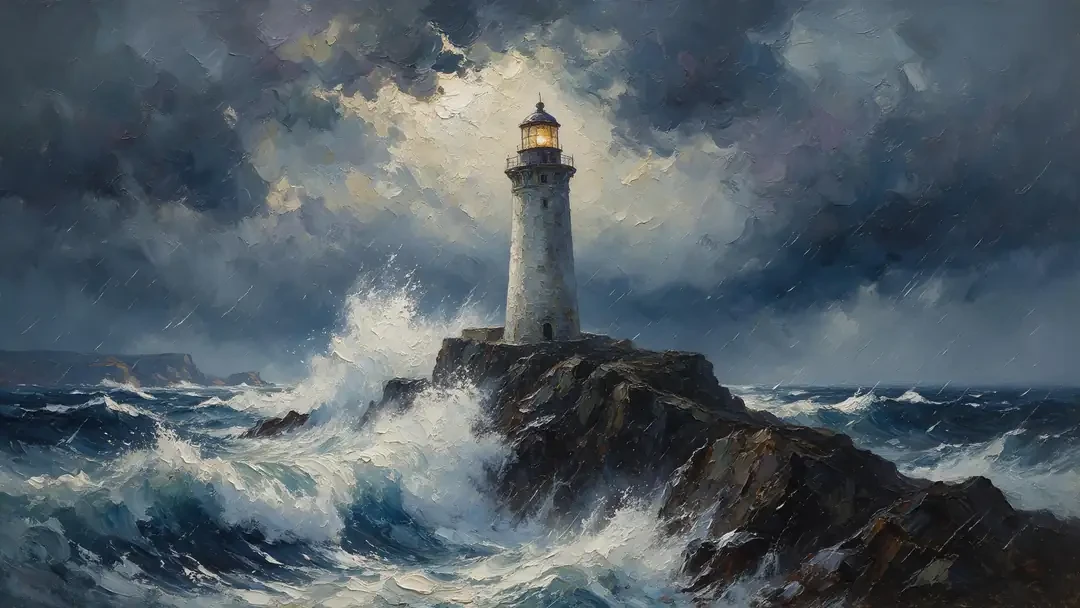 OriginalDark storm
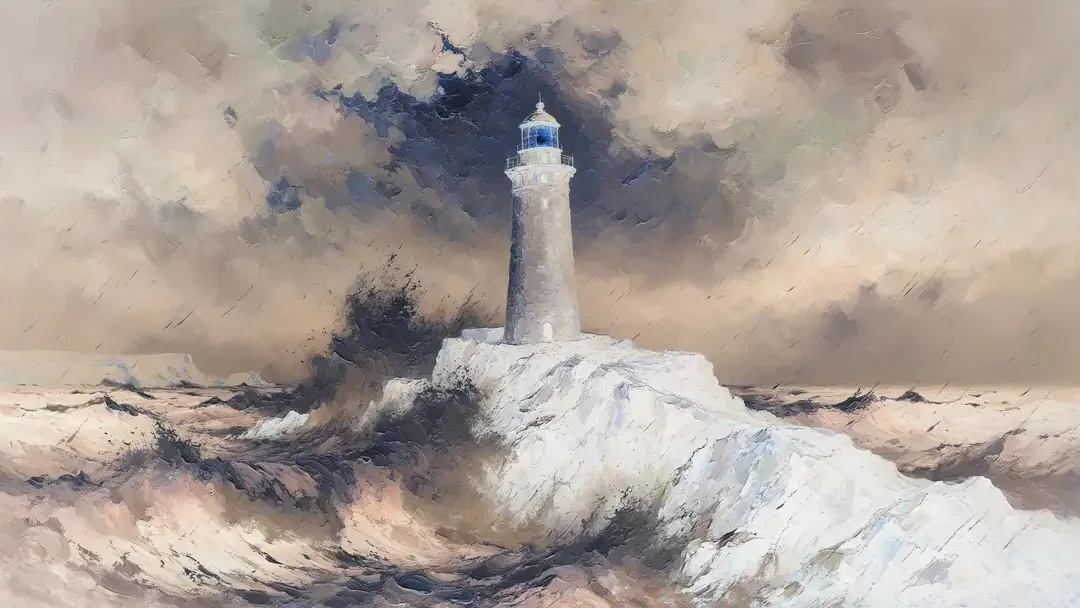 Invert coloursEvery colour opposite
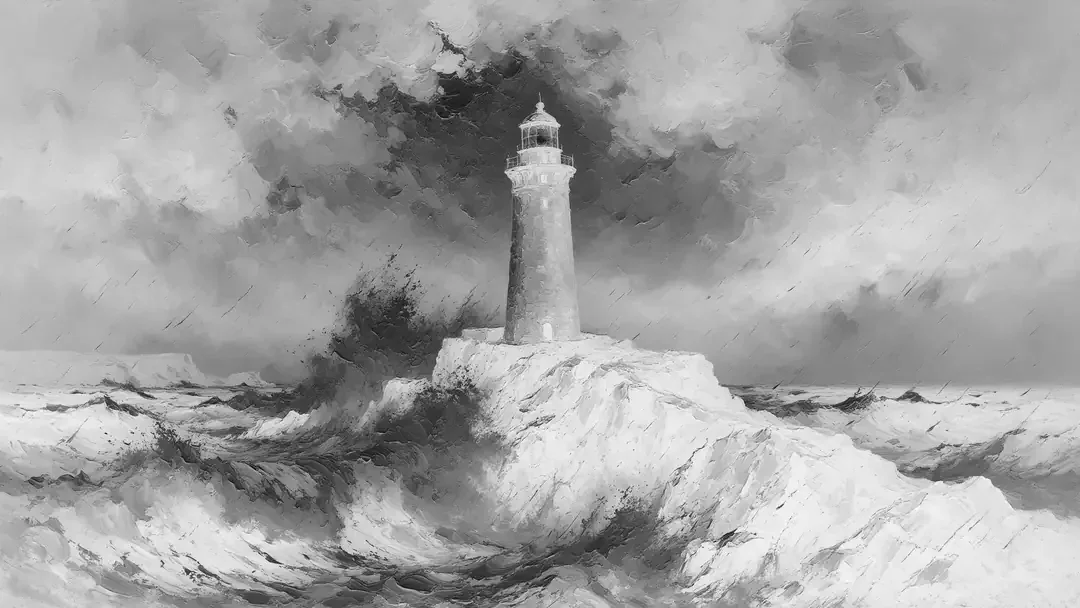 Grey invertBrightness only
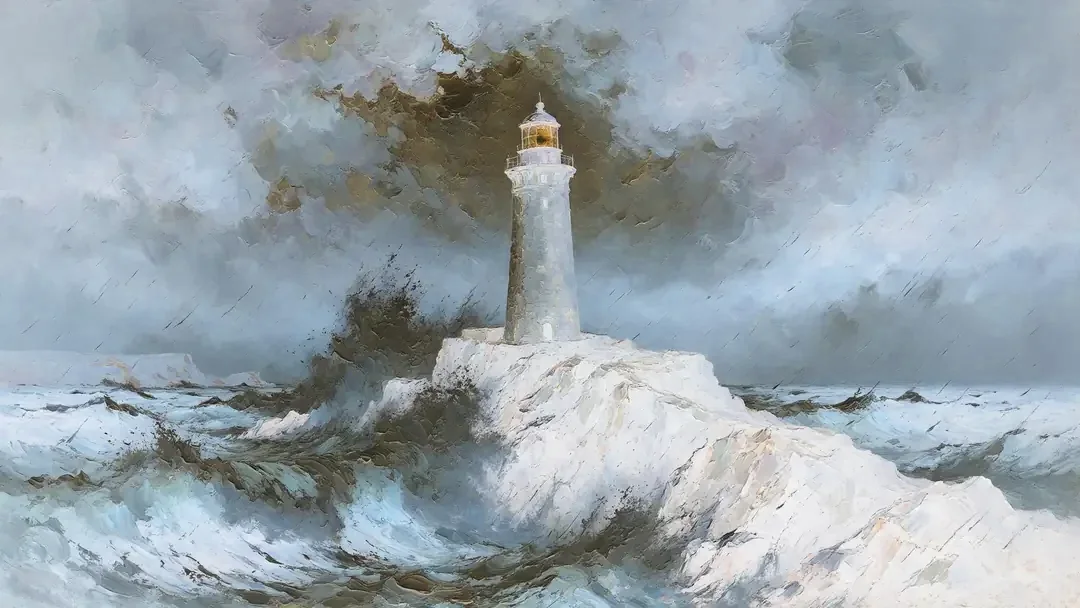 Lightness onlyHues kept
How to
How to invert the colors of an image
- Time needed
- Steps
- 4 steps
Step 1

Add your picture
Choose a JPG, PNG or WebP up to 50 MB, drop it on the box at the top of this page, or paste it.
Step 2
Choose how to invert
Invert colours makes a full negative, Grey invert makes a grey one, and Invert lightness only keeps the hues.
Step 3
Compare
The original and the inverted picture sit side by side, so you can check before you save.
Step 4

Download
Press Download PNG to keep transparency, or Download JPG for a smaller file on white.
Tips
Which invert to use
Pick by the job, not the look.
A film negative scan → Invert colours, then fix the colour cast in a photo editor, because colour film has an orange base.
A dark screenshot for printing → Invert colours, so the black page becomes white and saves ink.
A logo for a dark background → Invert lightness only, so a navy brand colour stays blue instead of turning orange.
An X-ray look or a drawing reference → Grey invert, which leaves only light and dark.
A transparent logo or sticker → download PNG. JPG fills the clear areas with white.
Changed your mind → invert the result again. Invert colours and Lightness only both give back the original.
FAQ
Invert Image Colors questions
9 questions

How do I invert the colors of an image?
Add the picture to the tool at the top of this page. It's inverted straight away and shown next to the original; then press Download PNG or Download JPG.
Link to this answerIs this image inverter free?
Yes. It uses no credits, needs no account and adds no watermark, because your own browser does the work.
Link to this answerIs my picture uploaded?
No. The picture is opened and inverted in your browser, so it never reaches our servers. You can check in the Network tab of your browser's developer tools.
Link to this answerWhat does inverting colors do?
It replaces every colour with its opposite on the colour wheel and flips light and dark: black becomes white, blue becomes orange and red becomes cyan. In numbers, each red, green and blue value becomes 255 minus itself.
Link to this answerDoes inverting keep a transparent background?
Yes, in the PNG. Clear areas stay clear and only the visible pixels change. JPG can't store transparency, so those areas turn white.
Link to this answerWhat's the difference between Grey invert and Invert lightness only?
Grey invert turns the picture grey and then flips light and dark. Invert lightness only flips light and dark but keeps each colour's hue, so a dark blue becomes a light blue instead of turning orange.
Link to this answerHow do I turn a negative back into a normal picture?
Invert it again. Invert colours twice gives back every pixel exactly. A scanned colour film negative also has an orange tint, so you may need to correct the colour afterwards.
Link to this answerDoes inverting lower the quality?
No. The picture keeps its full size, up to 40 megapixels, and PNG saves every pixel exactly. JPG makes a smaller file by dropping a little detail.
Link to this answerHow do I invert colors on an iPhone or Windows?
iPhone has Smart Invert and Classic Invert under Settings, Accessibility, Display & Text Size, but they change the screen, not your photo. Windows has colour filters under Settings, Accessibility. To save an inverted file, use this tool.
Link to this answerIn depth
Invert Image Colors, explained
How each invert works, what we tested, and film negatives and screenshots.
On this page
How the three inverts work
Every pixel has a red, green and blue value from 0 to 255. Each mode changes them in its own way and never touches transparency:
- Invert colours: each value becomes 255 minus itself. Black (0, 0, 0) becomes white (255, 255, 255), and a pure blue becomes yellow.
- Grey invert: the brightness is worked out first as 0.299 × red + 0.587 × green + 0.114 × blue, the Rec. 601 weights, then flipped. The result is grey.
- Invert lightness only: only the lightness in HSL is flipped, so hue and saturation stay. Dark blue turns light blue, and pure red stays red because it already sits at the middle.
What we tested
We checked the maths in Node and ran the tool's own drawing code in Microsoft Edge on Windows on the pictures above:
- The browser results matched the maths byte for byte on three pictures.
- Invert colours, run twice, gave back every pixel. So did Invert lightness only, on 2,000 test colours.
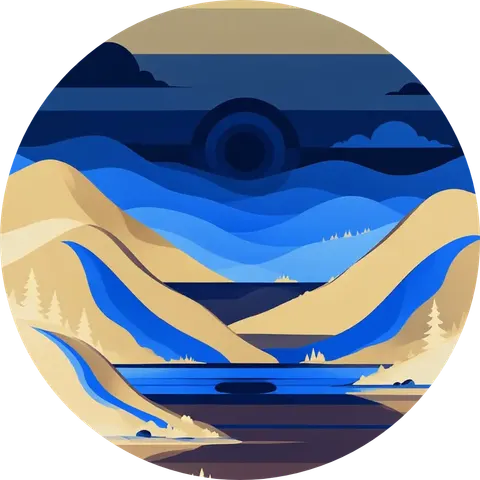
- On a round PNG, every clear pixel stayed clear. On the 3,230 half-clear pixels around the rim, colours were off by at most 1 level out of 255, because browsers store those pixels in a slightly rounded form.
- Not tested: Safari, Firefox and phones.
Inverting a scanned film negative
Black-and-white negatives come out right with Invert colours or Grey invert. Colour negatives are printed on film with an orange base, so a straight invert looks blue. Invert first, then correct the colour balance in a photo editor.
Inverting text and screenshots
A dark-mode screenshot inverts to dark text on white, which prints well and saves ink. Coloured parts change too: blue links turn orange. If you want the colours to stay recognisable, use Invert lightness only, which keeps each hue and only swaps light and dark.
By the Kenerate AI teamLast updated and reviewed
We build and run Kenerate AI. We ran this tool's code in Edge on Windows on the pictures shown here and checked the results against the same maths in Node; the test results on this page come from those runs.
Sources: Wikipedia — Negative (photography) · Wikipedia — HSL and HSV · Wikipedia — Luma (video), the Rec. 601 weights · MDN — getImageData, the browser feature that reads the pixels