
Prompt library · GPT Image 2 and 2.5 · Copy or try in one click
GPT Image 2 prompts — 47 prompts with the images they made
A GPT Image 2 prompt library where every prompt sits next to its real output, with the model and size that made it. Filter by category, copy a prompt, or open it in the generator — plus OpenAI's own rules for writing your own.
- 47 real outputs
- Exact prompts
- Copy or try in one click
- No watermark
Updated by the Kenerate AI team
On this page
Quick answer
What are the best GPT Image 2 prompts?
GPT Image 2 prompts work best when they read like a design brief: what the image is for (poster, thumbnail, product shot), the scene and subject, the details, then the constraints — with any words that must appear in quotes. That's the order OpenAI's own prompting guide recommends. Below are 47 prompts with their real outputs from GPT Image 2 and GPT Image 2.5 Sunburst, to copy or open in one click.
Key facts
- Prompts
- 47, each with its real output
- Categories
- 8, from posters to photo edits
- Models
- GPT Image 2 · GPT Image 2.5 Sunburst
- GPT Image 2 released
- 21 April 2026 (OpenAI)
- Aspect ratios
- 15 on Kenerate, 1:3 to 3:1 and 21:9
- Sizes
- 1K · 2K · 4K
- References
- Up to 16 images per prompt
Prompt library
The GPT Image 2 prompt library
Every prompt below made the image above it on Kenerate, unedited. The card names the model — GPT Image 2 or its newer sibling GPT Image 2.5 Sunburst — plus the ratio and size. “Edit your photo” prompts start from an uploaded picture.
47 prompts shown
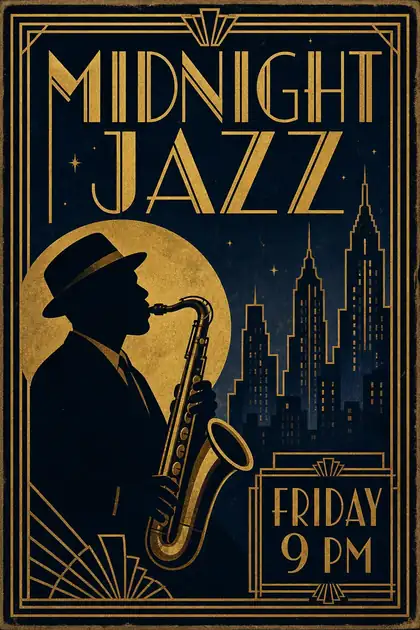 Posters & textGPT Image 22:31K · medium
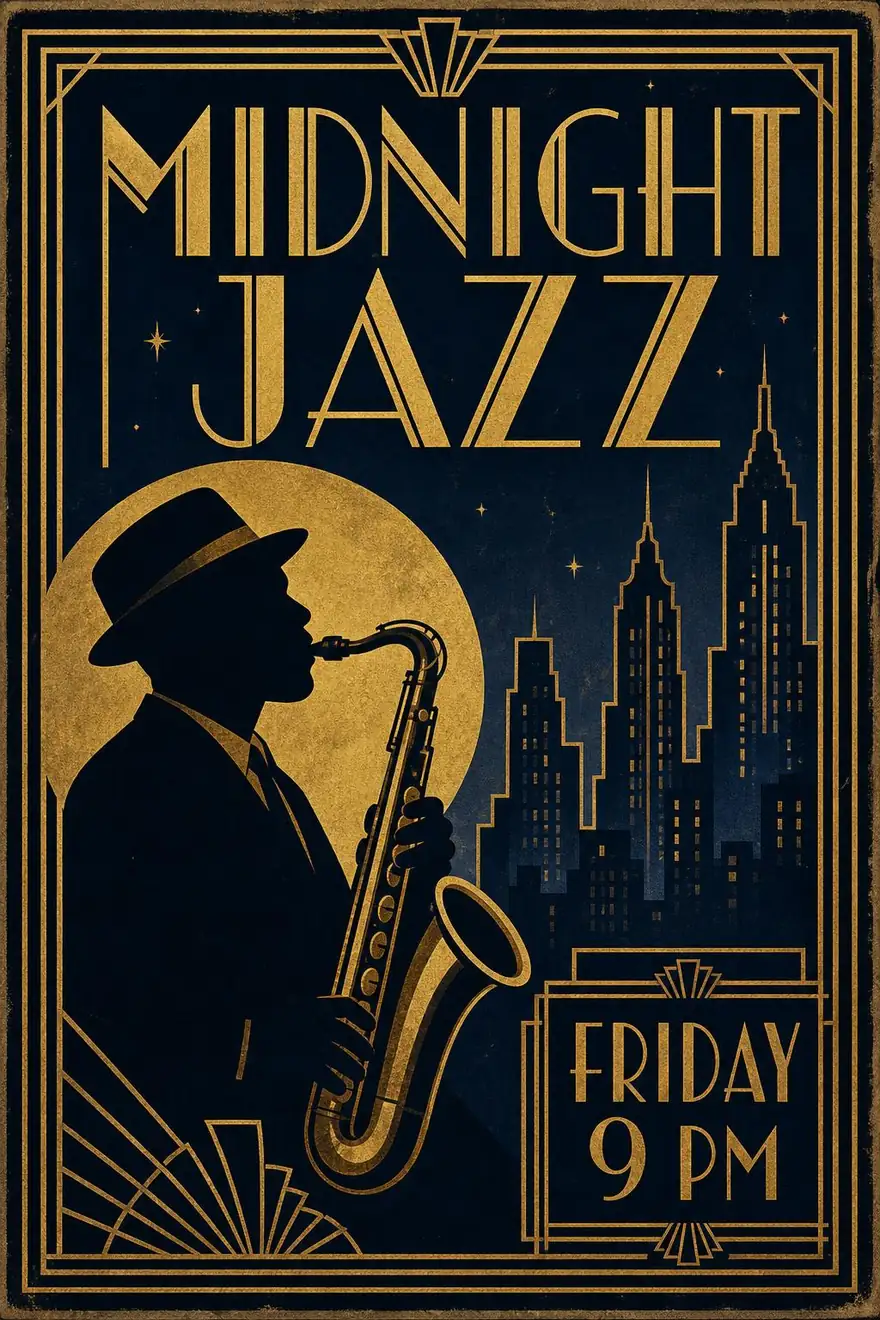
Art deco jazz poster
Vintage jazz festival poster with the exact text 'MIDNIGHT JAZZ' and 'FRIDAY 9 PM' in art deco lettering, saxophone player silhouette, gold and navy
 Posters & textGPT Image 22:31K · medium
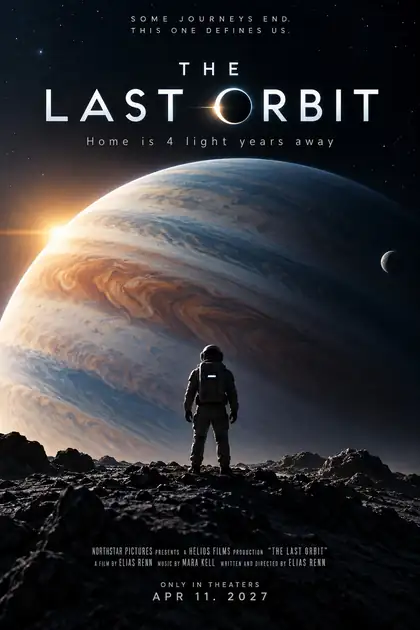
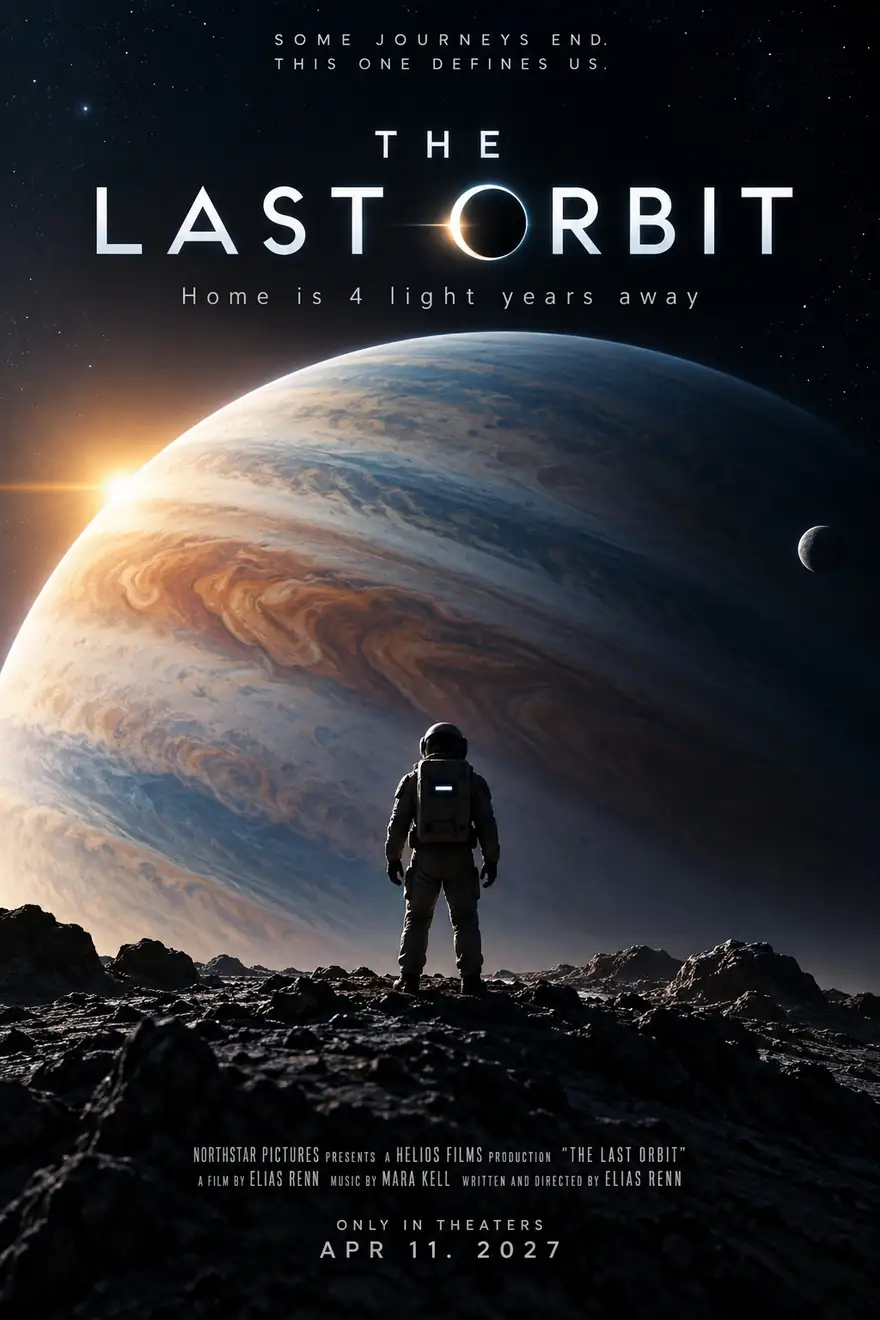
Sci-fi film poster
Movie poster for a fictional sci-fi film titled 'THE LAST ORBIT' with the tagline 'Home is 4 light years away', lone astronaut silhouette against a giant planet, cinematic typography
 Posters & textGPT Image 22:31K · medium
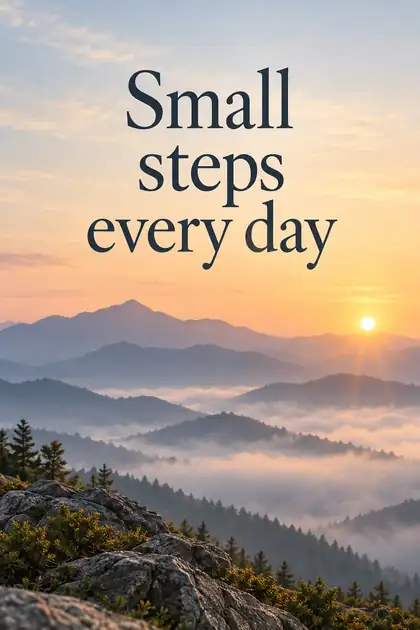
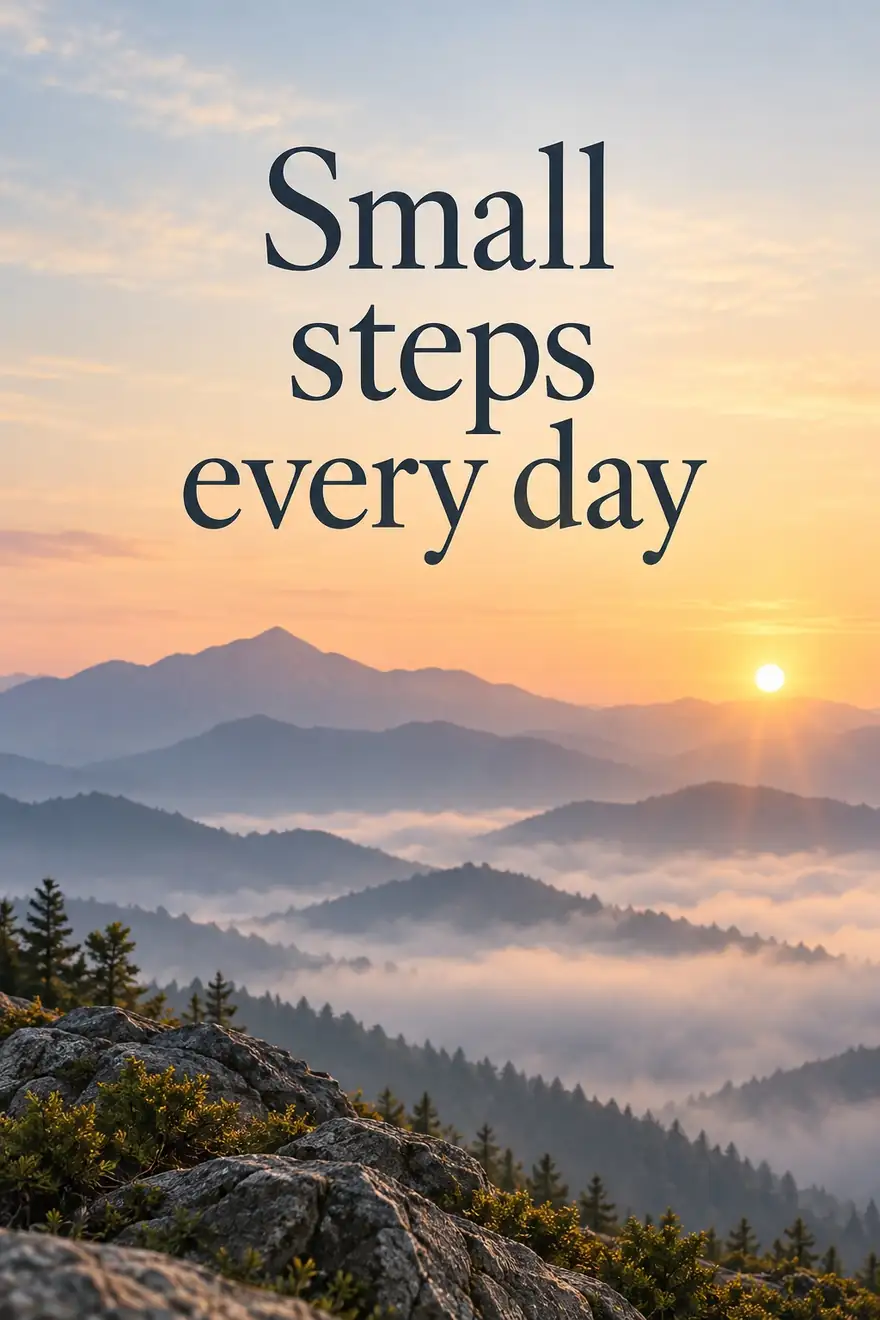
Quote poster
Motivational poster with the quote 'Small steps every day' in elegant serif lettering over a misty mountain sunrise, calm colors
 Posters & textGPT Image 22:31K · medium
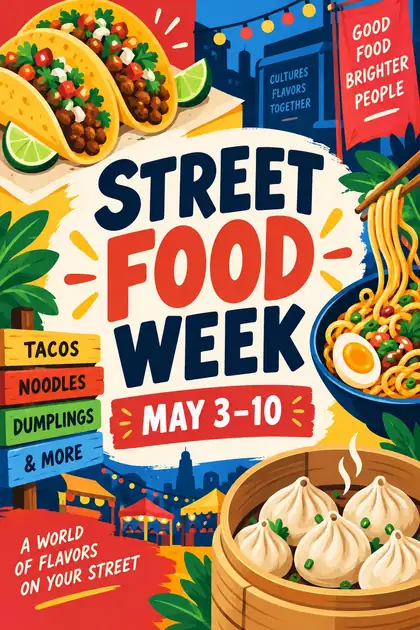
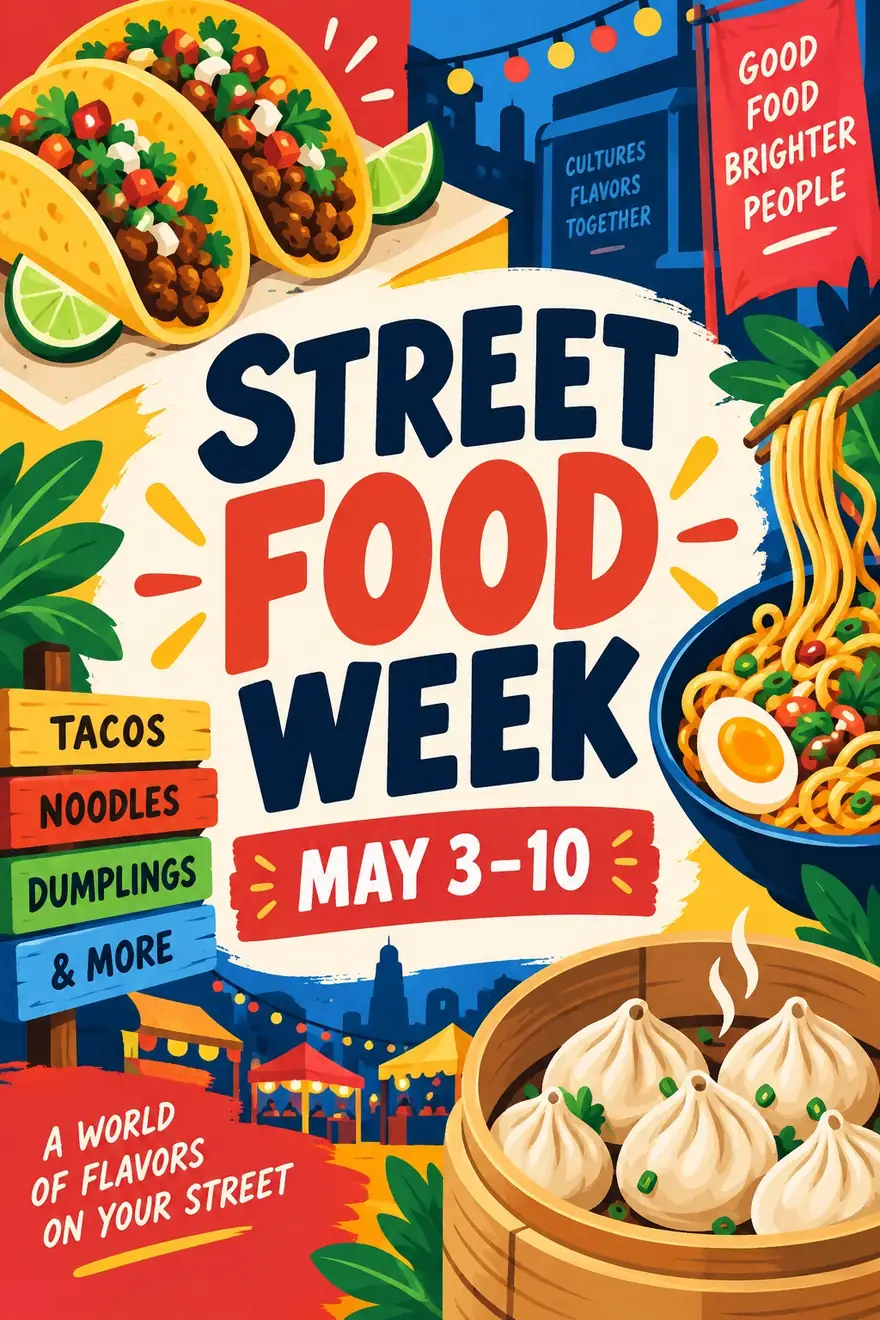
Food festival flyer
Food festival poster with the text 'STREET FOOD WEEK' and 'MAY 3–10' surrounded by illustrated tacos, noodles and dumplings, vibrant flat illustration
 Posters & textGPT Image 22:31K · medium
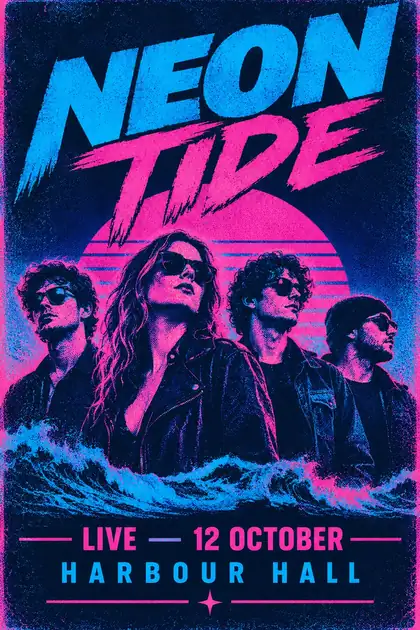
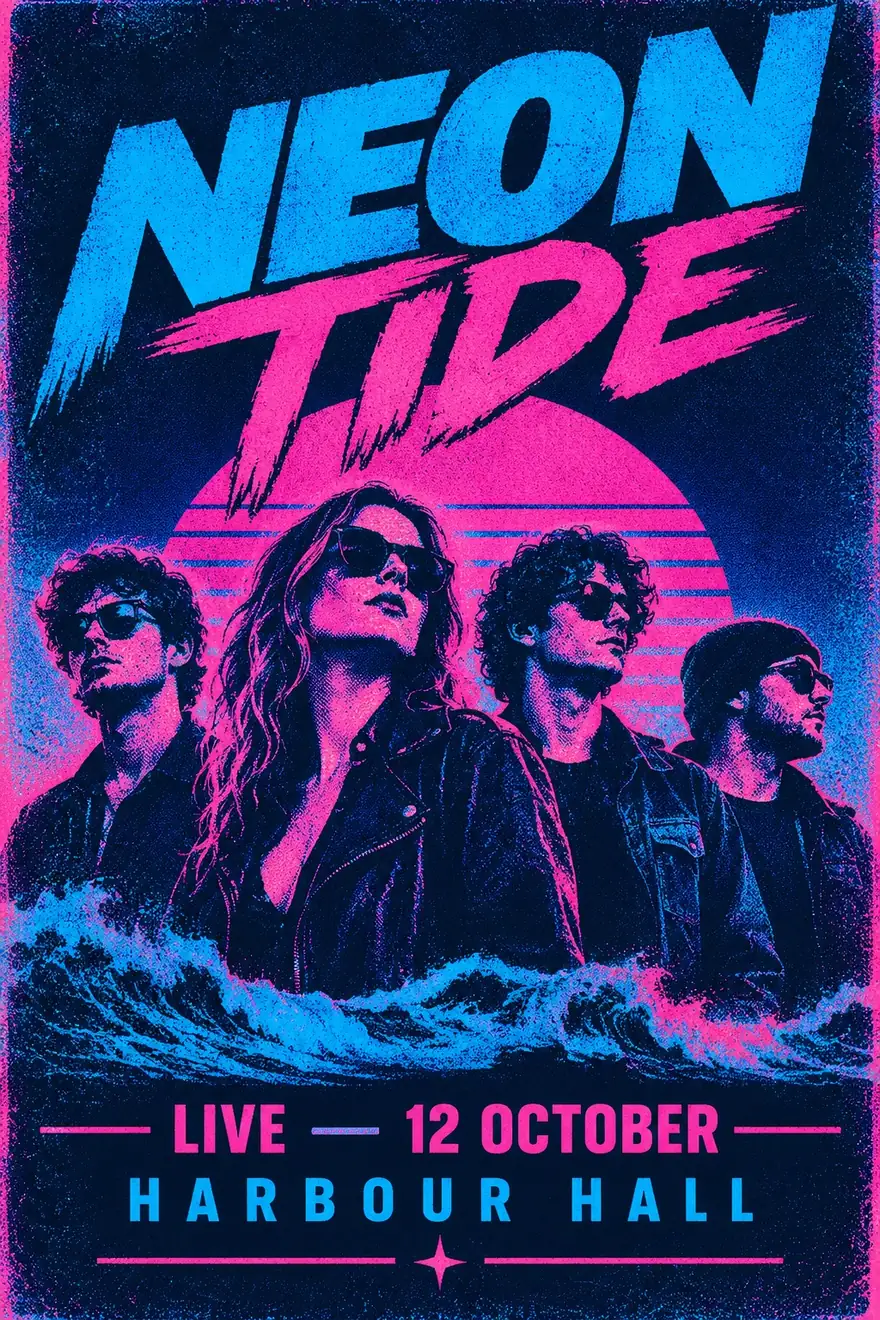
Concert flyer
Concert poster for a fictional band 'NEON TIDE' with the text 'LIVE — 12 OCTOBER' and 'HARBOUR HALL', bold retro typography, electric blue and pink, halftone texture
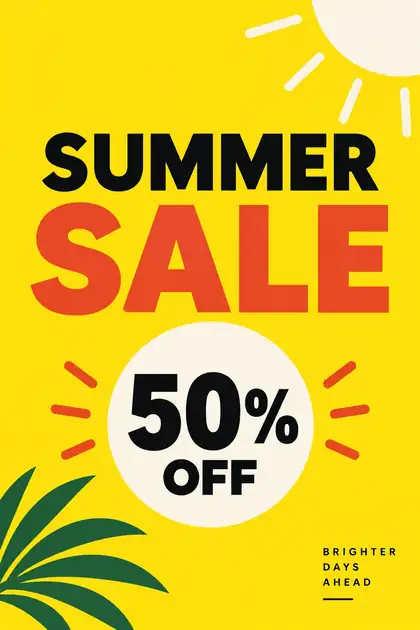 Posters & textGPT Image 22:31K · medium
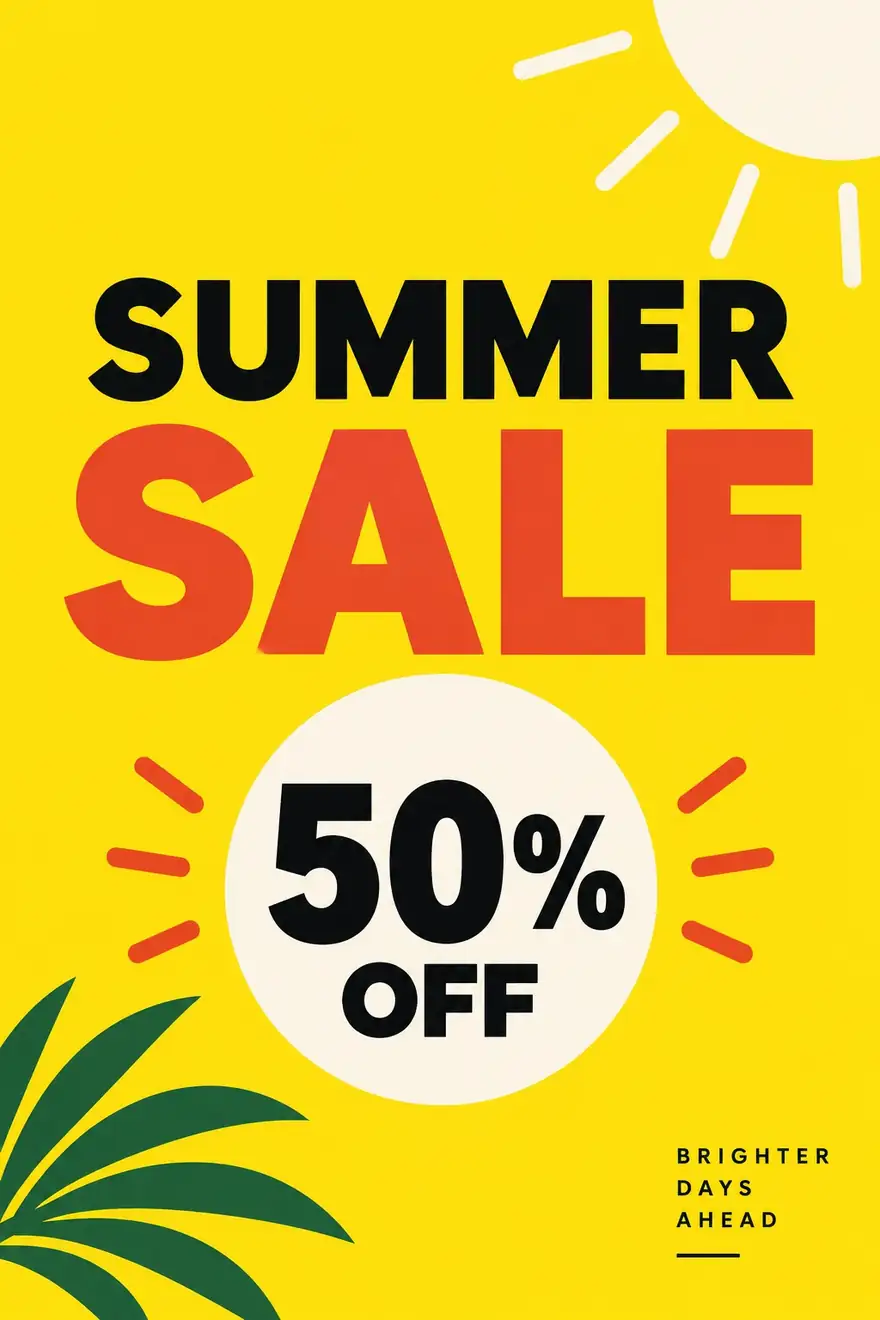
Sale flyer
Minimal retail poster with the text 'SUMMER SALE' and '50% OFF' in bold sans-serif, bright yellow background, simple shapes, modern design
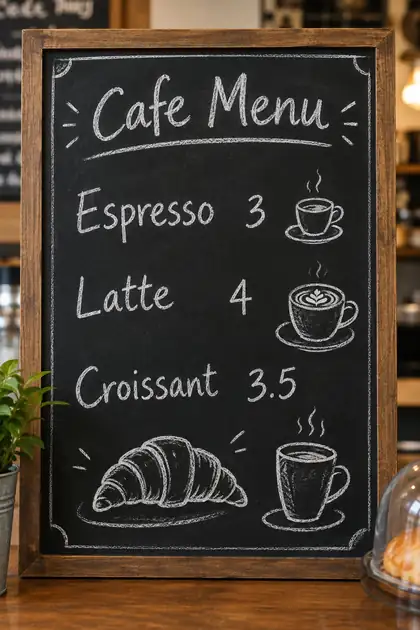 Posters & textGPT Image 22:31K · medium
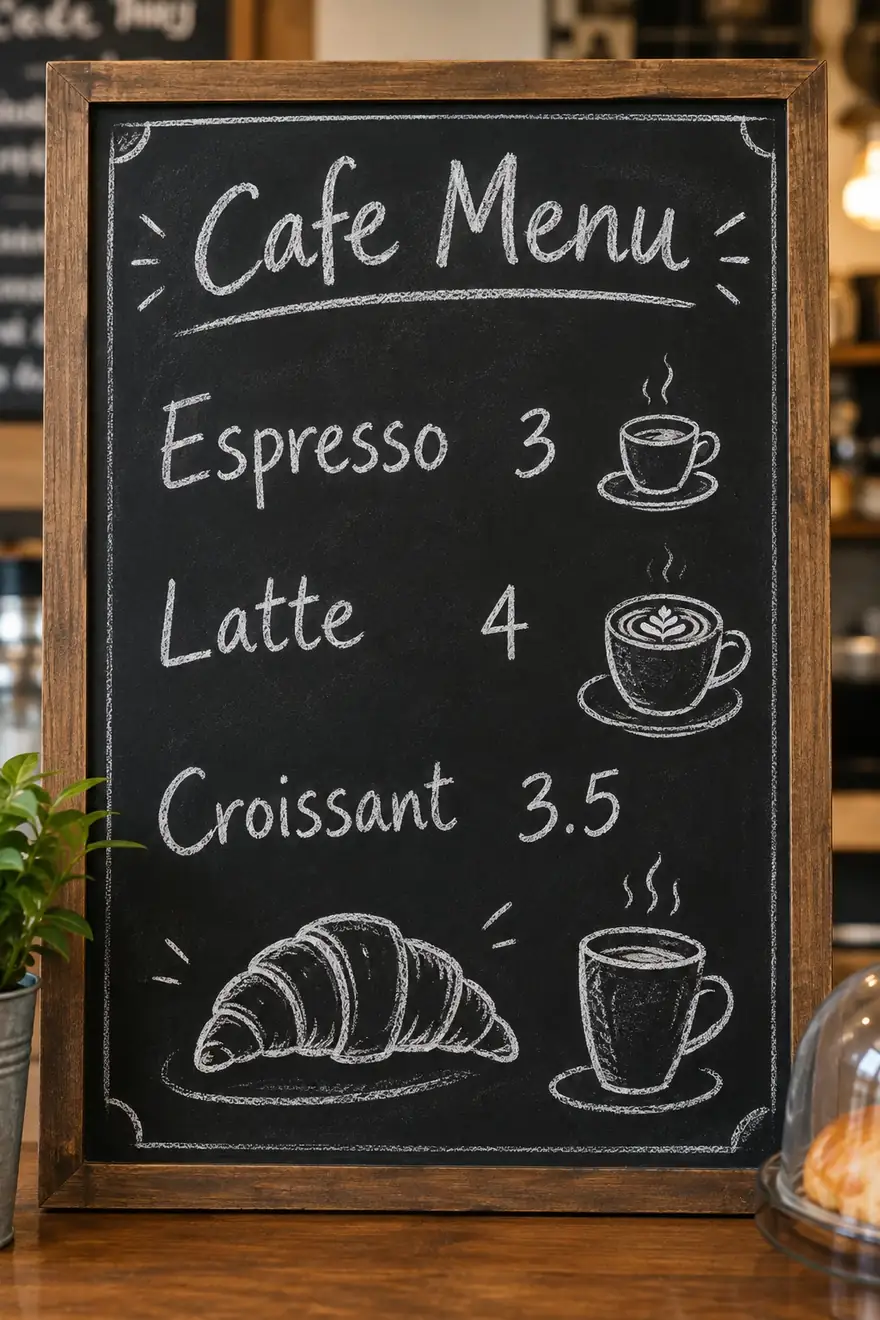
Chalkboard menu
Chalkboard cafe menu with readable handwritten items 'Espresso 3', 'Latte 4', 'Croissant 3.5' and hand-drawn coffee cup doodles
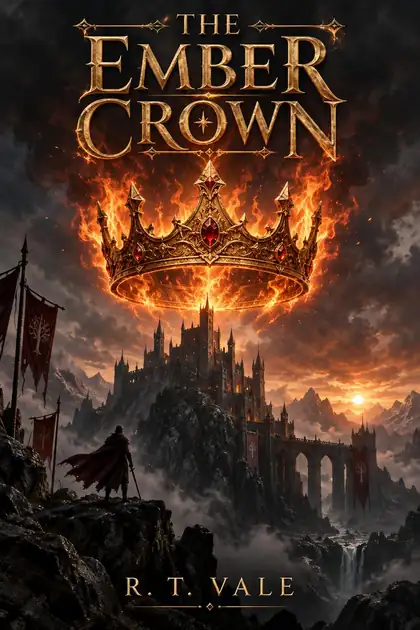 Posters & textGPT Image 2.5 Sunburst2:31K
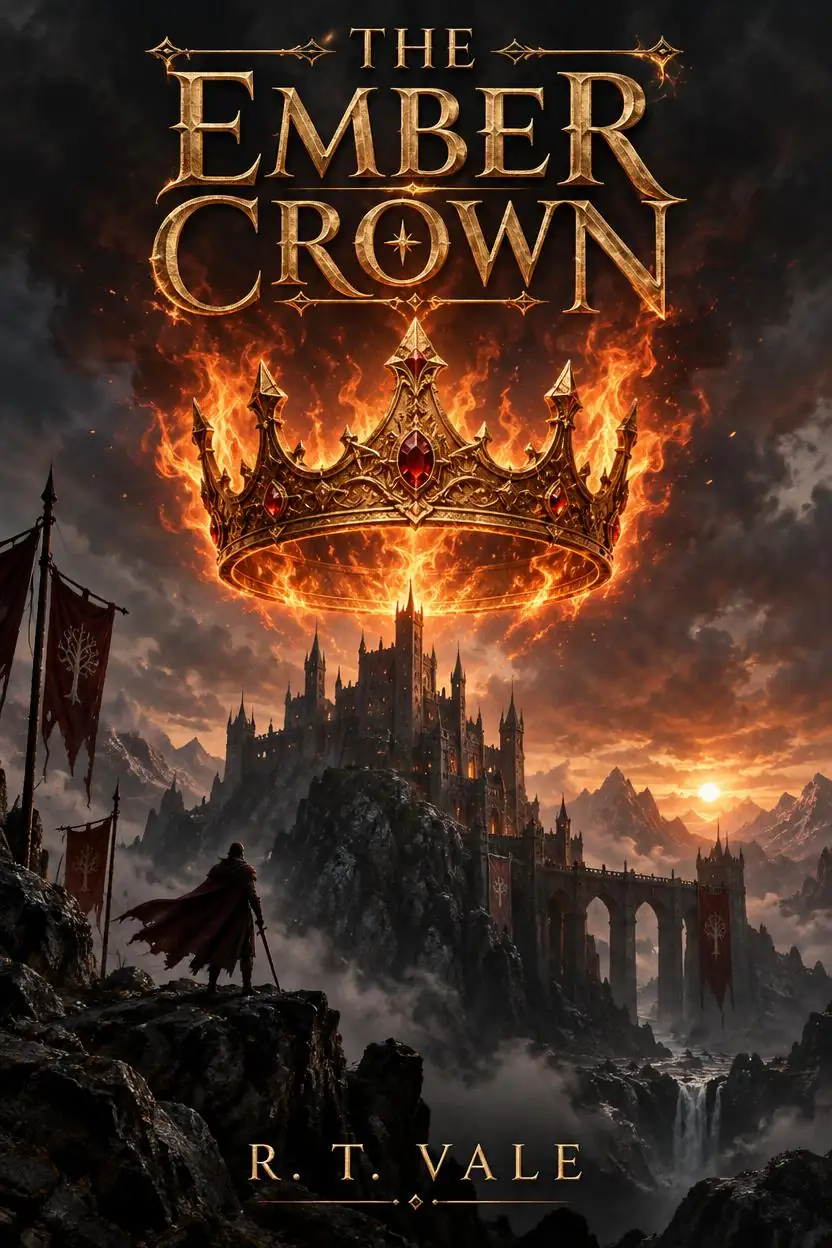
Fantasy book cover
Epic fantasy book cover titled 'THE EMBER CROWN' by fictional author 'R. T. VALE', a burning golden crown floating above a dark mountain castle, ornate title lettering
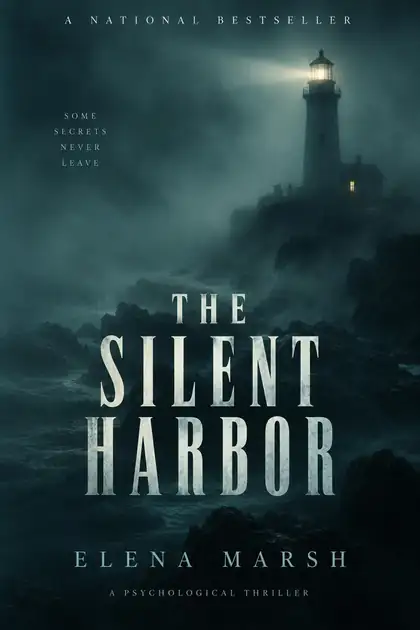 Posters & textGPT Image 2.5 Sunburst2:31K
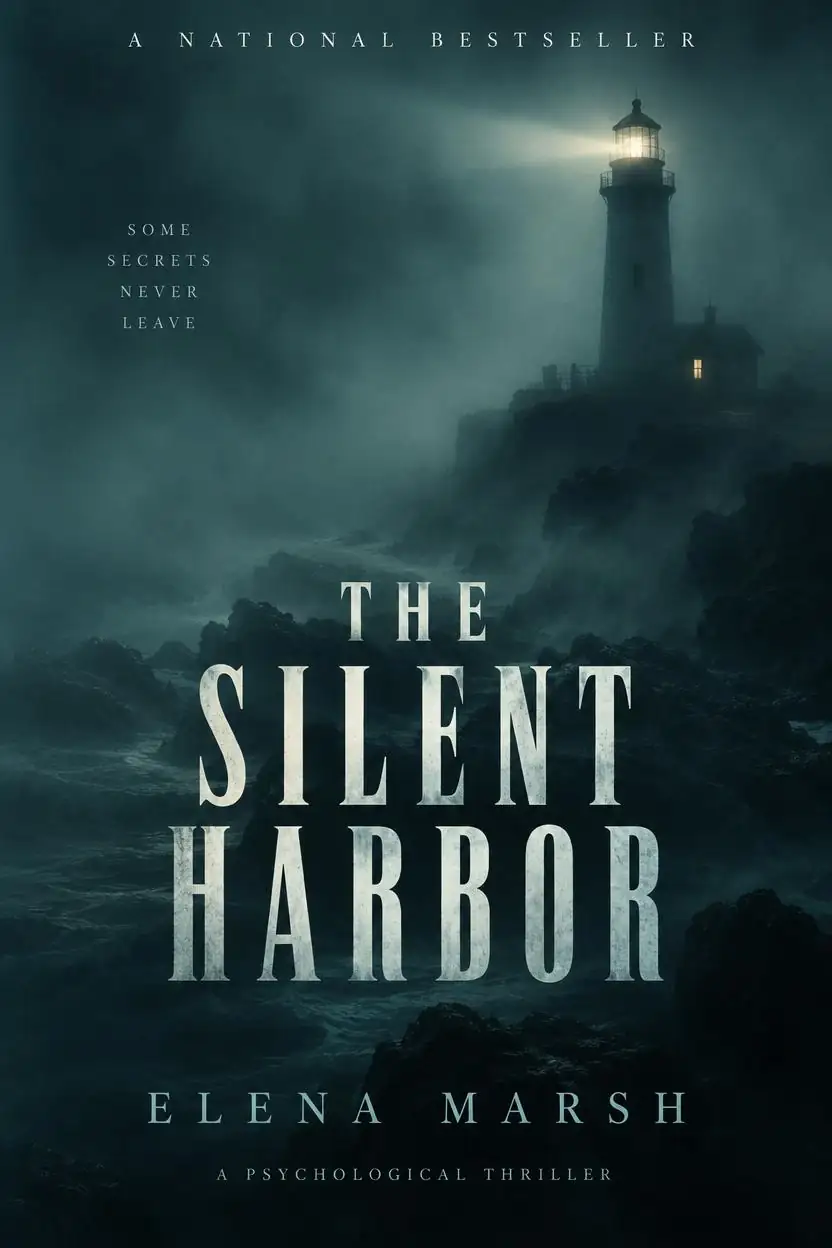
Thriller book cover
Book cover for a psychological thriller titled 'THE SILENT HARBOR' by the fictional author 'ELENA MARSH', a lone lighthouse in thick fog, dark teal palette, bold condensed serif title, bestseller style
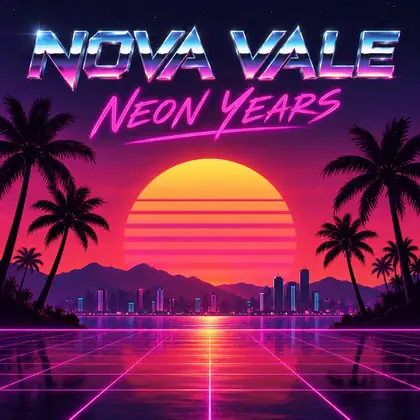 Posters & textGPT Image 21:11K
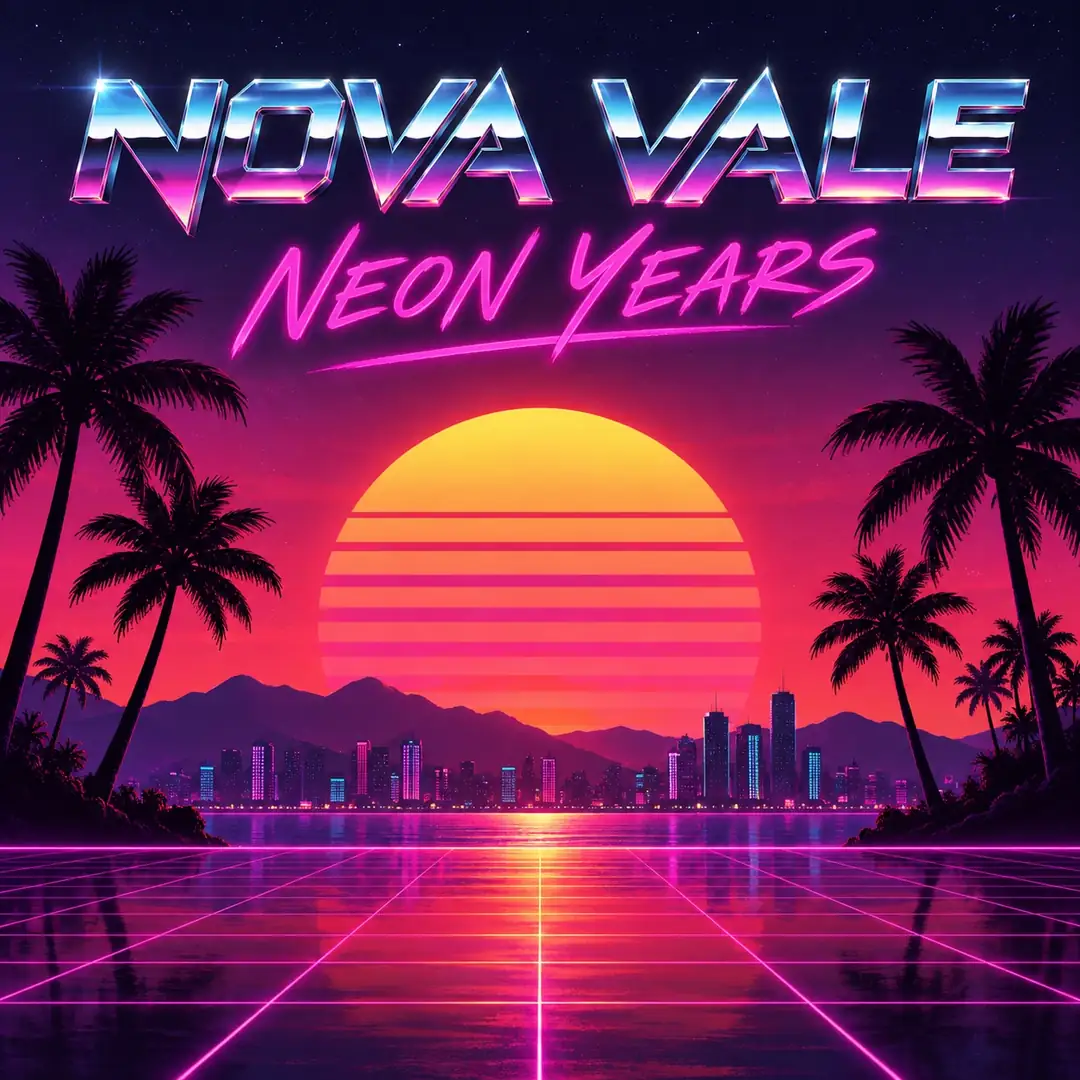
Synthwave album cover
Album cover for the fictional artist 'NOVA VALE' titled 'NEON YEARS', synthwave sunset grid and palm silhouettes, retro chrome type
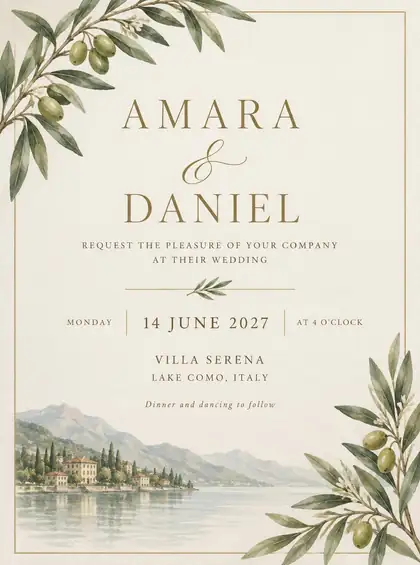 Posters & textGPT Image 2.5 Sunburst3:41K
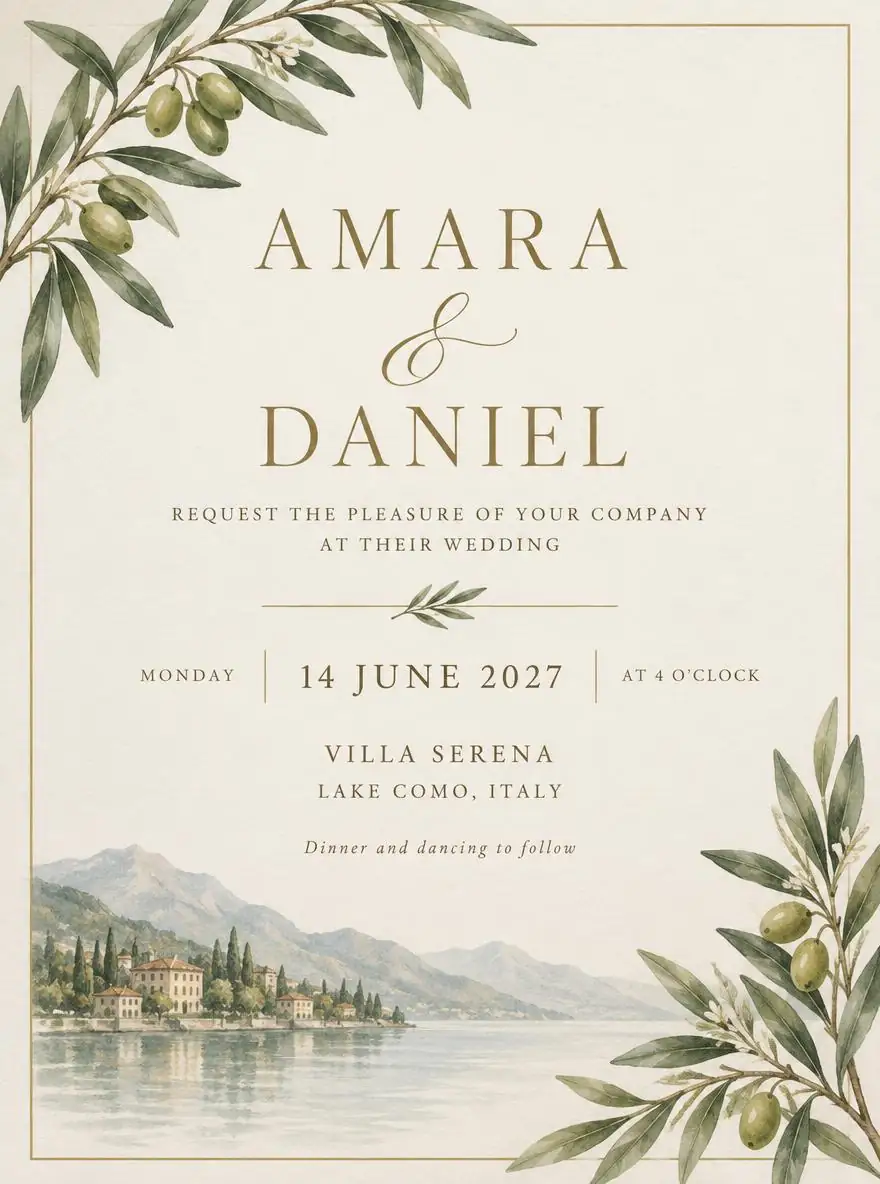
Wedding invitation
Elegant wedding invitation: 'Amara & Daniel', 'request the pleasure of your company', '14 June 2027', 'Villa Serena, Lake Como', watercolor olive branches, gold serif and script lettering, cream paper
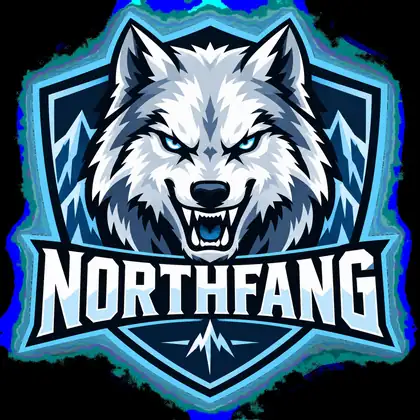 Logos & letteringGPT Image 21:11K
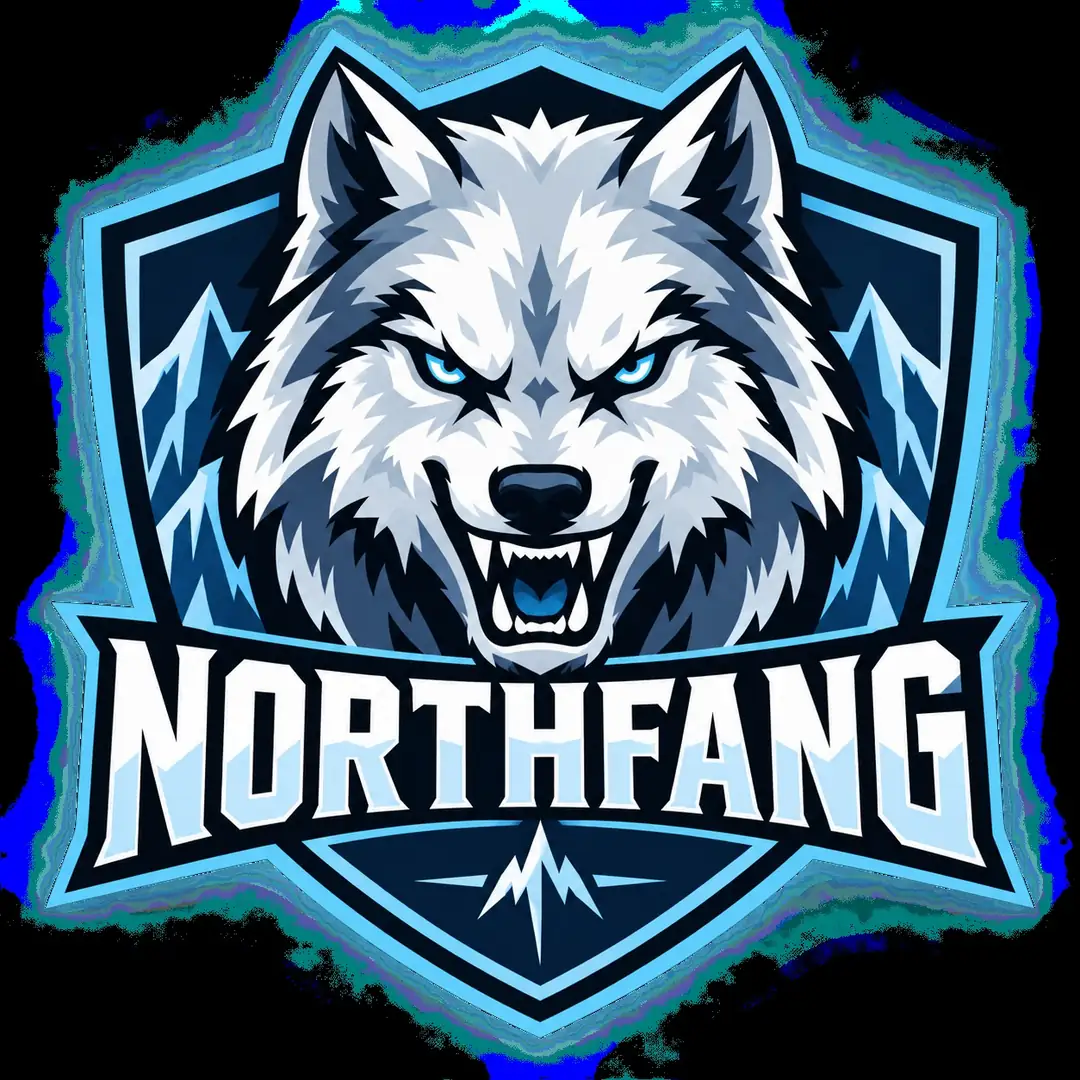
Esports mascot logo
Esports mascot logo of a fierce wolf head for the fictional team 'NORTHFANG', bold outlines, ice blue and white, shield shape
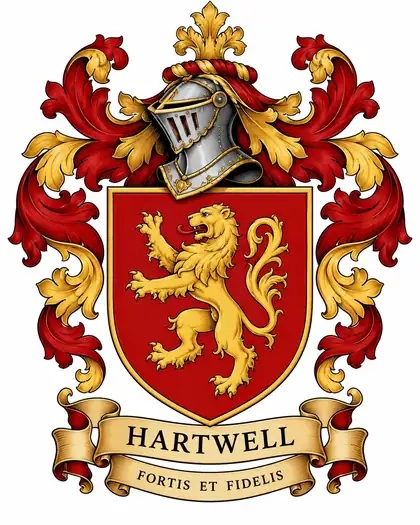 Logos & letteringGPT Image 24:51K · medium
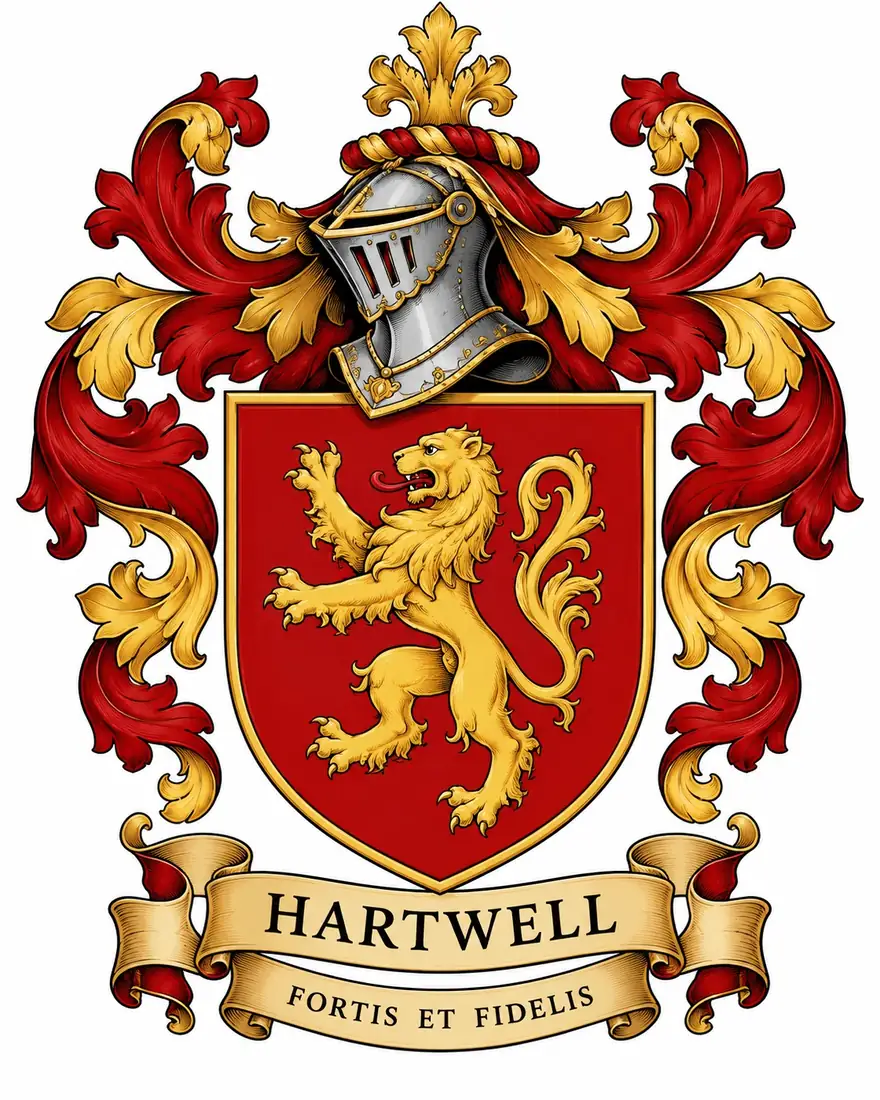
Hartwell lion crest
Heraldic family crest coat of arms for the fictional family 'HARTWELL': shield with a golden lion on red, knight's helmet, mantling, and a banner reading 'FORTIS ET FIDELIS', detailed vector illustration, white background
 Logos & letteringGPT Image 24:51K · medium
R & K monogram crest
Modern minimalist family crest monogram with the letters 'R' and 'K', laurel wreath, the year 'EST. 1998', flat navy and gold design, white background
 Logos & letteringGPT Image 2.5 Sunburst1:11K
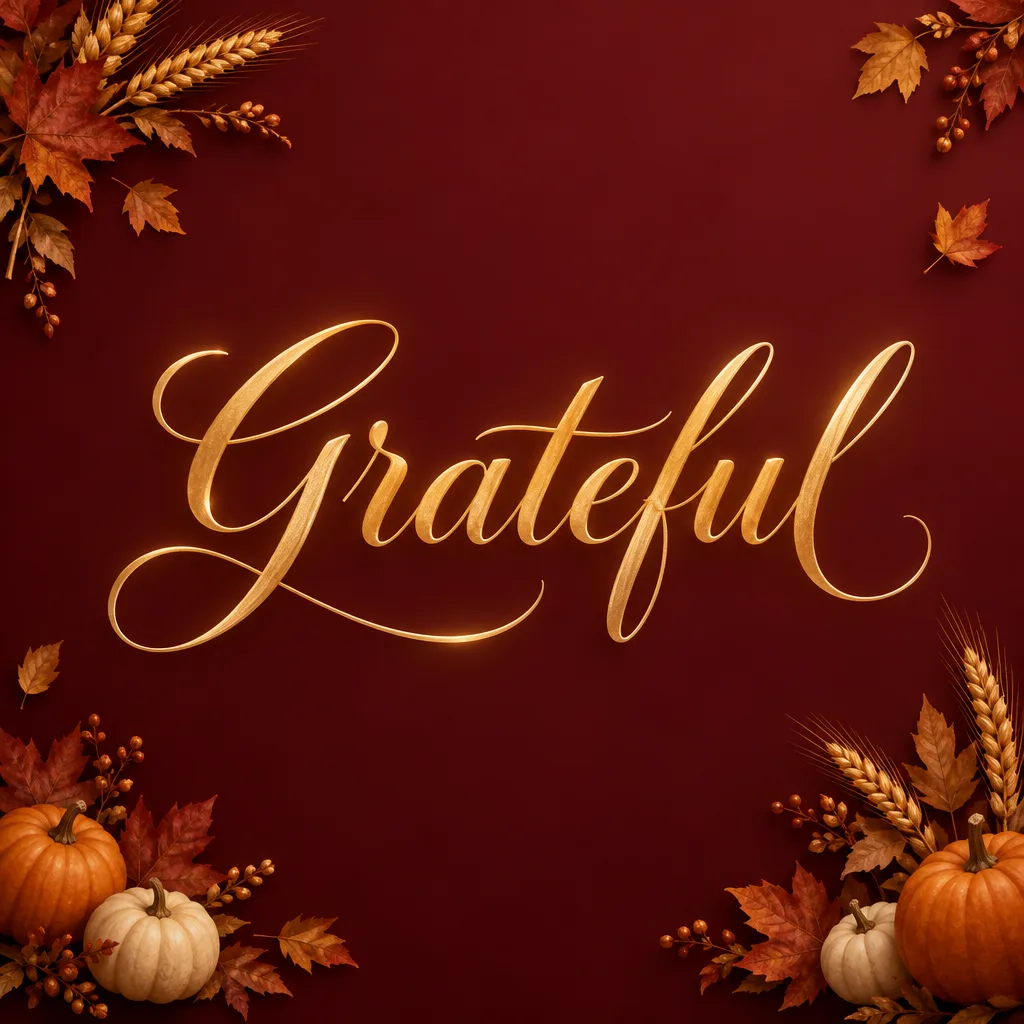
“Grateful” gold script
The word “Grateful” in large elegant gold script lettering centred on a deep burgundy background, small autumn leaves, wheat stalks and tiny pumpkins framing the corners, soft warm glow, minimal and elegant.
 Logos & letteringGPT Image 2.5 Sunburst1:11K
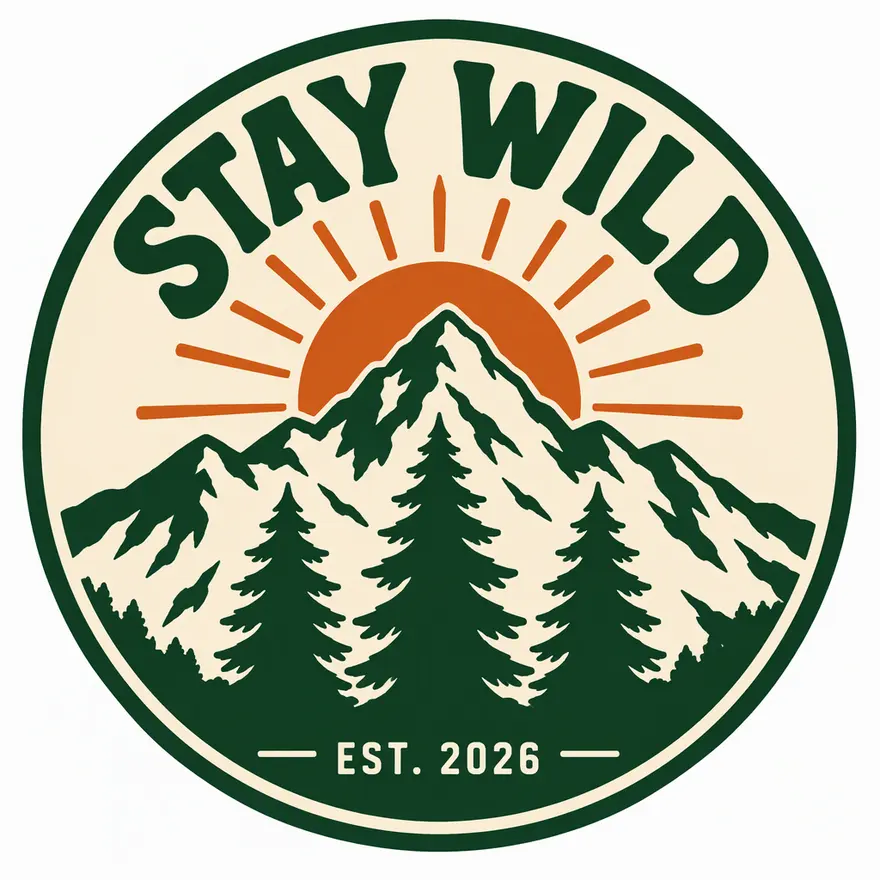
“STAY WILD” badge
T-shirt print design, isolated on a plain white background: a circular outdoor badge with three pine trees in front of a mountain peak and a rising sun, bold hand-lettered text "STAY WILD" arched across the top and small text "EST. 2026" at the bottom. Flat vector illustration, thick clean outlines, only three colours (forest green, burnt orange, cream), screen-print ready, no gradients, no shirt, no mockup, no other text.
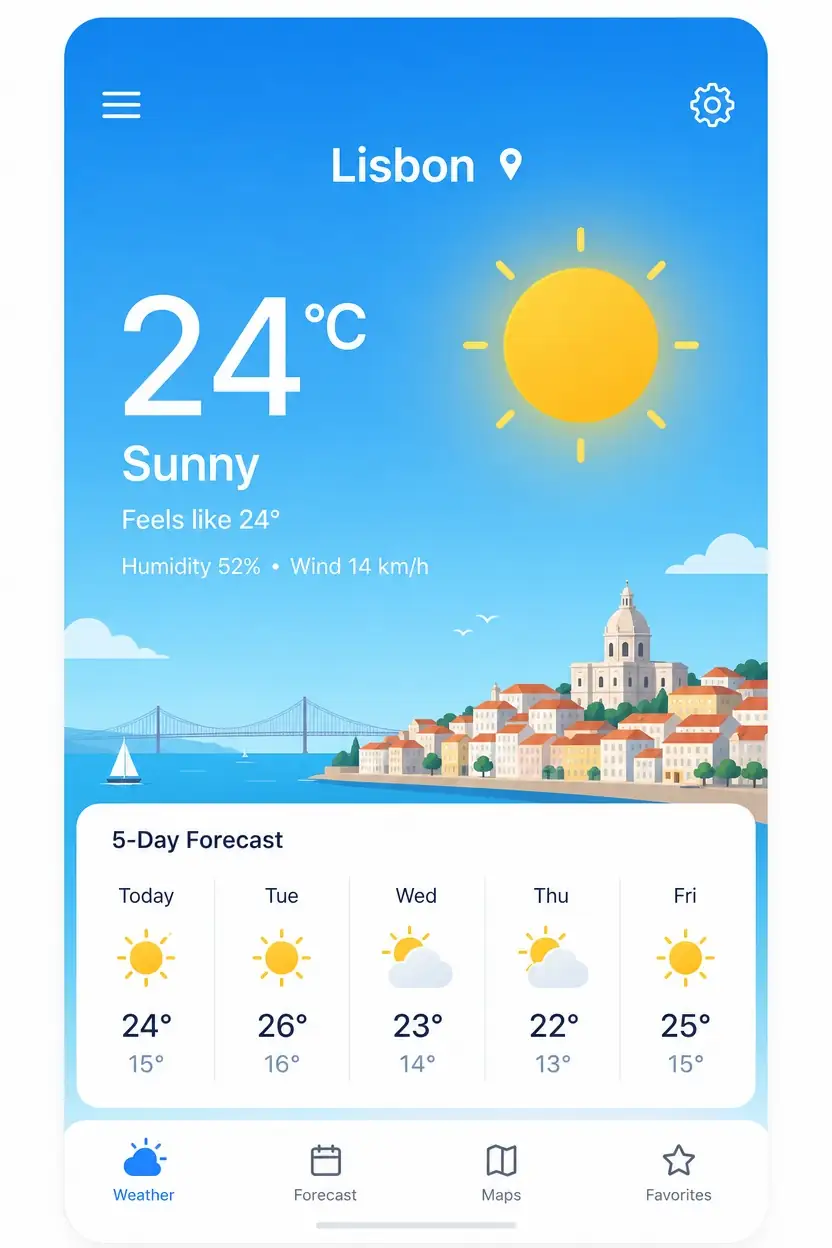
 UI & thumbnailsGPT Image 22:31K · medium
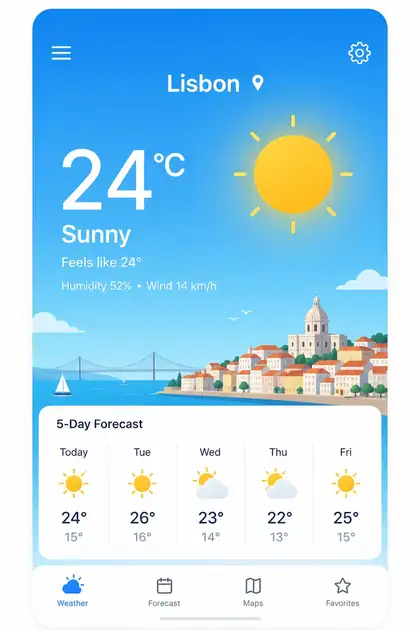
App screen mock-up
Clean mobile app screen mockup for a weather app showing 'Lisbon 24°C Sunny' and a 5-day forecast, flat design
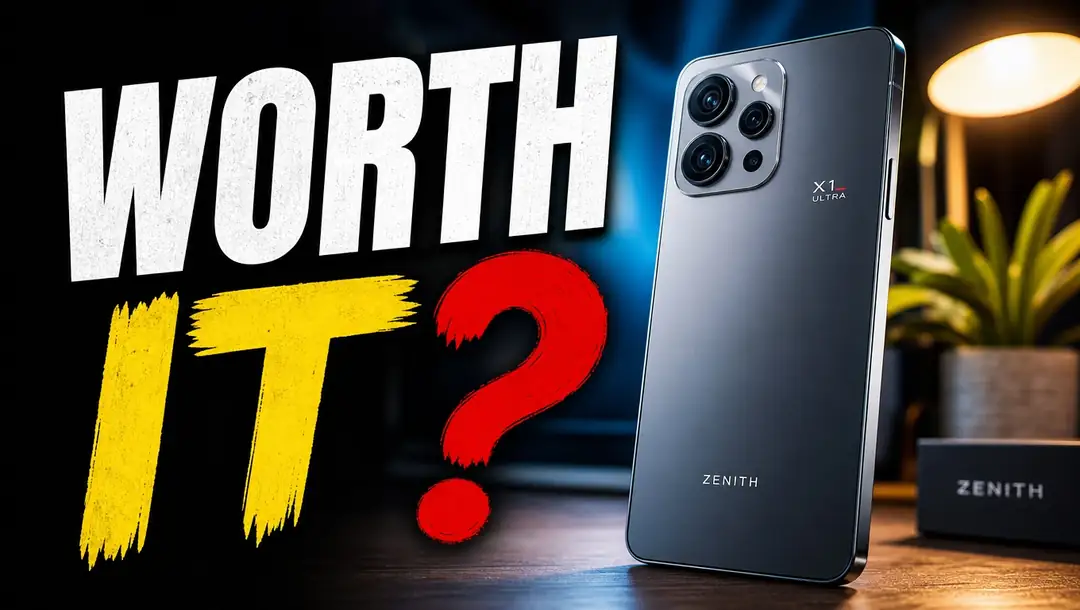
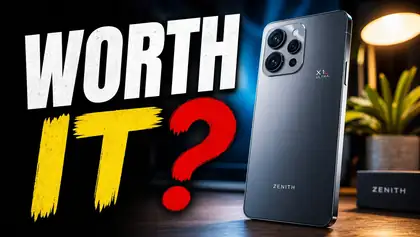 UI & thumbnailsGPT Image 216:91K
Tech review thumbnail
YouTube thumbnail: a sleek fictional smartphone on a desk with bold text 'WORTH IT?' and a red question mark, dramatic lighting
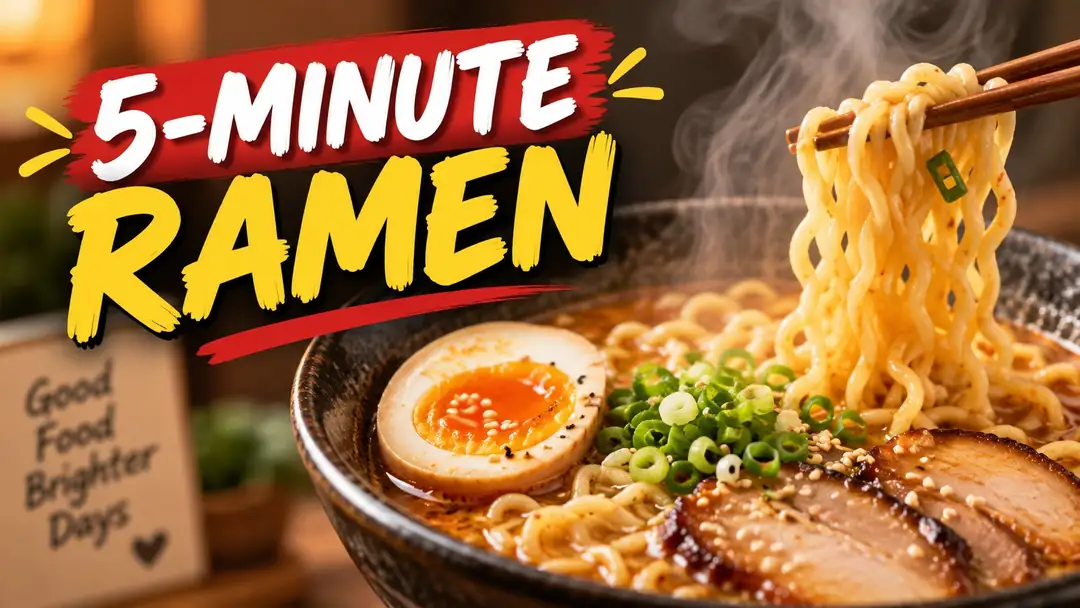
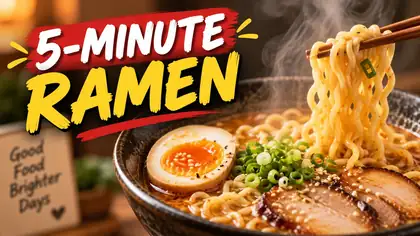 UI & thumbnailsGPT Image 216:91K
Cooking thumbnail
YouTube thumbnail: a steaming bowl of ramen close-up with bold text '5-MINUTE RAMEN', warm colors, shallow depth of field
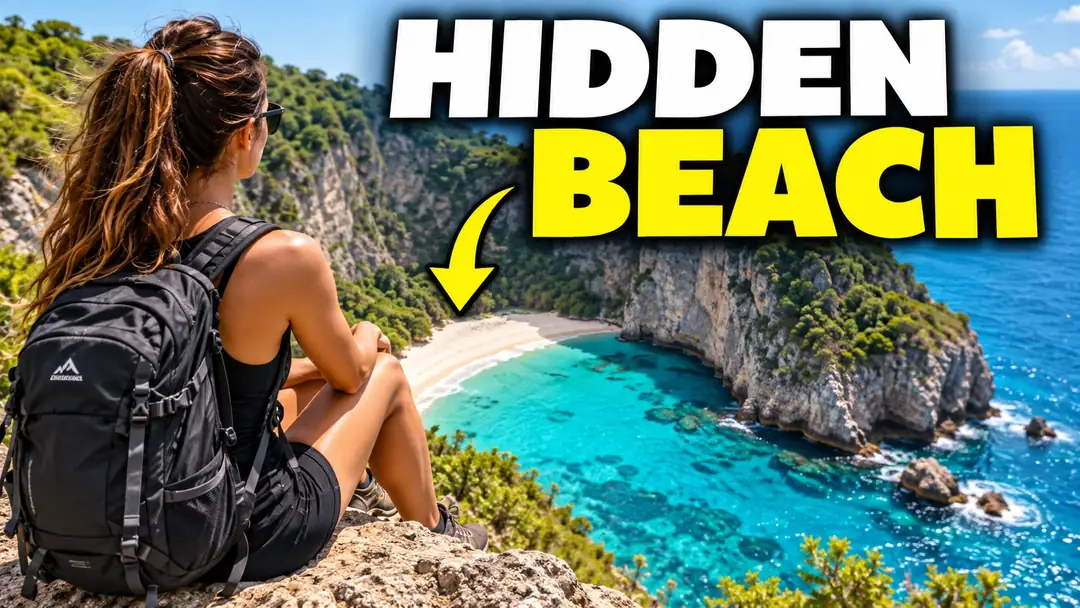
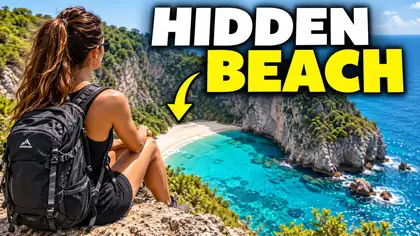 UI & thumbnailsGPT Image 216:91K
Travel vlog thumbnail
YouTube thumbnail: a woman with a backpack on a cliff above turquoise sea with bold text 'HIDDEN BEACH' and a yellow arrow
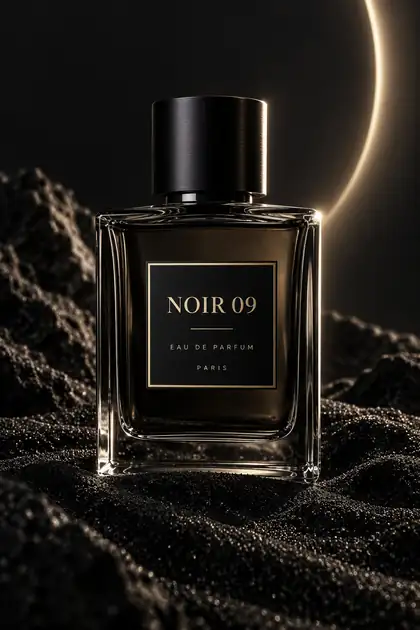 Product shotsGPT Image 22:31K · medium
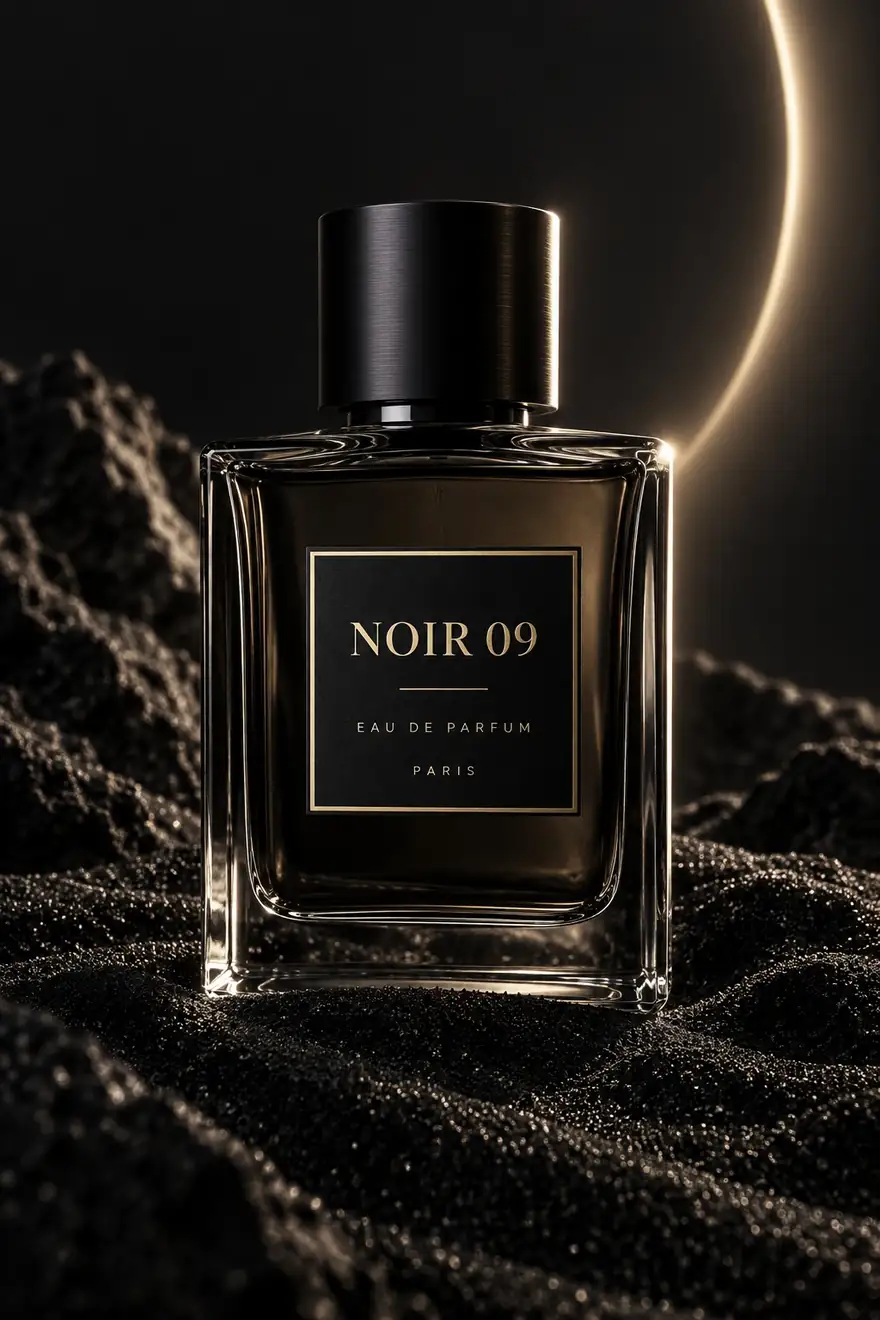
Perfume product shot
Product shot of a glass perfume bottle with a label reading 'NOIR 09' on black sand with dramatic rim light
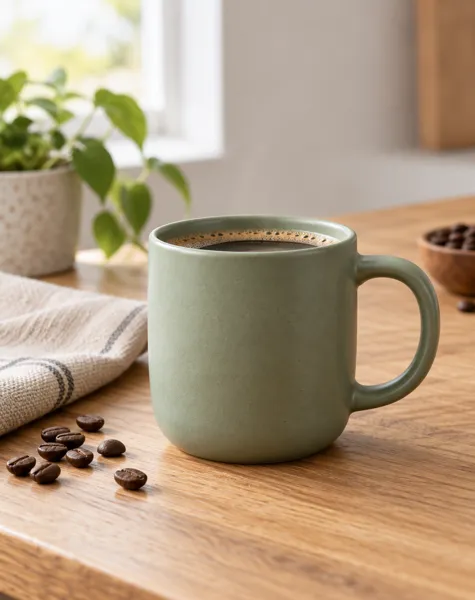 Product shotsGPT Image 2.5 Sunburst4:51K
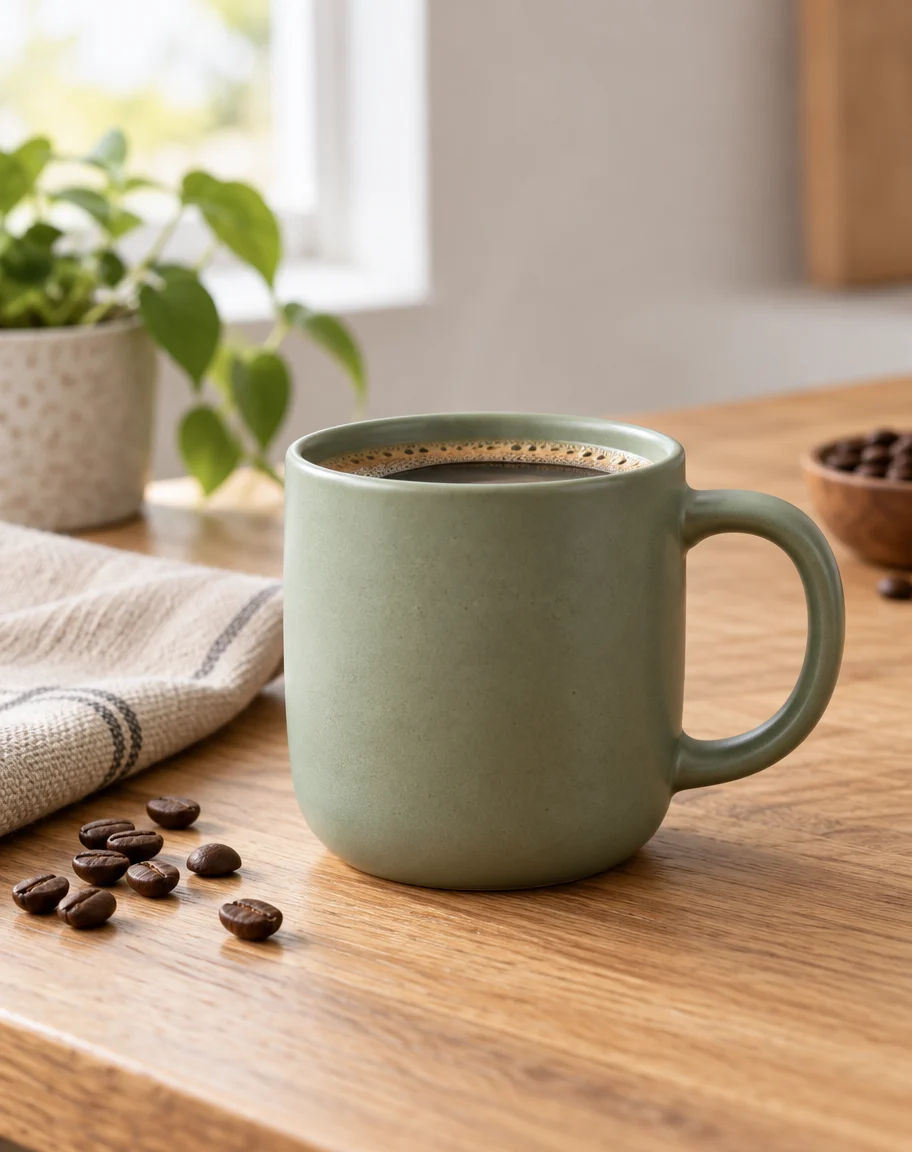
Ceramic mug product photo
Studio product photo of a matte sage-green ceramic coffee mug on a light oak table, soft window light from the left, a few roasted coffee beans and a folded linen napkin beside it, shallow depth of field, clean e-commerce hero shot, no text.
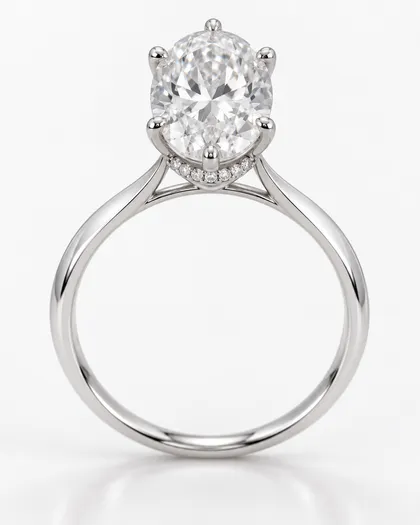 Product shotsGPT Image 2.5 Sunburst4:51K
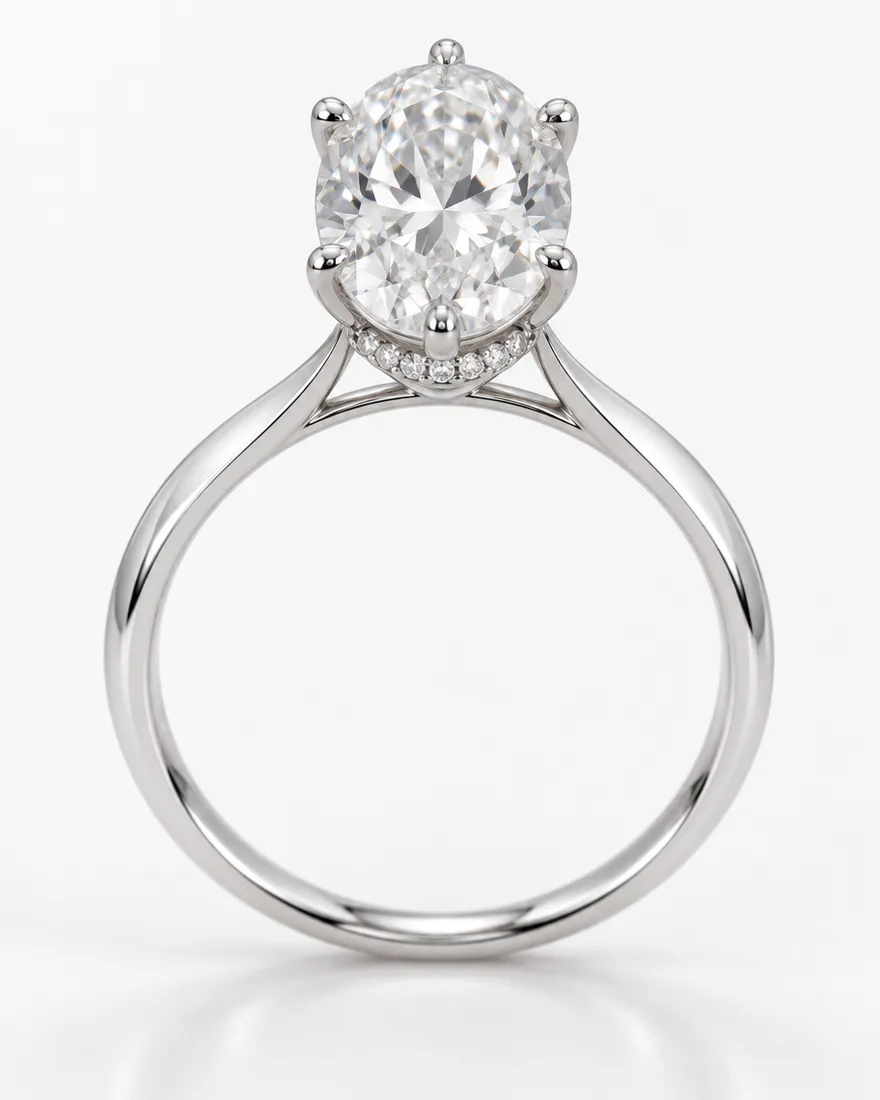
Engagement ring
Studio product photo of an engagement ring concept: oval-cut lab diamond centre stone in a six-prong platinum setting, a hidden halo of tiny pavé diamonds under the stone, thin knife-edge platinum band, ring standing upright on a seamless soft white background, soft reflections, macro jewelry catalogue photography, sharp focus on the stone
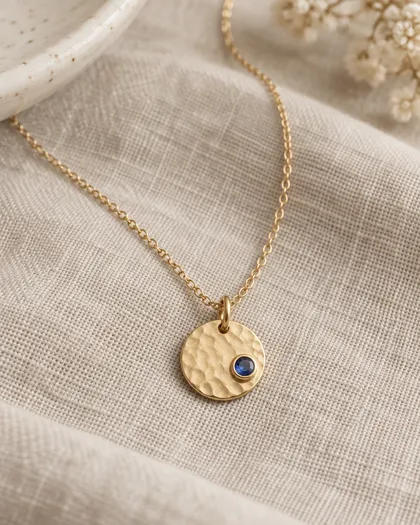 Product shotsGPT Image 2.5 Sunburst4:51K
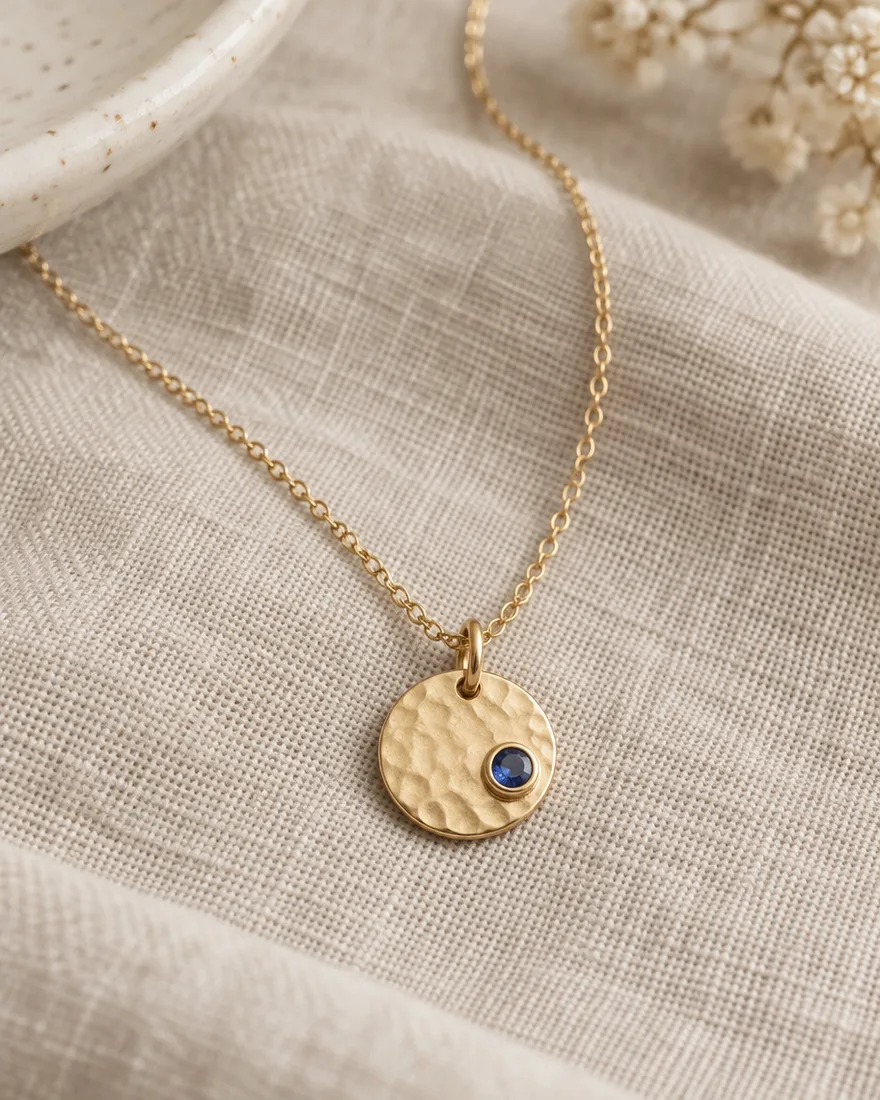
Pendant necklace
Product photo of a minimalist pendant necklace: a small hammered 14k yellow gold disc pendant with a single bezel-set sapphire, on a fine cable chain, laid in a soft curve on beige linen, natural window light, shallow depth of field, e-commerce listing photo
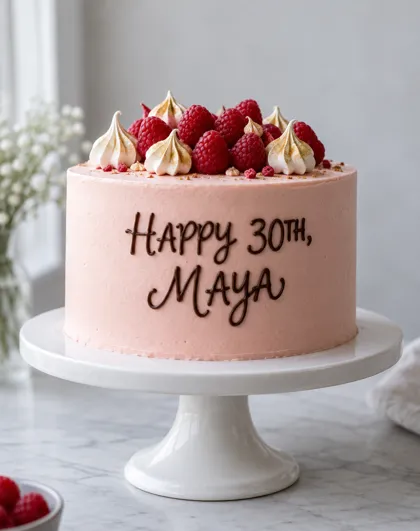 Product shotsGPT Image 2.5 Sunburst4:51K
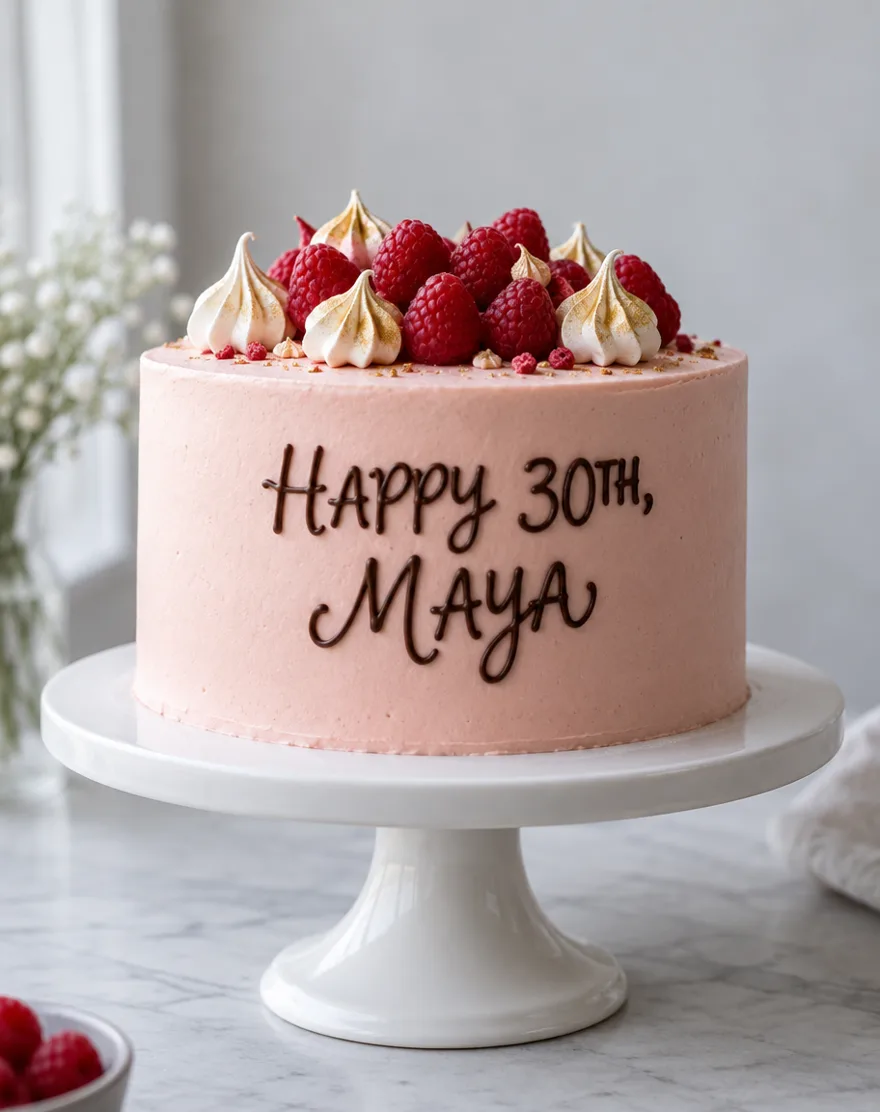
Cake with piped lettering
Professional bakery photograph of a single-tier round birthday cake on a white ceramic cake stand. Smooth blush-pink buttercream, the words "HAPPY 30TH, MAYA" hand-piped across the front in neat dark chocolate cursive lettering, a small crown of fresh raspberries and gold-dusted meringue kisses on top. Soft daylight from a window, light grey background, shallow depth of field, eye-level side view. Photorealistic, no people, no other text.
 Product shotsGPT Image 2.5 Sunburst4:51K
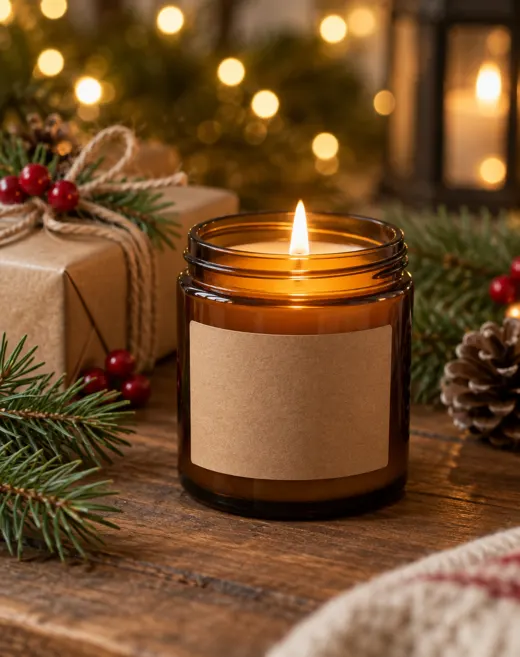
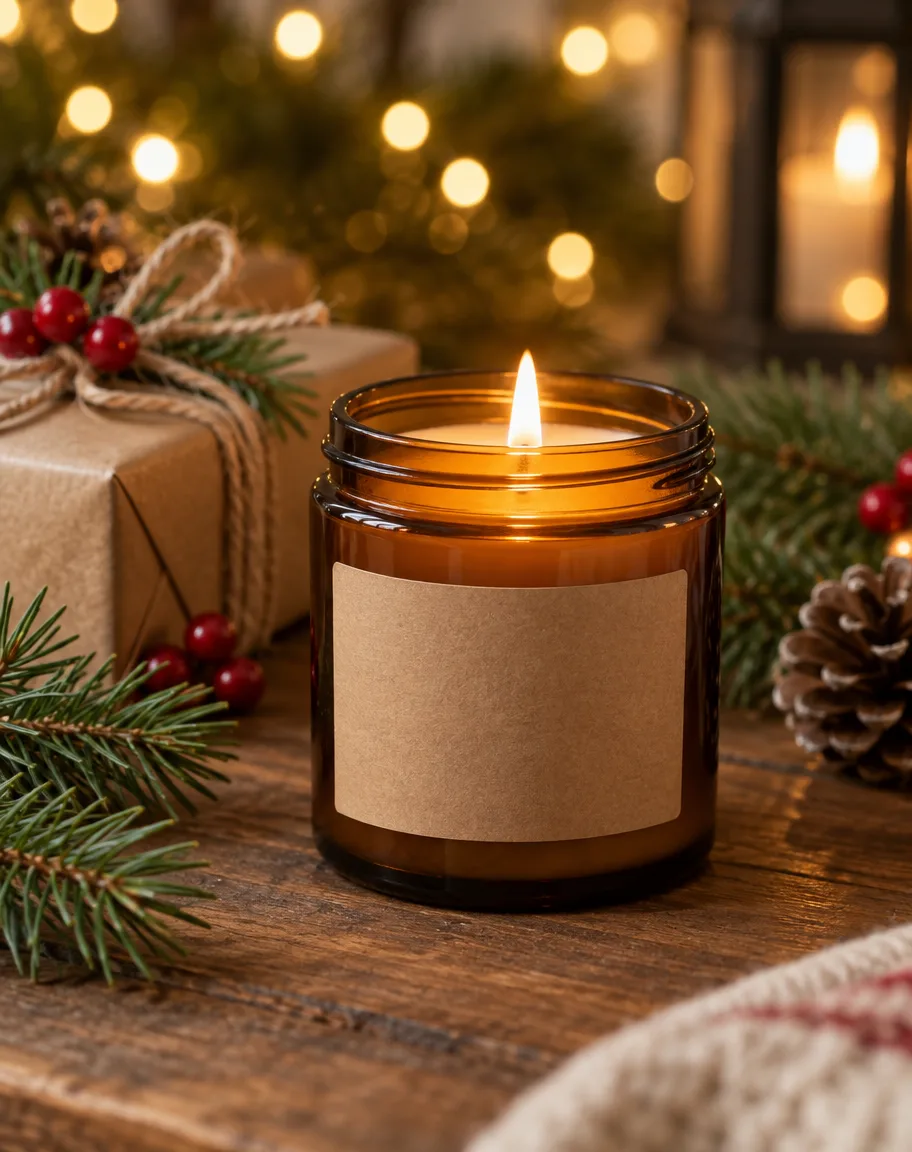
Holiday candle product shot
Holiday product photo of a plain amber glass candle jar with a blank kraft paper label, on a wooden table with pine sprigs, red berries, a small wrapped gift with twine and soft golden fairy-light bokeh behind. 85mm lens, warm evening light, real product photography, no text, no brand names.
 PhotorealGPT Image 22:31K · medium
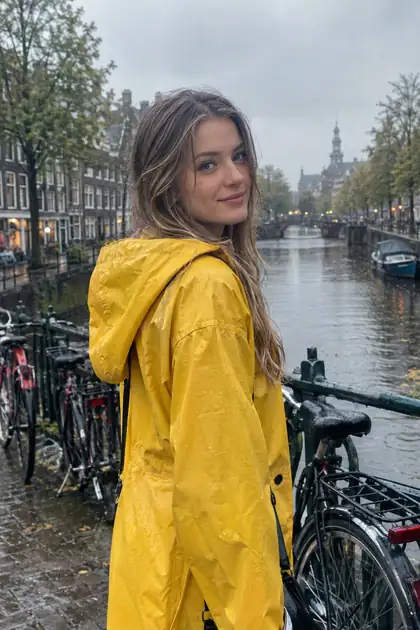
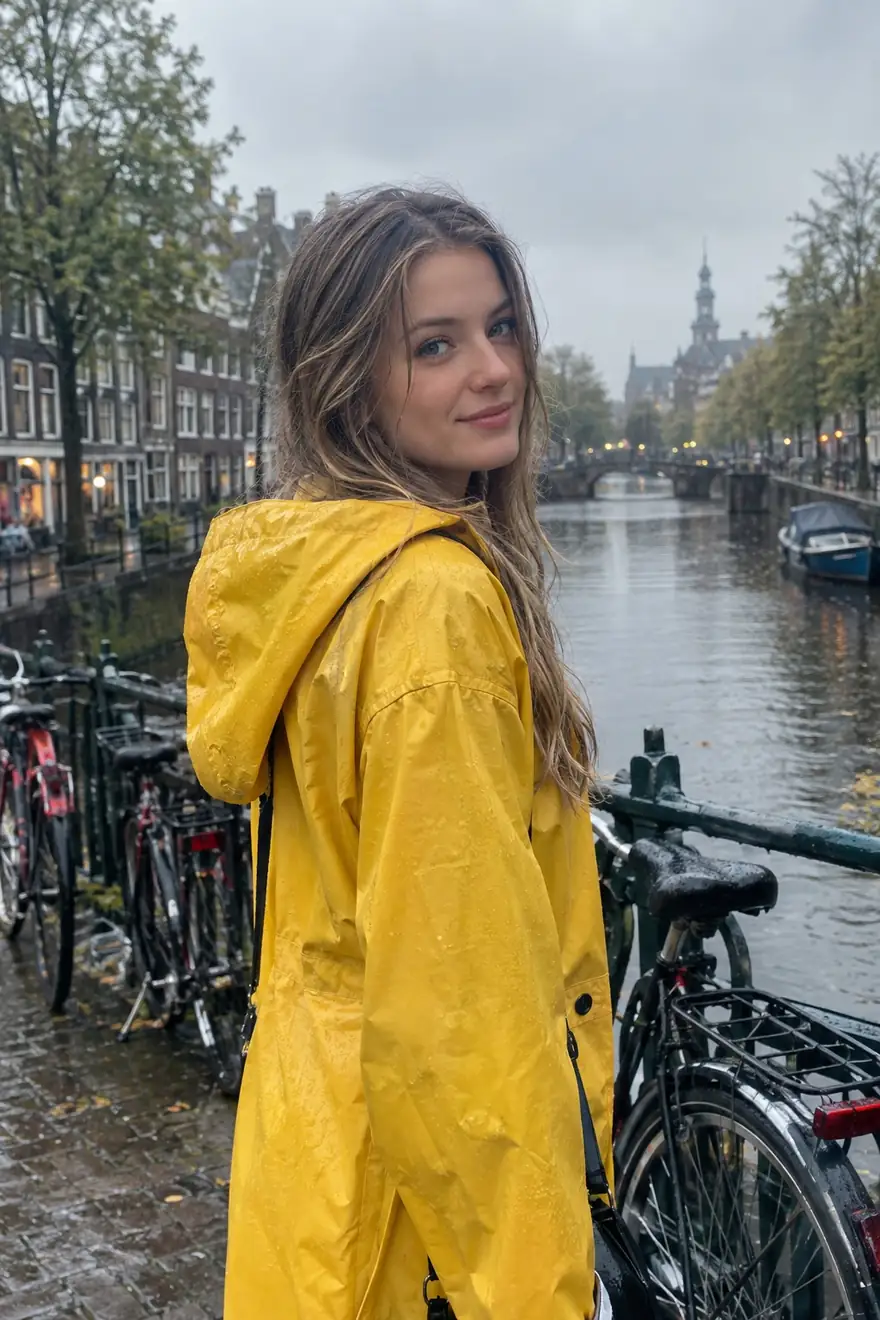
Rainy canal portrait
Photorealistic portrait of a woman in a yellow raincoat on a rainy canal bridge with bicycles, soft overcast light, 35mm
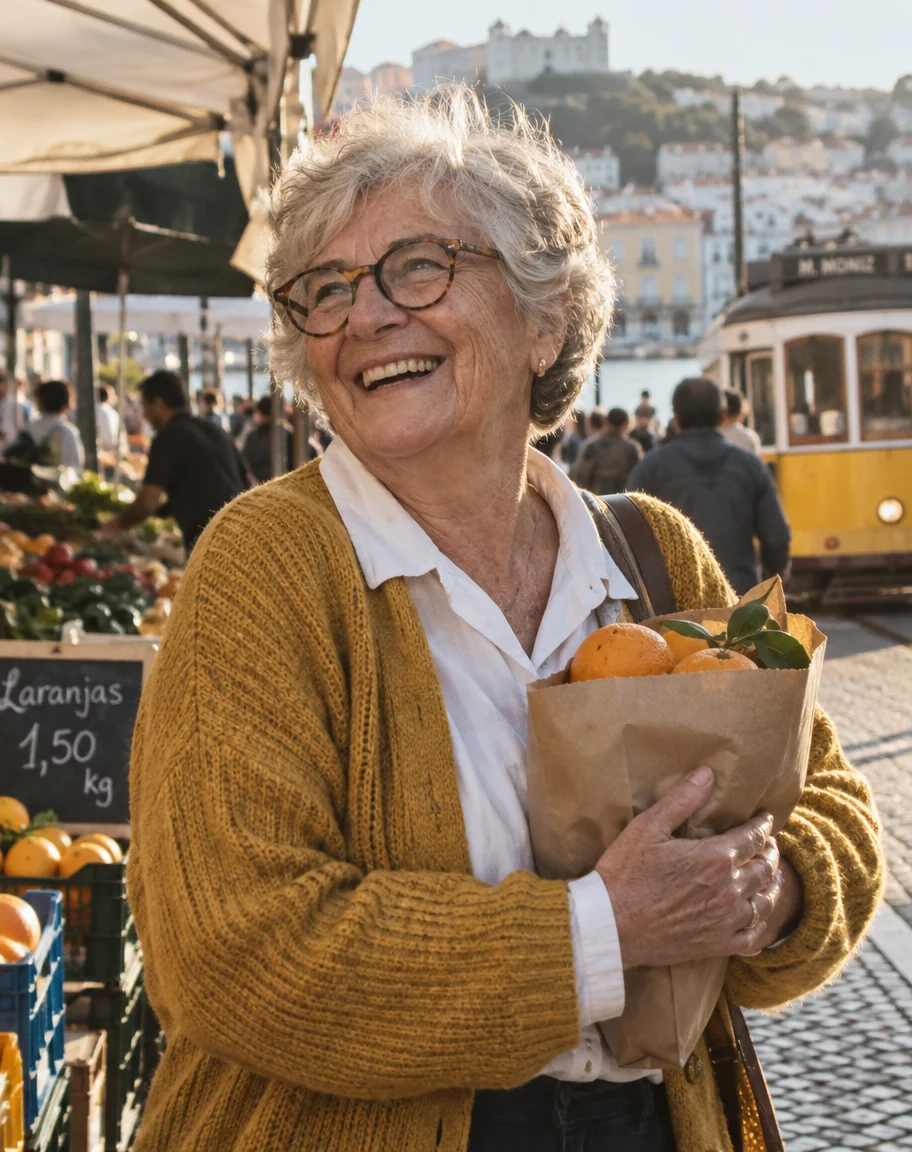
 PhotorealGPT Image 2.5 Sunburst4:51K
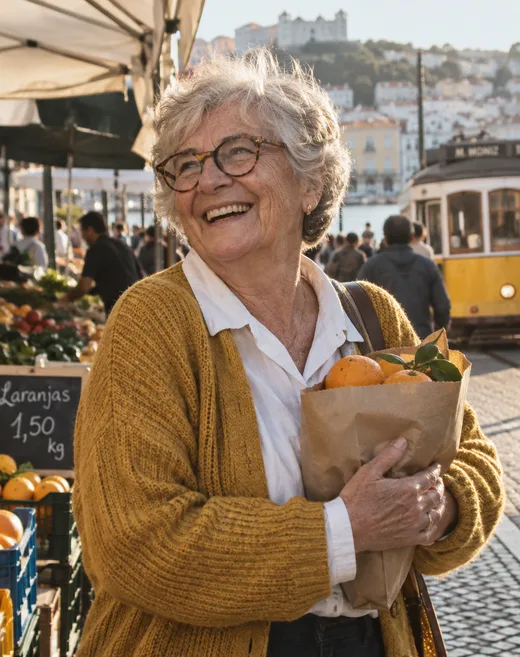
Market shopper, 70s
Candid street portrait photo of a fictional woman in her early 70s with short silver hair, deep laugh lines and round tortoiseshell glasses, wearing a mustard knit cardigan over a white collared shirt, laughing while holding a paper bag of oranges at an outdoor market in Lisbon. 85mm lens, late-afternoon sun, shallow depth of field, natural skin texture with wrinkles and freckles, slight film grain. Real photograph, not a painting.
 PhotorealGPT Image 2.5 Sunburst4:51K
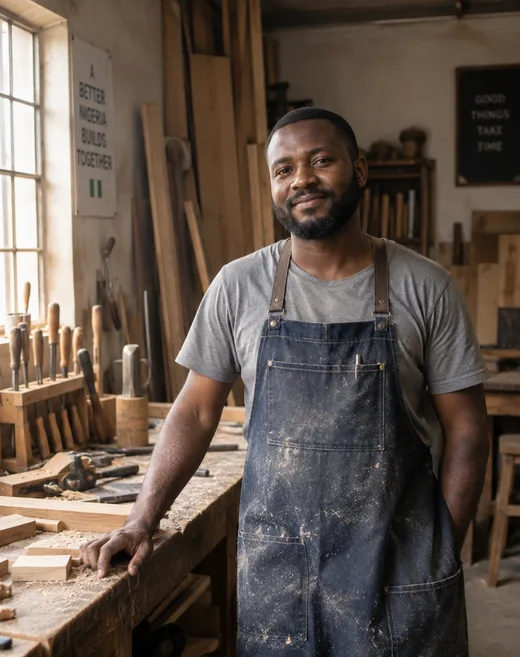
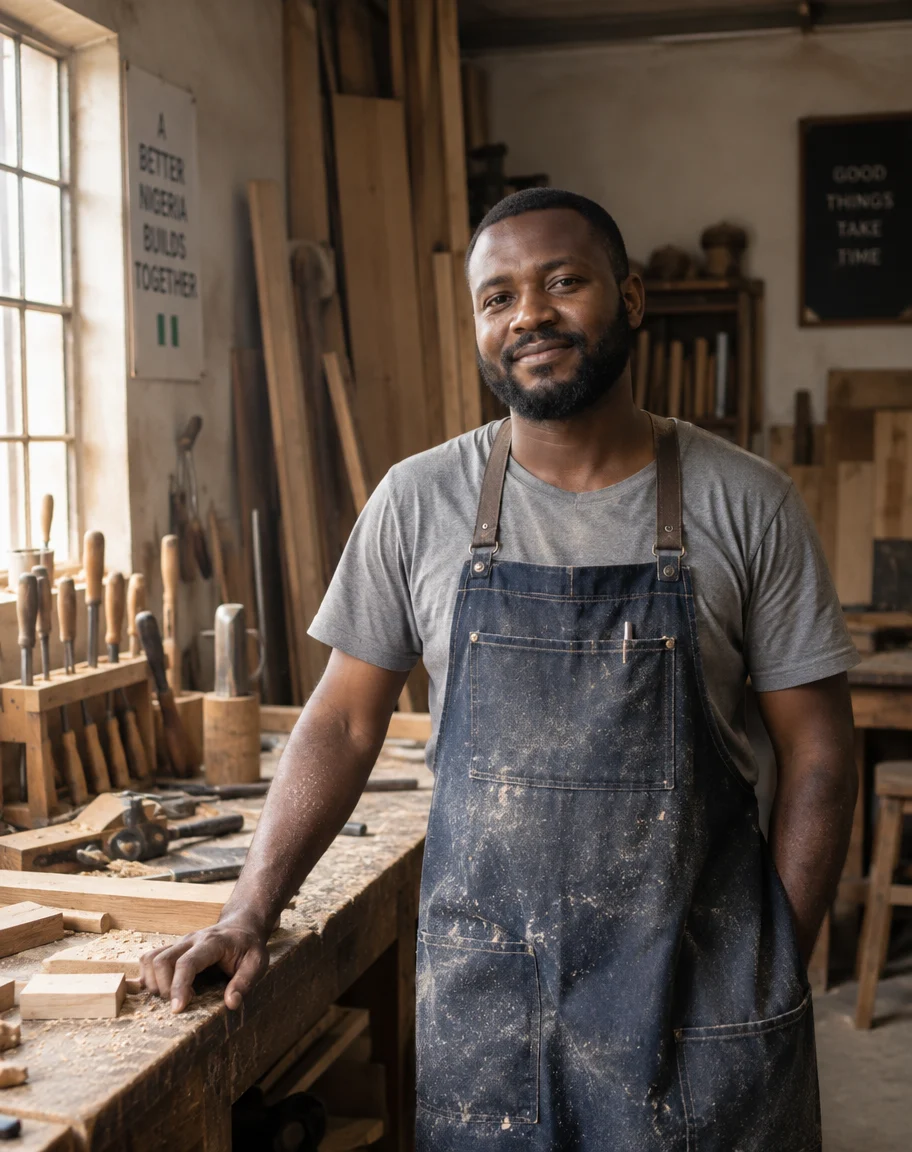
Woodworker, 30s
Environmental portrait photo of a fictional Nigerian man in his 30s with a short beard and a warm half-smile, wearing a denim work apron over a grey t-shirt, standing in his woodworking workshop with sawdust in the air, chisels and planks behind him. 35mm lens, warm window light from the left, natural skin texture, real fabric detail. Documentary photography, real photograph.
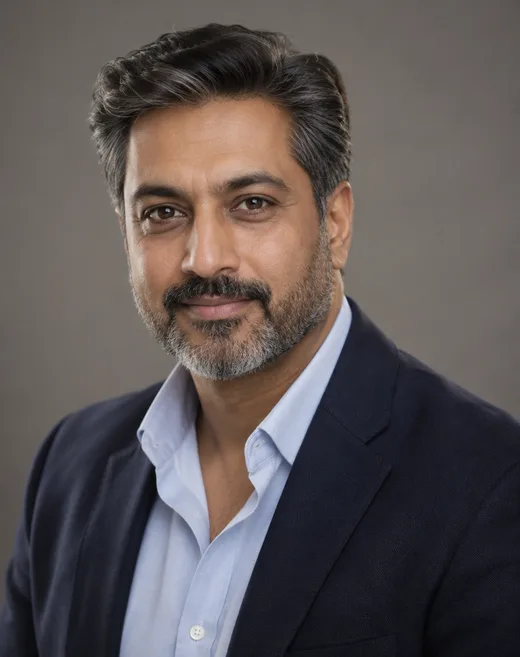 PhotorealGPT Image 2.5 Sunburst4:51K
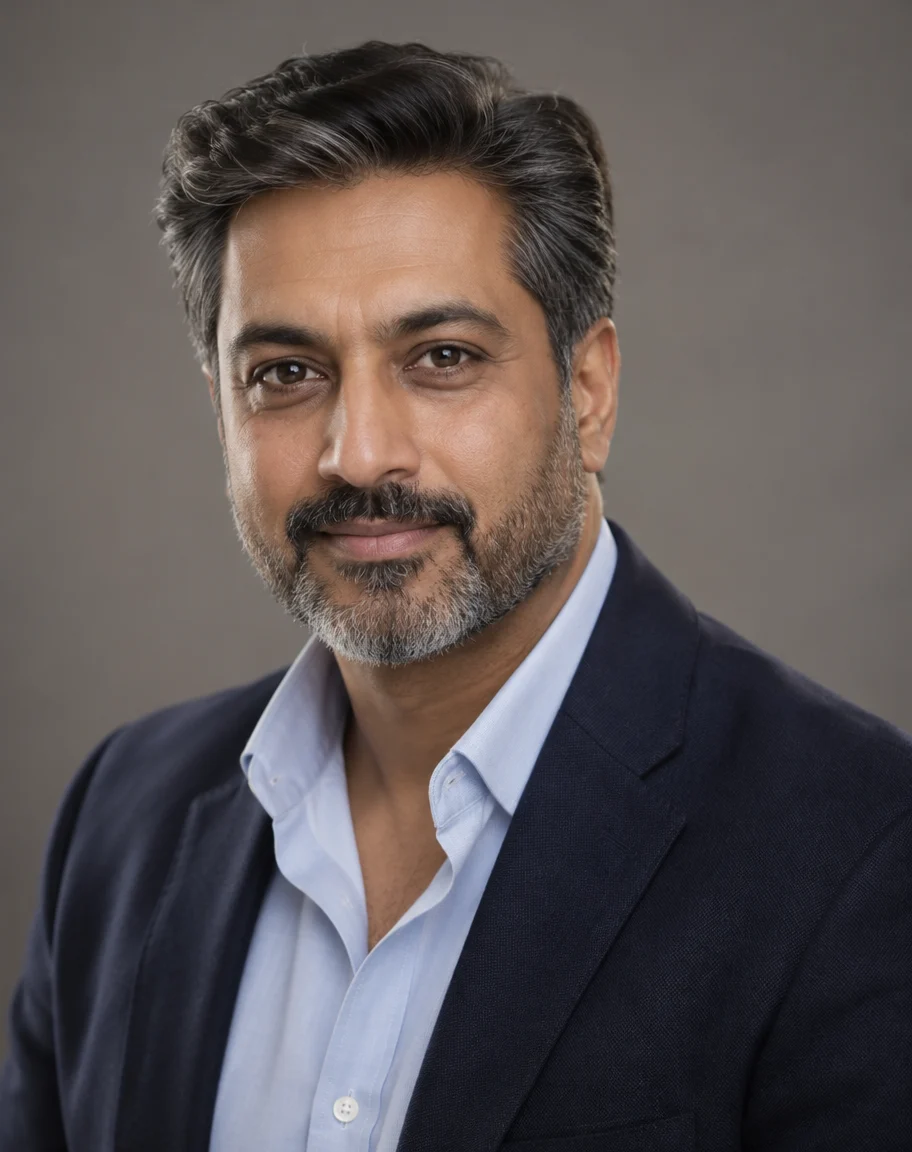
Studio headshot, 40s
Studio headshot photo of a fictional South Asian man in his 40s with salt-and-pepper hair and a neatly trimmed beard, wearing a navy blazer over a light blue open-collar shirt, confident friendly expression, plain warm-grey backdrop. 85mm lens, soft key light with a gentle rim light, natural skin pores, sharp eyes. Professional corporate portrait, real photograph.
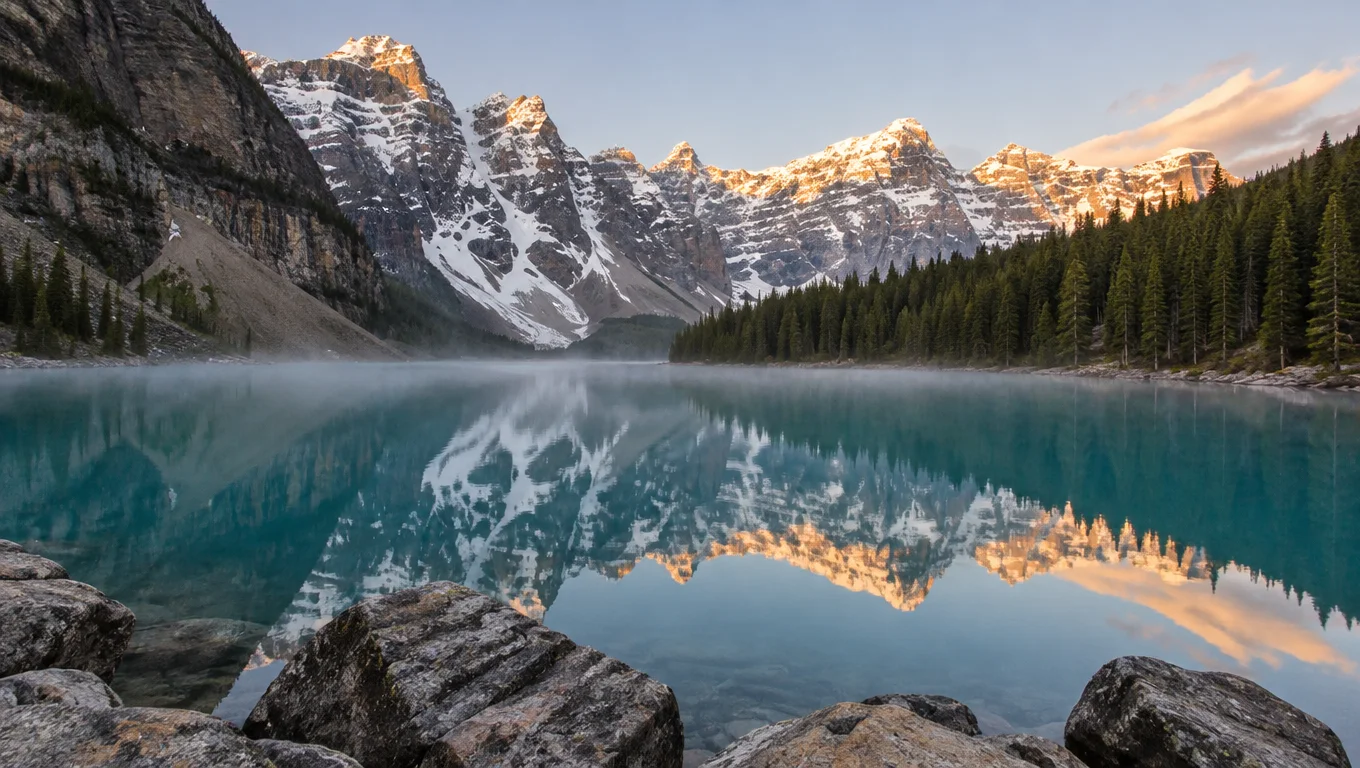
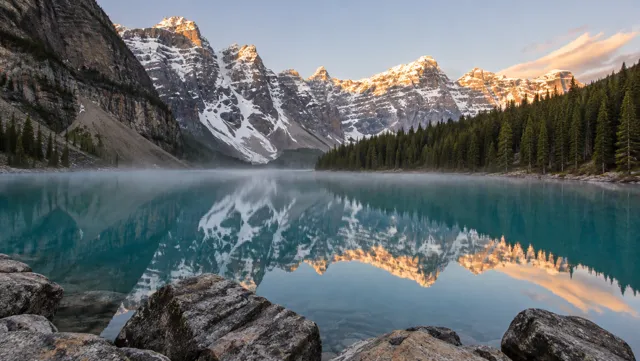 PhotorealGPT Image 2.5 Sunburst16:91K
Photoreal mountain lake
Photorealistic landscape photograph of a glacial lake in the Canadian Rockies at sunrise: turquoise water with mirror reflections of snow-capped peaks, a pine forest along the shore, soft golden light on the summits, thin morning mist over the water, a few rocks in the foreground. Shot on a full-frame camera with a 24mm lens, f/11, sharp front to back, natural colours. No people, no text.
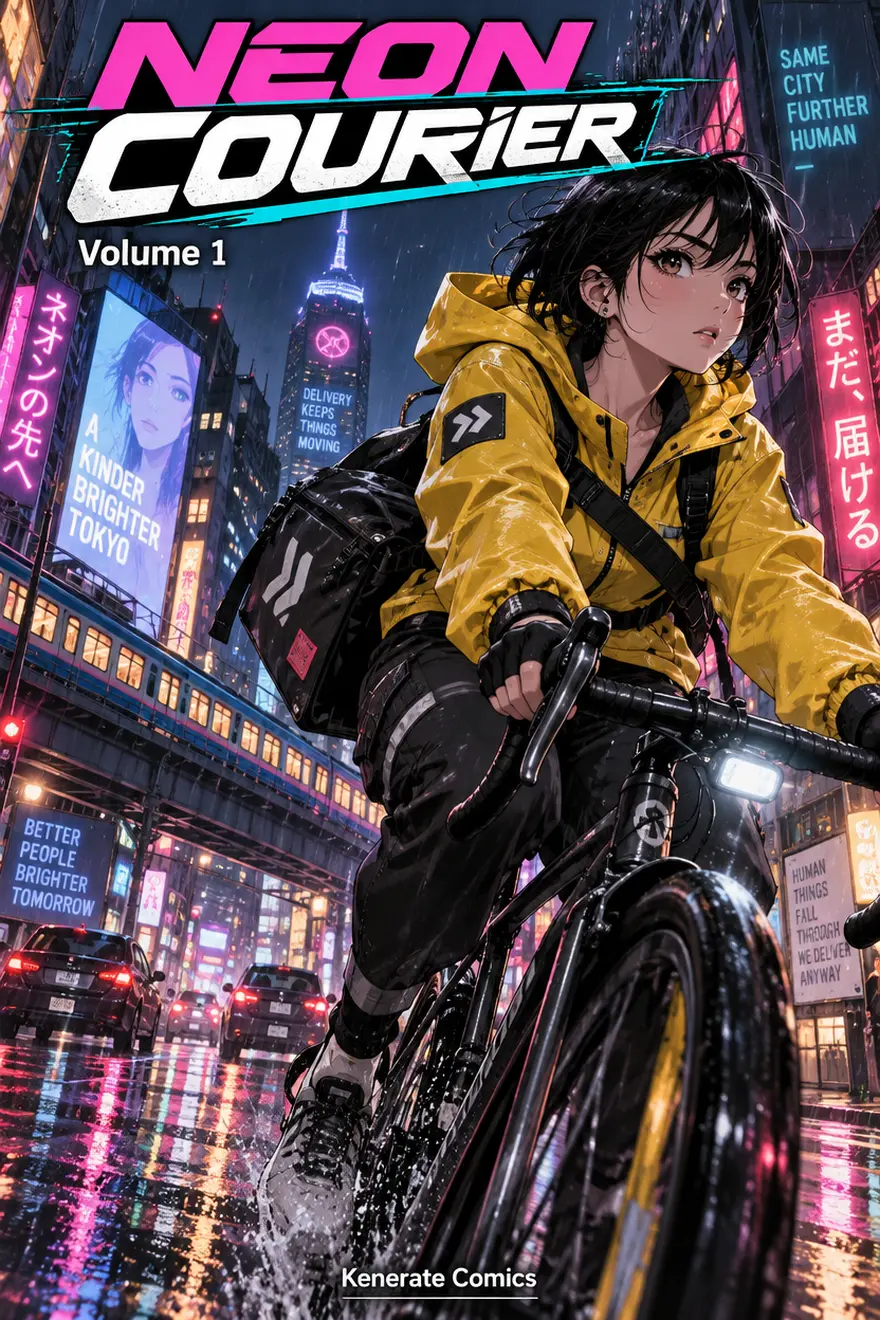
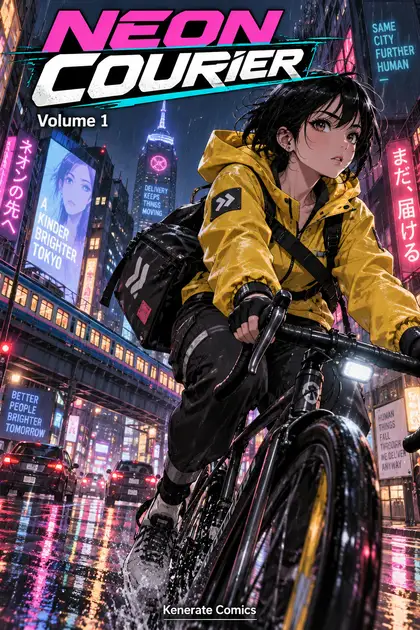 Anime & comicsGPT Image 2.5 Sunburst2:31K
Manga volume cover
A full-colour manga volume cover. Title at the top in bold stylised letters: "NEON COURIER". Below the title, small text: "Volume 1". An adult courier girl with short black hair, a yellow rain jacket and a messenger bag rides a bicycle through a rainy neon-lit city street at night, dynamic angle, vibrant anime colours, reflections on wet asphalt. Small text at the bottom: "Kenerate Comics". Original character, crisp lettering.
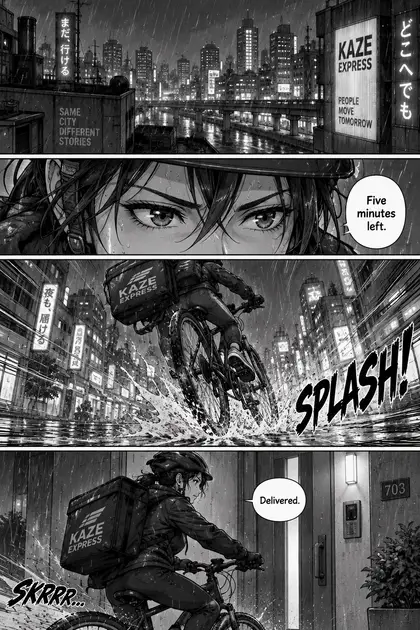 Anime & comicsGPT Image 2.5 Sunburst2:31K
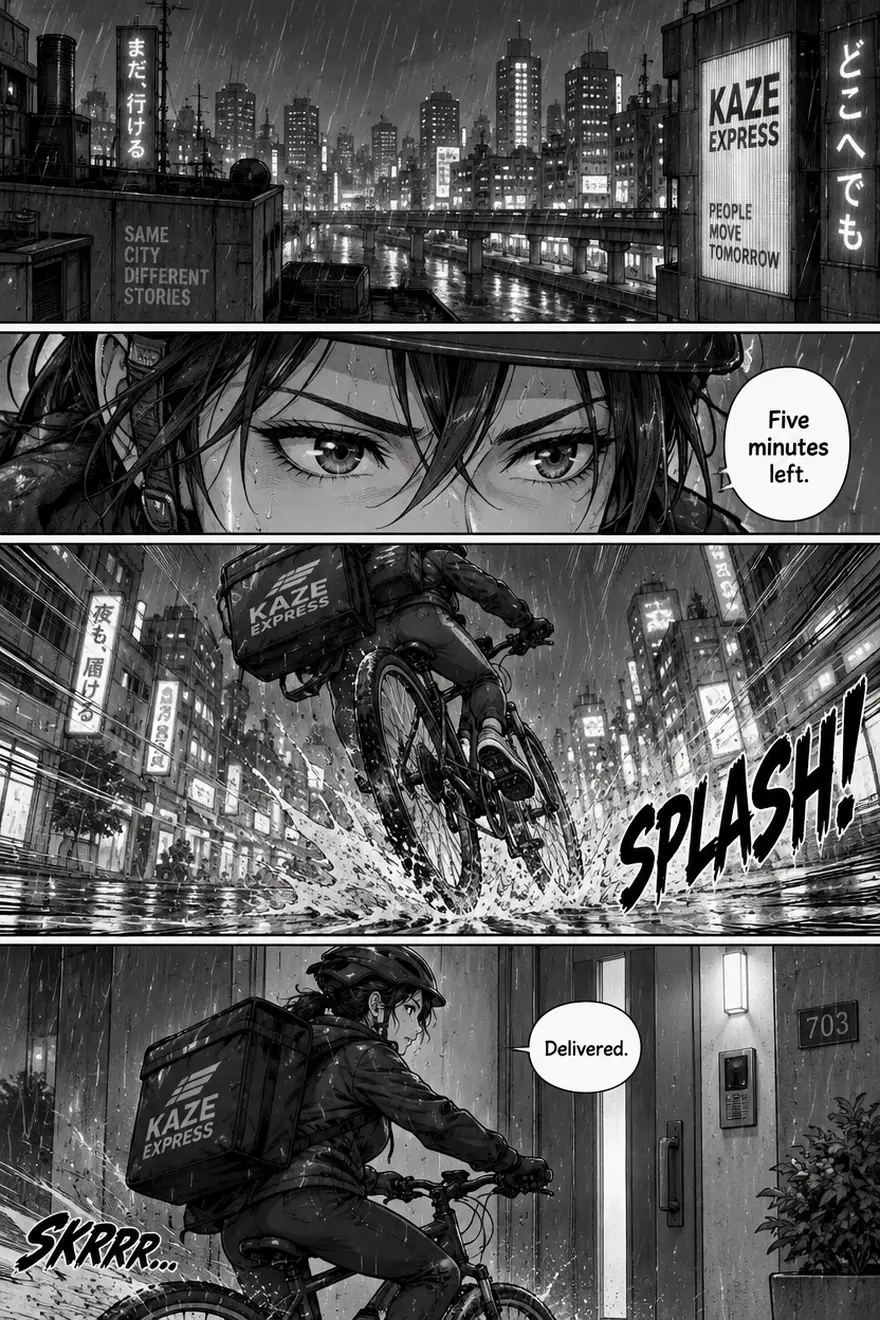
Four-panel manga page
A black-and-white manga page with four panels in a classic Japanese manga layout, read right to left. Screentone shading, clean ink lines. Story: an adult courier girl on a bicycle races through a rainy neon city at night. Panel 1: wide shot of rain over rooftops. Panel 2: close-up of her determined eyes, speech bubble: "Five minutes left." Panel 3: dynamic speed-lines shot of the bike jumping a puddle, sound effect "SPLASH!". Panel 4: she skids to a stop at a door, small speech bubble: "Delivered." Original characters, all text in English, crisp lettering.
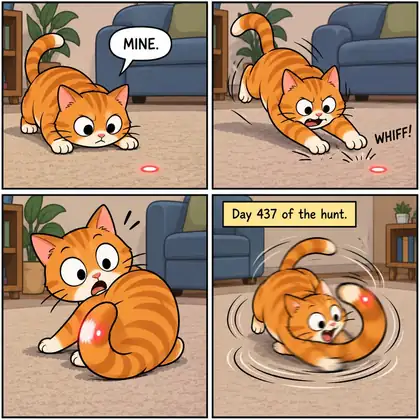 Anime & comicsGPT Image 2.5 Sunburst1:11K
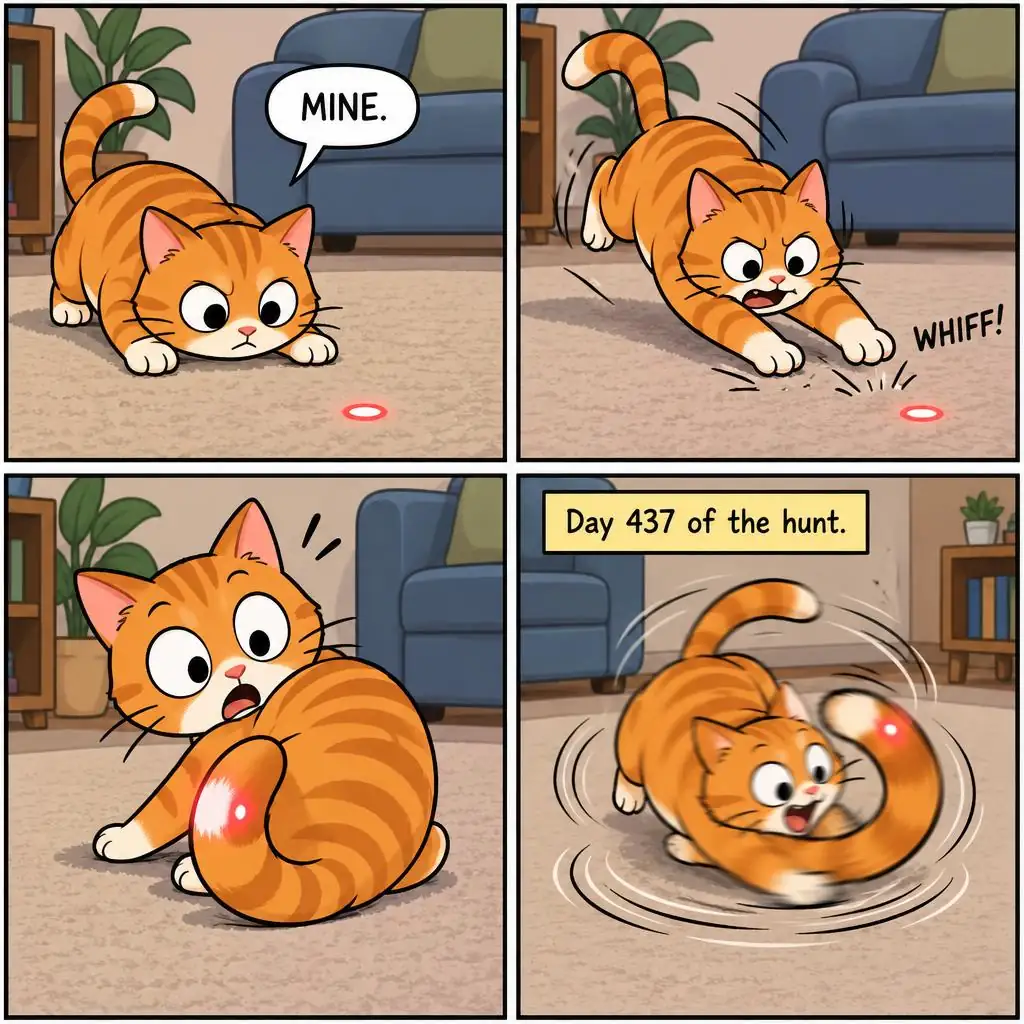
Four-panel cat strip
Four-panel comic strip in a 2x2 grid, clean cartoon style, bright colours. Panel 1: an orange cat stares at a red laser dot on the floor, speech bubble 'MINE.' Panel 2: the cat pounces and misses. Panel 3: the dot is on the cat's own tail, cat looks shocked. Panel 4: the cat chases its tail in circles, caption box 'Day 437 of the hunt.'
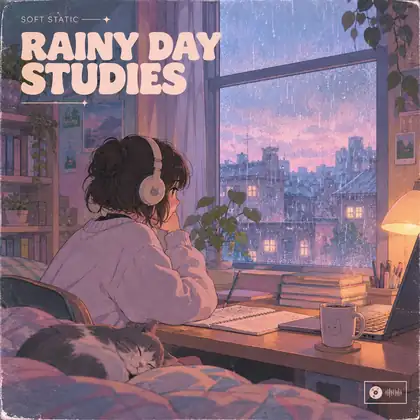 Anime & comicsGPT Image 21:11K
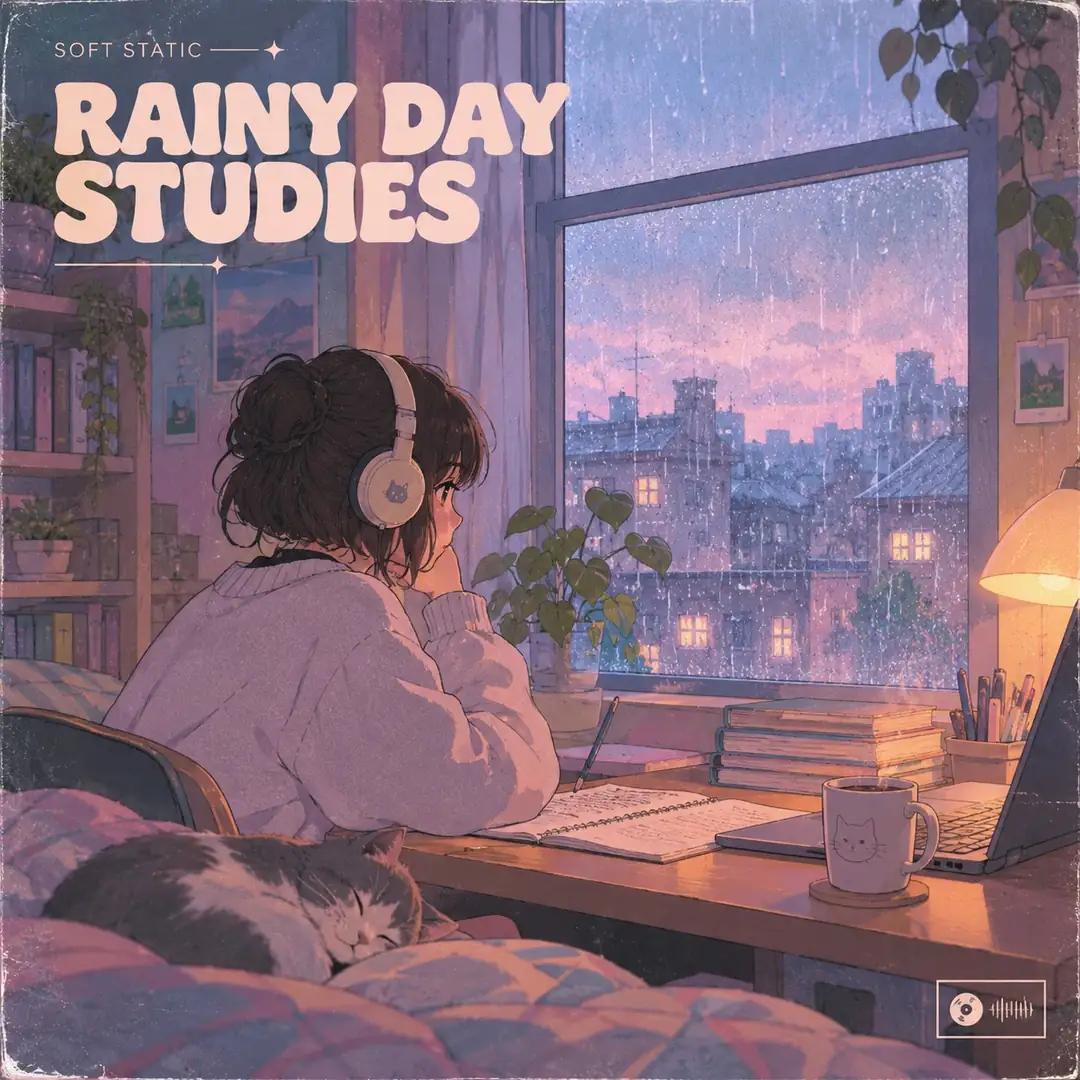
Lo-fi anime album cover
Lo-fi album cover titled 'RAINY DAY STUDIES' by the fictional 'SOFT STATIC', anime-style room with rain on the window, pastel colours
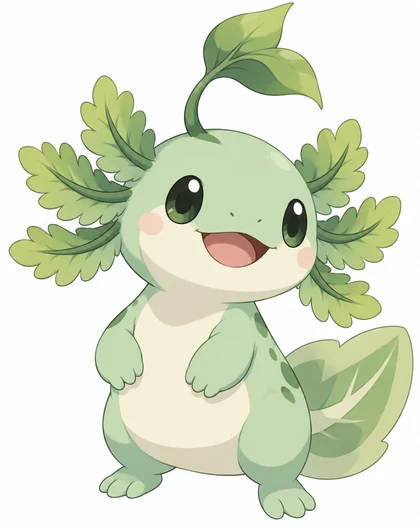 Anime & comicsGPT Image 2.5 Sunburst4:51K
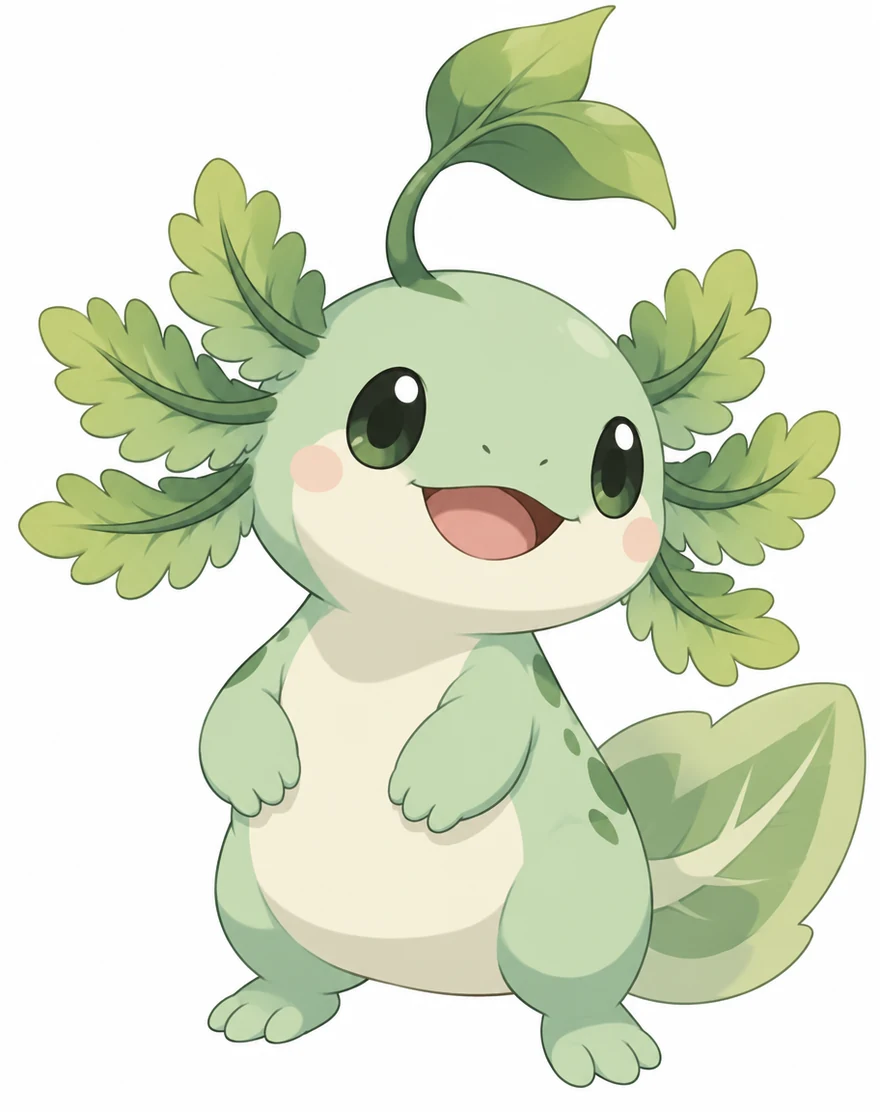
Anime creature design
Original creature design for a monster-collector anime game: a small grass-type creature based on an axolotl, chubby and friendly, mint-green body with cream belly, leafy frilled gills like fern fronds, a sprouting leaf on its head, big dark eyes, standing pose. Clean cel-shaded anime creature art with soft outlines, plain white background, no text.
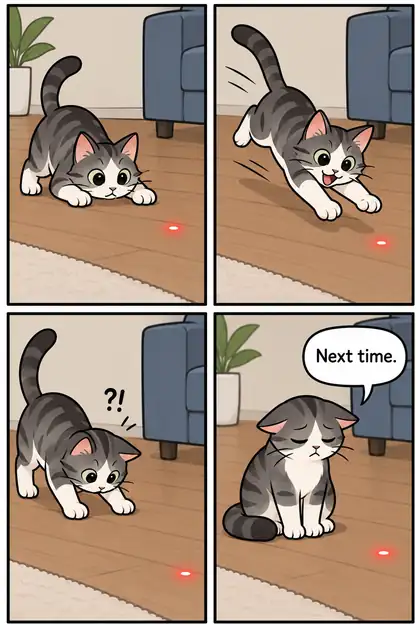 Anime & comicsGPT Image 22:31K · medium
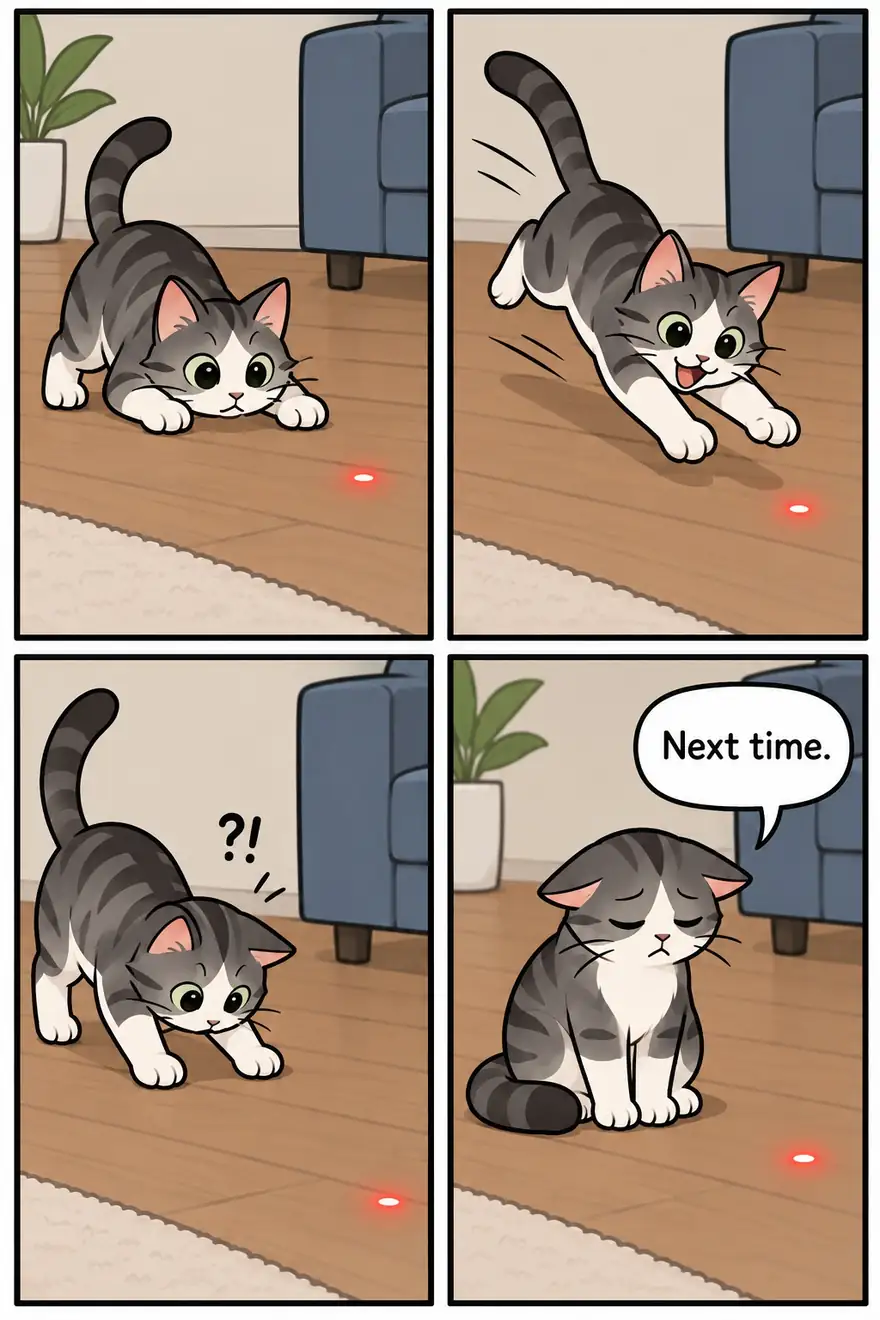
Four-panel comic
Four-panel comic strip of a cat trying to catch a red laser dot, clean line art, a speech bubble in the last panel saying 'Next time.'
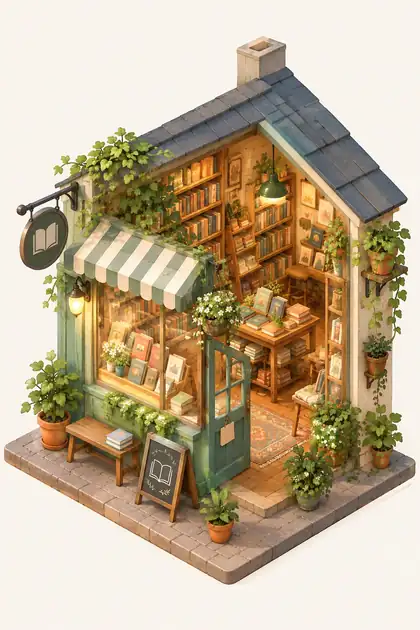 Illustration & 3DGPT Image 22:31K · medium
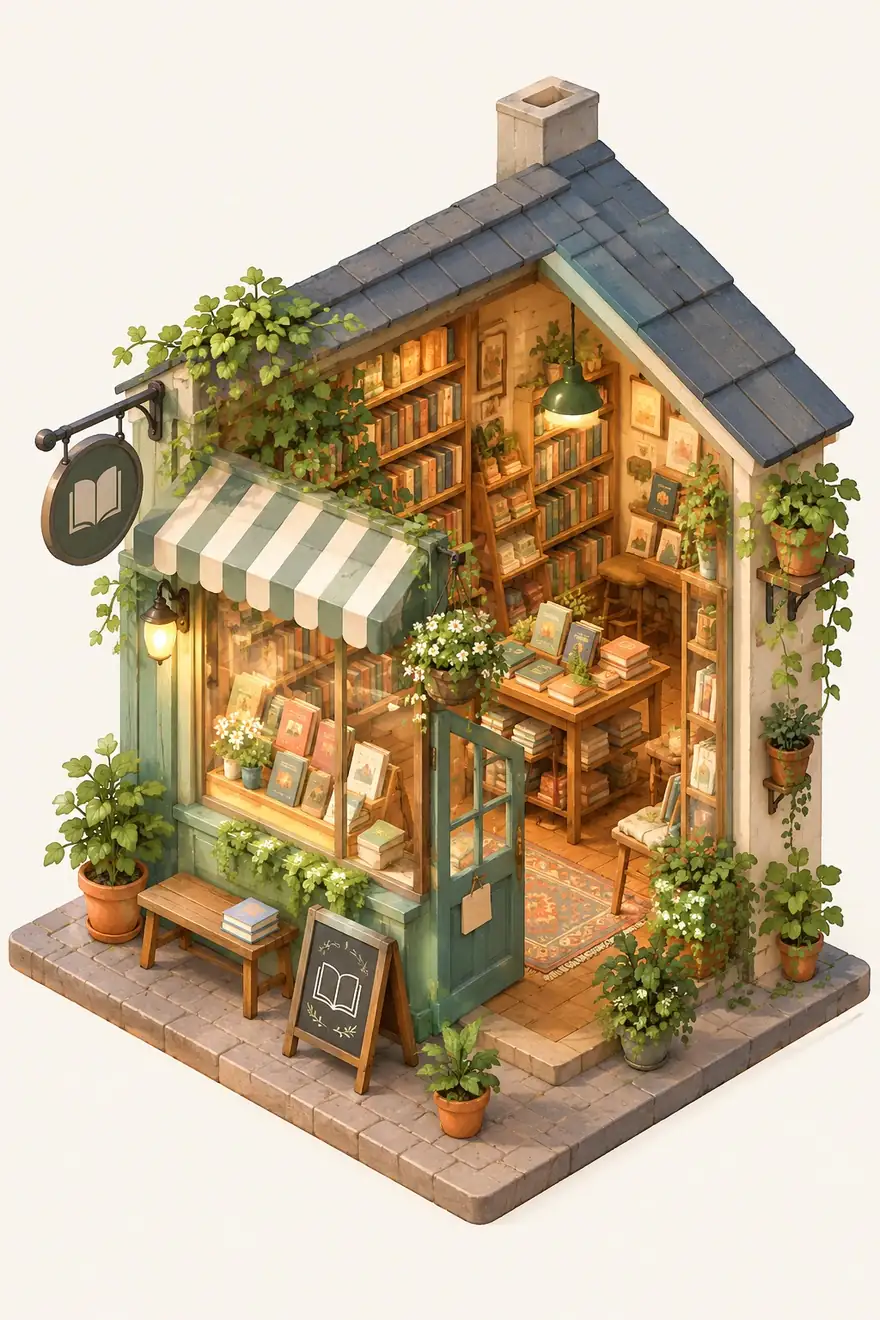
Isometric bookshop
Isometric 3D illustration of a tiny cozy bookshop with plants and warm lights, pastel colors
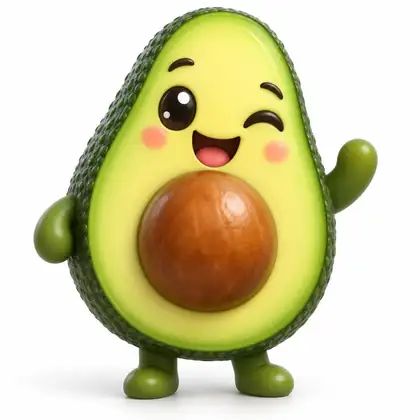 Illustration & 3DGPT Image 2.5 Sunburst1:11K
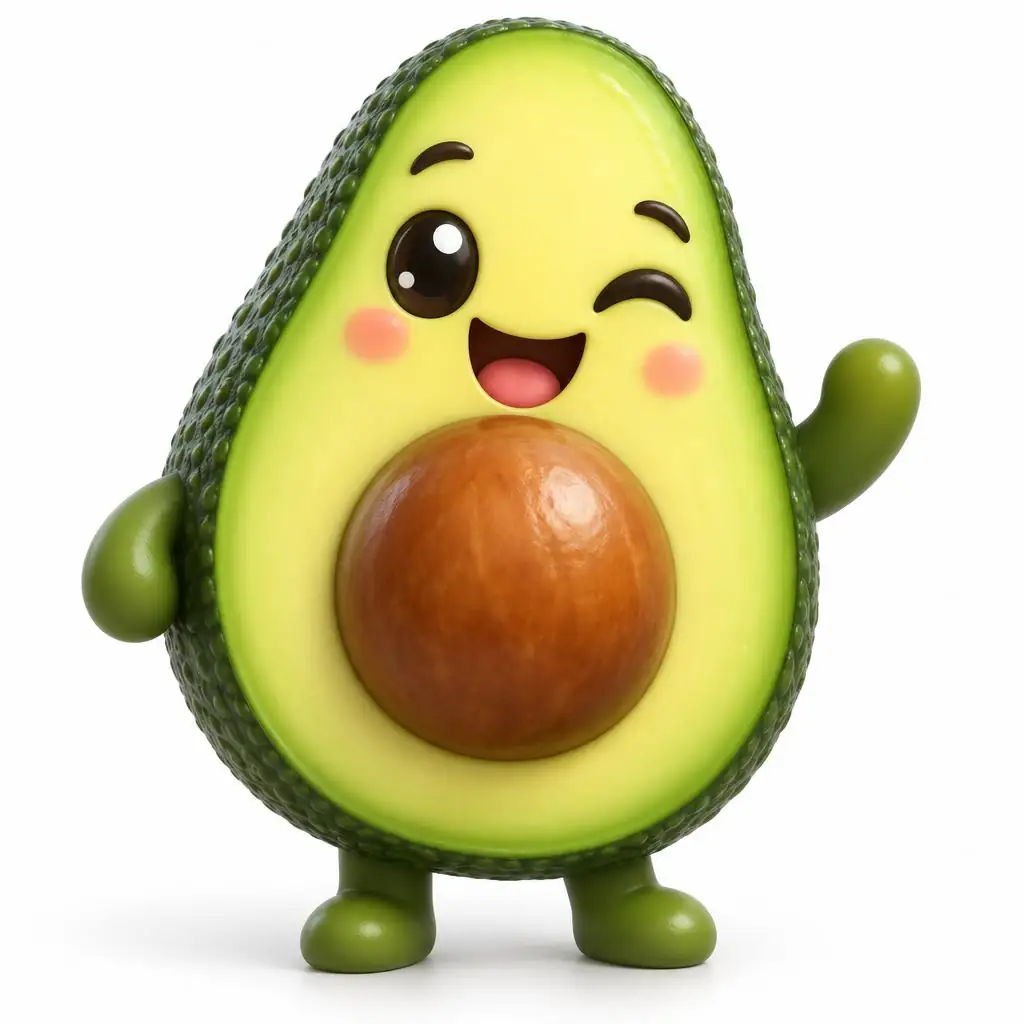
Winking avocado
Single 3D glossy emoji of a happy avocado winking, cute, rounded, soft studio lighting, on a plain white background
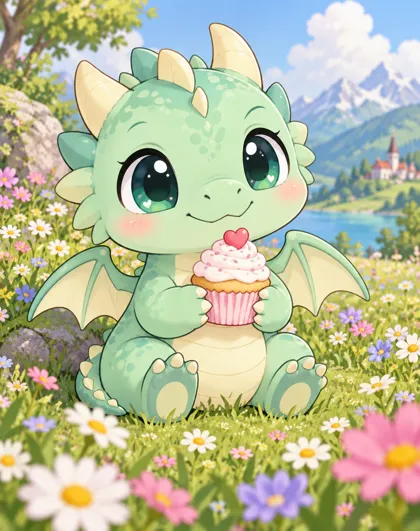 Illustration & 3DGPT Image 2.5 Sunburst4:51K
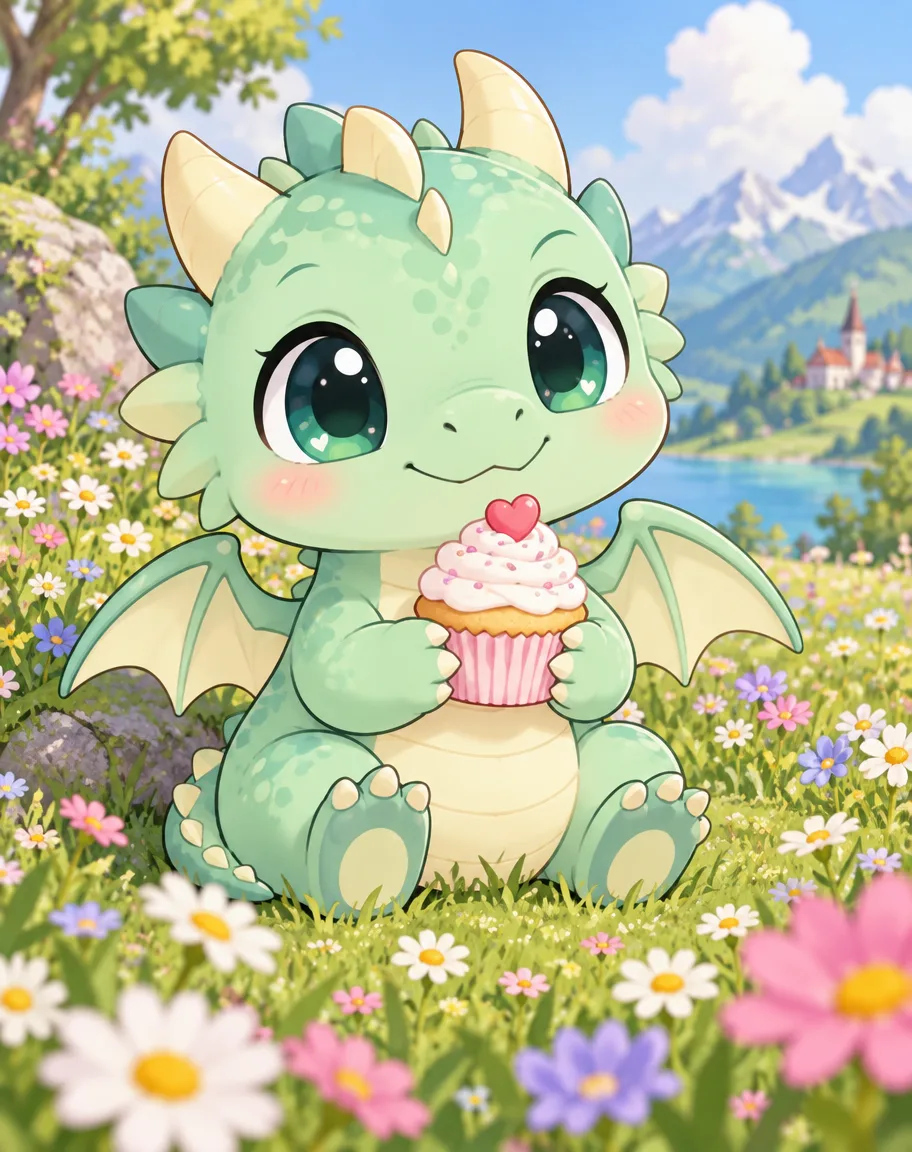
Chibi dragon with a cupcake
Cute chibi dragon: a small round dragon with big shiny eyes and tiny wings, pastel mint scales, sitting in a flower meadow holding a cupcake. Soft cartoon illustration, clean outlines, cheerful colours. No text, no watermark.
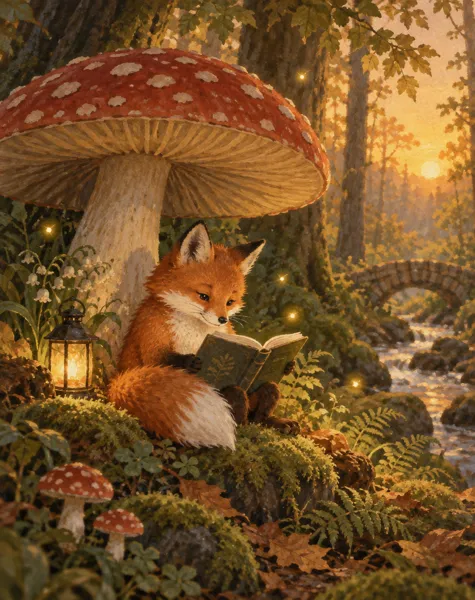 Illustration & 3DGPT Image 2.5 Sunburst4:51K
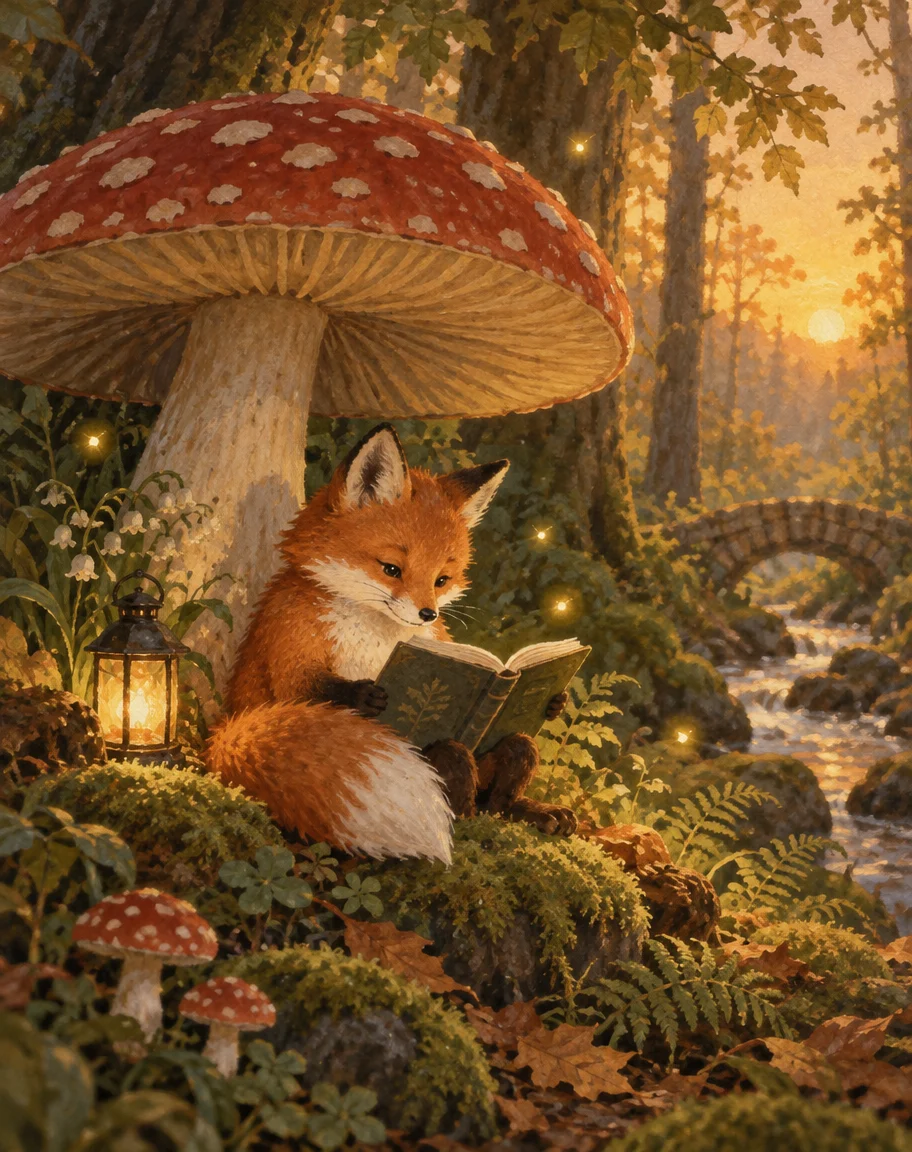
Storybook fox illustration
A cosy storybook illustration of a small red fox reading a book under a giant mushroom in a mossy forest at golden hour, fireflies glowing, soft gouache texture, warm palette, no text.
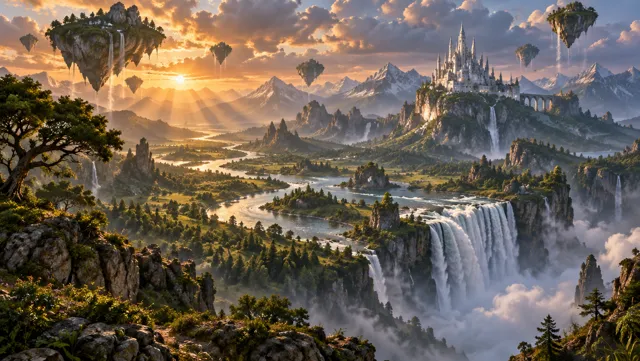 Illustration & 3DGPT Image 2.5 Sunburst16:91K
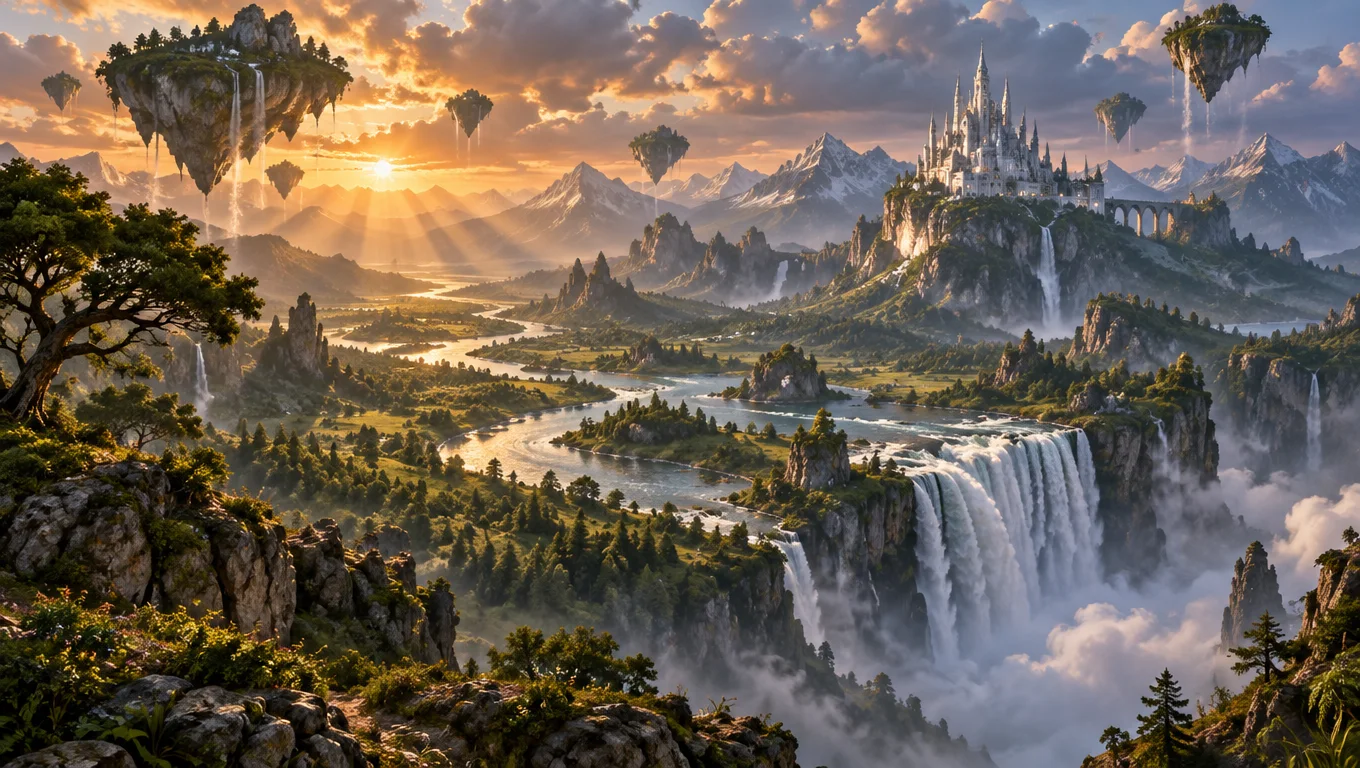
Fantasy valley matte painting
Epic fantasy landscape matte painting: a vast green valley with a winding river leading to a giant waterfall pouring off a cliff, floating islands with trees drifting in the sky, a distant white castle on a mountain spur, dramatic sunset clouds with god rays, painterly digital concept art, rich warm and cool contrast, wide cinematic composition. No people, no text.
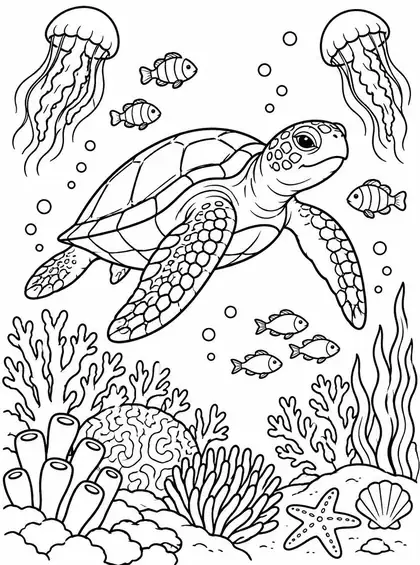 Illustration & 3DGPT Image 2.5 Sunburst3:41K
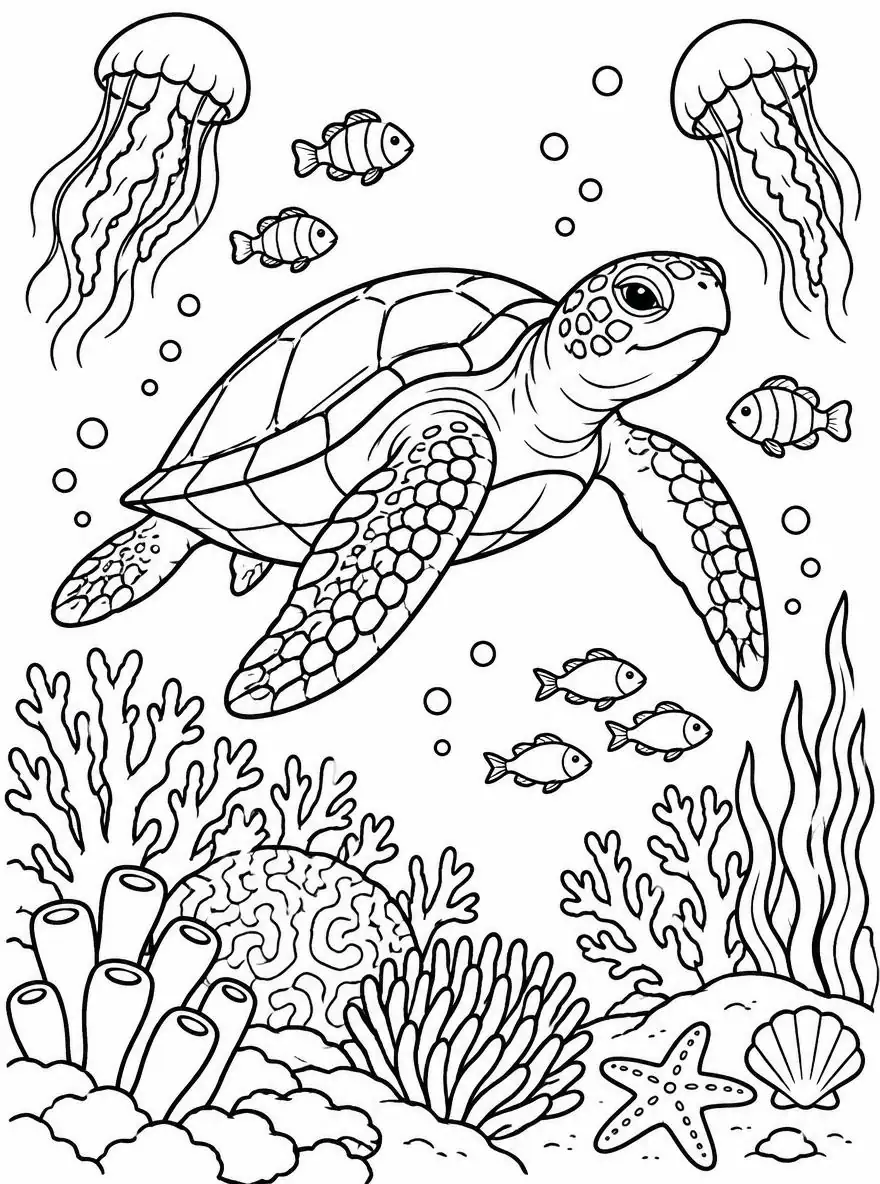
Coloring page: under the sea
An underwater scene with a sea turtle, coral, jellyfish and small fish, black and white coloring page, thick clean black outlines, no shading, no grey, pure white background, printable, medium detail
 Edit your photoGPT Image 2 edit4:51K
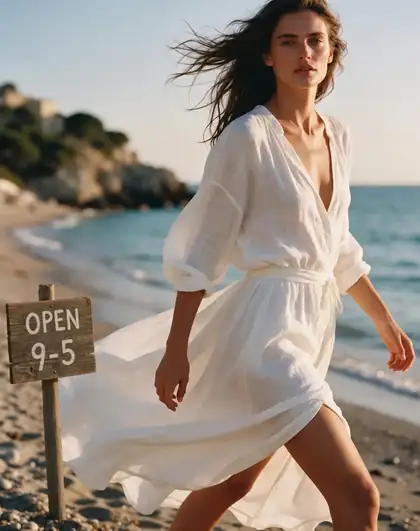
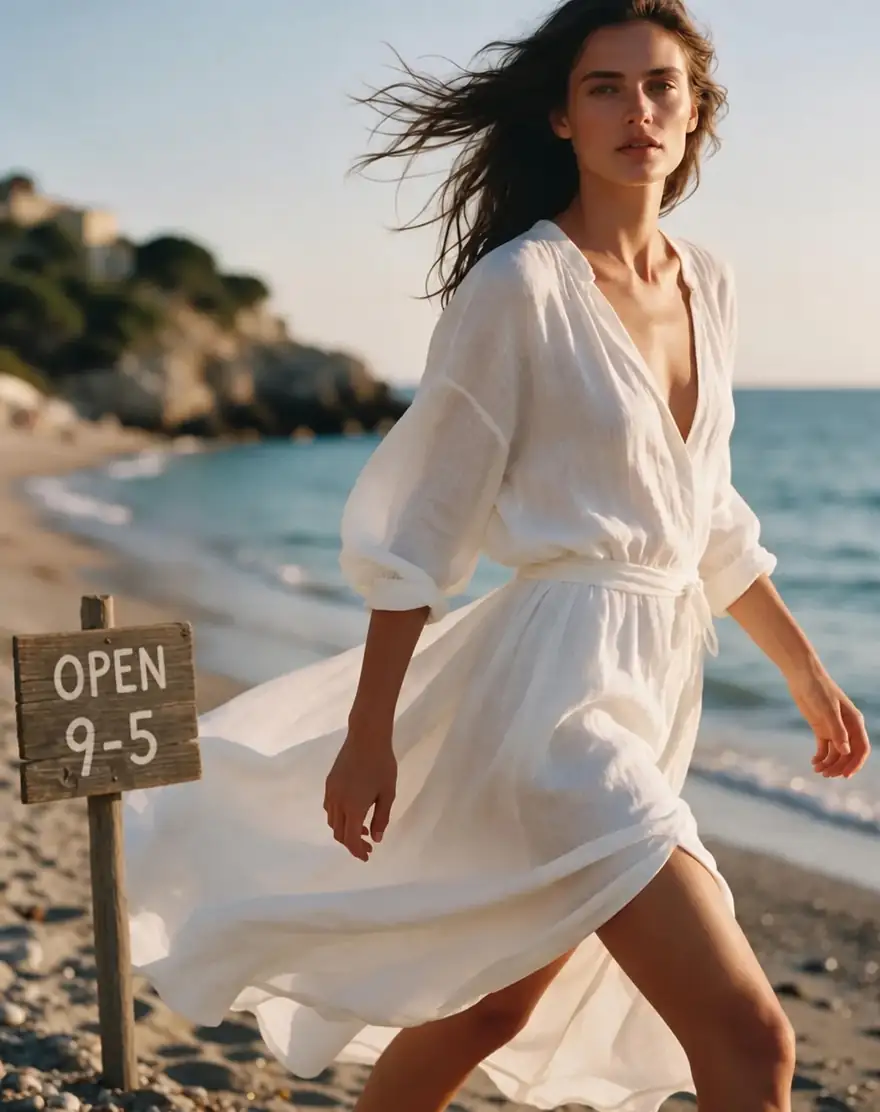
Add a hand-painted sign
Add a small wooden sign on the beach in the sand that reads 'OPEN 9–5' in hand-painted letters. Keep everything else the same.
 Edit your photoGPT Image 2.5 Sunburst edit4:51K
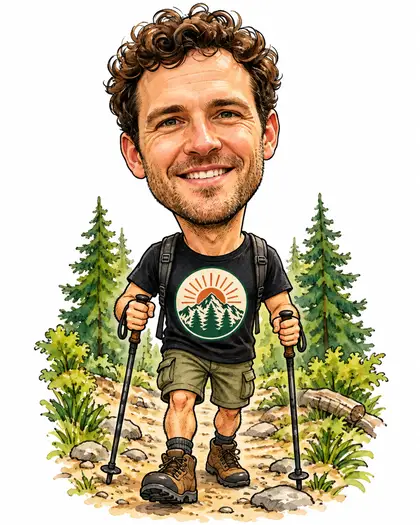
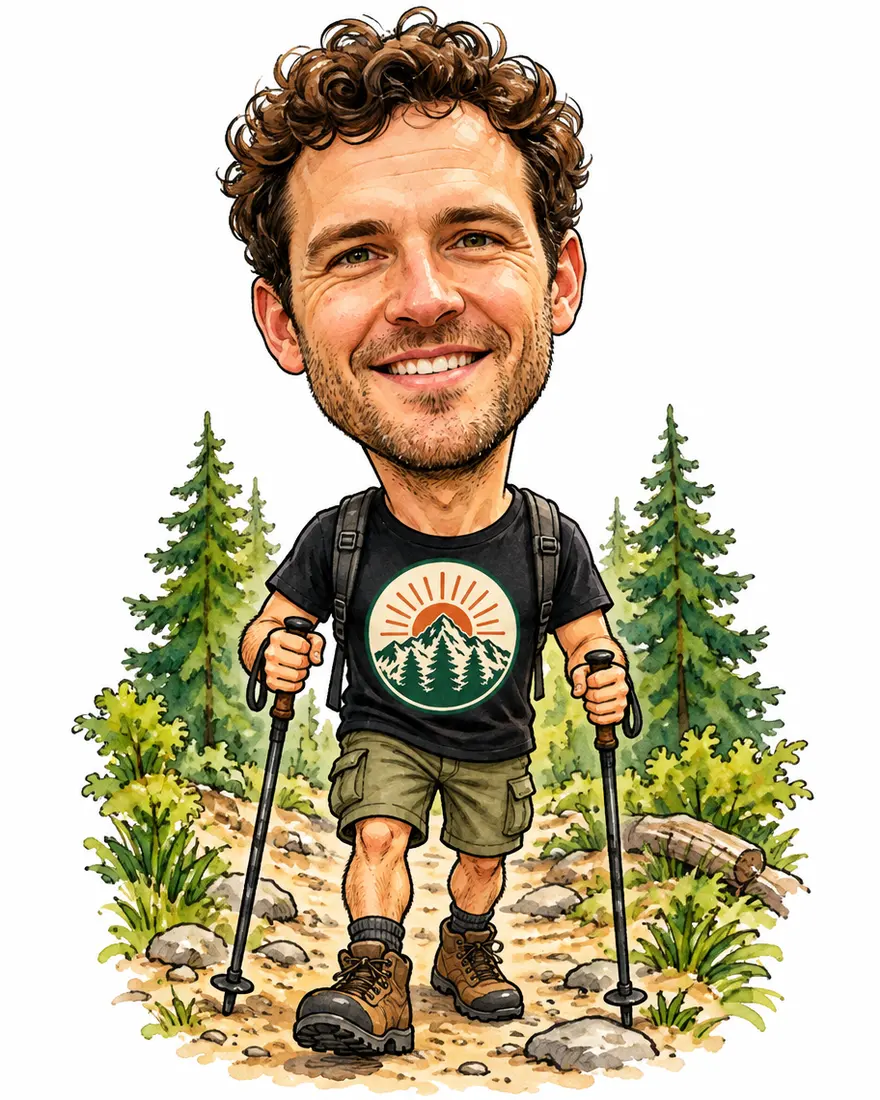
Classic caricature
Turn this man into a classic caricature drawing: a big head on a small body, his real face kept recognisable — same curly dark hair, stubble, smile and eyes — with his features playfully exaggerated (bigger grin, bigger curls). He stands on a forest trail in his black t-shirt with the STAY WILD badge, holding hiking poles. Hand-drawn colour caricature style with ink outlines and watercolour shading, white background around the figure, no text.
 Edit your photoGPT Image 2.5 Sunburst edit3:41K
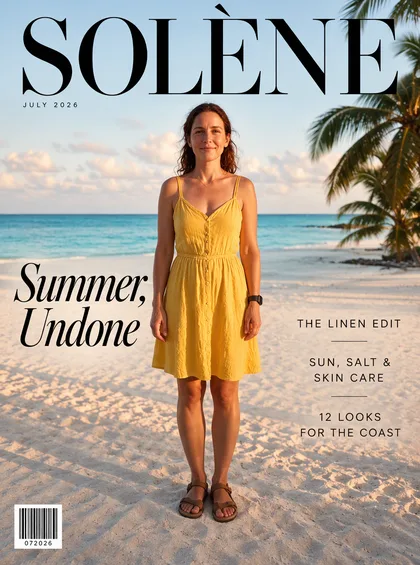
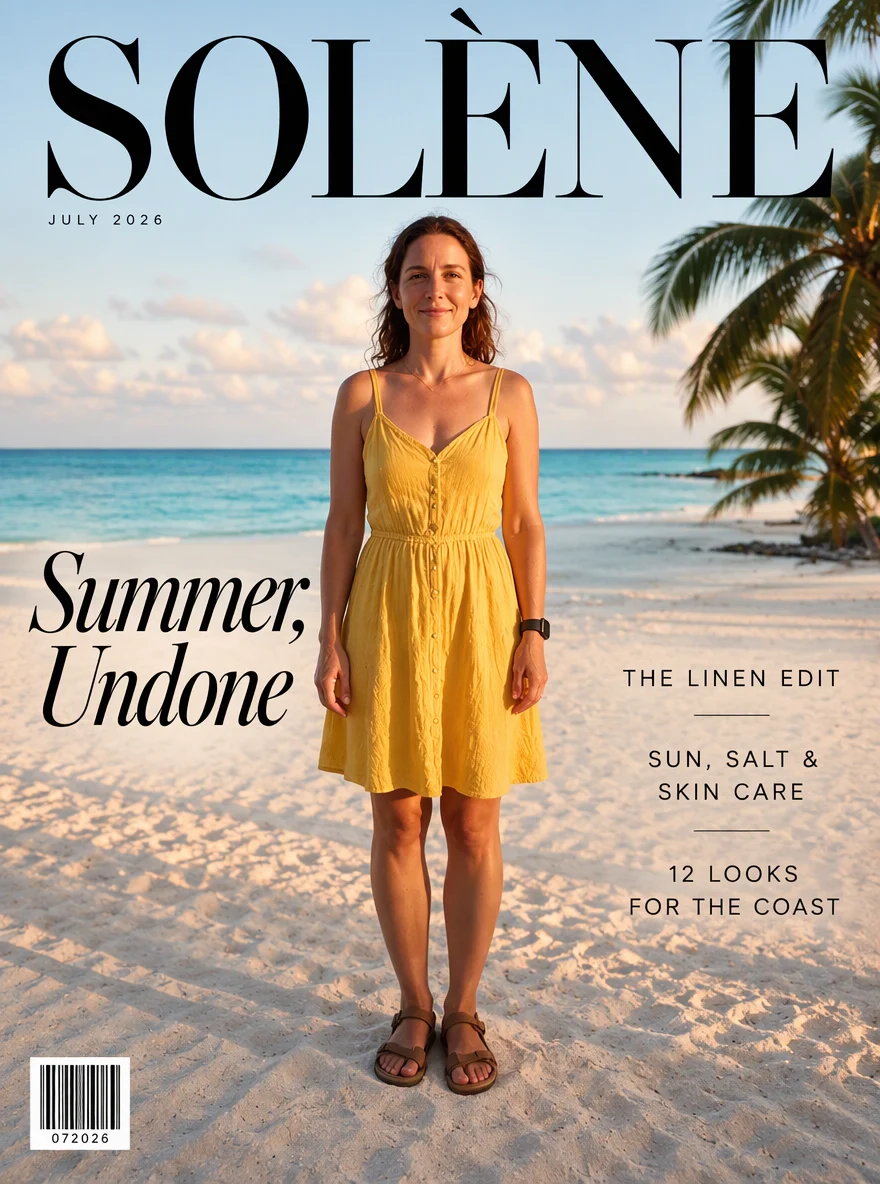
Fashion magazine cover
Turn this photo into a high-fashion summer magazine cover. Keep the woman's face, wavy shoulder-length hair, smile and sundress exactly as in the photo, on the same beach, framed as the cover star. Add an elegant black serif masthead across the top reading "SOLÈNE". Cover lines: large lead line "Summer, Undone" in italic serif, smaller lines "The Linen Edit", "Sun, Salt & Skin Care" and "12 Looks for the Coast" in a thin sans-serif down the right side. A small date strip "JULY 2026" under the masthead and a small barcode in the bottom-left corner. Minimal luxury fashion layout, crisp text, no other logos.
 Edit your photoGPT Image 2.5 Sunburst edit3:41K
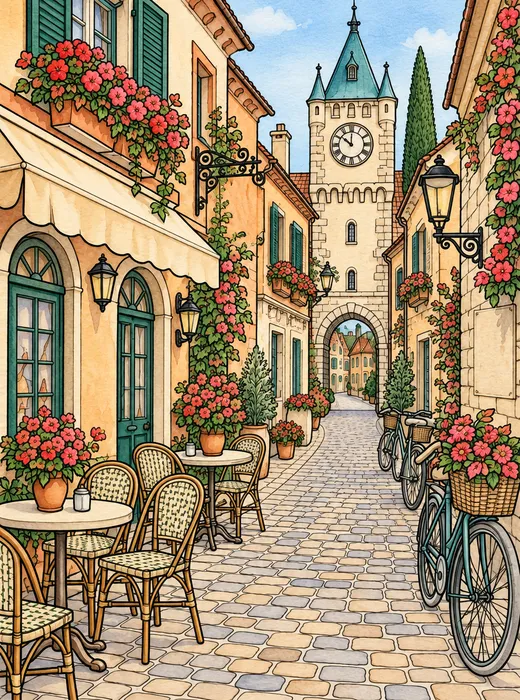
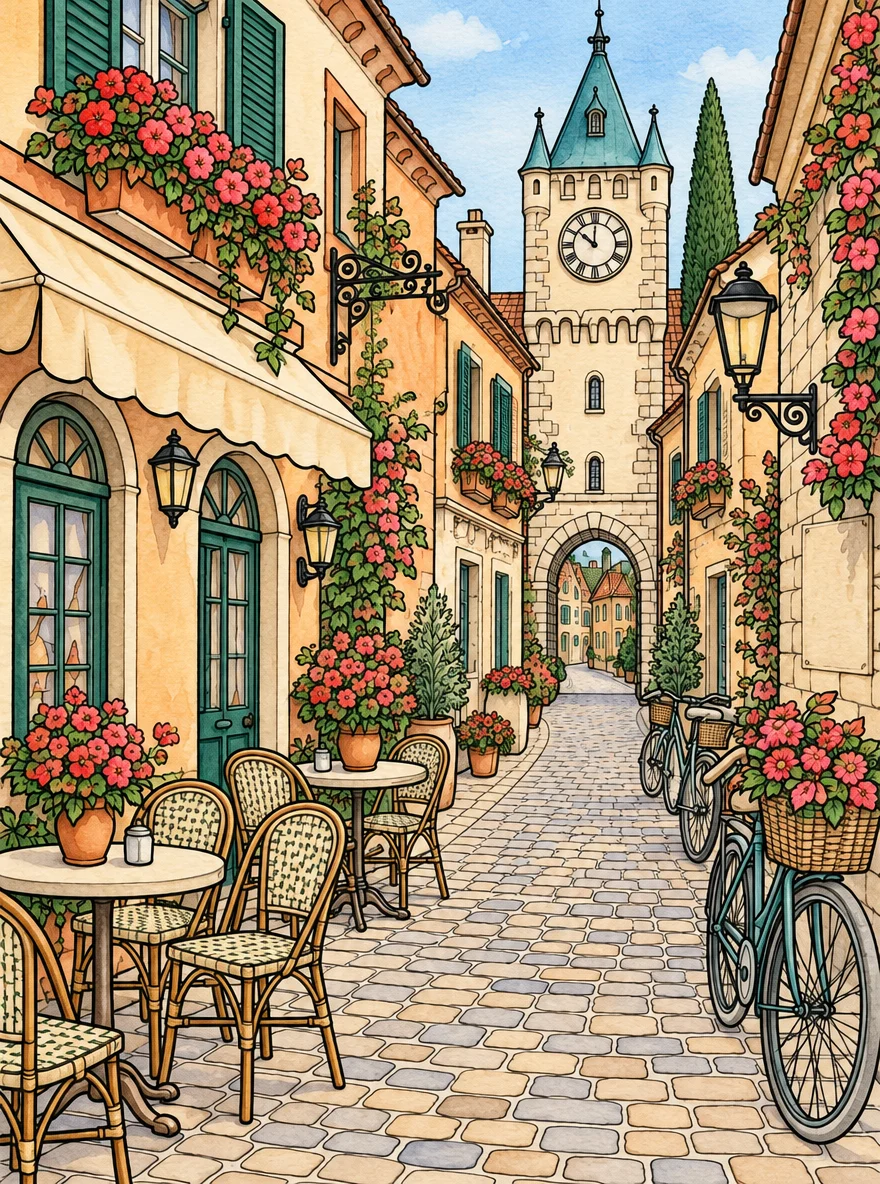
Line art to watercolour
Colour this line art as a soft watercolour illustration: warm cream and terracotta building walls, dark green shutters, red and pink flowers in the window boxes, a teal clock tower roof, pale blue morning sky, light paper texture. Keep every black outline exactly as drawn — same lines, same shapes, same composition. Do not add any text or signs.

How to
How to use the gpt image 2 prompts
- Time needed
- Steps
- 4 steps
Step 1
Pick a prompt
Filter the library by category, copy a prompt, or press Try this prompt to open it in Image Studio with the same model selected.
Step 2
Set ratio, size and quality
Pick one of 15 ratios and 1K, 2K or 4K. Use medium or higher quality when the image has small text.
Step 3
Make it yours
Change the subject, the words in quotes and the colours. For edits, upload your photo first; you can add up to 16 references.
Step 4
Generate and download
Generate, then refine with one small change at a time. Downloads have no watermark.
See it in the app

Open Image Studio and type what you want to see — subject, style, lighting and mood.


Watch the tour · 1:23
Prompts, styles, references, edit, Arena & chat
Chapters
Tips
How to write a GPT Image 2 prompt
Six rules from OpenAI's prompting guide, and the habits behind the prompts in this library.
Start with what the image is for — “YouTube thumbnail”, “product photo”, “movie poster” — so the model picks the right layout and polish.
Order the rest as scene, subject, details, constraints. Short labelled lines beat one long paragraph.
Put every word that must appear in quotes or ALL CAPS, say where it goes and in what lettering. Spell unusual names letter by letter.
For photos, write “photorealistic” and give the lens and light: “35mm, soft overcast light”.
For edits, say “change only…” and end with “keep everything else the same” — and repeat that keep list on every follow-up.
With several references, label them: “Image 1: the product. Image 2: the style.” Then say what moves where.
Prompt template
A fill-in GPT Image 2 prompt template
Swap the bracketed parts and open the prompt in GPT Image 2. For a free rewrite of a rough idea, use the prompt enhancer.
- Use
- poster, thumbnail, product shot, UI mock-up…
- Scene
- where, when, the light
- Subject
- who or what, doing what
- Text
- exact words in quotes + lettering + position
- Constraints
- colours, no extra text, what must stay
- Ratio & size
- set in the settings: 15 ratios, 1K–4K
Poster
[Event] poster with the exact text '[TITLE]' and '[DATE]' in [lettering style], [main image], [two colours], no other text
Thumbnail
YouTube thumbnail: [person + emotion] with [object], bold text '[3 WORDS]' on the left, high contrast, clean background
Product photo
Photorealistic studio product photo of [product] with a label reading '[NAME]' on [surface], [one prop], soft key light, shallow depth of field
UI mock-up
Clean mobile app screen mockup for a [type] app showing '[headline]' and [list / chart], flat design, [palette]
More prompts (2)
Anime
Anime illustration of [character] in [place] at [time of day], cel shading, soft glow, title '[TITLE]' in bold stylised letters at the top
Photo edit
Change only [what] to [new thing]. Keep [face / pose / background / light / text] exactly the same.
Models
GPT Image models on Kenerate
What each model is good at. Open any one straight in the generator.
OpenAI
GPT Image 2
- Reference images
- Up to 16
- Output
- 1K · 2K · 4K
Open GPT Image 2Best for
Three quality tiers · most posters and text here
OpenAI
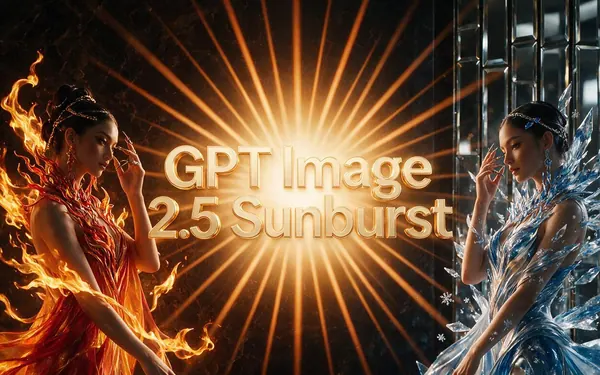
GPT Image 2.5 Sunburst
- Reference images
- Up to 16
- Output
- 1K–4K
Open GPT Image 2.5 SunburstBest for
Precision: spends longer per image · most people and products here
OpenAI
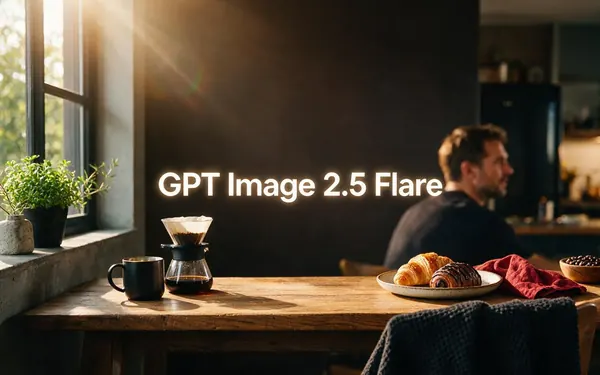
GPT Image 2.5 Flare
- Reference images
- Up to 16
- Output
- 1K–4K
Open GPT Image 2.5 FlareBest for
Fast everyday generation for drafts
FAQ
GPT Image 2 prompts questions
8 questions
What are the best GPT Image 2 prompts?
The ones written like a brief: what the image is for, the scene, the subject, the details, then the constraints, with any text in quotes. The 47 prompts on this page cover posters, logos, thumbnails, UI, product shots, photoreal people, anime and photo edits, and each one is shown with the image it really produced.
Link to this answerHow do I write a GPT Image 2 prompt?
Follow the order in OpenAI's prompting guide: background or scene, subject, key details, constraints. Say what the image is for first, put every word that must appear in quotes, and for photos include “photorealistic” and the light. Then refine with one small change at a time instead of rewriting the whole prompt.
Link to this answerHow do I get text right in GPT Image 2?
Put the exact words in quotes or capitals, say where they go and what the lettering looks like, and spell unusual names letter by letter. OpenAI recommends medium or high quality for small text and dense layouts. Always proofread: the model can still slip on long or tiny text.
Link to this answerAre there GPT Image 2 anime prompts?
Yes — the Anime & comics filter has a manga volume cover, a four-panel manga page, a lo-fi anime album cover, an original anime creature and two comic strips. Name the style (“cel shading”, “screentone”, “manga page read right to left”) and the panel layout, and keep any dialogue short and in quotes.
Link to this answerDo these prompts work in ChatGPT?
Yes. ChatGPT Images 2.0 runs on GPT Image 2, and these are plain-language prompts, so you can paste them into ChatGPT. The images here were made on Kenerate; a different app, size or quality setting will give a different result. For prompts written for the ChatGPT app itself, see our ChatGPT image prompts post.
Link to this answerWhat's the difference between GPT Image 2 and GPT Image 2.5 Sunburst?
Both are OpenAI models on Kenerate with up to 16 references and 1K to 4K output. GPT Image 2 has three quality tiers; GPT Image 2.5 comes in two versions with five tiers up to Max — Sunburst spends longer per image for fine detail, Flare is the fast one. Every card on this page says which model made it.
Link to this answerHow do I edit my own photo with GPT Image 2?
Upload the photo in Image Studio, pick GPT Image 2 or GPT Image 2.5 Sunburst, and write “change only…”, then “keep everything else the same”, listing what matters — face, hair, background, text. Repeat that keep list on every follow-up so nothing drifts. Use only your own photos or ones you have permission to edit.
Link to this answerCan I use the images commercially?
Images you make on Kenerate download without a watermark and include commercial use. Make sure your prompt doesn't copy a real brand, logo or person you don't have rights to — the prompts here use fictional names for that reason.
Link to this answerIn depth
GPT Image 2 prompts, explained
What works, what to avoid, and how to pick a model.
On this page
Why GPT Image 2 prompts read like a brief
OpenAI's prompting guide says to name the intended use — an ad, a UI mock-up, an infographic — because that sets the layout and the level of polish, and to write the prompt in the order scene, subject, key details, constraints. GPT Image 2 reads full sentences, so a clear brief beats a list of keywords.
Text, layout and typography
Text is where GPT Image 2 is strongest and where prompts most often go wrong:
- Quote the exact words, or write them in capitals.
- Give each piece of text a place and a style: “title at the top in big art deco letters”, “date in small caps under it”.
- Spell brand-like or invented names letter by letter if they come out wrong.
- Use medium quality or higher for small print, menus and dense layouts.
Edits and references
For an edit, OpenAI's guide recommends “change only X” plus “keep everything else the same”, and repeating the list of things to keep on each new turn so the image doesn't drift. With several uploads, describe each by number — “Image 1: the product photo. Image 2: the style reference” — and say how they combine. Kenerate accepts up to 16 references for GPT Image 2 and 2.5.
Ratio, size and quality
Ratio and size are settings, not prompt words: Kenerate offers 15 ratios for the GPT Image models, from tall 1:3 to wide 3:1 and 21:9, at 1K, 2K or 4K. Mention the format in the prompt as well (“YouTube thumbnail”, “ultra-wide banner”) so the composition fits the frame.
By the Kenerate AI teamLast updated and reviewed
We build and run the Kenerate generator. Every example is a real output of the model named under it; models and presets were checked against the app's code.
Sources: OpenAI Cookbook — GPT Image Generation Models Prompting Guide · OpenAI Developer Community — Introducing gpt-image-2 · Kenerate Image Studio