

Your photo or your pet · velvet, lace, gilded frame
AI Renaissance portrait — you, or your pet, as an old master
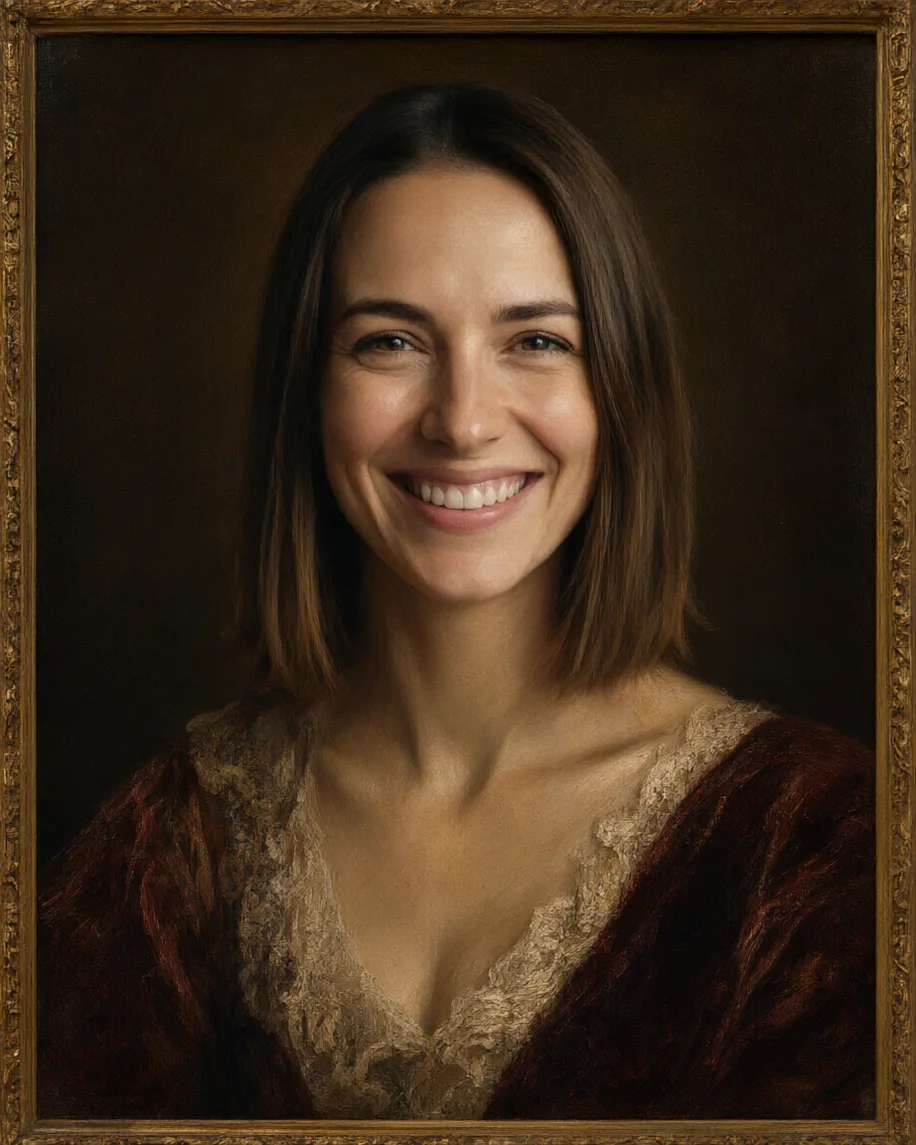
Upload a photo and AI Filter repaints it as a Renaissance portrait: soft sfumato skin, a dark umber background, velvet and lace clothes and a gilded frame. Your face, pose and expression stay yours, and it works on dogs and cats too.
- One click, no prompt
- Works on people and pets
- Same face and pose
- No watermark
Updated by the Kenerate AI team



Made with Kenerate
On this page
Quick answer

How do I turn my photo into a Renaissance painting?
To turn your photo into a Renaissance painting, upload it to an AI filter that changes the light, clothes and background but keeps your face. In Kenerate AI Filter, pick the Renaissance look and press Apply: you get sfumato skin, a dark umber background, velvet and lace and a gilded frame in about 10–20 seconds. A run on Qwen Image 3 costs 10 credits; new accounts get 25.
Key facts
- Look
- Renaissance (Retro & Culture group)
- What changes
- Skin finish, clothes, background, frame
- Keeps
- Face, expression, pose, framing
- Works on
- Your own photo, or your dog or cat
- Engines
- Qwen Image 3 (default), Kenerate Filter, Seedream 5 Pro, GPT Image 2
- Input
- One photo · JPG, PNG or WebP · up to 20 MB
- Examples below
- 2 fictional adults + 1 dog, 1 try each
Recipes
Renaissance portrait recipes
The first four rows are the runs on this page. The rest are combinations we haven't run yet, so expect to try twice.
| Portrait | Look and engine | Twist (optional) | Run on this page |
|---|---|---|---|
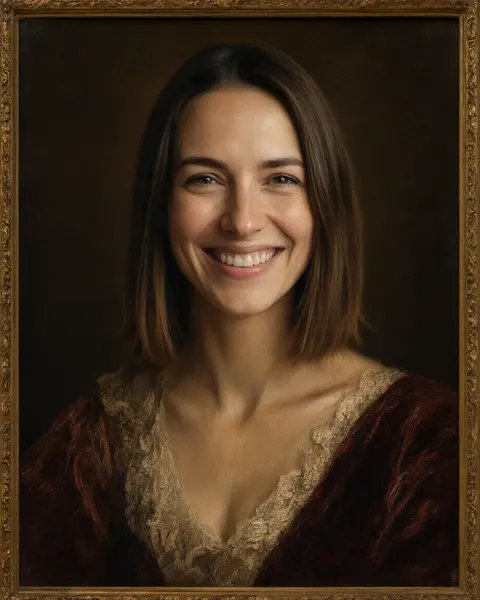
| Classic sitter | Renaissance · Qwen Image 3 | None | Yes: the woman, kept her smile |
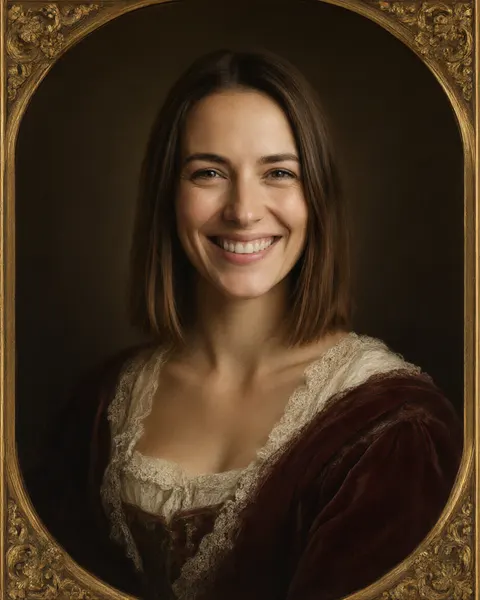
| Visible brushwork | Renaissance × Oil Painting, 70/30 · Qwen Image 3 | None | Yes: same woman, more paint texture |
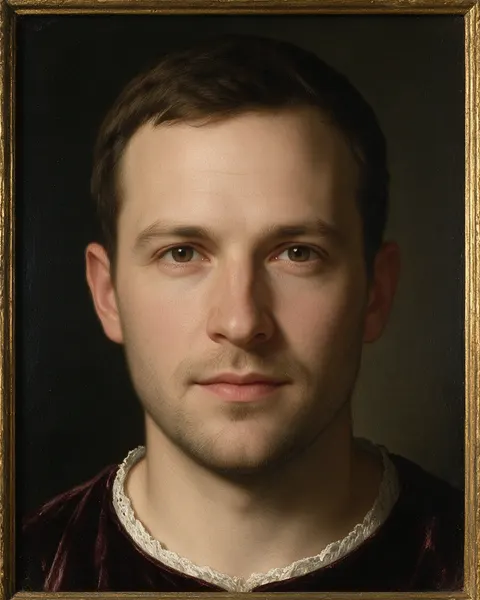
| Most painterly | Renaissance · Seedream 5 Pro | None | Yes: the man, closed-mouth, panel-painting finish |
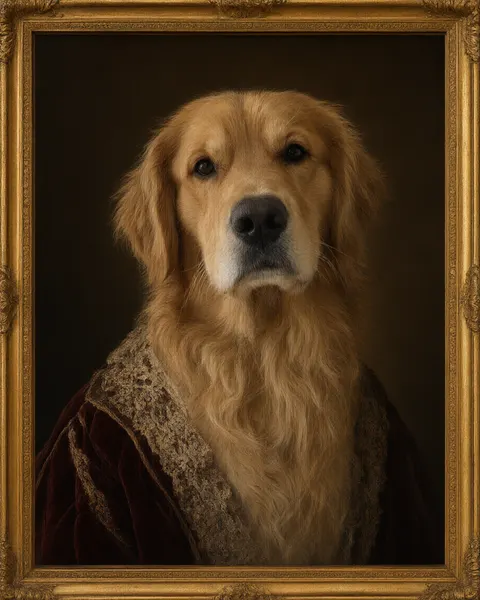
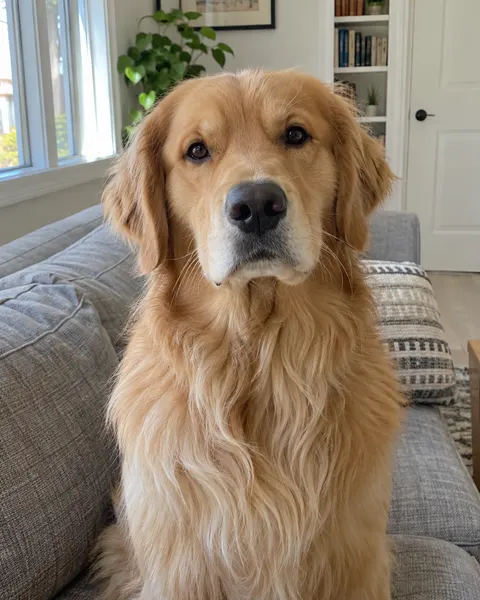
| Pet portrait | Renaissance · Qwen Image 3 | None | Yes: the golden retriever in velvet and lace |
| Landscape background | Renaissance | “a hazy blue-green landscape behind me instead of the dark background” | No |
| Royal court | Royal Portrait look instead: crown, ermine, throne | None | No |
| Carved bust | Marble Statue look instead: veined white stone on a plinth | None | No |
| Two people, one photo | Renaissance · GPT Image 2 | “keep both people side by side” | No |
Sources: Kenerate AI Filter
Gallery
AI Renaissance portrait examples
Real AI Filter runs, one try each, on two fictional adults and a dog. On Qwen Image 3 the look kept the original smile and a fairly photographic finish; the Oil Painting mix and Seedream 5 Pro read more like paint.
Same prompt
Before and after: same face, 500 years earlier
The original photos next to the Renaissance runs. Faces, hair and pose stayed; the clothes, background, light and frame changed.
PromptTransform this photo into a Renaissance old-master portrait: sfumato skin, dark umber background, velvet and lace garments, gilded frame vignette. Keep the same person/subject with their exact identity, facial features, expression, pose, framing and composition; do not add or remove people. High detail, clean edges, no text or watermark unless the style itself includes lettering.
 BeforeStudio photo
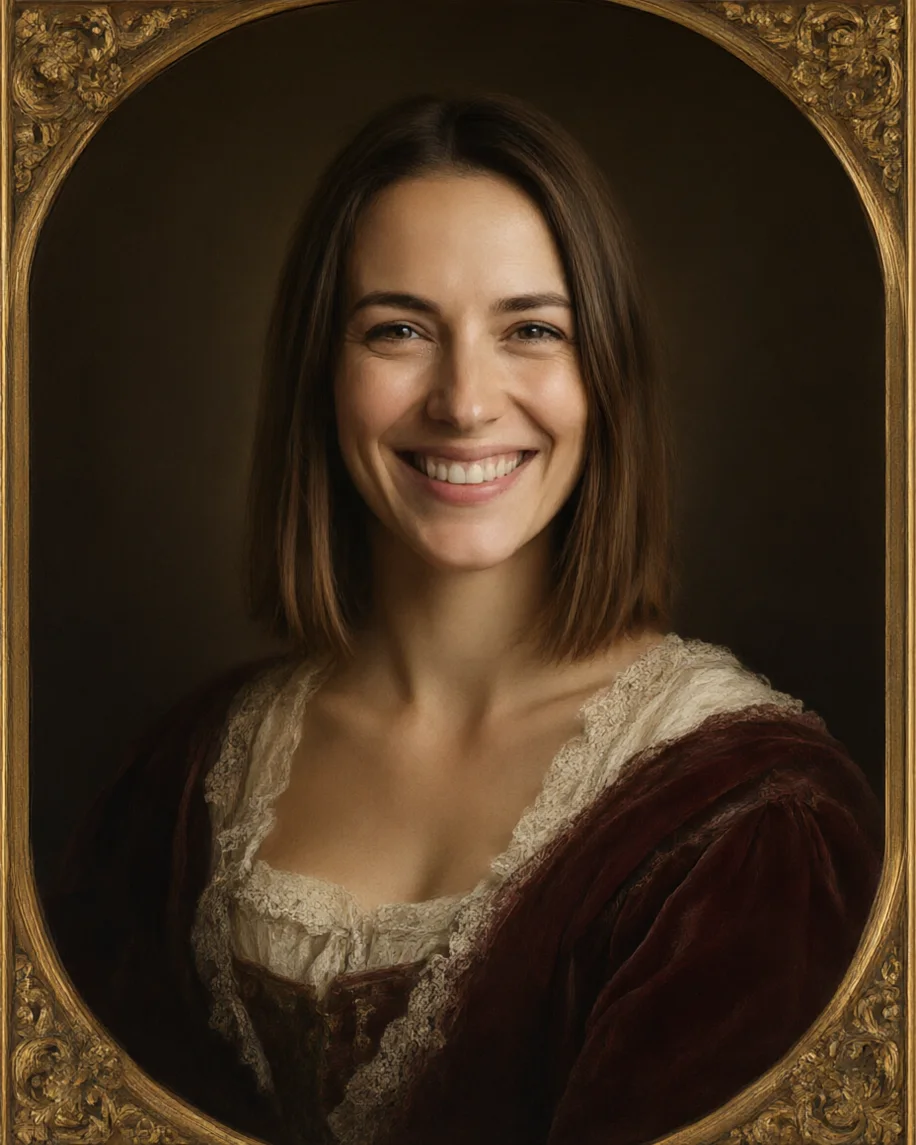 AfterQwen Image 3
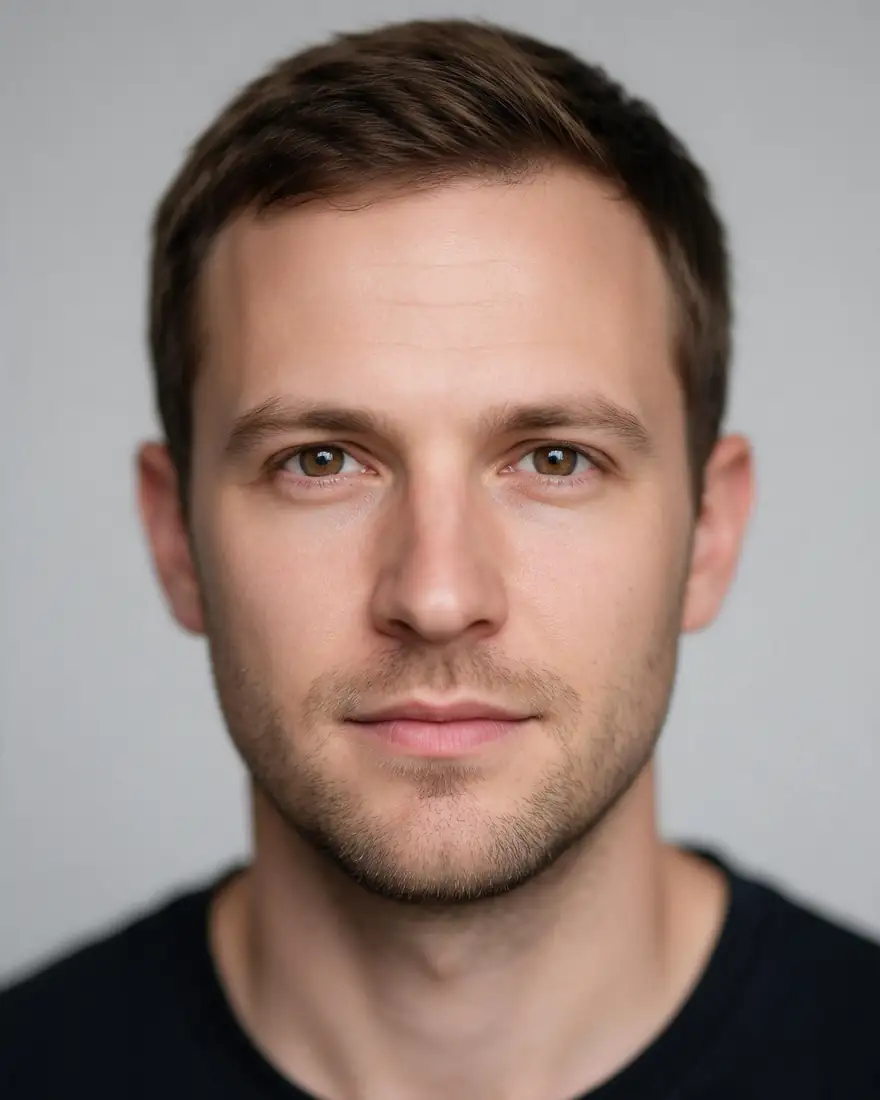 BeforeStudio photo
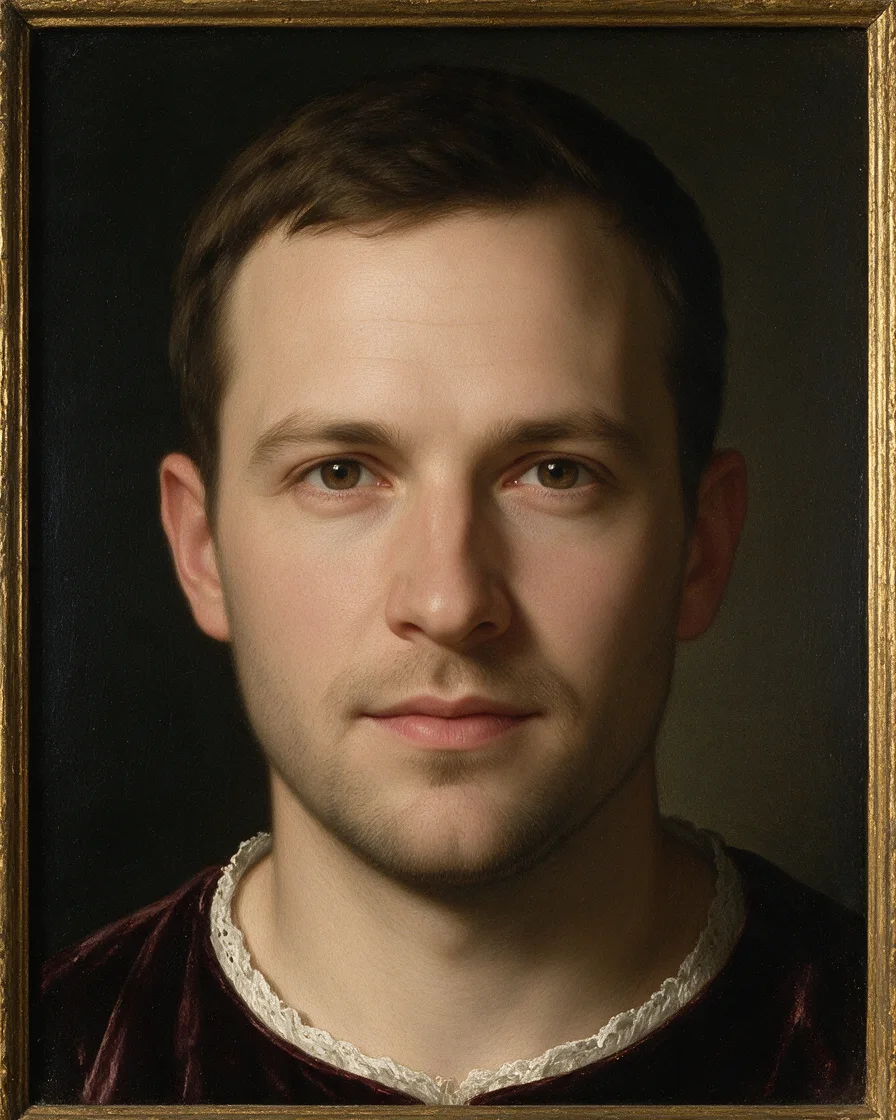 AfterSeedream 5 Pro
How to
How to use the AI renaissance portrait
- Time needed
- Steps
- 4 steps
Step 1
Open the Renaissance filter
Press “Add your photo”. AI Filter opens with the Renaissance look and the Qwen Image 3 engine already picked. Sign in for free starter credits.
Step 2
Add your photo
Upload, snap or paste a clear head-and-shoulders photo of yourself, or of your dog or cat — JPG, PNG or WebP up to 20 MB.
Step 3
Pick the finish
Keep Renaissance alone, mix in Oil Painting for brushwork, or switch the engine to Seedream 5 Pro for a more painterly result.
Step 4
Apply and download
Press Apply, drag the Compare slider to check the face, then download the portrait without a watermark or upscale it for printing.
See it in the app

Open Image Studio and type what you want to see — subject, style, lighting and mood.


Watch the tour · 1:46
56 looks in 7 groups, four engines, before / after, mix two looks, add a twist, hand-offs & chat
Chapters
Tips
Get a portrait that looks painted, not costumed
What made the difference in our four runs.
Want visible paint? Mix in Oil Painting at 70/30, or switch the engine to Seedream 5 Pro.
A neutral or closed-mouth expression reads more period-true. The look keeps your expression, so a big grin stays a big grin.
Use a head-and-shoulders photo in soft light. The look builds the velvet and lace around your shoulders.
Plain backgrounds work best: the look swaps them for a dark umber ground anyway.
For pets, a photo at eye level with the animal looking at the camera gives the most formal sitter.
Run it twice. The frame shape and the costume change from run to run; keep the one you'd hang.
Models
Which engine for a Renaissance portrait?
AI Filter's four engines, with what each did on this page.
Alibaba
Qwen Image 3
- Reference images
- 1 photo
Open Qwen Image 3Best for
Default. Fast and faithful to the face; made the woman and the dog. Finish stays fairly photographic.
ByteDance
Seedream 5 Pro
- Reference images
- 1 photo
Open Seedream 5 ProBest for
The most painterly run on this page (the man): panel-painting skin and a thin gilded frame.
Kenerate
Kenerate Filter
- Reference images
- 1 photo
Open Kenerate FilterBest for
Identity-locked re-render for bolder style changes. Not run for this page.
OpenAI
GPT Image 2
- Reference images
- 1 photo
Open GPT Image 2Best for
The tool's pick for complex mixes. Not run for this page.
FAQ
AI Renaissance Portrait questions
9 questions

How do I turn my photo into a Renaissance painting?
Upload it to Kenerate AI Filter with the Renaissance look picked and press Apply. The look repaints the photo with sfumato skin, a dark umber background, velvet and lace clothes and a gilded frame, and keeps your face, expression and pose. It takes about 10–20 seconds on Qwen Image 3, the default engine.
Link to this answerIs there a free Renaissance filter?
Yes, to start. New Kenerate accounts get 25 free starter credits after verifying their email, and a Renaissance run costs 10 credits on Qwen Image 3 or Kenerate Filter, 14 on Seedream 5 Pro and 21 on GPT Image 2. No subscription is required, a failed run is refunded automatically, and results download without a watermark.
Link to this answerCan I make a Renaissance portrait of my dog or cat?
Yes. The golden retriever on this page was turned into a Renaissance sitter in one try, with a dark red velvet robe, a gold lace collar and a gilded frame, and its face, fur and pose stayed the same. Use a photo taken at eye level with the pet looking at the camera.
Link to this answerWill the Renaissance portrait still look like me?
In our runs, yes: both fictional adults kept their face, hair and expression. AI Filter tells the engine to keep your identity, expression, pose and framing. It still redraws the picture, so small details can shift; drag the Compare slider and run it again if anything looks off.
Link to this answerWhy does my Renaissance portrait look like a photo, not a painting?
The default engine, Qwen Image 3, keeps a lot of the photo's realism; our first run of the woman looked like a costume portrait. Mix in the Oil Painting look at 70/30 for visible brushwork, or switch to Seedream 5 Pro, which gave the man a panel-painting finish.
Link to this answerWhat makes a portrait look Renaissance?
Soft, smoky blending of skin tones with no hard edges, called sfumato and best known from Leonardo da Vinci's Mona Lisa, plus a dark plain or landscape background, rich fabrics such as velvet and lace, and calm, formal posing. The Renaissance look asks for all of these, plus a gilded frame.
Link to this answerIs it a copy of a famous painting?
No. The look describes a style — sfumato skin, a dark ground, velvet and lace, a gilded frame — and doesn't copy any particular painting or artist. Don't present the result as a real old master or a historical portrait; it's an AI-made picture of you in a Renaissance style.
Link to this answerCan I print my Renaissance portrait?
Yes. Our runs came back at about 900 × 1150 pixels, which is fine for screens and small prints. For a framed print, run the portrait through the Image Upscaler first, then print it on matte or canvas paper for a painted feel.
Link to this answerCan I use someone else's photo?
Only with their permission. Use your own photo, a pet's, or a photo of someone who agreed. Don't upload photos of anyone under 18, and don't combine photos of different people into one portrait. Kenerate's content rules apply to every run.
Link to this answerIn depth
AI Renaissance Portrait, explained
What works, what to avoid, and how to pick a model.
On this page
What the Renaissance look changes, and what it doesn't
The look rebuilds everything around your face: the clothes become velvet and lace, the background turns into a dark umber ground, the light softens into sfumato blending, and a gilded frame or vignette appears. Your face, expression, pose and framing are kept, which is why a smiling photo becomes a smiling sitter. Renaissance sitters rarely smiled, so a closed-mouth photo looks more period-true.
Renaissance filter vs photo to painting
Photo to painting turns any picture into a medium — oil, watercolour, impressionist — and keeps the scene. The Renaissance look is an era: it changes the costume, background and lighting as well as the brushwork, so a hoodie selfie comes back as a sitter in velvet. For a plain oil painting of the photo as it is, use photo to painting instead.
Engines and credits
Every engine returns one image per run. Qwen Image 3 and Kenerate Filter cost 10 credits, Seedream 5 Pro 14 and GPT Image 2 21; a run that fails is refunded. On this page, Qwen Image 3 made three portraits and Seedream 5 Pro made one, each on the first try.
By the Kenerate AI teamLast updated and reviewed
We build and run the Kenerate generator. Every example is a real output of the model named under it; models and presets were checked against the app's code.
Sources: Wikipedia — Sfumato · Kenerate AI Filter