

Teary eyes · tears on the cheeks · sad face · happy tears
Crying filter — add tears and a sad face to a photo
Upload a photo and an AI edit makes the person cry: glossy red-rimmed eyes, tears running down both cheeks and a sad expression. The face, hair, clothes and background stay the same. Keep the smile for happy tears, or try it on your dog.

- Your own photo
- Tears, red eyes, sad face
- Same face and background
- No watermark
Updated by the Kenerate AI team




Made with Kenerate

On this page
Quick answer

How do I make someone look like they're crying in a photo?
To make someone look like they're crying in a photo, ask an AI image editor for three things: wet, red-rimmed eyes, tears running down the cheeks, and a sad expression with raised inner eyebrows. Kenerate's crying filter opens Image Studio with that instruction filled in; add the photo and press Create. Our four before/afters took one try each on Qwen Image 3.0, the free-plan model.
Key facts
- Works on
- Your own photo, someone who agreed, or a pet
- What changes
- Eyes, tears, eyebrows and mouth
- Keeps
- Face, hair, clothes, background, light
- Looks to try
- Teary eyes · one tear · sobbing · happy tears · mascara streaks
- Default model
- Qwen Image 3.0 (free plan)
- Examples below
- 2 fictional adults + 1 dog, 1 try each
- Watermark
- None
Crying looks
Crying looks, and the words that get them
Replace the first sentence of the filter with any row. Keep the last sentence about the face and background. The first three rows are runs on this page.
| Look | What it does | Prompt words | Run on this page |
|---|---|---|---|
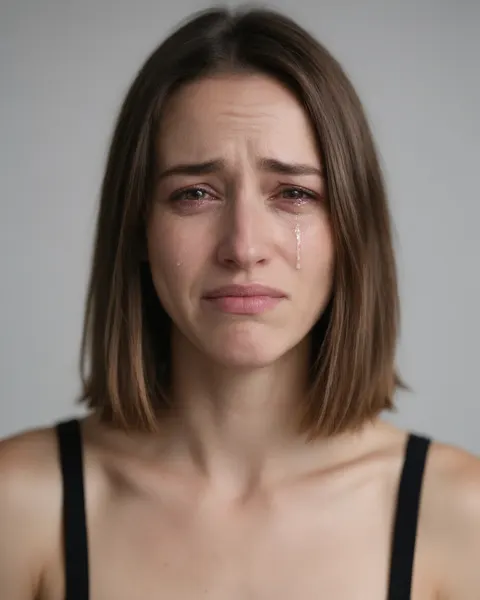
| Crying (default) | Red-rimmed wet eyes, tears on both cheeks, sad mouth | glossy wet eyes with reddened rims, clear tears running down both cheeks, a sad expression with the inner eyebrows raised and the corners of the mouth turned down | Yes: the woman and the man |
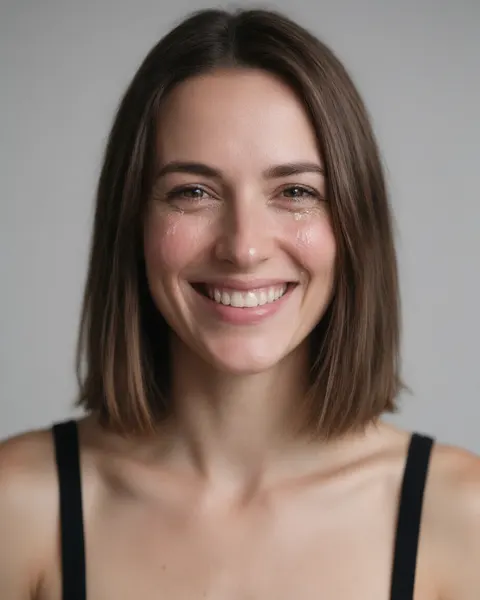
| Happy tears | Keeps the smile, adds tears of joy | keep the big smile, add glossy wet eyes and a few clear tears of joy running down both cheeks, slightly flushed cheeks | Yes: the woman, smile kept |
| Sad pet | Teary eyes and a pleading look on a dog or cat | big glossy wet eyes with a tear rolling down the fur, droopy eyebrows, ears slightly lowered, a sorry pleading look | Yes: the dog (tears from both eyes) |
| Teary eyes only | Wet, shining eyes, no tears falling yet | eyes welling up with tears that haven't fallen, glossy and slightly red, a trembling lip | No |
| A single tear | One tear on one cheek, calm face | a single clear tear rolling down the left cheek, otherwise a calm, still expression | No |
| Sobbing | Scrunched face, open mouth, heavy tears | sobbing hard: scrunched eyes, open mouth, heavy tears and flushed red skin | No |
| Mascara streaks | Dark makeup running with the tears | tears with dark mascara streaks running down both cheeks, smudged eyeliner | No |
| Anime tears | Cartoon waterfalls of tears | exaggerated anime-style streams of tears pouring from both eyes, comic and over the top | No |
Sources: Kenerate Image Studio
Gallery
Crying filter before and after
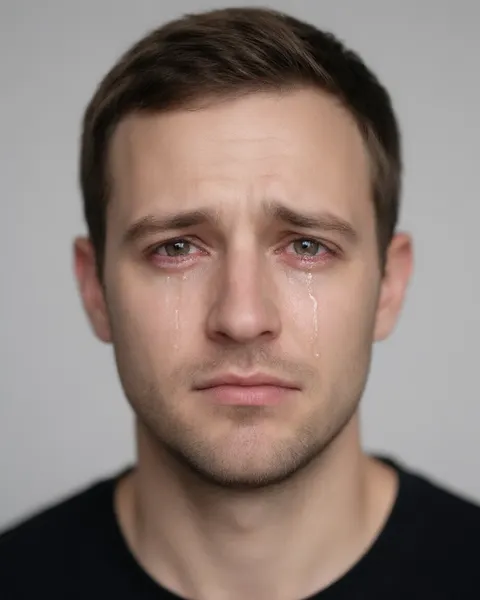
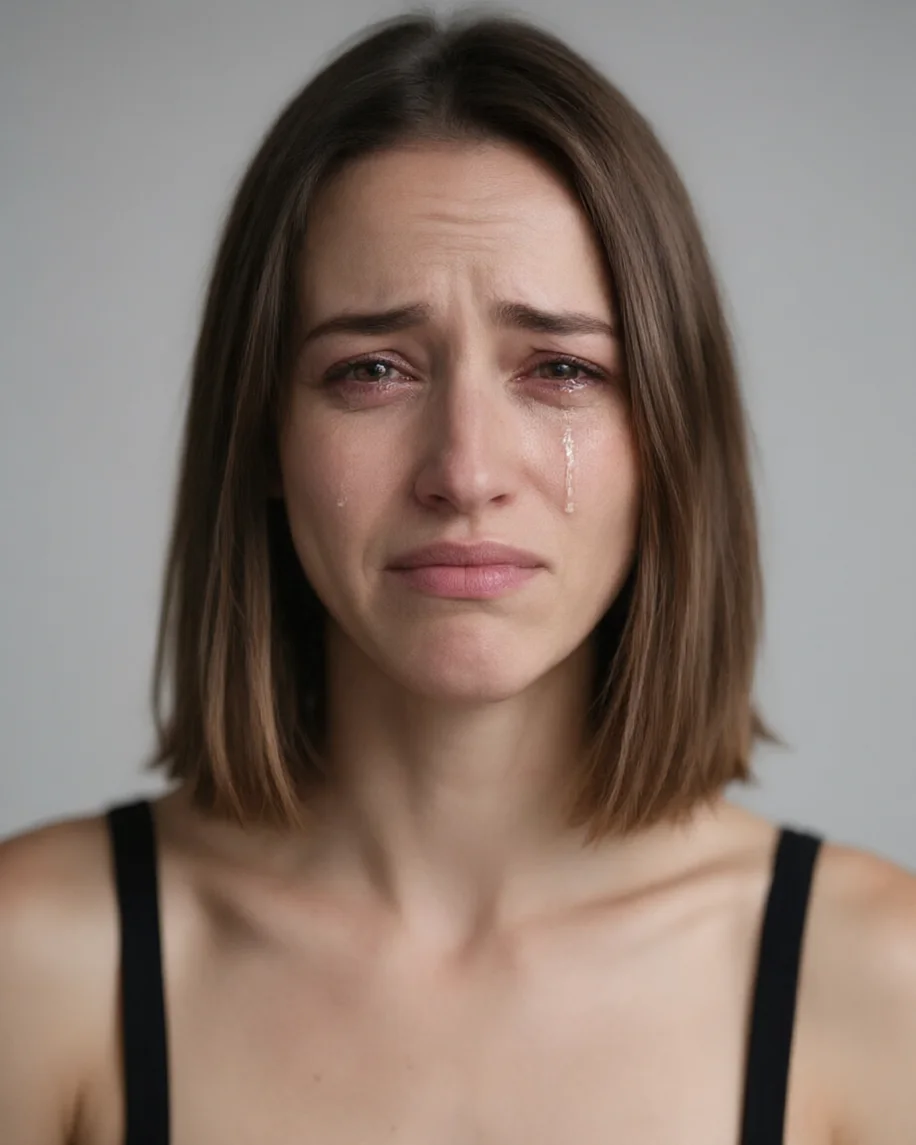
Real Qwen Image 3.0 edits, one try each, on two fictional adults and a dog. Faces and backgrounds stayed; the eyes, brows and mouth changed. We asked for one tear on the dog and got tears from both eyes.
Same prompt
Same photo, before and after the crying filter
The original studio portraits next to the edits. Hair, skin, clothes and the grey background didn't change; only the expression and the tears did.
PromptMake the person in this photo cry: glossy wet eyes with reddened rims, clear tears running down both cheeks, a sad expression with the inner eyebrows raised and the corners of the mouth turned down. Keep the same face and identity, hair, clothing, background and lighting exactly the same.
 BeforeBig smile
 AfterCrying
 BeforeNeutral
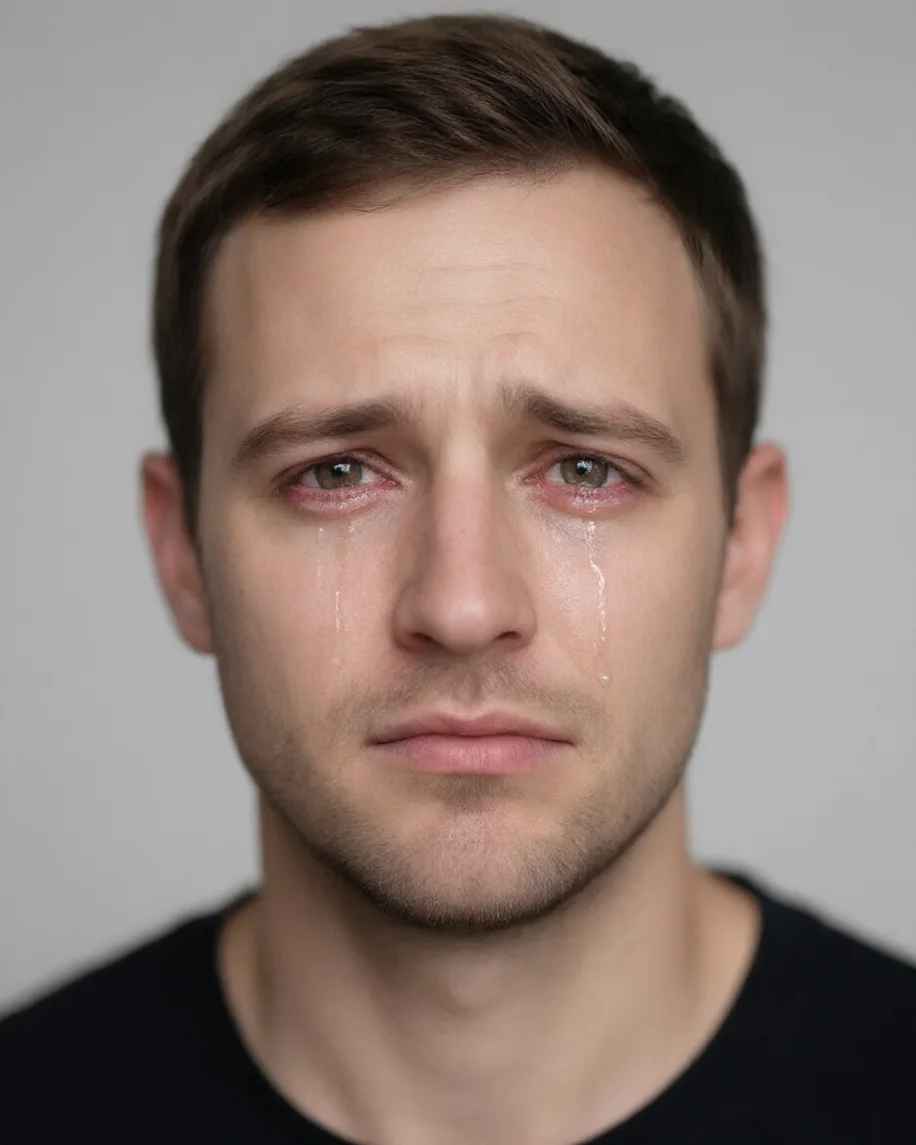 AfterTears on both cheeks
How to
How to use the crying filter
- Time needed
- Steps
- 4 steps
Step 1
Open the crying filter
Press “Add your photo”. Image Studio opens with the crying instruction in the prompt box. Sign in free for starter credits.
Step 2
Upload the photo
Add a clear, front-facing photo of yourself, of someone who agreed, or of your pet.
Step 3
Pick the tears
Keep the default, or swap in the words for happy tears, a single tear, sobbing or mascara streaks from the table.
Step 4
Create and download
Press Create, compare two takes, and download the one you like without a watermark.
See it in the app

Open Image Studio and type what you want to see — subject, style, lighting and mood.


Watch the tour · 1:23
Prompts, styles, references, edit, Arena & chat
Chapters
Tips
Make the tears look real
What made the difference in our runs.
Ask for the eyes and the face, not just “tears”: red rims, raised inner eyebrows and a downturned mouth sell it.
Use a front-facing photo with the eyes clearly visible and in focus; sunglasses or a side profile hide the effect.
Keep the line about the face, hair and background so only the expression changes.
Want the smile kept? Use the happy-tears words; the default instruction turns a smile into a frown.
Tears catch light: a photo with a clear light source gets shinier, more believable tear tracks.
Run it twice. The number and path of the tears change from run to run.
Models
Models for crying edits
What each model is good at. Open any one straight in the generator.
- Free plan
Alibaba
Qwen Image 3.0
- Reference images
- Up to 3
- Output
- 1K or 2K
Open Qwen Image 3.0Best for
Default here · free plan · made every example
Google
Nano Banana 2.1

OpenAI
GPT Image 2.5 Sunburst
- Reference images
- Up to 16
- Output
- 1K to 4K
Open GPT Image 2.5 SunburstBest for
Fine detail in eyes and skin
ByteDance
Seedream 5.0 Pro
- Reference images
- Up to 10
- Output
- Up to 2K
Open Seedream 5.0 ProBest for
Cinematic, moody light
FAQ
Crying Filter questions
8 questions

How do I make someone look like they're crying in a photo?
Upload the photo to the crying filter and press Create. Image Studio opens with an instruction for red-rimmed wet eyes, tears down both cheeks and a sad expression, and the model changes only the eyes and expression. Only edit photos of yourself or of people who agreed.
Link to this answerIs there a free crying filter?
Yes, to start. A new Kenerate account gets 25 free starter credits, and Qwen Image 3.0, the default model here and the one that made every example on this page, is on the free plan. Other models use credits from a one-time pack with no subscription. Results download without a watermark.
Link to this answerDoes the crying filter look realistic?
Mostly, on a clear front-facing photo. In our runs the tears caught the light and followed the cheeks, the eyes turned red at the rims, and the brows and mouth changed to match. Small, blurry or side-on faces give weaker results; the effect is still an AI edit, not a real moment.
Link to this answerCan I add tears but keep the smile?
Yes. Ask for happy tears: “keep the big smile, add glossy wet eyes and a few clear tears of joy”. Our third example kept the woman's full smile and added small tears on both cheeks and flushed skin. The default instruction asks for a sad face, so it will replace a smile.
Link to this answerDoes the crying filter work on dogs and cats?
Yes. Our dog example got glossy wet eyes, tears and a pleading look while its fur, pose and the room stayed the same. Dogs don't cry tears from sadness, so treat it as a meme rather than a real look; we asked for one tear and the model added tears to both eyes.
Link to this answerCan I turn my crying photo into a video?
Yes, in a second step: animate the edited photo with an image-to-video model in Kenerate's Video Studio, for example with a prompt like “she wipes a tear away and looks down”. We didn't make a crying video for this page, so try a short clip first.
Link to this answerHow is this different from an expression changer?
An expression changer switches between moods — smile, wink, surprise, sad — and doesn't add tears. The crying filter adds the physical signs of crying: wet red eyes, tear tracks and a sad expression. For other expressions, use the AI facial expression changer.
Link to this answerCan I use a crying filter on someone else's photo?
Only with their permission. Making someone look upset without consent can embarrass or mislead people, so don't use it to prank, shame or fake a reaction. Don't upload photos of anyone under 18 and don't combine photos of different people. Kenerate's content rules apply to every edit.
Link to this answerIn depth
Crying Filter, explained
What works, what to avoid, and how to pick a model.
On this page
How an AI crying filter works
It's an instruction edit. Your photo and one sentence go to an image model's edit endpoint; the model redraws the eyes, brows, mouth and the skin under the eyes, adds tear tracks that follow the face, and leaves the rest alone. Older app filters pasted a fixed tear sticker on the cheek, which is why they rarely matched the light or the face shape.
What makes crying look real
Tears alone look stuck on. A believable crying face has four signs together:
- Wet, glossy eyes with red rims and a little redness on the nose and cheeks.
- Inner eyebrows pulled up and together, which creases the forehead.
- Mouth corners turned down, sometimes a trembling or pressed lip.
- Tear tracks that follow the curve of the cheek and catch the light.
What it costs
The crying filter runs on Qwen Image 3.0, which is on the free plan; new accounts also get 25 starter credits. Our four examples were made with Qwen Image 3.0 edits at 9.9 credits each, one try each.
Use it kindly
A crying filter is for memes, storytelling, acting references and before/after posts. Don't use it to make someone look upset when they weren't, or to fake a reaction. If you're actually feeling low, talking to someone you trust helps more than any filter.
By the Kenerate AI teamLast updated and reviewed
We build and run the Kenerate generator. Every example is a real output of the model named under it; models and presets were checked against the app's code.
Sources: Kenerate Image Studio