

White sticker border · coloured · double · line drawing
Outline image: add a sticker border or outline to any photo
Upload a photo and the subject comes back cut out with an even outline that follows its shape: a white die-cut sticker border, a bright coloured edge, a double outline, or a clean line drawing of the whole picture.
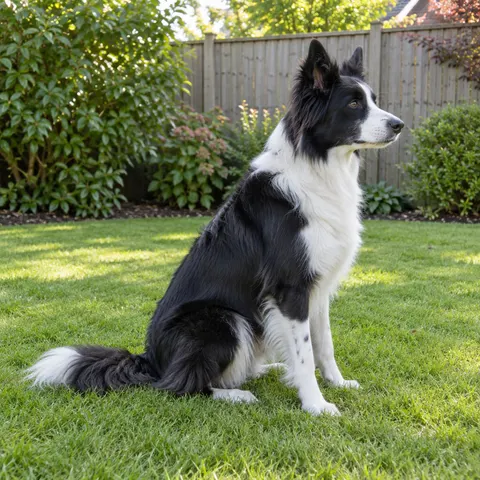
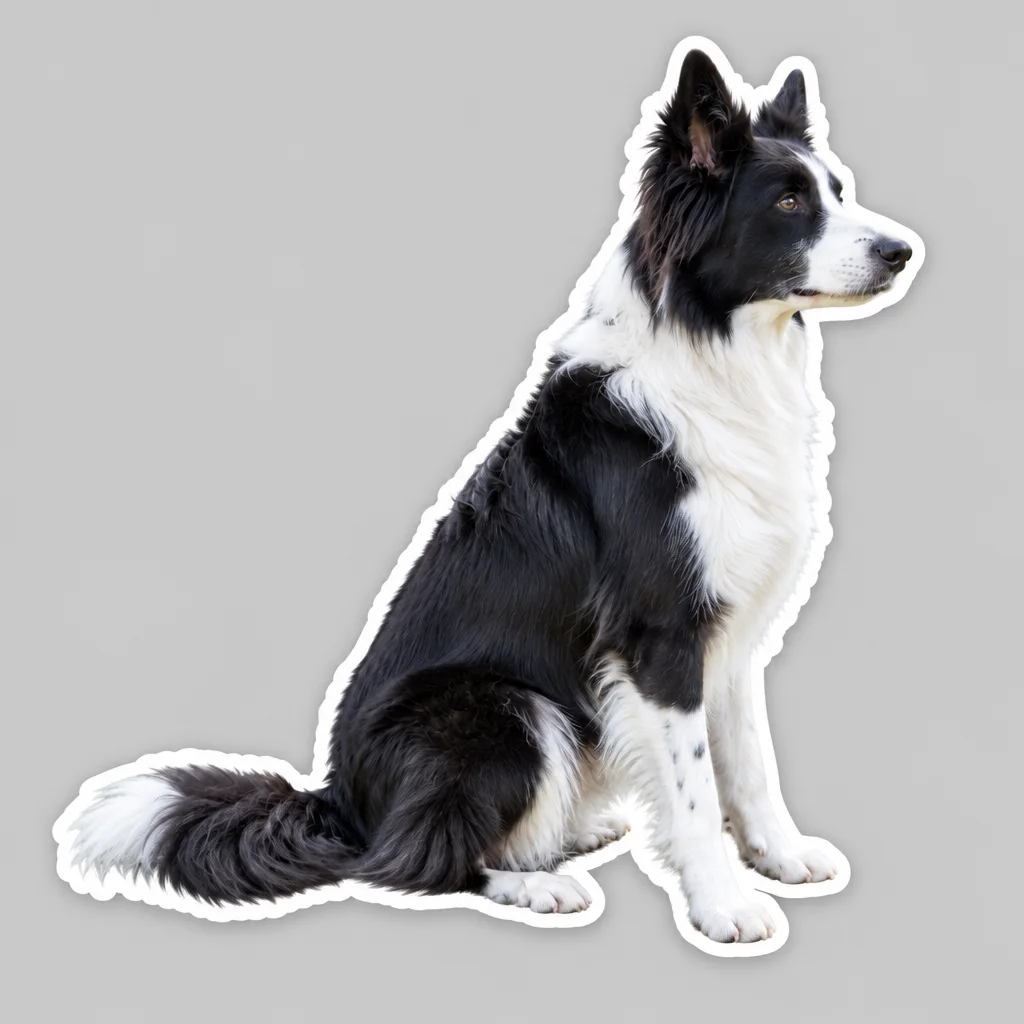
- Follows the subject's shape
- White, coloured or double
- Line drawing option
- No watermark
Updated by the Kenerate AI team




Made with Kenerate
On this page
Quick answer
How do I add an outline to an image?
To add an outline to an image, upload it to Kenerate Image Studio and ask for one: “cut out the subject and add a thick, even white outline that follows its shape”. GPT Image 2.5 Sunburst cuts the subject out and draws the border in under a minute, for 11.7 credits. Name a colour for a coloured or double outline, or ask for a line drawing.
Key facts
- How
- Image Studio edit with an outline prompt
- Outline styles
- White sticker border · coloured · double · black · line drawing
- Default model
- GPT Image 2.5 Sunburst
- Free-plan model
- Qwen Image 3.0
- Transparent PNG
- Remove BG on the result, or GPT Image 1.5 with Transparent background
- Watermark
- None
Before / after
Outline image examples: real before and after
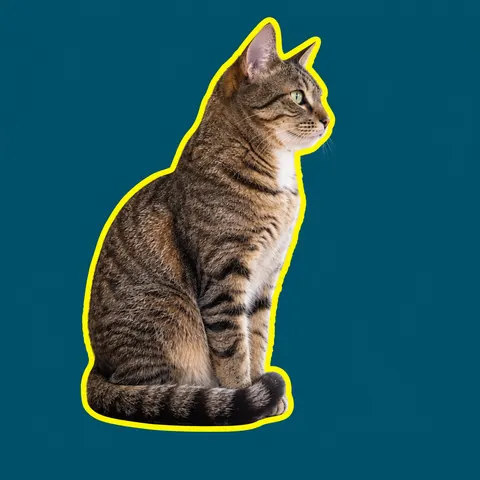
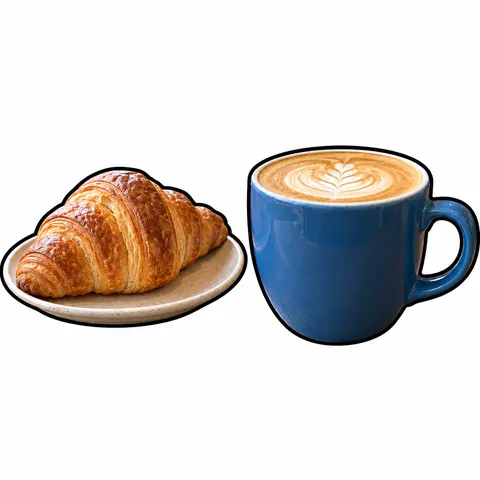
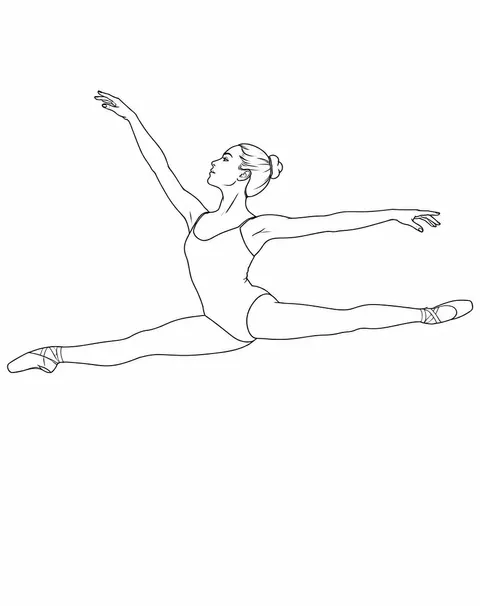
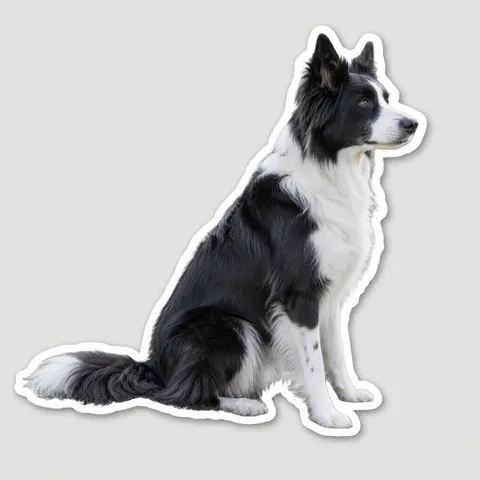
Six Image Studio edits, one try each, with the prompt shown. The last pair is the same dog on the free-plan model. Drag the slider to compare.
Outline styles
Outline styles and the words that get them
Start with “cut out the subject and…”, then add the words for the style you want.
| Style | Looks like | Use it for | Prompt words |
|---|---|---|---|
| Sticker border | Thick white edge around the cut-out, often with a shadow | Die-cut stickers, WhatsApp and Telegram stickers, merch | one thick, even, pure white outline border following the silhouette, die-cut sticker |
| Coloured outline | A bright edge in one colour, on a new background | Thumbnails, social posts, cut-out collages | one thick, even, bright yellow outline hugging the edge, plain teal background |
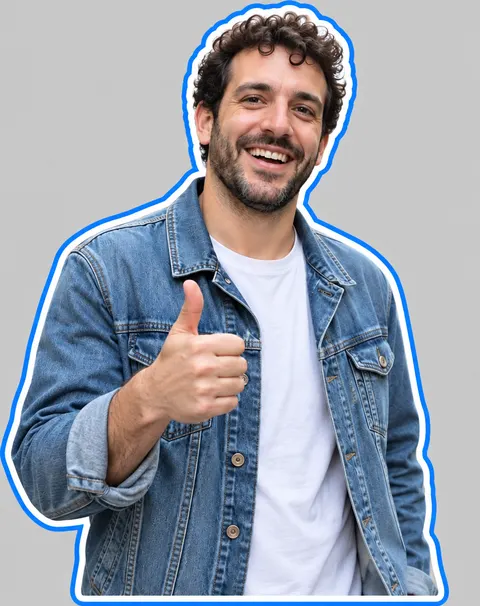
| Double outline | Two rings, for example white inside and a colour outside | Bold YouTube thumbnails, profile pictures, stickers | thick white inner outline and a thinner blue outer outline |
| Thin black outline | A neat dark line around each object | Product sheets, cartoon look, print-and-cut | one clean, even, solid black outline around each object, white background |
| Line drawing outline | The whole photo as thin lines, no colour | Colouring pages, tracing, embroidery, tattoo ideas | outline drawing, clean thin black lines, no shading, no fill, white background |
Prompts
Outline prompts to copy
Upload your photo in Image Studio, then use one of these. Each opens Image Studio with the prompt filled in.
- Cut out
- Which subject keeps the outline
- Outline
- Colour, thickness, one or two rings
- Background
- A flat colour that contrasts
- Keep
- Photographic, same pose and colours
White sticker border
Turn this photo into a die-cut sticker: cut out the main subject and add one thick, even, pure white outline border around its whole silhouette, following the edge closely. Plain flat light grey background. Keep the subject exactly as in the photo, same pose and colours, photographic, not a drawing.
Coloured outline
Cut out the main subject and trace its whole silhouette with one thick, even, bright pink outline that hugs the edge. Plain flat white background. Keep the subject exactly as in the photo, photographic, not a drawing.
Double outline
Cut out the person and surround them with two even outlines: a thick white inner outline and a thinner black outer outline, both following their shape closely. Plain flat yellow background. Keep the face, expression and clothes exactly the same.
Neon glow outline
Cut out the main subject and add a glowing neon cyan outline around its silhouette with a soft glow, on a plain dark navy background. Keep the subject exactly as in the photo.
More prompts (3)
Black outline, product
Cut out the product and place it on pure white with one clean, even, solid black outline around its outer edge. Keep the product exactly as photographed, labels unchanged.
Line drawing of the photo
Turn this photo into an outline drawing: clean, even, thin black lines tracing the main shapes and outer contour, no shading, no fill, no grey, plain white background. Keep the exact pose and proportions.
Thumbnail cut-out
Cut out the person from the waist up and add a thick white outline with a thin black edge outside it, like a YouTube thumbnail cut-out, on a plain bright red background. Keep the face and expression exactly the same.
How to
How to use the outline image
- Time needed
- Steps
- 4 steps
Step 1
Open the outline tool
Press “Outline my photo”. Image Studio opens on GPT Image 2.5 Sunburst with a sticker-outline prompt filled in. Sign in free for starter credits.
Step 2
Upload your photo
Add a photo with one clear subject: a person, a pet, a product. JPG, PNG or WebP.
Step 3
Pick the outline
Keep the white sticker border or swap in a style from the table: coloured, double, black or a line drawing. Change the colour word to match your design.
Step 4
Create and check the edge
Press Create and zoom in on the border. If it is uneven or a gap filled in, run it again.
See it in the app

Open Image Studio and type what you want to see — subject, style, lighting and mood.


Watch the tour · 1:23
Prompts, styles, references, edit, Arena & chat
Chapters
Tips
Get an outline that looks cut, not painted
Sticker outlines live or die on an even edge.
Say “thick, even” and give a size such as “about 3% of the image width”; without it the edge can wobble.
Ask for a plain flat background so the outline reads; light grey shows a white border, white shows a black one.
Add “photographic, not a drawing” or the model may turn the subject into a cartoon.
Gaps between legs or arms may fill in with border. Ask “keep the gaps between the legs open” if that matters.
Need a transparent sticker? Run Remove BG on the result, or pick GPT Image 1.5 and switch on Transparent background.
For a frame around the whole picture rather than the subject, use Edit Studio's Stickers › Border instead.
Models
Models for outlining a photo
What each model is good at. Open any one straight in the generator.

OpenAI
GPT Image 2.5 Sunburst
- Reference images
- Up to 16
- Output
- 1K to 4K
Open GPT Image 2.5 SunburstBest for
Default here · most even borders in our test
- Free plan

Alibaba
Qwen Image 3.0
- Reference images
- Up to 3
- Output
- 1K or 2K
Open Qwen Image 3.0Best for
Free plan · thinner border in our test

OpenAI
GPT Image 1.5
- Reference images
- Up to 10
- Output
- Up to 1536 px
Open GPT Image 1.5Best for
Has a Transparent background switch for stickers
Background Remover
Kenerate Cutout
- Reference images
- 1 photo
- Output
- Keeps size
Open Kenerate CutoutBest for
Turns the outlined result into a transparent PNG
FAQ
Outline Image questions
8 questions

How do I add an outline to an image?
Upload the photo to Kenerate Image Studio and describe the outline: “cut out the subject and add a thick, even white outline that follows its shape, plain grey background, keep the subject exactly the same”. GPT Image 2.5 Sunburst cuts the subject out and draws the border in one step. Change the colour or ask for two outlines for a different look.
Link to this answerHow do I add a white sticker border to a photo?
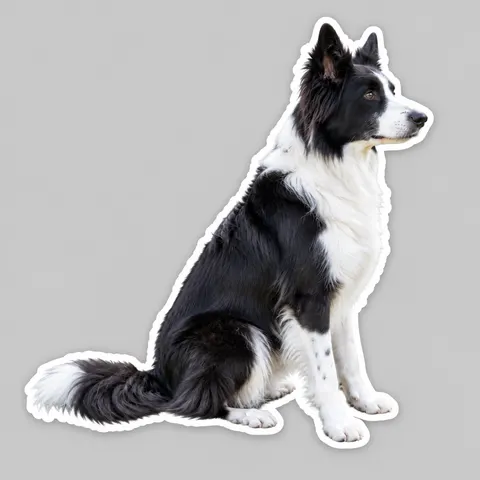
Use the sticker prompt above: it asks for one thick, even, pure white border around the subject with a light shadow, on plain grey so the white shows. The dog example was made that way in one try. For a transparent sticker, run Remove BG on the result.
Link to this answerIs the image outliner free?
Free to start. A new Kenerate account gets 25 free credits. One outline edit costs 11.7 credits on GPT Image 2.5 Sunburst or 9.9 credits on Qwen Image 3.0, the free-plan model, at the default size. Remove BG for a transparent PNG adds 1.2 credits. No watermark.
Link to this answerCan I get the outlined image with a transparent background?
Yes, in two ways. Run the outlined result through the background remover, which keeps the subject and its border and deletes the flat background. Or pick GPT Image 1.5 in Image Studio and switch on Transparent background before you press Create, so the edit comes back as a transparent PNG.
Link to this answerCan I make a double outline or a coloured outline?
Yes. Name both rings: “a thick white inner outline and a thinner blue outer outline”, as in the portrait above. For one colour, name it and a background that contrasts with it, such as yellow on teal.
Link to this answerCan I turn a photo into a line drawing outline?
Yes. Ask for “an outline drawing: clean, thin black lines, no shading, no fill, white background, keep the exact pose”. The model traces the contour and a few inner lines. It is a redraw, so small details can change; the dancer example gained simple facial features.
Link to this answerDoes the outline change my photo?
It shouldn't. Keep “keep the subject exactly as in the photo, photographic, not a drawing” in the prompt. In our tests the subject stayed the same, but small things can shift: a jacket gained a little texture and a cut-off mug handle was completed. Compare at full size before you print.
Link to this answerIs there an outline slider like in a sticker app?
Not for the subject's shape. Edit Studio's Stickers panel has a Border slider and colour, but it draws a frame around the picture's box, not around the person or object inside it. For an outline that follows the subject, use the prompt method on this page.
Link to this answerIn depth
Outline Image, explained
What works, what to avoid, and how to pick a model.
On this page
Prompt outline vs a stroke tool
A stroke tool takes a transparent PNG and grows its edge by a fixed number of pixels in one colour. It is exact but needs a clean cut-out first. A prompt outline does the cut-out and the border in one step and can add a shadow, a second ring or a new background, but the model redraws the image, so the edge is drawn rather than measured. Check the border at full size, and run it again if it wobbles.
Sticker sizes
Where the outlined sticker goes decides the file you need:
- Telegram static stickers: PNG or WebP, one side exactly 512 px, the other 512 px or less, with a transparent background.
- WhatsApp stickers: exactly 512 × 512 px, transparent WebP, under 100 KB each.
- Printed die-cut stickers: send the PNG at the final size at 300 dpi; the white border is the cut margin.
When an outline doesn't work well
Busy photos where the subject touches the frame, groups of people overlapping each other, and hair against a similar-coloured background can give a border that cuts through the subject or leaves bits of background inside. Crop close to one clear subject first, or cut it out with the background remover and upload that PNG.
By the Kenerate AI teamLast updated and reviewed
We build and run the Kenerate generator. Every example is a real output of the model named under it; models and presets were checked against the app's code.
Sources: Kenerate Image Studio · Kenerate Background Remover · Telegram — Stickers (format guidelines) · WhatsApp — Stickers sample app (sticker requirements)