
Nano Banana 2.1 · Infographics · Text rendering
Nano Banana infographic — diagrams, posters and text that reads right
Nano Banana 2.1 draws infographics, step diagrams, posters, banners and app mockups with the text inside the image. Here are eight real outputs with their prompts, a word-by-word check of what came out right and what it added, and when GPT Image 2.5 is the better pick.
- 8 real 2.1 outputs + prompts
- Every word checked
- Optional web search
- 1K · 2K · 4K, up to 1:8
Updated by the Kenerate AI team




Made with Kenerate
On this page
Quick answer
Can Nano Banana make infographics with readable text?
Yes, for short text. Nano Banana 2.1, Google's image model released on 6 October 2026, lists enhanced text rendering and infographic layout accuracy among its changes. In our eight 2.1 outputs every word we asked for was spelled right, but it adds text you didn't ask for and small text gets unreliable at 1K. Keep labels short, render at 2K, proofread, and use GPT Image 2.5 Sunburst for dense paragraphs.
Key facts
- Model
- Nano Banana 2.1 (Google)
- Released
- 6 October 2026
- Google says
- Better text rendering and infographic layout
- Output
- 1K · 2K · 4K, 14 ratios incl. 1:4, 1:8
- Web search
- Optional, for real-world facts
- Credits per image
- 21 at 1K · 31.5 at 2K · 42 at 4K (+4.2 web search)
- Best for
- Titles, numbered steps, short labels
Text check
What Nano Banana 2.1 got right, and what it added
We read every word on the eight outputs above. Requested text: right every time. Extra text: often.
| Output | Asked-for text | What it added on its own |
|---|---|---|
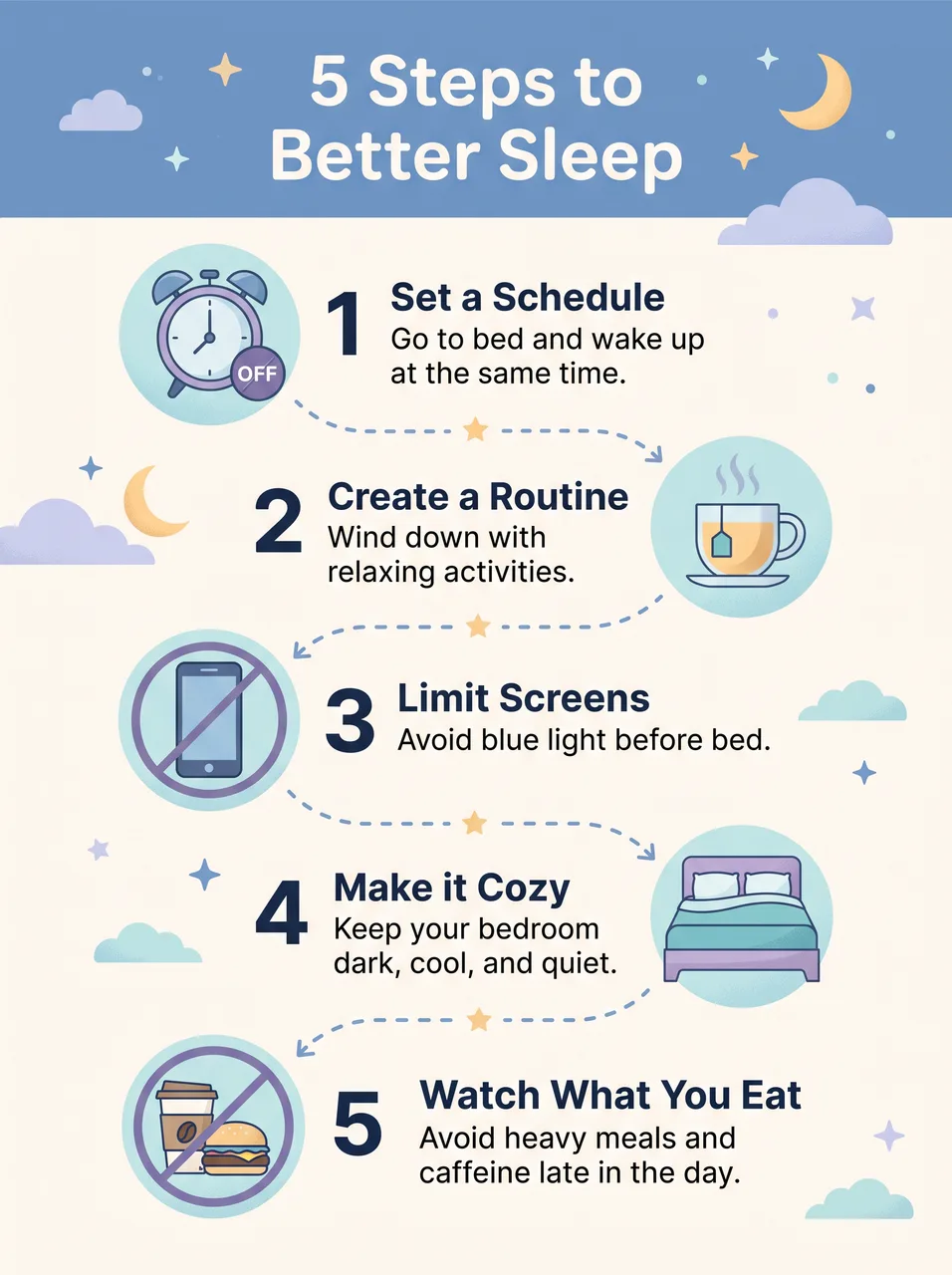
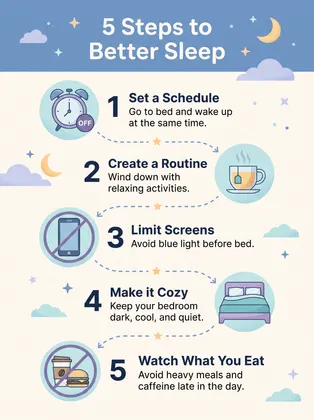
| 5 steps to better sleep | Title and five numbered steps, all spelled right | A short line under each step (fine) and an odd “OFF” badge on the alarm-clock icon |
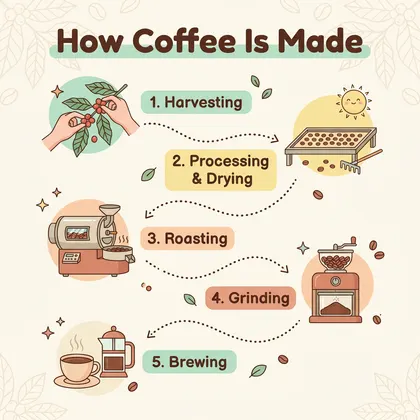
| How coffee is made | Title and five numbered steps, all right | Nothing |
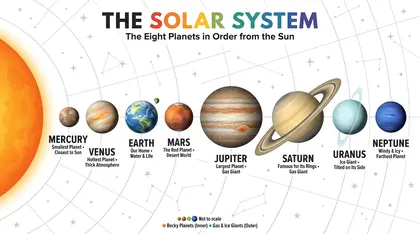
| Solar system (web search) | All eight planet names, in the right order | A one-line caption per planet (correct) and a colour legend that doesn't match the planets |
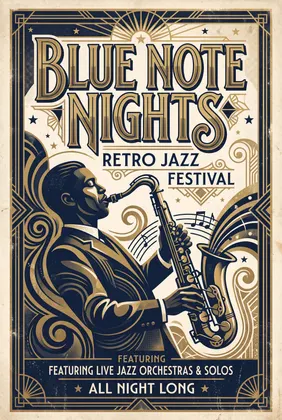
| Blue Note Nights poster | The title, exactly | “Retro Jazz Festival”, “All Night Long”, and “Featuring” printed twice in a row |
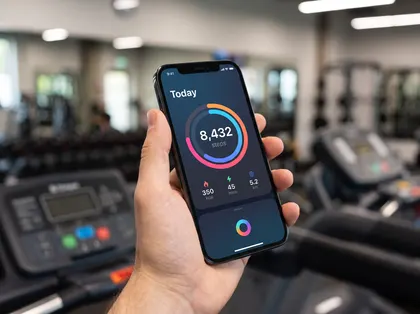
| Fitness app screen | “Today” and “8,432 steps”, exactly | Made-up stats: 350 kcal, 45 mins, 5.2 km |
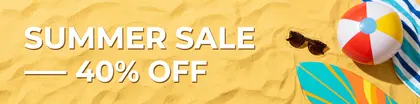
| Summer sale banner | “SUMMER SALE — 40% OFF”, exactly | Nothing |
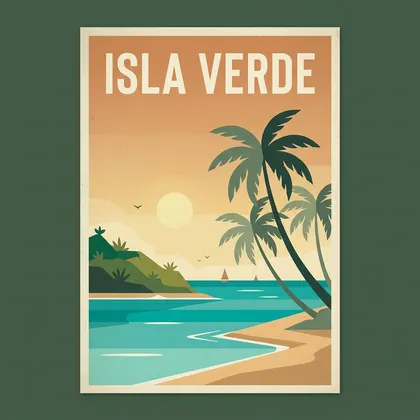
| Isla Verde poster | The title, exactly | Nothing |
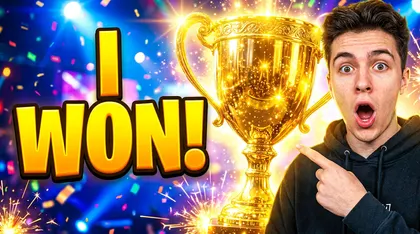
| “I WON!” thumbnail | The headline, exactly | Nothing |
Gallery
Eight real Nano Banana 2.1 text and infographic outputs
All made with Nano Banana 2.1 on 7 October 2026, one try each, unretouched. Open any one to copy the prompt.
Same prompt
Same infographic prompt: Nano Banana 2 vs 2.1
Nano Banana 2 drew six panels for five steps, numbered two of them 3 and repeated “Roasting”. Nano Banana 2.1 drew five clean, correctly numbered steps.
PromptClean infographic titled 'How Coffee Is Made' with 5 numbered steps and small icons from bean to cup, pastel colors, vector style
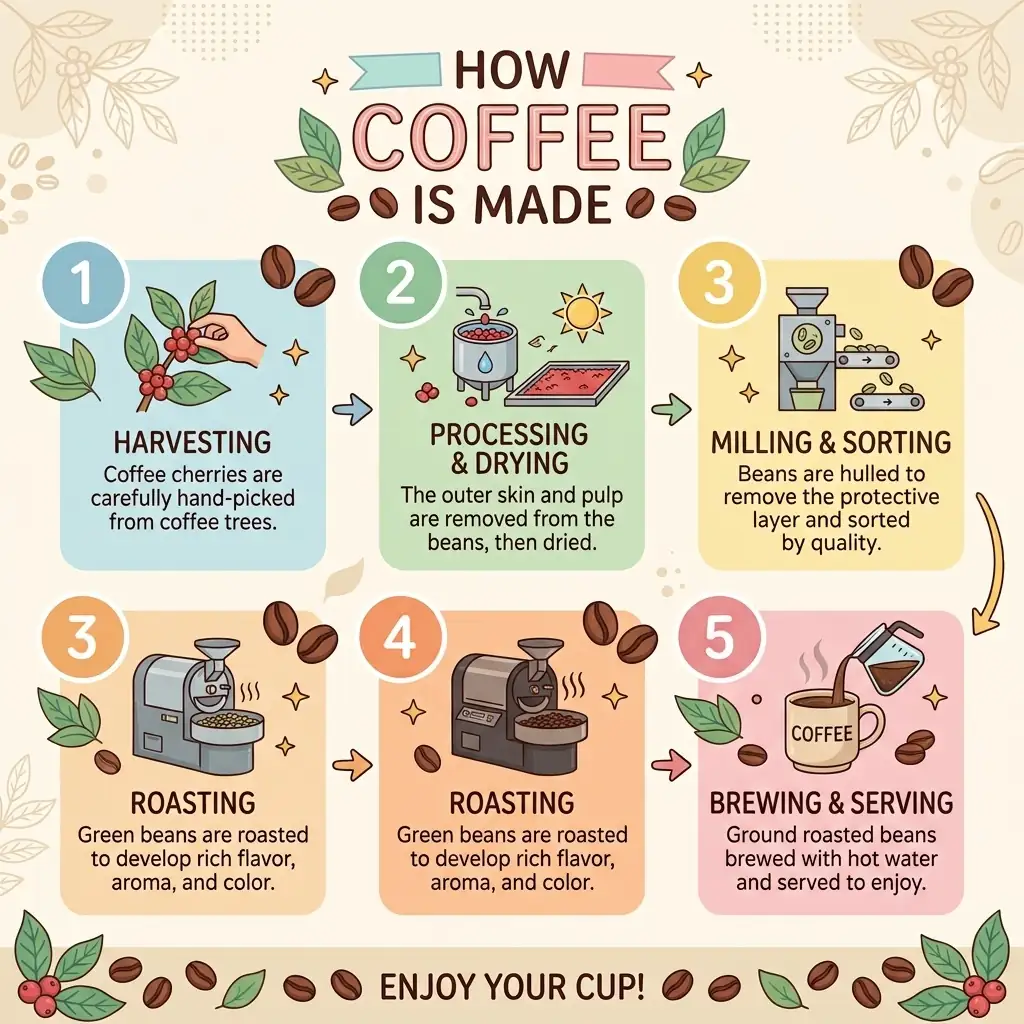 Nano Banana 26 panels · two step 3s · Roasting twice
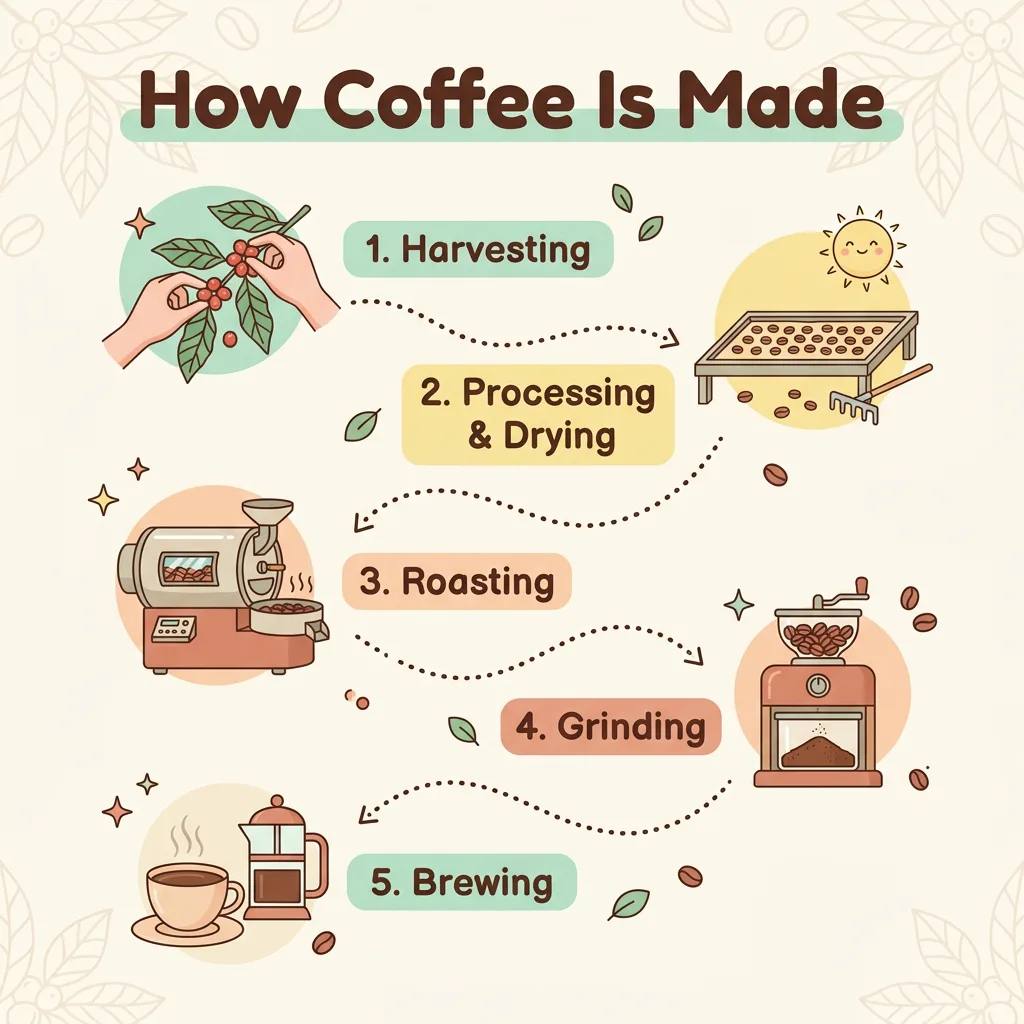 Nano Banana 2.15 steps, numbered and spelled right
Which model
Nano Banana 2.1 or GPT Image 2.5 for text?
Both are on Kenerate. Pick by how much text the image has to carry.
| Nano Banana 2.1 | GPT Image 2.5 Sunburst | |
|---|---|---|
| Best for | Titles, numbered steps, short labels, posters | Dense text, long labels, small print, tables |
| Quality setting | None (size only) | Low → Max; higher for small text |
| Web search | Yes, optional | No |
| Reference images | Up to 14 | Up to 16 |
| Sizes | 1K · 2K · 4K | 1K · 2K · 4K |
| Tallest ratio | 1:8 | 1:3 |
How to
How to use the nano banana infographic
- Time needed
- Steps
- 4 steps
Step 1
Open Nano Banana 2.1
In Image Studio pick Nano Banana 2.1. Turn on web search if the infographic needs real-world facts.
Step 2
Write the brief with the exact words
Title in quotes, the number of steps or items, each label in quotes, the style and colours.
Step 3
Pick a tall or wide ratio and 2K
3:4, 2:3, 1:4 or 1:8 for tall infographics, 16:9 or 4:1 for slides and banners.
Step 4
Proofread, fix, download
Read every word and number; fix a word with Edit Text in Image or regenerate. No watermark.
See it in the app

Open Image Studio and type what you want to see — subject, style, lighting and mood.


Watch the tour · 1:23
Prompts, styles, references, edit, Arena & chat
Chapters
Tips
How to get readable text from Nano Banana
From our outputs, Google's notes on 2.1 and the common advice on text in images.
Put every word you want in quotes: titled '5 Steps to Better Sleep'.
Keep labels short — a title plus one line per step. Long paragraphs are where it slips.
Say how many items there are (“5 numbered steps”) so it doesn't add or repeat a panel.
Add “no other text” when you don't want made-up captions, stats or taglines.
Render at 2K (or 4K) for small labels; small text at 1K is where blur and typos start.
Turn on web search for real-world facts (planets, landmarks), then check every fact.
Proofread every word and number before you publish; fix one word with Edit Text in Image.
For exact numbers in charts, write them in the prompt — or add the text in a design tool.
Models
Models for infographics and text
What each model is good at. Open any one straight in the generator.
Google
Nano Banana 2.1
- Reference images
- Up to 14
- Output
- 1K · 2K · 4K
Open Nano Banana 2.1Best for
Every output on this page · short labels · web search
OpenAI
GPT Image 2.5 Sunburst
- Reference images
- Up to 16
- Output
- 1K–4K
Open GPT Image 2.5 SunburstBest for
Dense text and small print · quality up to Max
Google
Nano Banana 2
- Reference images
- Up to 14
- Output
- 1K
Open Nano Banana 2Best for
The previous Nano Banana — repeated a step in our test
Nano Banana guides
More on Nano Banana
The model itself, prompts with real outputs, editing, video and free access.
FAQ
Nano Banana infographic questions
8 questions
Can Nano Banana make infographics?
Yes. Nano Banana 2.1 draws a complete infographic — title, numbered steps, icons and short labels — from one prompt. Google lists enhanced text rendering and infographic layout accuracy among its 2.1 changes. It outputs an image (not an editable file), so plan to proofread and fix text before you publish.
Link to this answerIs Nano Banana good at text rendering?
For short text, yes: in our eight Nano Banana 2.1 outputs every word we asked for was spelled correctly. The problems were extra text it invented (a duplicated word, made-up stats on an app screen) and, as testers of Nano Banana 2 report, small text at 1K. Keep text short, ask for “no other text”, and render at 2K.
Link to this answerWhy does Nano Banana add text I didn't ask for?
Image models fill a layout with what such designs usually contain — taglines, captions, stats. Our fitness-app mockup got invented calorie and distance numbers; the jazz poster got two taglines. Say exactly which words should appear and add “no other text”.
Link to this answerNano Banana 2 vs 2.1 for infographics — which is better?
2.1. With the same coffee infographic prompt, Nano Banana 2 drew six panels for five steps, numbered two of them 3 and repeated “Roasting”; Nano Banana 2.1 drew five correctly numbered steps. Nano Banana 2 also returns square 1K images on Kenerate, while 2.1 offers 1K to 4K in 14 ratios.
Link to this answerShould I use Nano Banana or GPT Image 2.5 for an infographic?
Nano Banana 2.1 for titles, steps, short labels and fact-based diagrams (it has optional web search). GPT Image 2.5 Sunburst for dense text, long labels and small print: it has quality tiers up to Max, and OpenAI's prompting guide recommends higher quality for small text and dense panels.
Link to this answerCan Nano Banana use real facts in an infographic?
Nano Banana 2.1 can ground an image with Google Web and Image Search. Our solar-system diagram, made with web search on, put all eight planets in order with correct names and captions. Still check every fact and number: the same image's colour legend didn't match the planets.
Link to this answerWhat size should I make an infographic with Nano Banana 2.1?
2K for anything with small labels; 4K for print. Tall formats: 3:4, 2:3, 1:4 or 1:8. Google says 2.1 fixed tiling artifacts on 1:4, 4:1, 1:8 and 8:1 at 2K and 4K. On Kenerate it costs 21 credits at 1K, 31.5 at 2K and 42 at 4K.
Link to this answerHow do I fix a wrong word in a Nano Banana image?
Open the image in Edit Studio and use Edit Text in Image to replace the word, or run AI Edit with Nano Banana 2.1: “Change the word 'Sth' to '5th'. Keep everything else the same.” For long or legal text, add it in a design tool instead.
Link to this answerIn depth
Nano Banana infographic, explained
What works, what to avoid, and how to pick a model.
On this page
What Google changed for text in 2.1
The Gemini API docs list “enhanced text rendering and infographic layout accuracy”, improved quality across 1K, 2K and 4K, a fix for tiling artifacts on 1:4, 4:1, 1:8 and 8:1 at 2K and 4K, and grounding with Google Web and Image Search [1]. Google's announcement adds leaps in visual design [2]. Tall 1:4 and 1:8 sizes and web grounding are the two features that matter most for infographics.
Where Nano Banana text still goes wrong
In our outputs, never in the words we asked for — always in the words it added: a duplicated “Featuring”, invented app stats, a legend that doesn't match. Testers of Nano Banana 2 report that small text at 1K often comes out blurry and suggest adding exact text in a design tool [4]. A single image also can't be edited like a layout file: changing one number means an edit pass or a regeneration.
- Extra text you didn't ask for
- Small text at 1K
- Long paragraphs
- Numbers in charts that don't match your data
When to use GPT Image 2.5 or a layout tool instead
For dense text, small print and long labels, GPT Image 2.5 Sunburst lets you raise quality up to Max; OpenAI's guide recommends quoting literal text and using higher quality for small text and dense panels [3]. For text that must stay editable — reports, decks, legal copy — make the visual with AI and set the text in a design or presentation tool. Our AI infographic generator page compares more models and editable options.
Sources
Sources
Model facts come from Google and OpenAI; the outputs and the text check are our own.
By the Kenerate AI teamLast updated and reviewed
We build and run the Kenerate generator. Every example is a real output of the model named under it; models and presets were checked against the app's code.
Sources: Google AI for Developers — Gemini API docs: Nano Banana 2.1 (gemini-nano-banana-2.1) · Google on X — "Meet Nano Banana 2.1" (6 Oct 2026) · OpenAI — GPT image models prompting guide (text, charts, quality) · fal.ai — How to use Nano Banana 2: practical tips (small text at 1K)